...
| Panel | ||||||
|---|---|---|---|---|---|---|
| ||||||
useOAuth=true oauthClientId=######################### oauthClientSecret=secret-########################## oauthTokenUri=https://YourDualShieldFQDN:8071/das5/rest/oauth/token |
Replace the hashes with the generated Client ID and Secret.
Replace the FQDN in the oauthTokenURI with your own backend server FQDN
This will be added into your SSO6.properties file as per the following example:
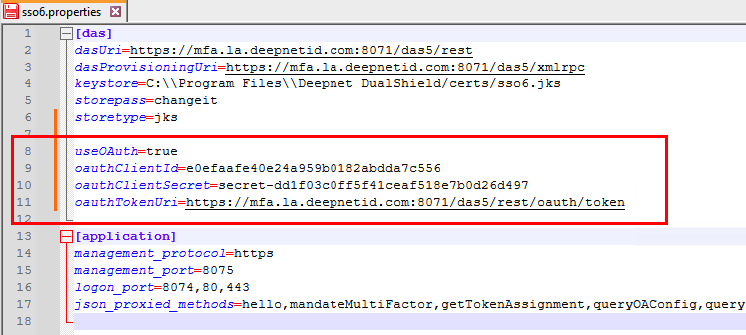
You will need to repeat the process for agents of other modules that you will be using however the template for there corresponding properties file is slightly different from the SSO6.propties.
For example after you generate the client ID and secret for the other modules such as the Admin Console; Service Console; Deployment Console, you will instead be using this template..
| Panel | ||||||
|---|---|---|---|---|---|---|
| ||||||
useOAuth=true oauthClientId=######################### oauthClientSecret=secret-########################## oauthTokenUri=https://YourDualShieldFQDN:8070/das5/rest/oauth/token |
The property files for other modules look similar to this..
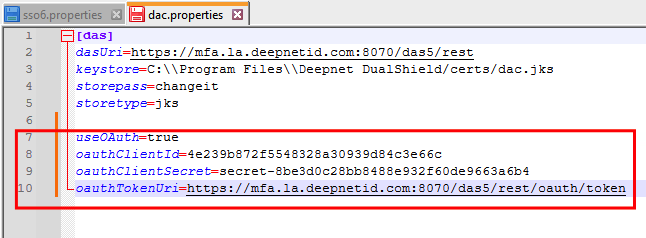
Notice also that only the Single Sign on module is using port 8071. This is specified in the sso6.Properties file.
| Code Block |
|---|
oauthTokenUri=https://YourDualShieldFQDN:8071/das5/rest/oauth/token |
The other modules will use port 8070. And will be specified in their corresponding property files.
| Code Block |
|---|
oauthTokenUri=https://YourDualShieldFQDN:8070/das5/rest/oauth/token |