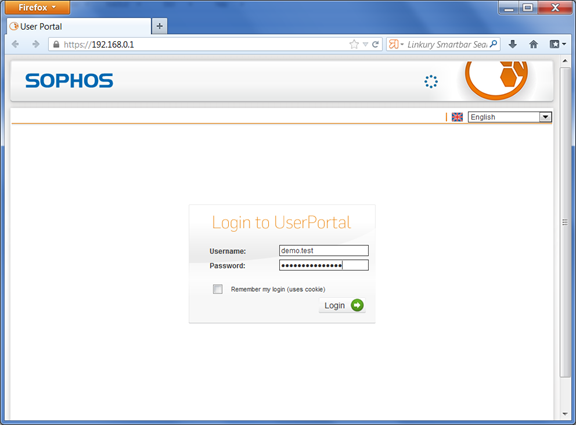
DualShield provides the flexibility that allows you to control how your users should be authenticated. Users can be authenticated with the Static Password (AD Password) only, or One-Time Password only or both the Static Password and One-Time Password (Two-Factor Authentication). In DualShield, how the users are authenticated is controlled by the Logon Procedure.
Static Password
Let us start with the simple Static Password (AD account) authentication.
In the beginning, we created create a logon procedure Logon Procedure for Astaro UTM with one logon step just One Logon Step that contains just only "Static Password", as below:


Test Logon
Access your user portal by navigating to: https://<YourAstariUTMsIP>
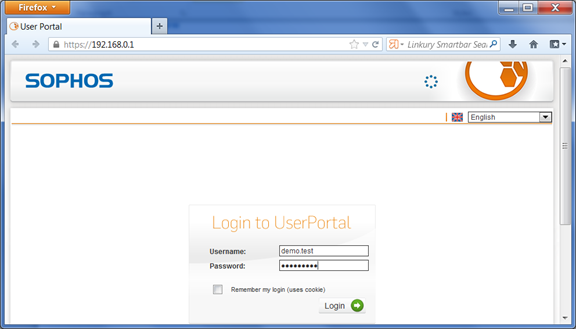
Enter your username Username and AD password

One-Time Password
Let us now change the logon procedure Logon Procedure, so that users will be required to authenticate with "One-Time Password" only.
In the DualShield Management Administration Console, edit the logon procedure Logon Procedure for your Astaro Security Gateway UTM application Application and change the authenticator to “One-Time Password”, as below:

Test Logon
You need to assign an One-Time Password token to the test user.
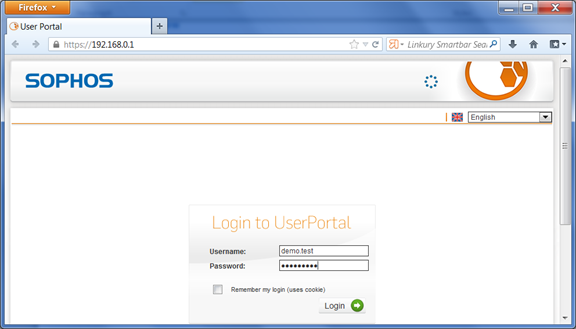
Access your user portal. In the Password field, enter a One-Time Password generated from the user’s token.
Two-Factor Authentication
Now, let us enable twoTwo-factor Factor authentication.
We will change the logon procedure Logon Procedure so that users will be required to authenticate with both "Static Password" followed by "One-Time Password, i.e. ". This can be located as "Static Password + One-Time Password".
In the DualShield Management Administration Console, edit the logon procedure Logon Procedure for your Astaro Security Gateway UTM application and change the authenticator to “One“Static Password + One-Time Password”, as illustrated below:

Test Logon
Access your user portal. In the Password field, enter the user’s AD password followed by an One-Time Password generated from the user’s token.