In the DualShield authentication server we need to create an application Application which will be used for the twomulti-factor authentication in Tivoli WebSeal.
An application Application in DualShield needs a logon procedure is also associated with a Login Procedure, which defines how users will be authenticated must authenticate (the Logon Steps) when they attempt initiate a Login to logon to the applicationApplication.
| Table of Contents |
|---|
Logon Procedure
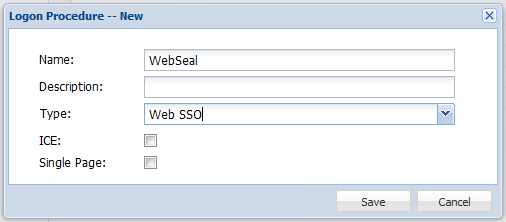
Firstly, create a Web SSO logon procedure:
Then, modify its logon steps and add two logon steps:

Login to the DualShield Administration Console.
Navigate to "Authentication | Logon Procedures:
Click the "+ CREATE" button
Enter an appropriate "Name" for the new Logon Procedure, plus set 'Type' as "Web SSO":

Click the context "..." menu on the new Logon Procedure, then select "Logon Steps"
Select the "+ ADD" button, then select an authenticator from the list. Then "SAVE".
Repeat for the Second Logon Step. For this implementation we have chosen "Static Password" (AD account) and "One-Time Password":

Create Web
...
Application
The next step is to create an application Application in DualShield for the Web application in your WebSeal, and publish the application on the DualShield SSO server.

.
Navigate to "Authentication | Applications".
Click the "+ CREATE" button to create a new Application
Provide an appropriate "Name" for this new Application
Select from the drop-down your internal "Realm"
Plus select the Login Procedure created in the previous Step.

Click "SAVE" to create the new Application.

Select the Application context "..." menu and select "Agents". Connect the Application to "Single Sign-on Server / SSO Server".
Click "SAVE" to confirm.
Select the Application context "..." menu and select "Self Test", to confirm the Application is correctly setup:
 Use the Self-Test function to verify that the application is ready.
Service Provider
We also need to create an SSO Service Provider for your the WebSeal Appliance.
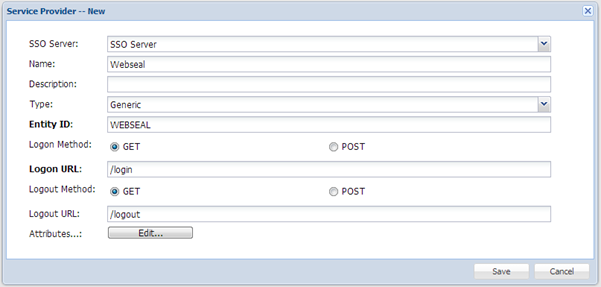
The “Type” of the Service Provider must be set to “Generic”.
Navigate to "SSO | Service Providers"
Click the "+ CREATE" button
SSO Server: Select "Single Sign-on Server"
Application: Select the Application previously created for WebSeal.
Name: Enter an appropriate Name for this Service Provider
Type: Ensure this is set to "Generic"
Entity ID: Enter a text string that will uniquely identify this You need to enter a text string in the “EntityID” field that is use to uniquely identify the Service Provider. The EntityID should only contains alphanumeric letters.
Now, click the “Edit” button next to the “Attributes” label.
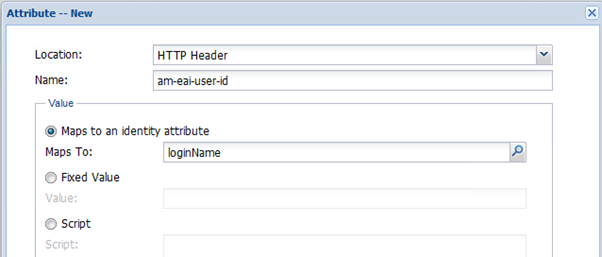
You must add the attribute named “am-eai-user-id” and maps its value to the user’s “loginName” identity attribute, as shown above.
characters.

Select the "Attributes" Tab...
Click to "+ CREATE" a new Attribute, using the following credentials....
Location: HTTP Header
Name: Use the specific string "am-eai-user-id" then 'Maps to an identity attribute'....
Browse your AD Identity Source, for user account attribute "Login Name".
Then click "SAVE", and "SAVE" again at the next window, to add this Attribute.

You can add any other attributes as / if necessaryYou can add other attributes as desired.