Create a Radius Logon Procedure
- Login to the DualShield management consoleAdministration Console
- Navigate to In the main menu, select “Authentication | Logon Procedure”Procedures”
- Click the “Create” “+ CREATE” button on the toolbar
- Enter a friendly “Name” and select “RADIUS” as the Type
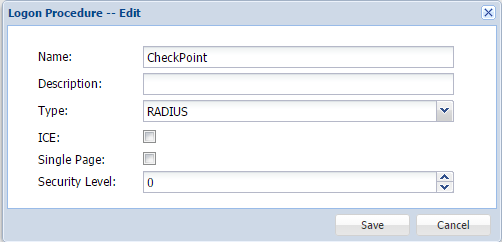
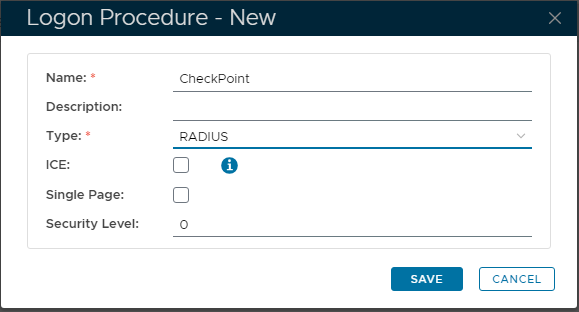
- Click “Save”“SAVE” to create.
- Click the Context Menu icon of the newly create logon procedure, select context "..." menu on the newly created Logon Procedure. Select “Logon Steps”
- In the popup windows, click the “Create” "+ ADD" button on the toolbar, to add Logon Steps.
- Select the “Static Password” (AD account) as the first step, and add Step. Add your preferable authenticator as your second Second step. I chose "One-Time Password as " for example.
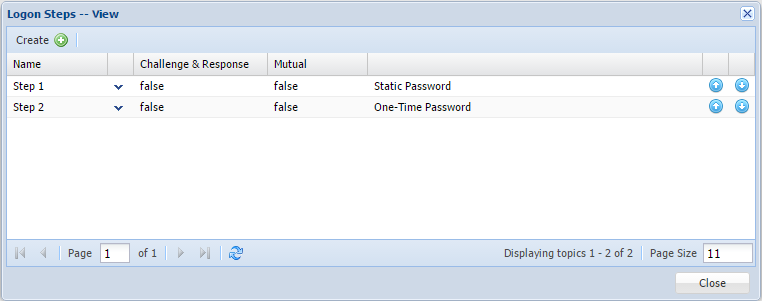
Click “Save”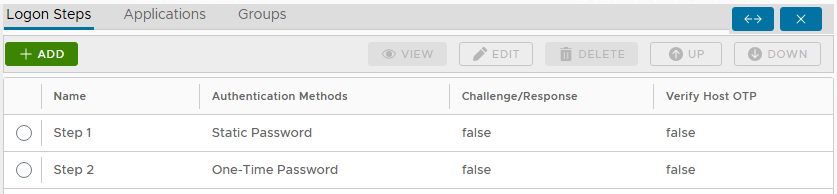
Create a RADIUS application
- In the main menu, select “Authentication Navigate to "Authentication | Applications”
- Click the “Create” “+ Create” button on the toolbar
- Enter a friendly “Name”
- Select your internal AD “Realm”
- Select the logon procedure that was just createdLogon Procedure created in the previous Step.
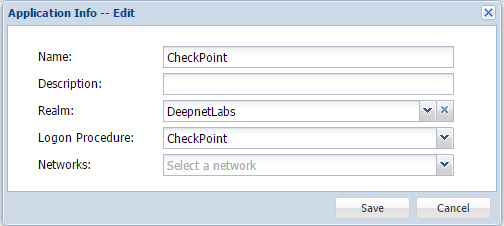
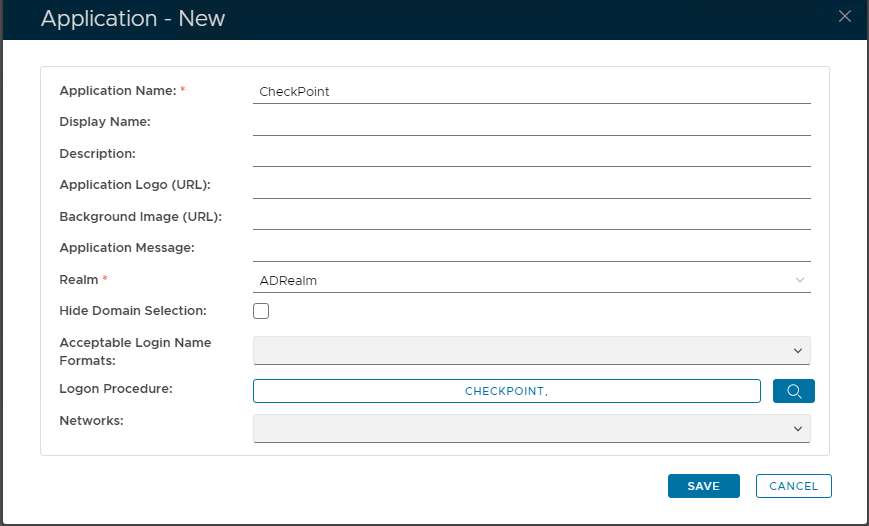
- Click “Save”“SAVE” to create.
- Click the context "..." menu of the newly created applicationApplication, then select “Agent”“Agents”
- Select the integrated DualShield Radius serverServer Agent, e.g. "Agent-Radius":

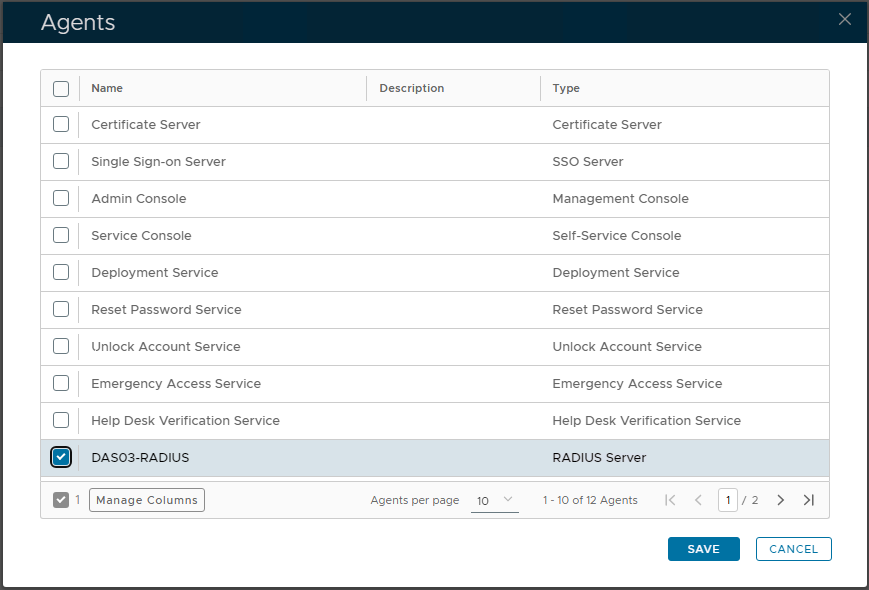
- Click “Save”“SAVE” to confirm.
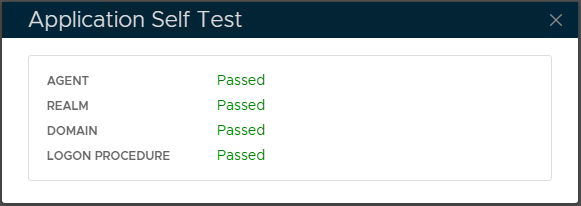
- Finally click Click the context "..." menu of the newly created applicationApplication, select “Self Test”

Register the Check Point as a Radius Client
...
Navigate to "Radius | Radius Clients” in DualShield
...
Administration console. Click the
...
“+ CREATE" button on the toolbar
...
. Enter the credentials like follows:
...
...
Name
...
Enter a name for this Radius Client
Radius
...
Server Select integrated DualShield Radius Server
...
Application Select the CheckPoint
...
Application created previously
IP
...
Address
...
The IP address of
...
the CheckPoint Security Gateway
Shared
...
Secret Provide the shared secret
...
phrase used to communicate between Radius
...
Client and Service Provider Radius
...
configuration.
Authentication
...
Protocols Select communication protocols for Radius server and Radius client
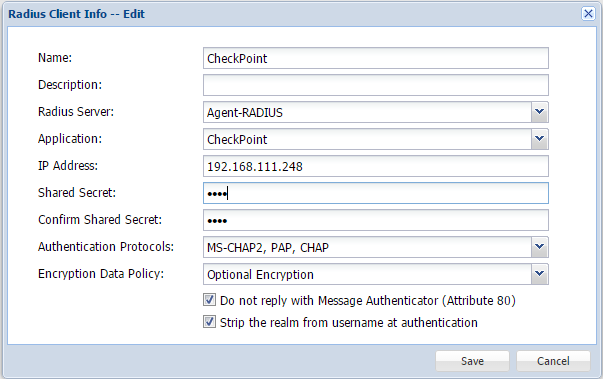
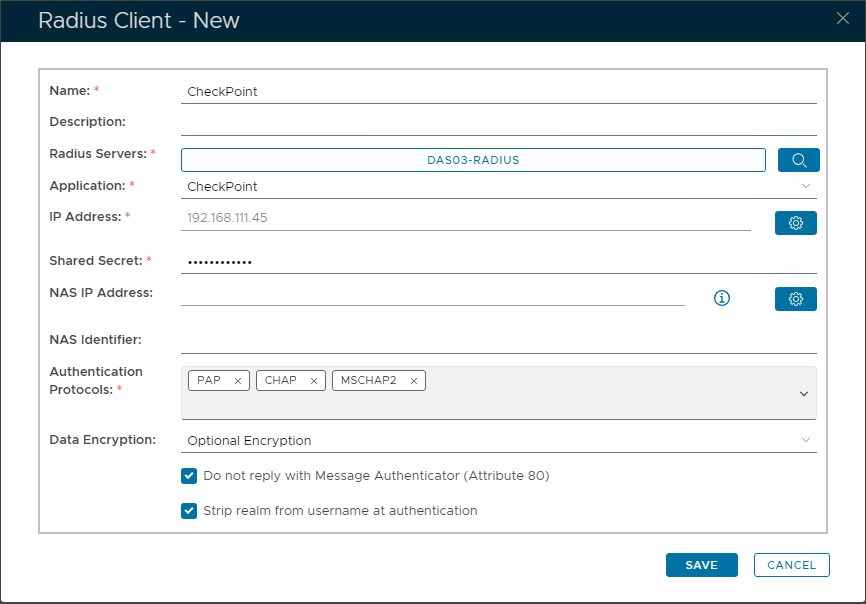
Finally click "SAVE" to complete.
Check Point only recognises RADIUS attributes from 1 to 63 defined within RFC 2138. Tick "Do not reply with Message Authenticator (Attribute 80)" so that DualShield Radius server will not return attribute 80.