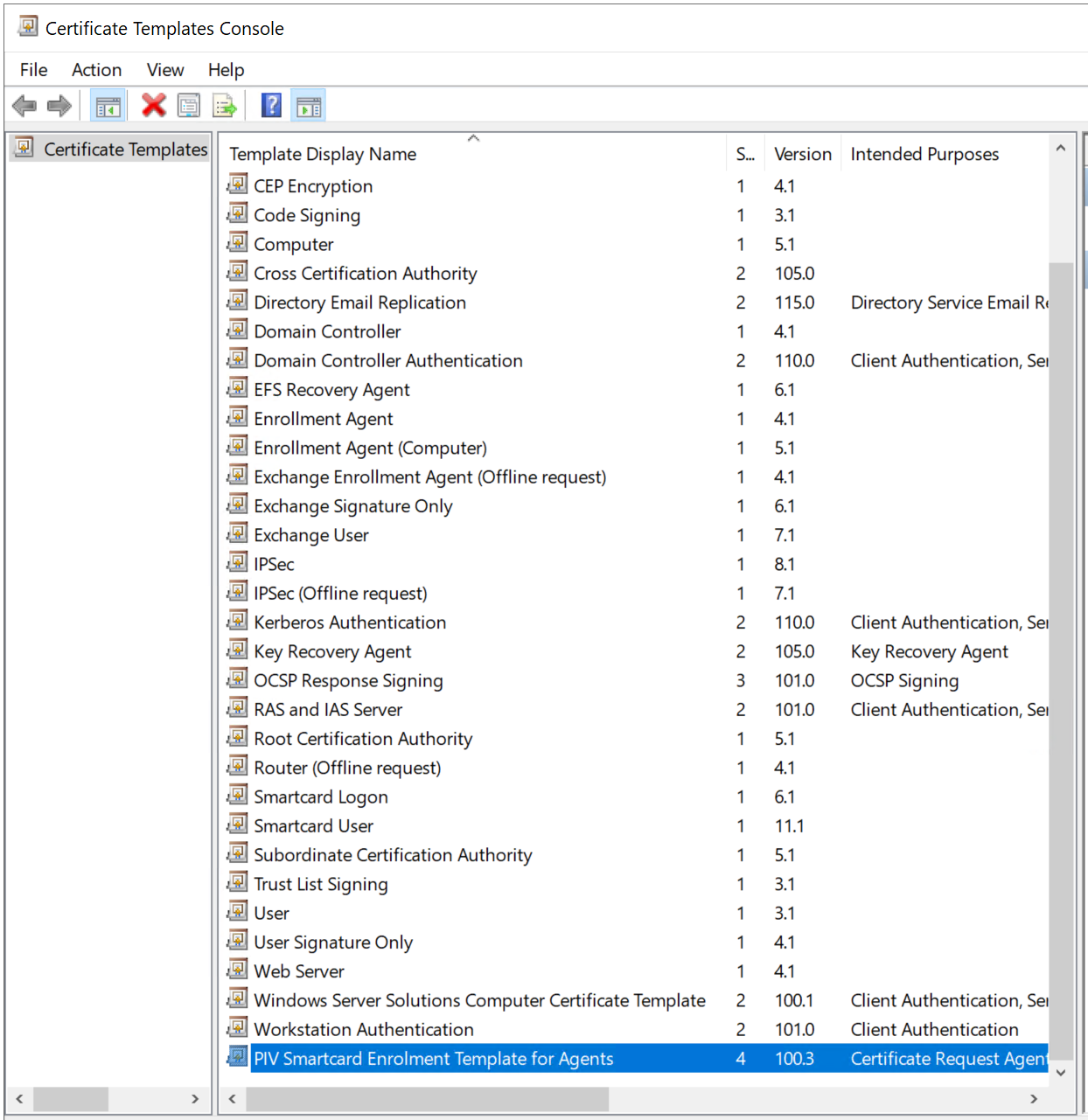
In the Certificate Templates Console, select Certificate Templates in the left pane
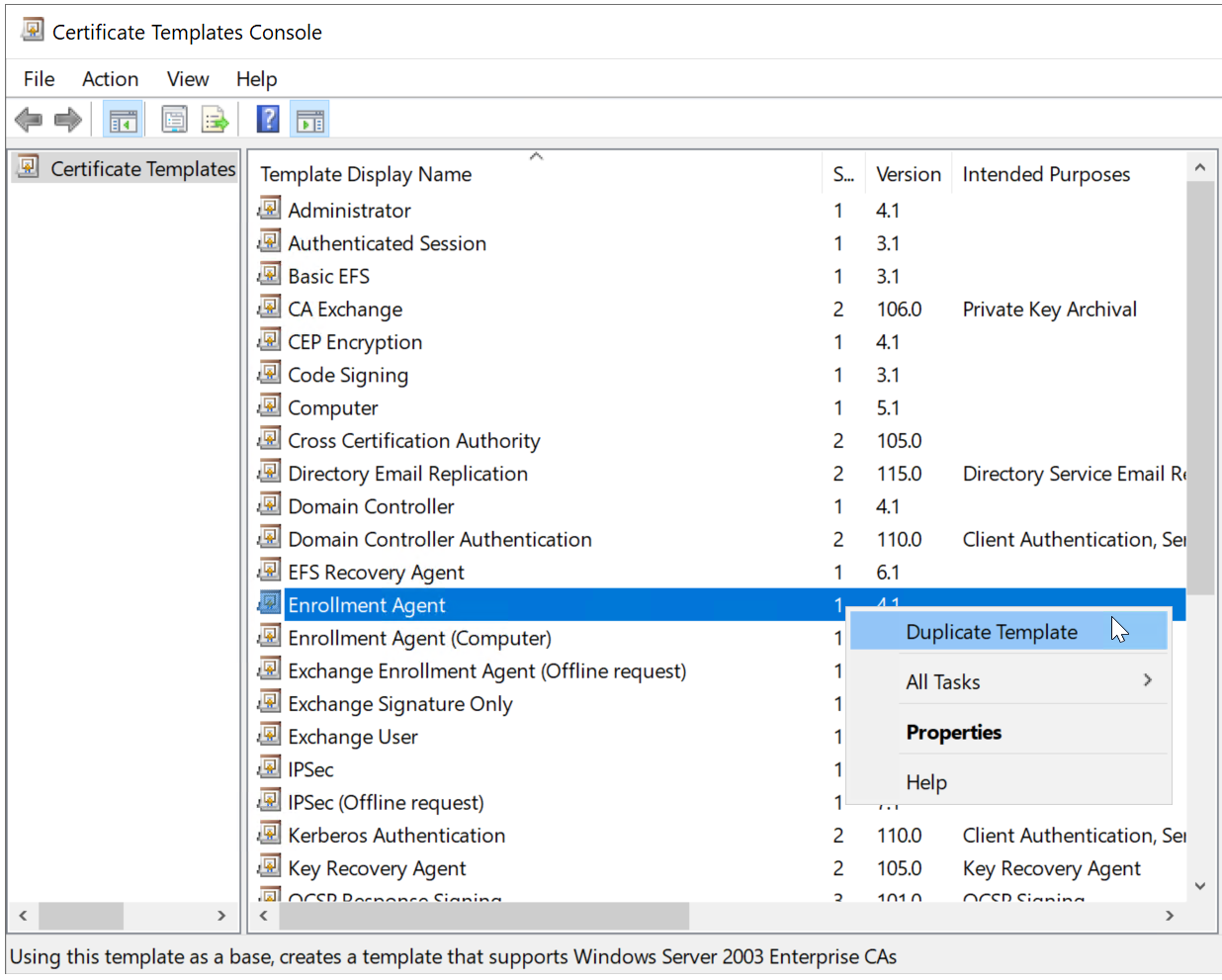
Next, right-click Enrollment Agent, and select Duplicate Template.
First, the Compatibility tab is selected
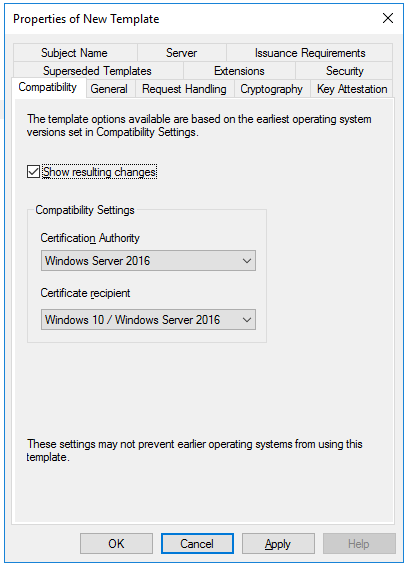
In the Certification Authority box, select the OS version of the CA server
In the Certificate recipient box, select the oldest OS version of the client machine in the domain
Next, select the General tab
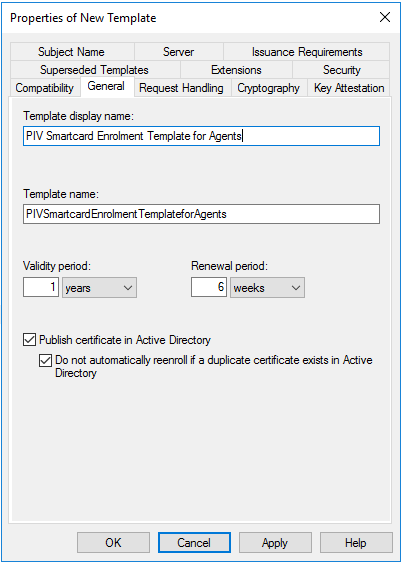
Provide the name of the template, e.g. "PIV Smartcard Enrolment Template for Agent"
Optionally, you might want to change the Validity period and Renewal period
Enable the option "Publish certificate in Active Directory"
Next, select the Request Handling tab
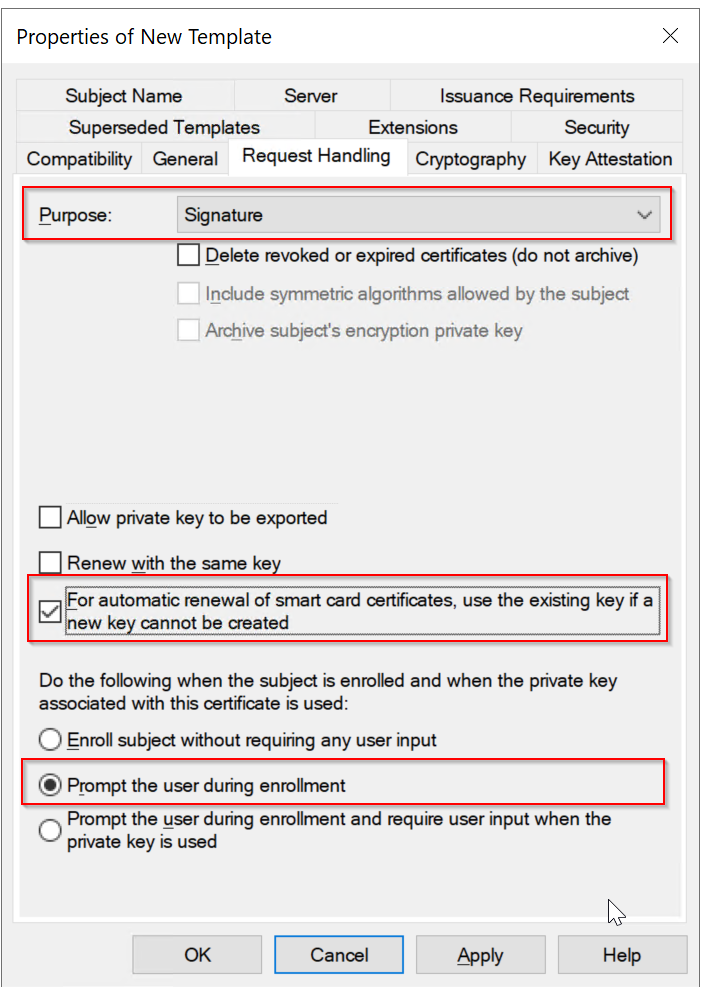
Make sure that you have selected the options as highlighted above
Next, select the Cryptography tab.
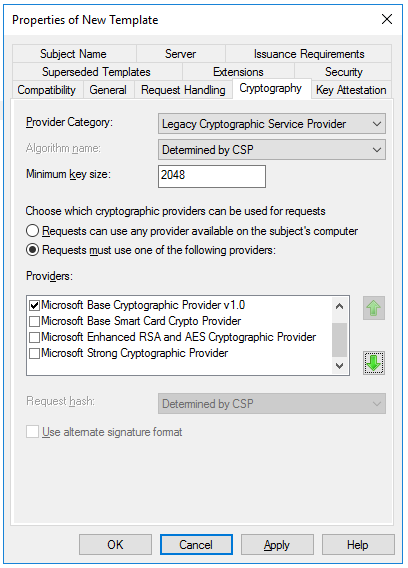
Change the Minimum key size to 2048
Select "Requests must use one of the following providers", and then in the Providers list select the Microsoft Base Cryptographic Provider v1.0.
Next, select the Security tab,
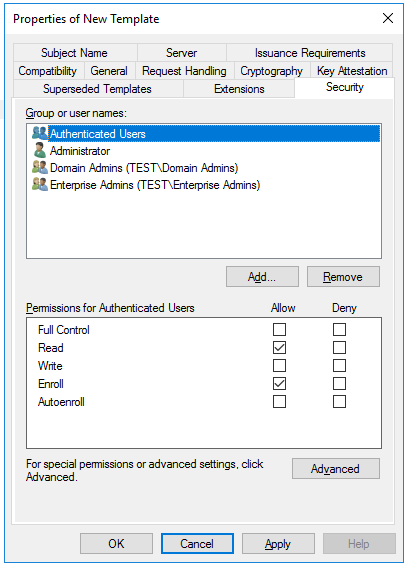
Make sure that the Read and Enroll permissions are enabled for the user or group of users who will be setting up the smart cards for logon.
Click Apply, and then click OK to close the template properties window.