- Right-click the Windows Start button and select Run.
- Type "gpmc.msc" and press Enter.
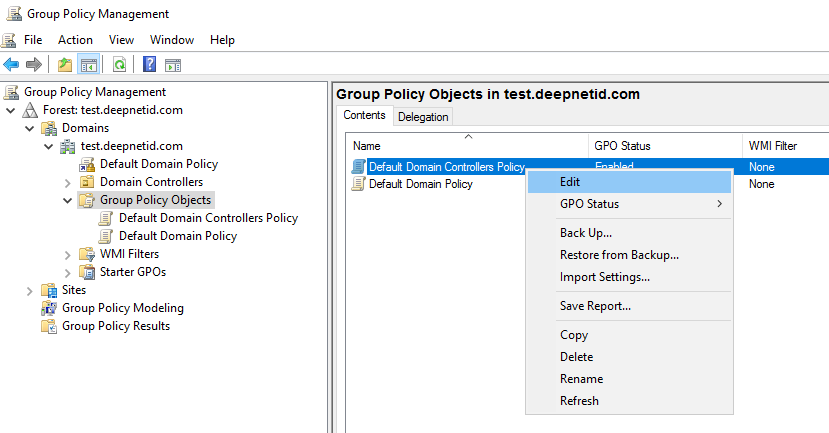
- Navigate to the AD forest and Domain containing your server, double-click your server and double-click Group Policy Objects.
- Right-click on the group policy you want to edit, and then select Edit.
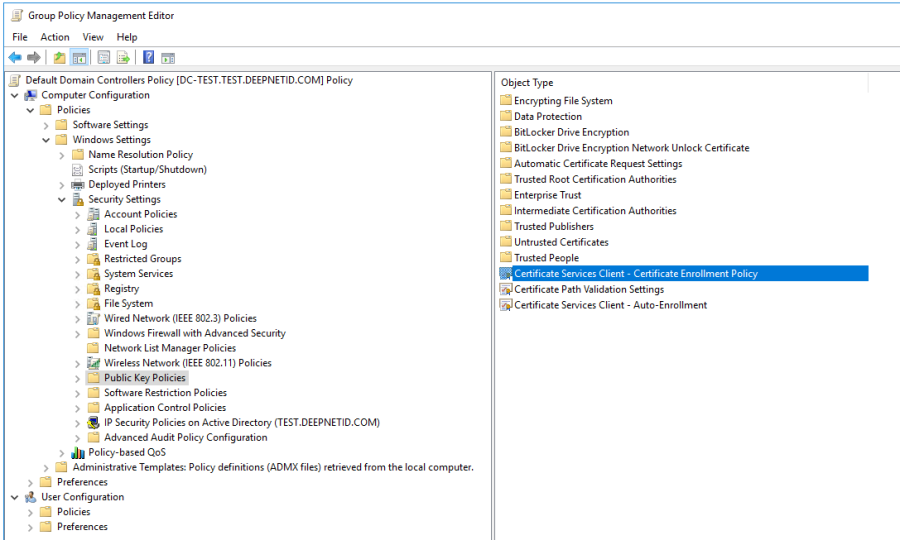
- Expand Computer Configuration > Policies > Windows Settings > Security Settings > Public Key Policies.
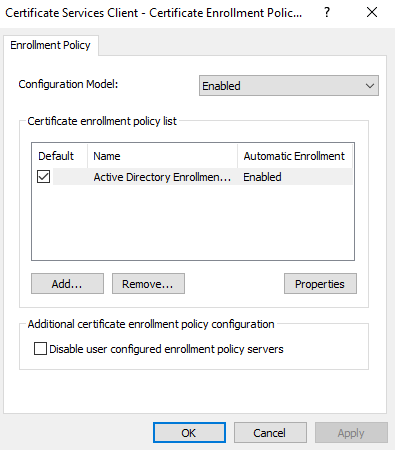
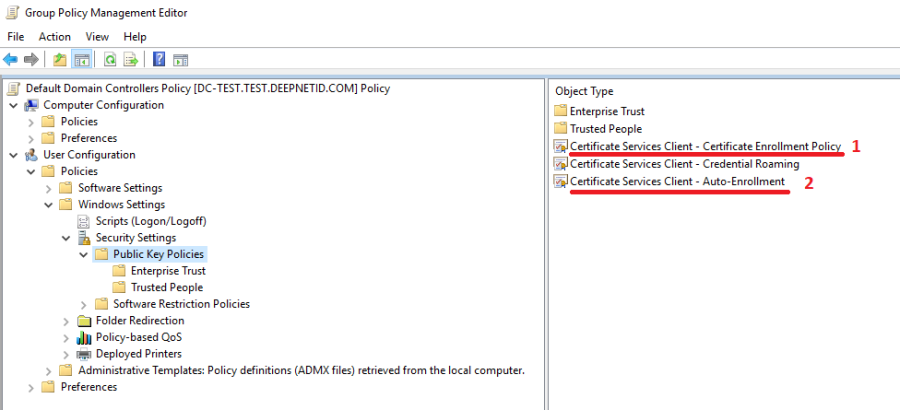
- Right-click Certificate Services Client – Certificate Enrollment Policy and select Properties.
- Make changes as below:
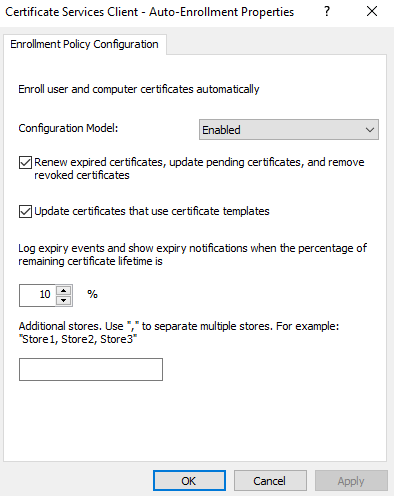
- Right-click Certificate Services Client – Auto-Enrollment Policy and select Properties and make changes as below:
- Expand User Configuration > Policies > Windows Settings > Security Settings > Public Key Policies. Apply same changes to same polices.
- You may need to restart your machine to apply these changes
{"serverDuration": 50, "requestCorrelationId": "e752bf580ac70f18"}