ESET Secure Authentication user accounts can be 2FA protected using our SafeID pre-programmed tokens by first obtaining a seed file, then importing the file (using your Eset secure web portal).
Obtain your PSKC encoded seed file
Before importing hardware token details into Esest Secure, you will need to request a file to be sent to your email account (in PSKC format).
The following procedure explains how to request the necessary seed file (in a format suitable for importing into Eset Secure);
- Seed file requests can be made by clicking on the following link; Seed file request link
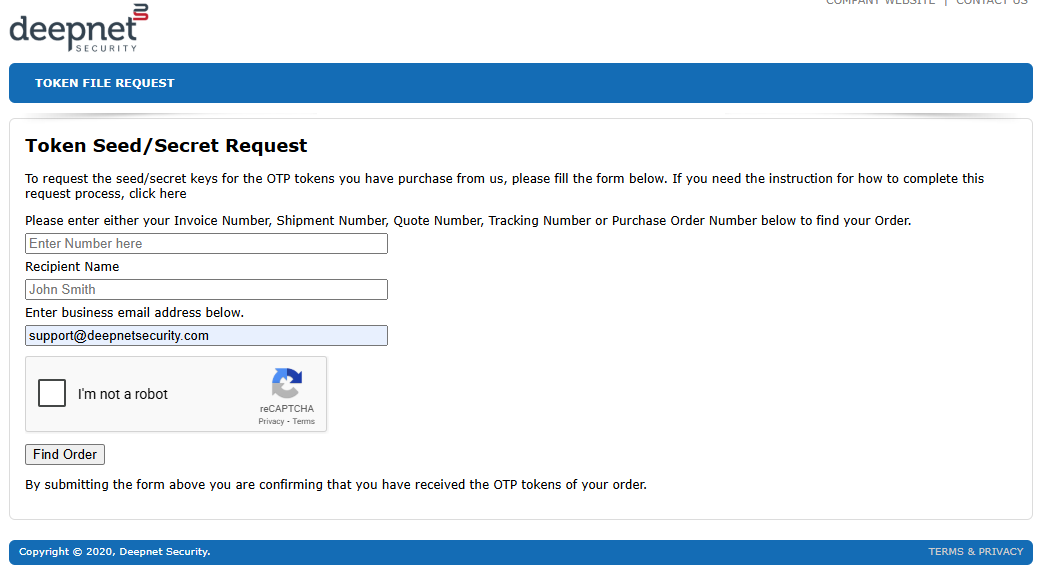
You will need to fill in the invoice, recipient name and email address fields, click on the "I'm not a robot" captcha, then click "Find Order".
A new window titled "Token Seed/Secret Request" will now open, and you will be asked to supply a token serial number;
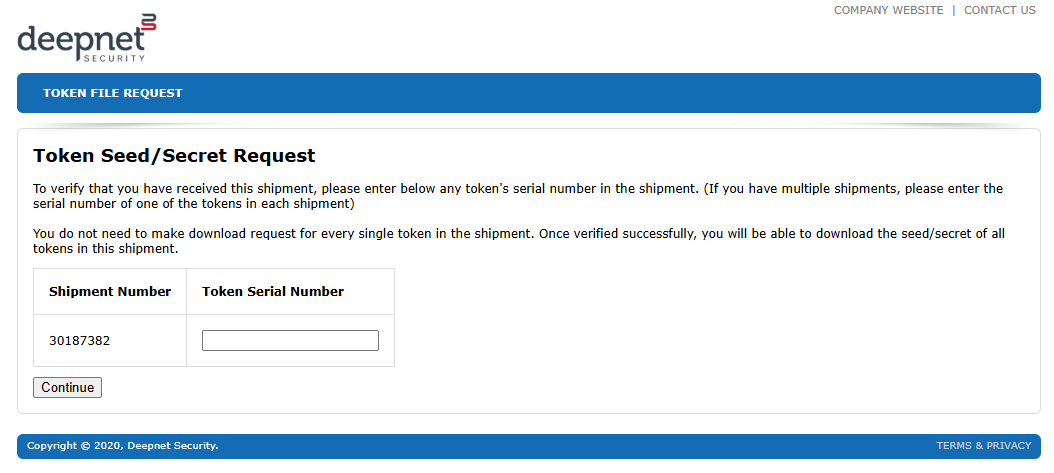
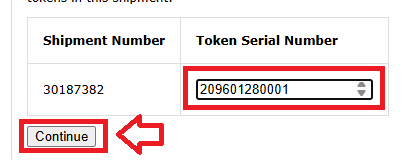
Under the heading "Token Serial Number", supply a serial number of any of the tokens from your order, then click
 ;
; 
The window will now update to show options for how the seed file is to be sent to your email account;
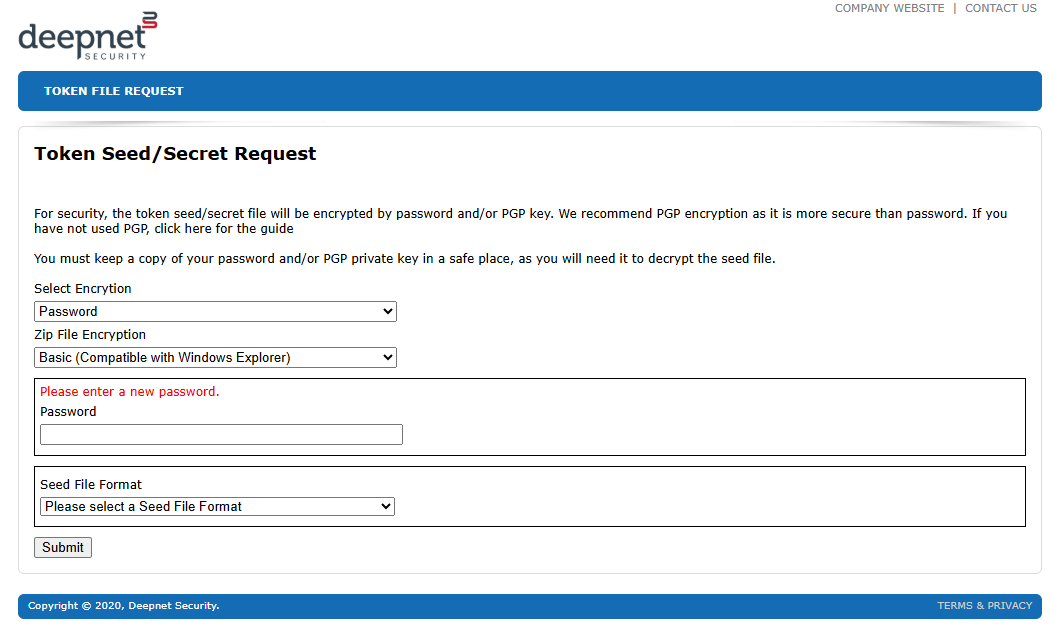
You can choose from the encryption and zip file options, however the example shown below will work.
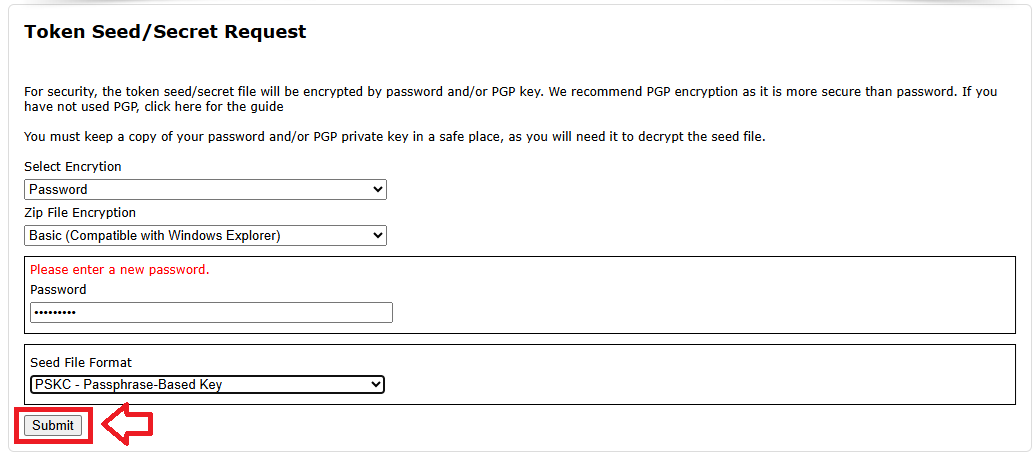
In the "Password" box you will need to provide a unique password for this download, and ensure that the selected seed file format is "PSKC - Passphrase-Baesd Key", then click "Submit";
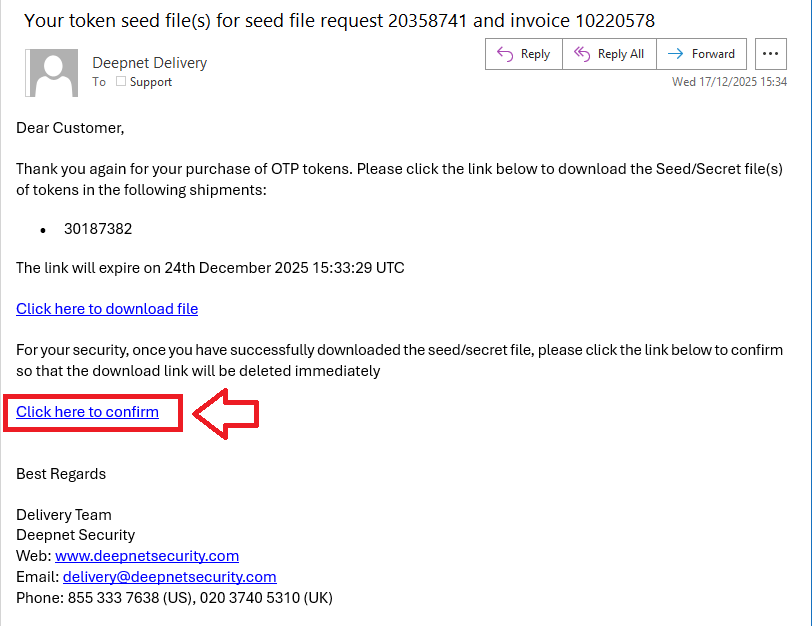
Emails will now be sent to your nominated account, one of which will include a download link (example below);
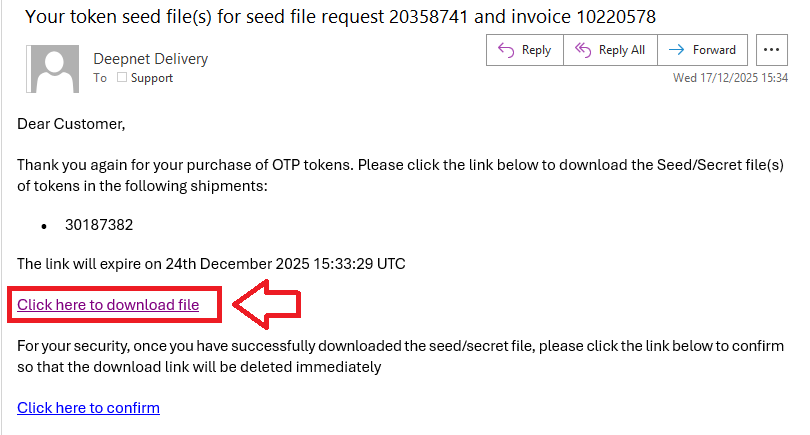
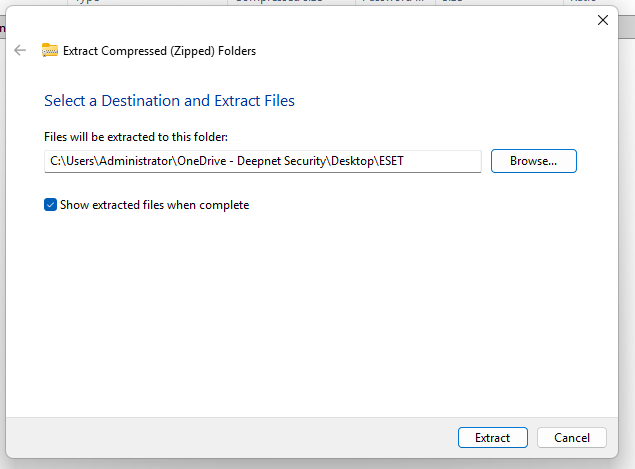
Click on the "Click here to download file" link, and when the file is downloaded expand it to a safe place
Importing your seed file into Eset Secure
Once you have obtained your seed file (and stored it in an accessible place), you can use the following procedure to import your seed file into Eset Secure;
- Log in to your ESA Web Console, then select the menu option "HARD TOKENS";
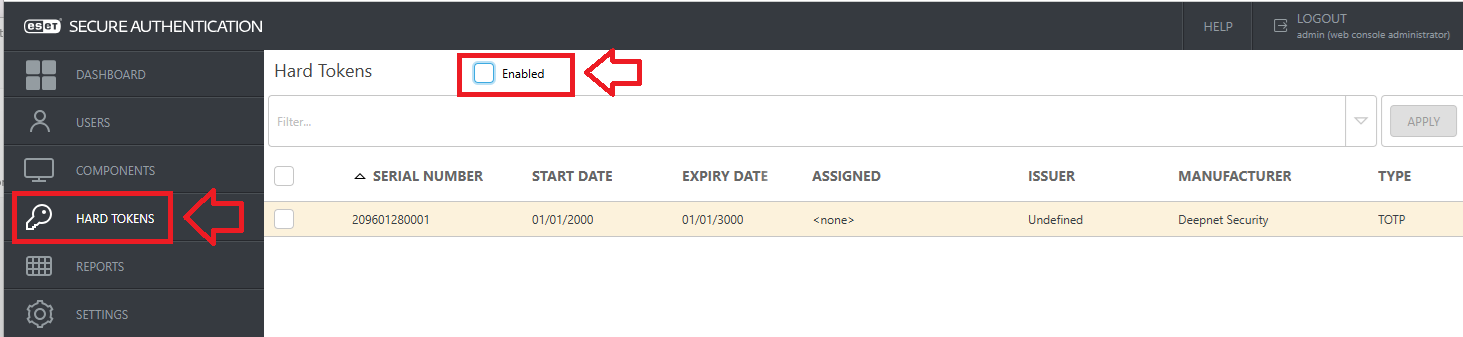
If the the option for Hard Tokens is not currently enabled (as in the example above) enable it by ticking the box;

You can now import your hard token details by clicking on the button "IMPORT HARD TOKENS";
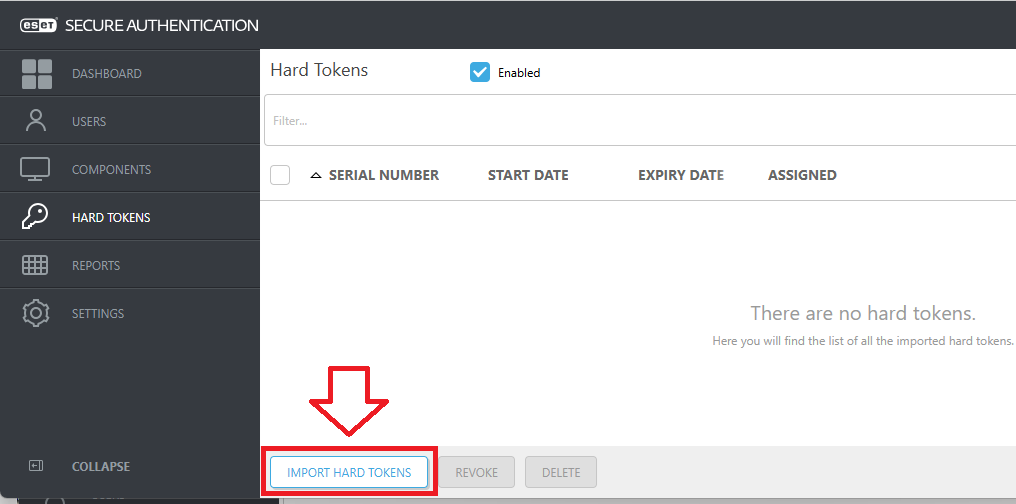
A window will now open titled "Import Hard Tokens", click on the button
 ;
;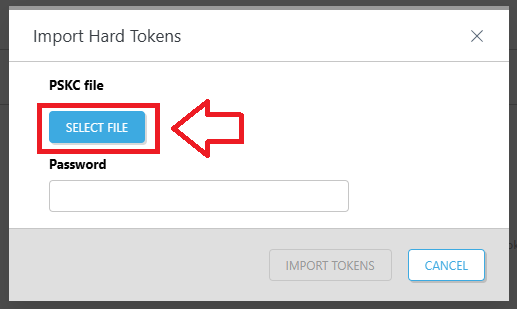
In the popup window that opens, navigate and select your PSKC seed file then click "Open";
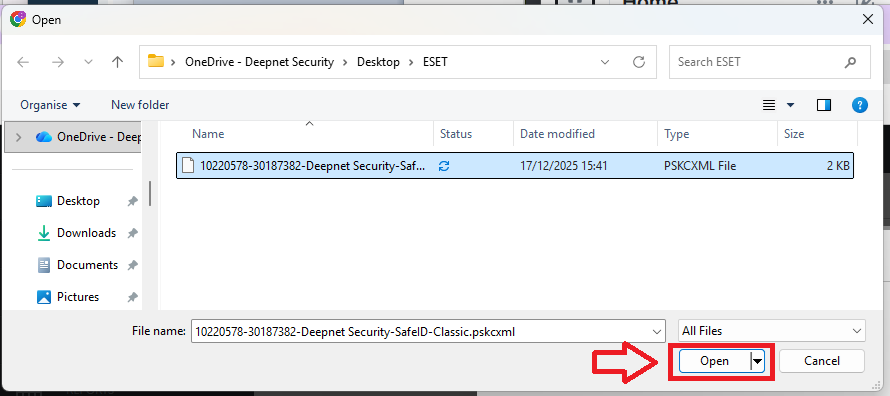
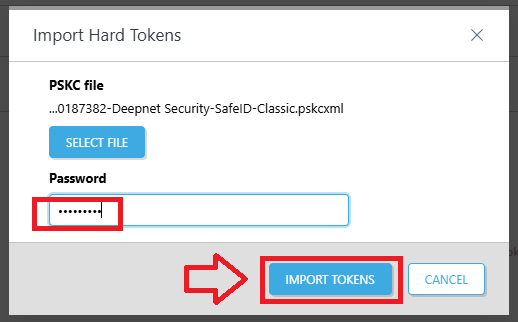
You will return to the "Import Hard Tokens" window (with the file selected)
At the prompt "Password", supply the password that you entered when requesting the seed file, then click
 ;
;
Your seed details will now be imported into Eset Secure Authentication, and are ready to be assigned to your users.
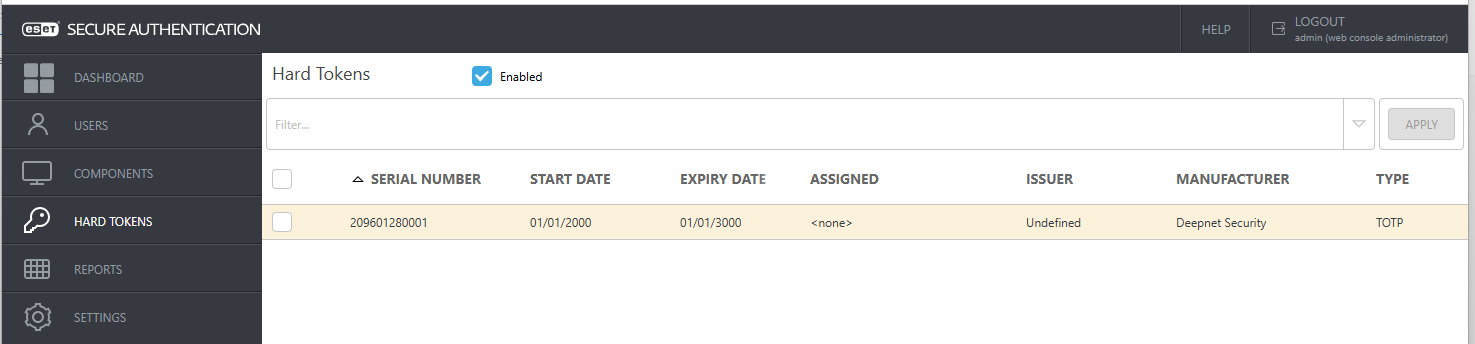
Confirming you have the seed file
Once the seed file has successfully imported you will be safe to request the download link is disabled.
Go back to your email then select the option "Click here to confirm";
The download link will no longer allow the seed file to be downloaded, and you will be presented with the following confirmation;