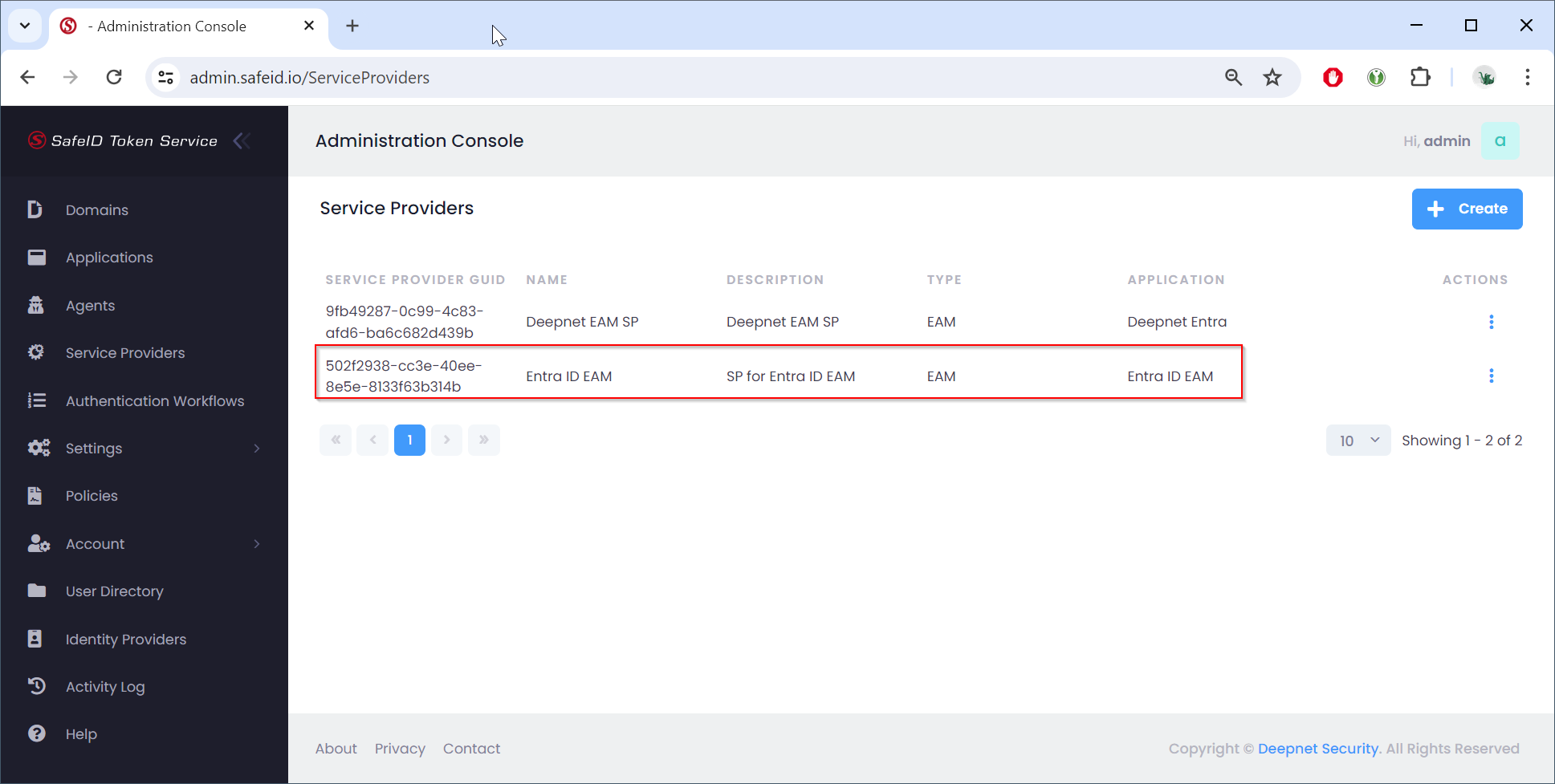
Follow the steps below to configure your account in STS for Entra ID EAM Integration.
Create an application for EAM
First, create an application to be used for EAM
- Navigate to "Applications"
- Click the "+Create" button
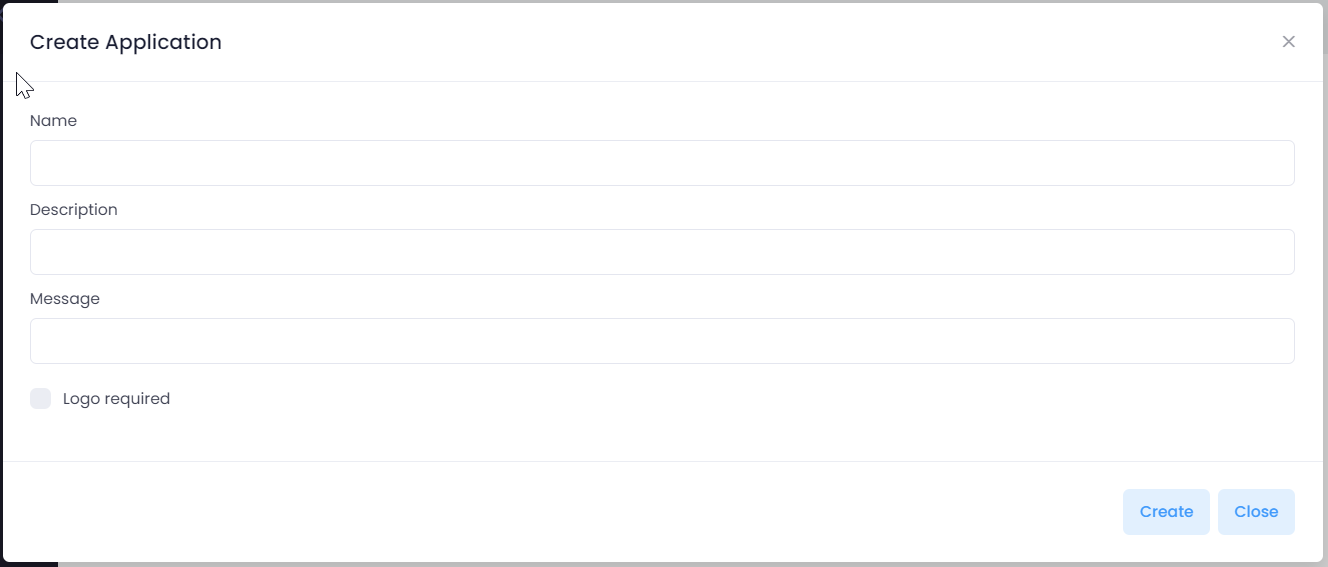
Fill in the application name
Optionally, fill in the description and message
You can also provide a custom application logo to be displayed in the application's login screen
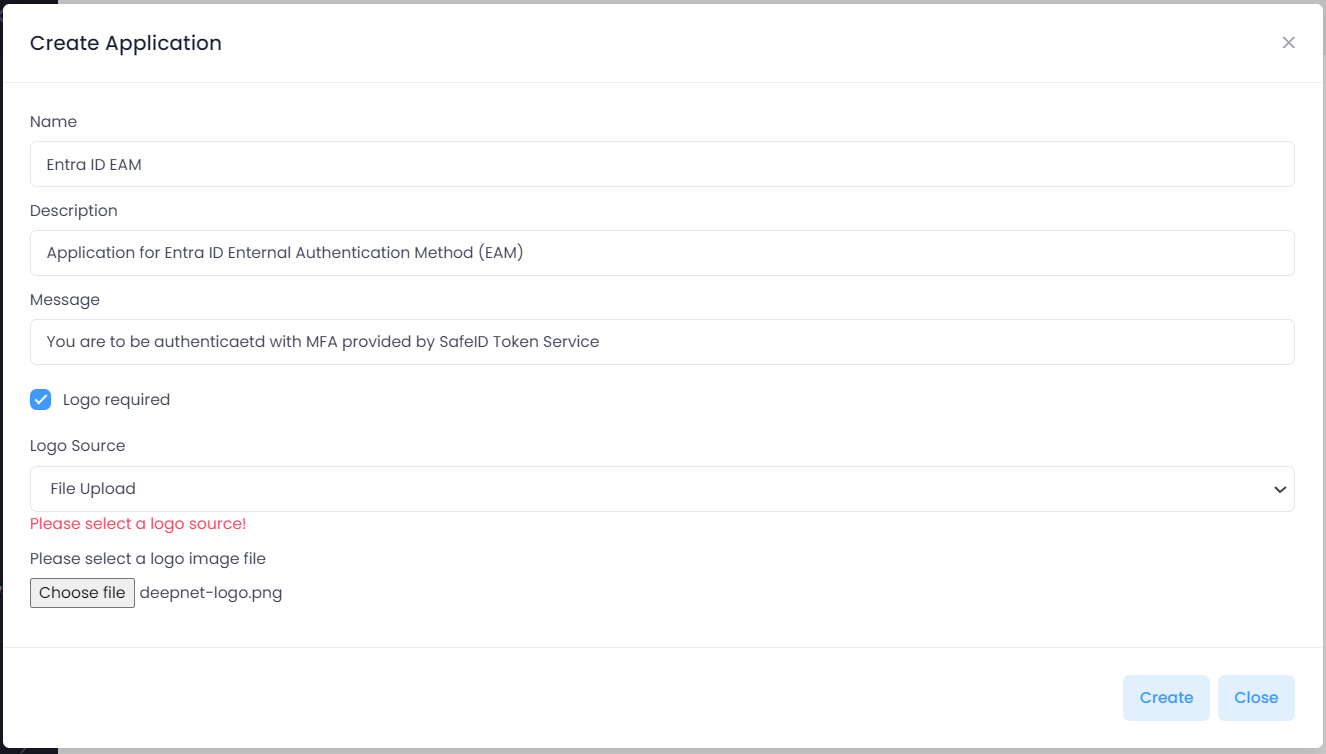
Click "Create" to save the application
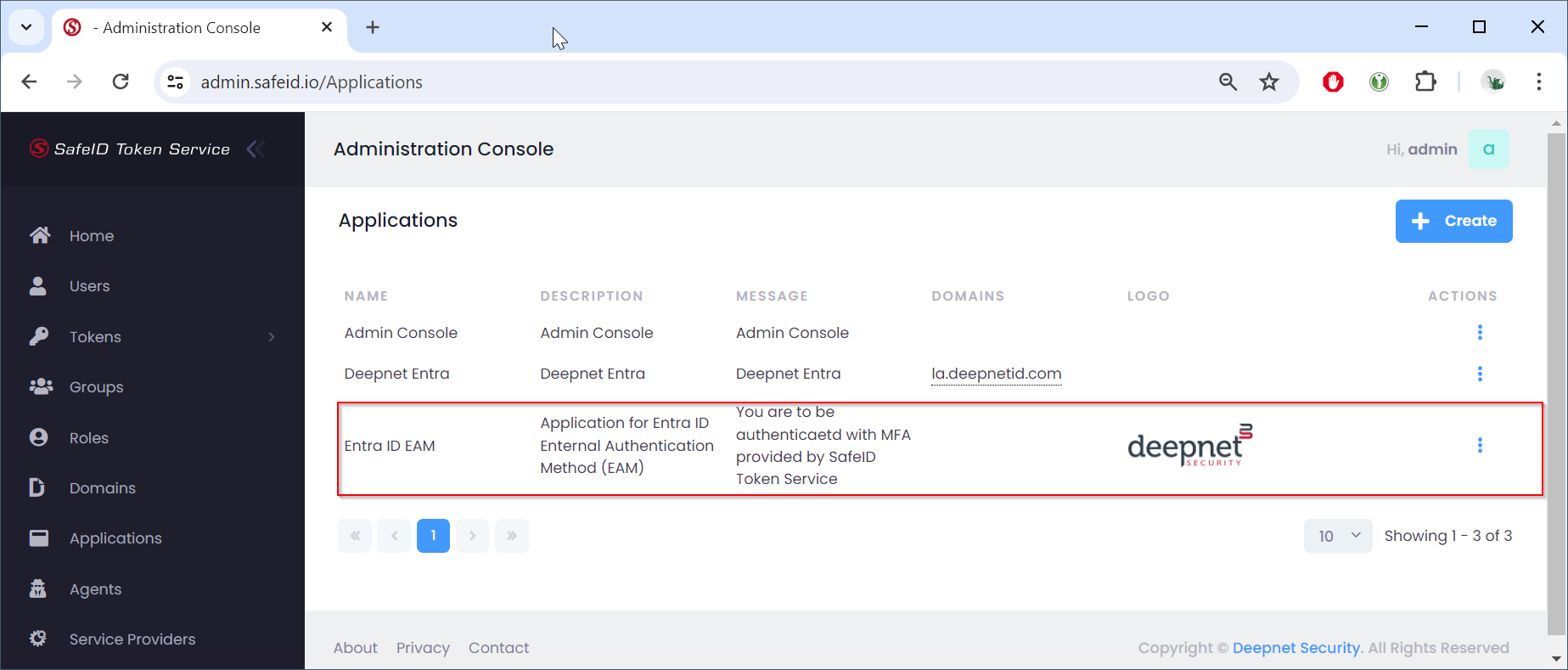
then, assign a domain to the application
- Navigate to "Applications"
- Find the targeted application in the list
- Click the context menu of the application
- Select "Manage Domains" in the context menu
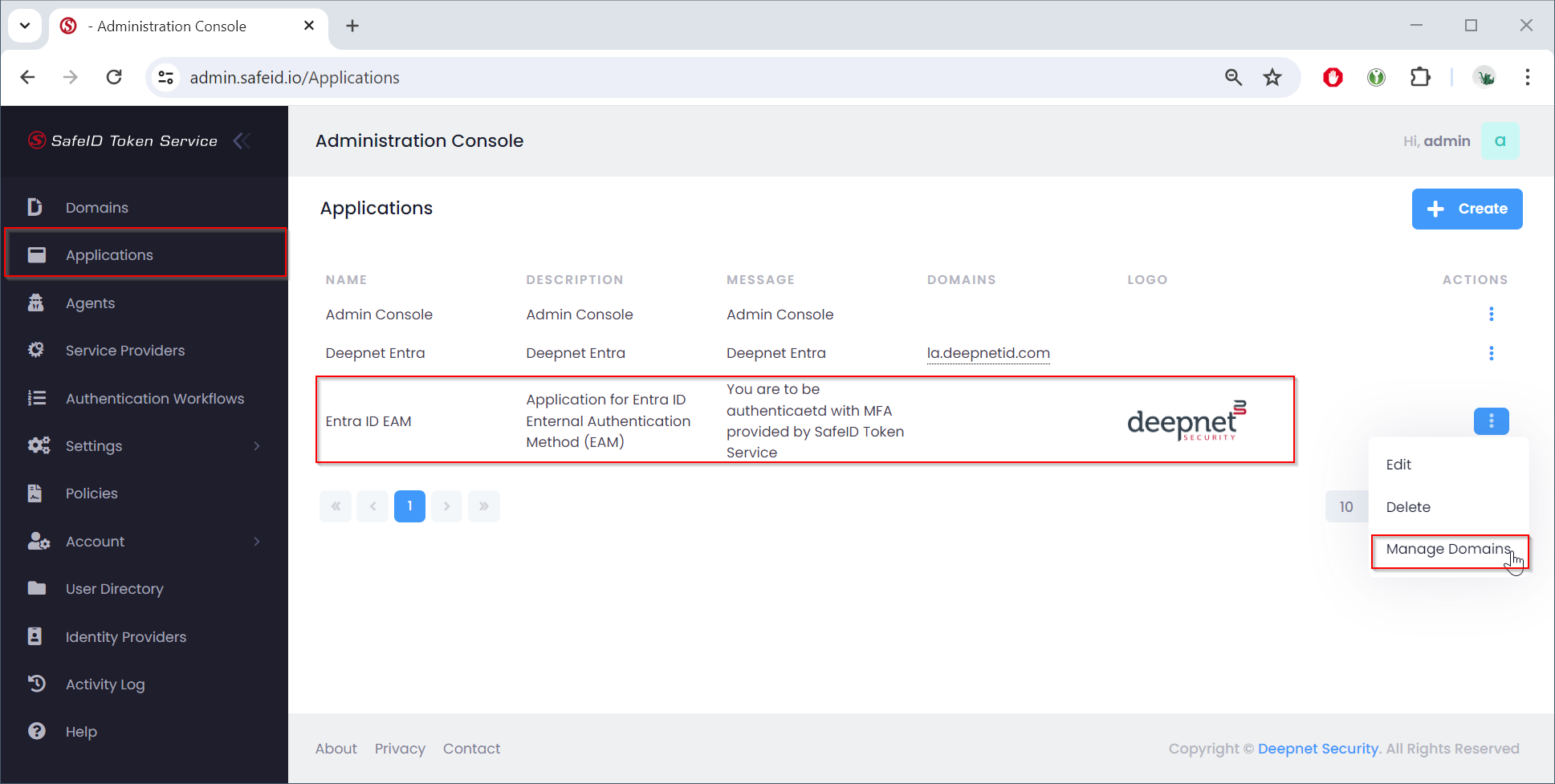
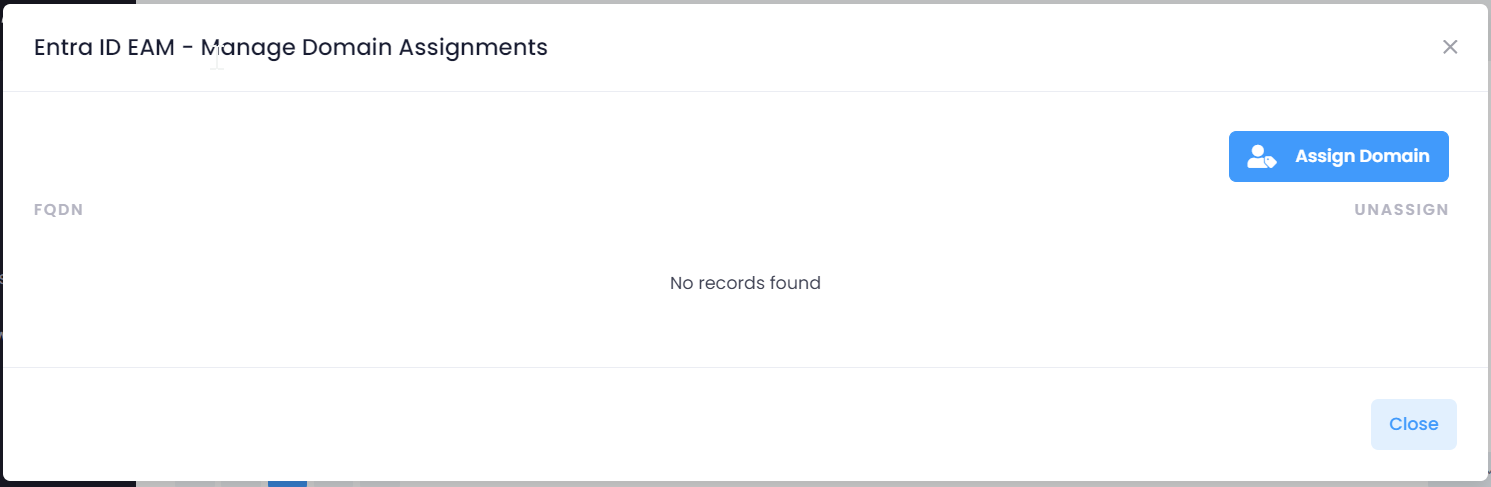
Click "Assisgn Domain"
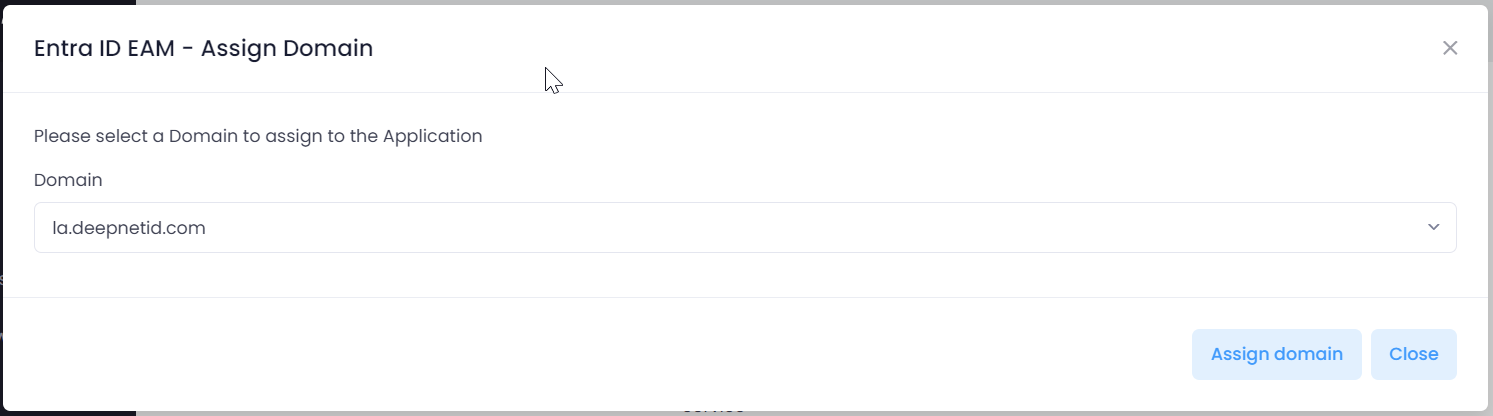
Select the domain to be assigned, e.g. "la.deepnetid.com"
Click "Assign domain" to save the assignment
Create an authentication workflow for EAM
- Navigate to "Authentication Workflows"
- Click the "Create Workflow" button
- Enter the workflow name and description.
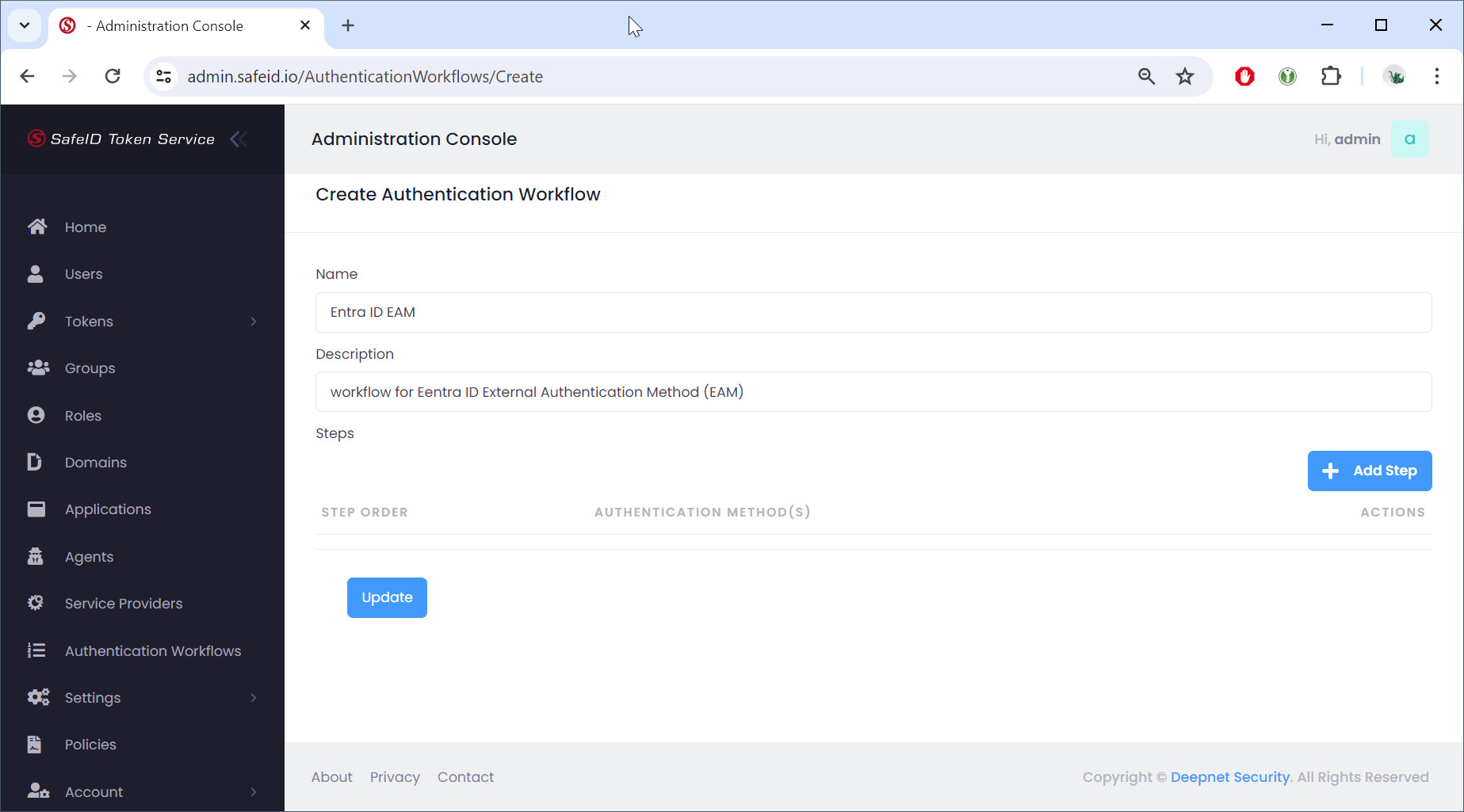
Now, click the "Add Step" button to add authentication steps to the workflow
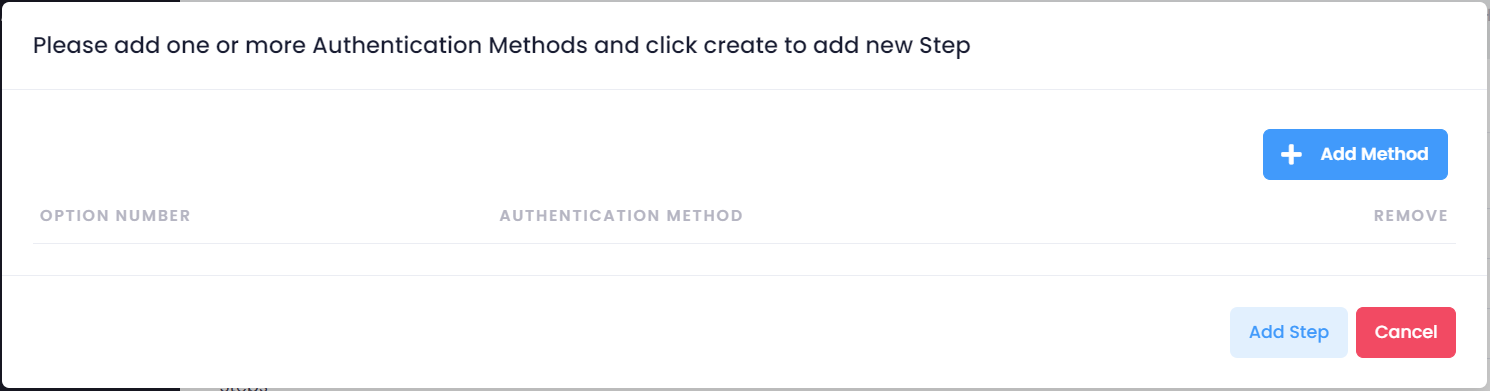
Click "Add Method" to add an authentication method
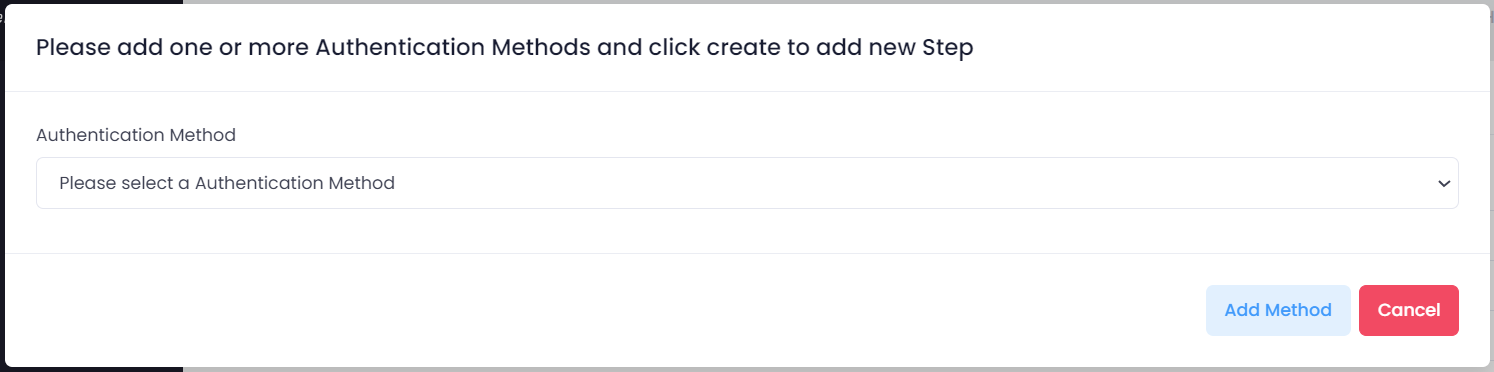
Select the authentication method from the list, e.g. "Grid Card - Free Navigation"
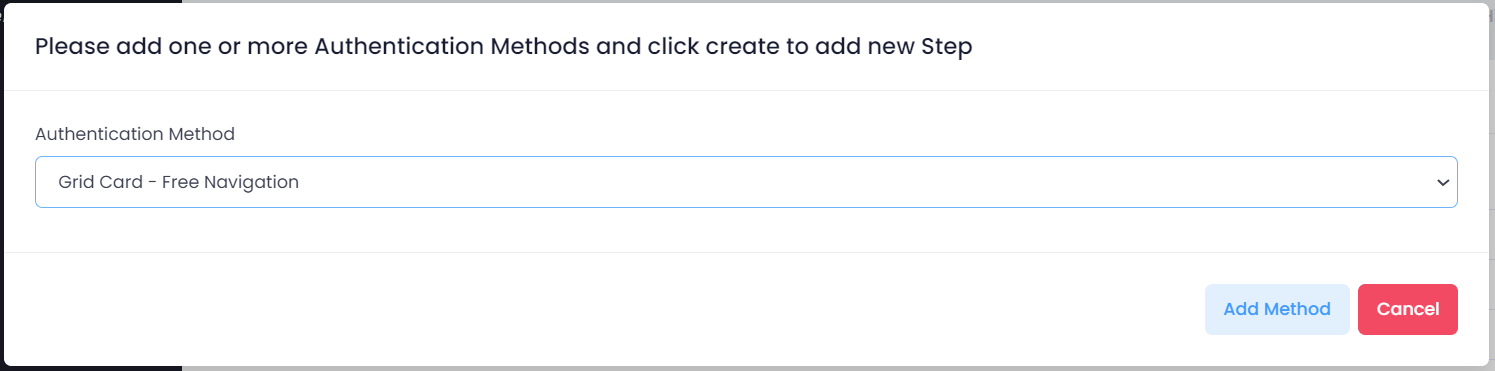
Click "Add Method" to save the method
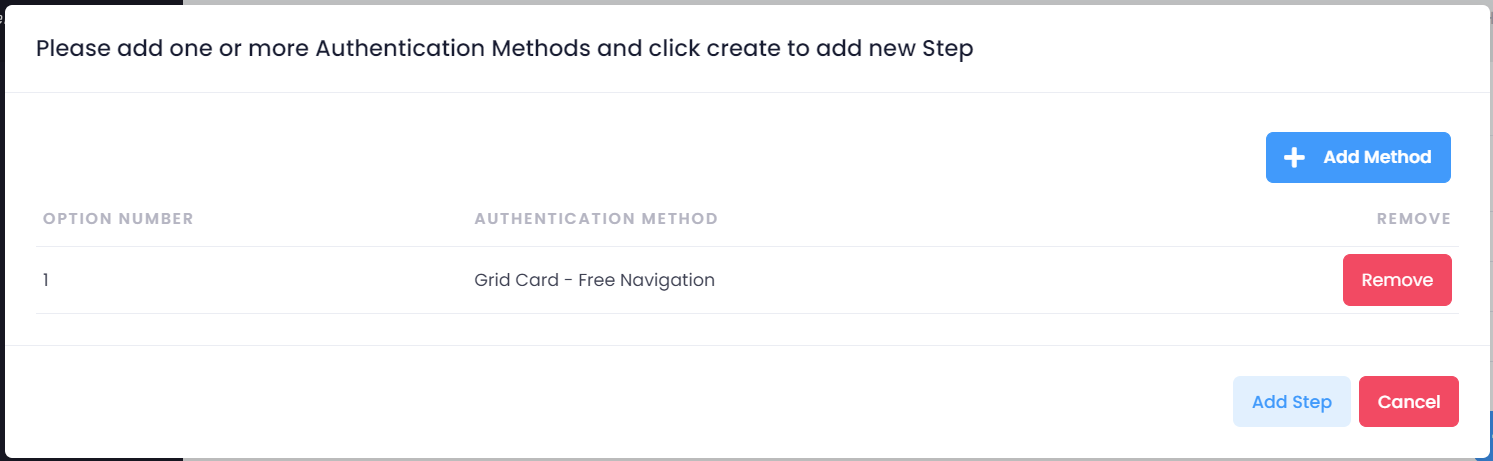
To add another method to the step, click "Add Method", and repeat the above process of adding a method
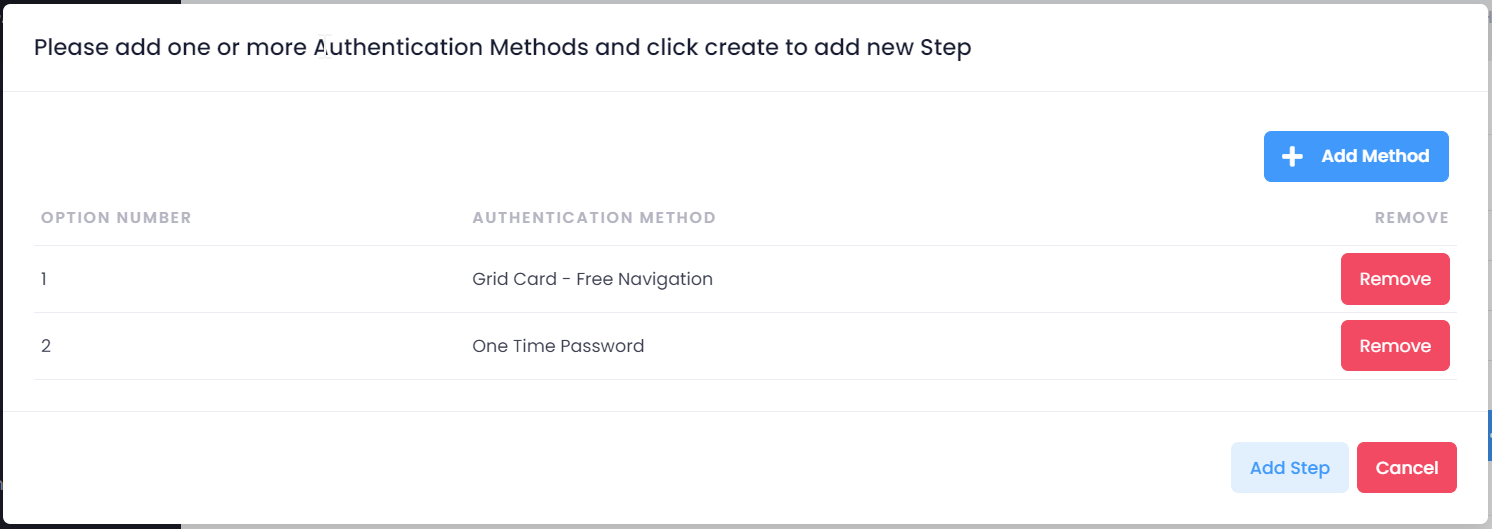
Once you have added all the methods that you want in the step, click "Add Step" to save the step
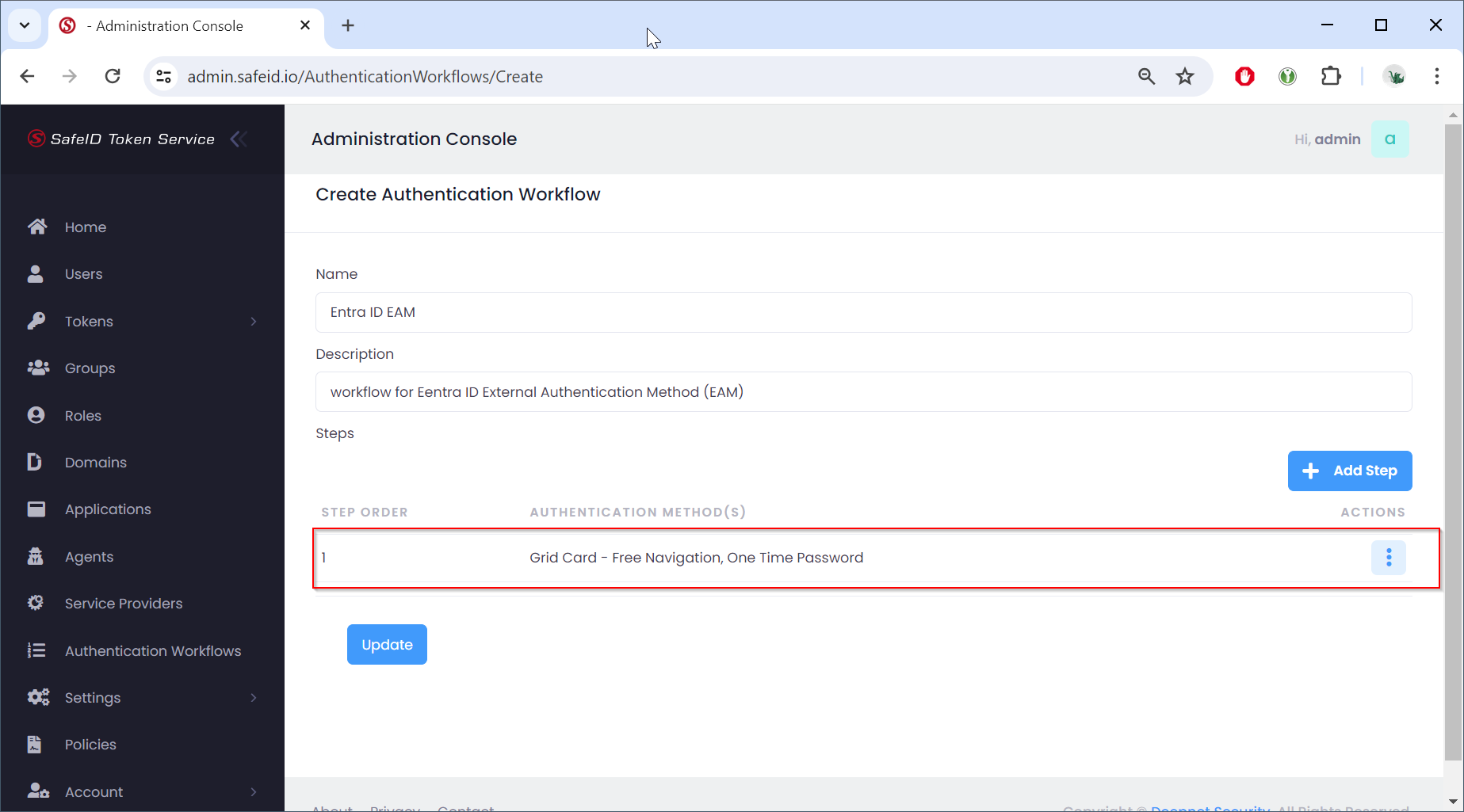
To add another step to the workflow, click "Add Step" and repeat the process of adding a step
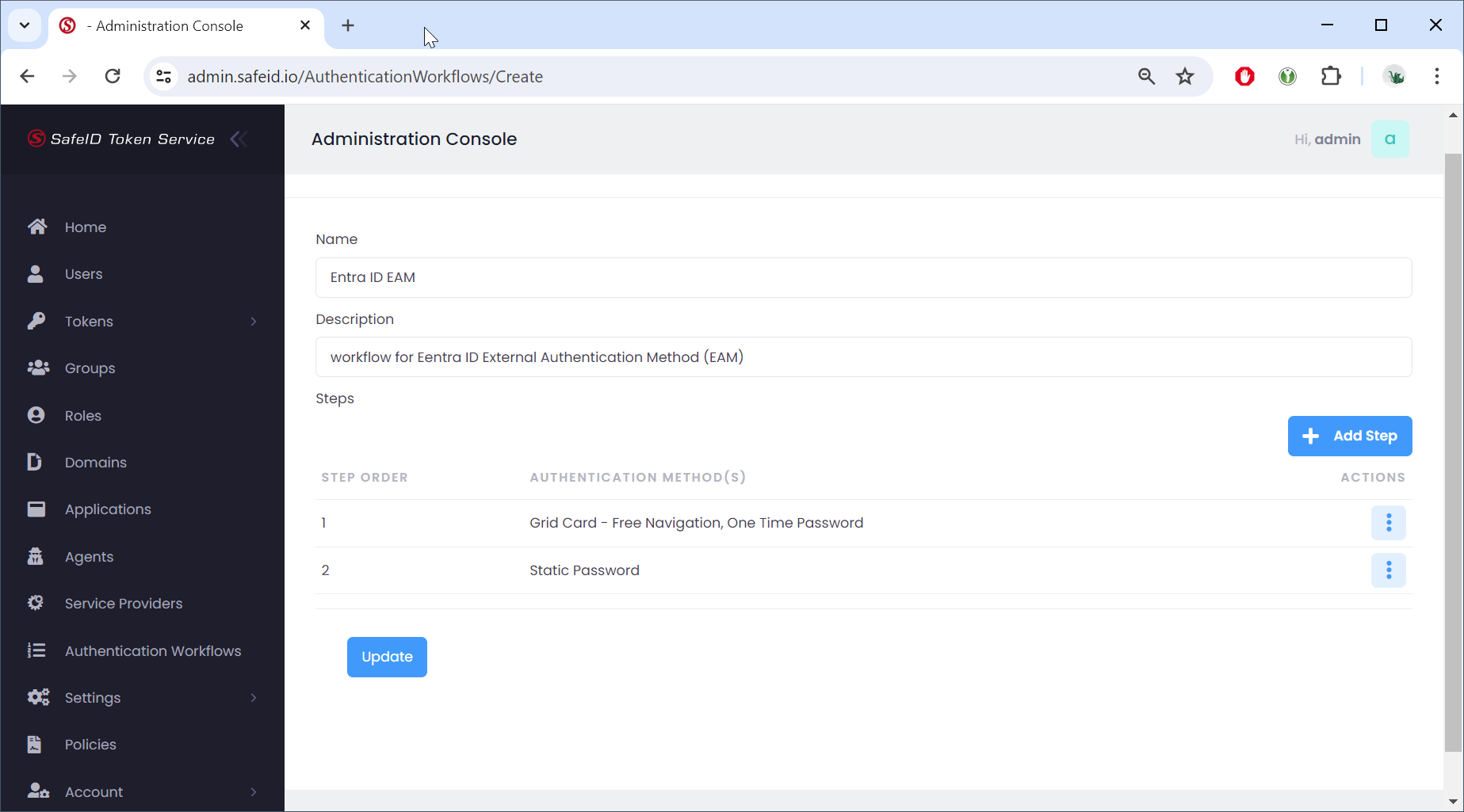
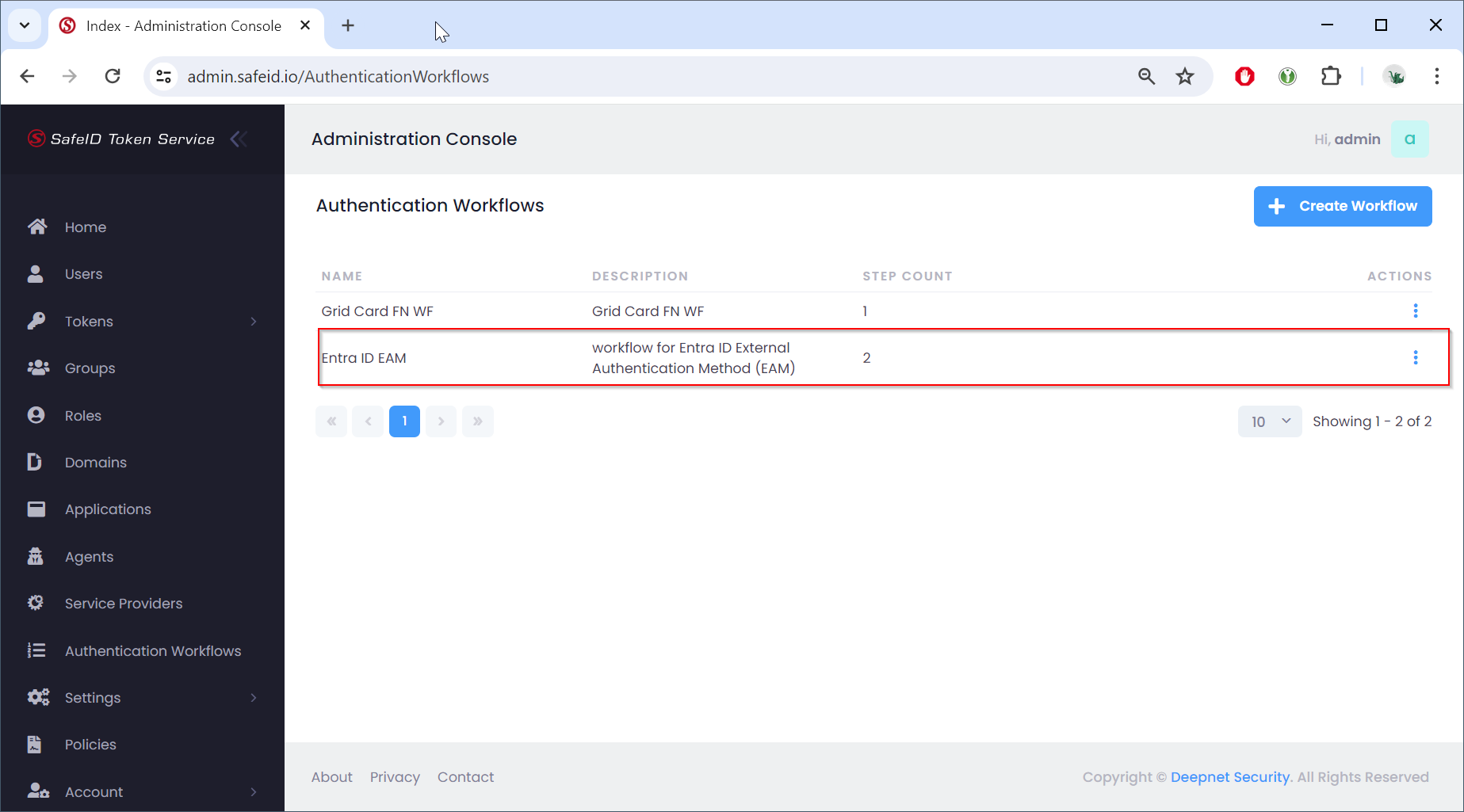
Once you have added all the steps that you want in the workflow, then click "Update" to save the workflow
Create a conditional access policy for EAM
A conditional access policy binds the following elements together
- Users
- Applications
- Authentication workflow
Basically, it defines the authentication flow to be used when the specified users try to access the specified application(s).
- Navigate to "Polices"
- Click the "+Add" button
- Select "Conditional Access Policy"
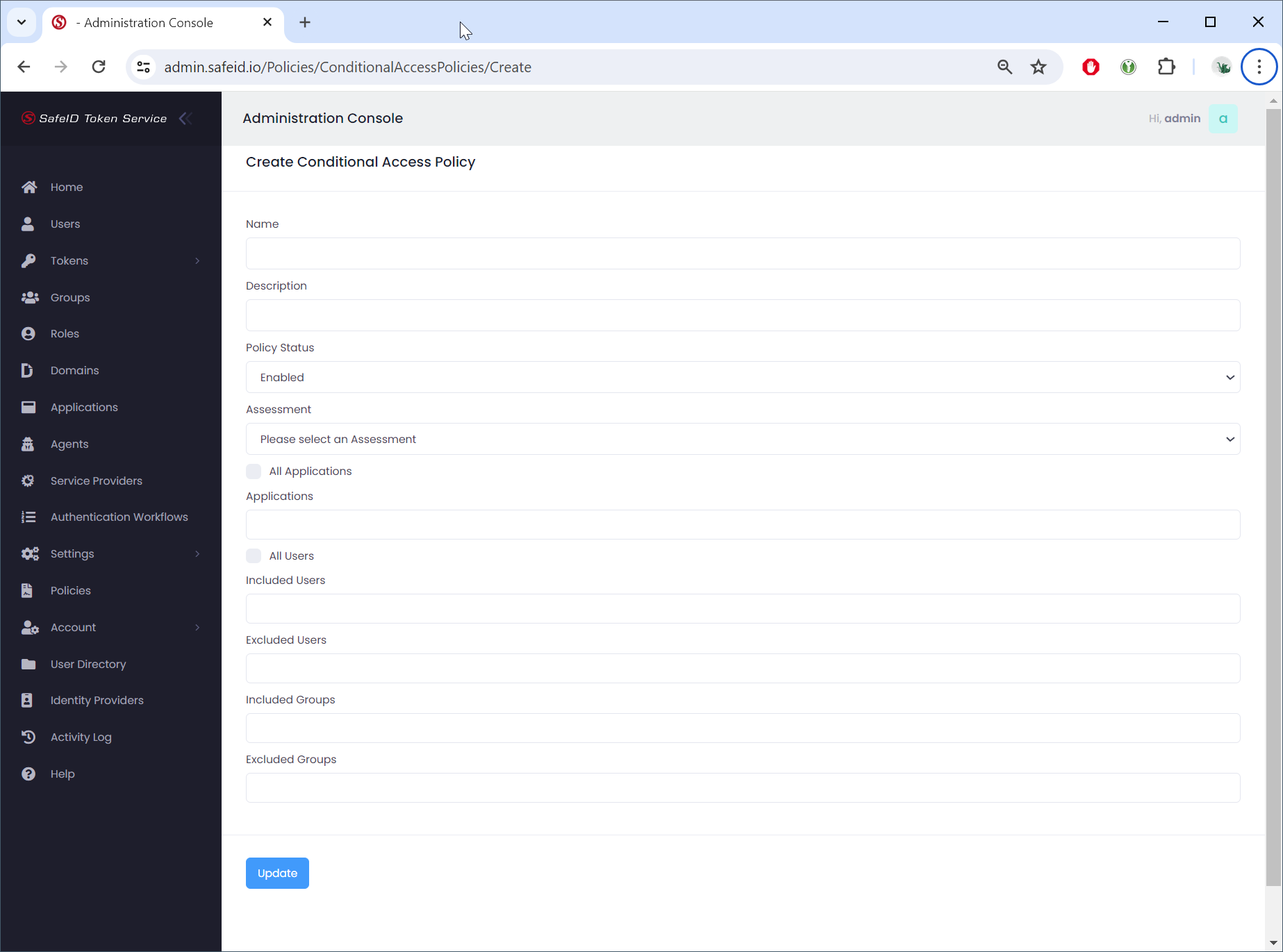
Fill in the policy name
Specify the
- Assessment
- Authentication Workflow
- Applications
- Users or User Groups to be included or excluded
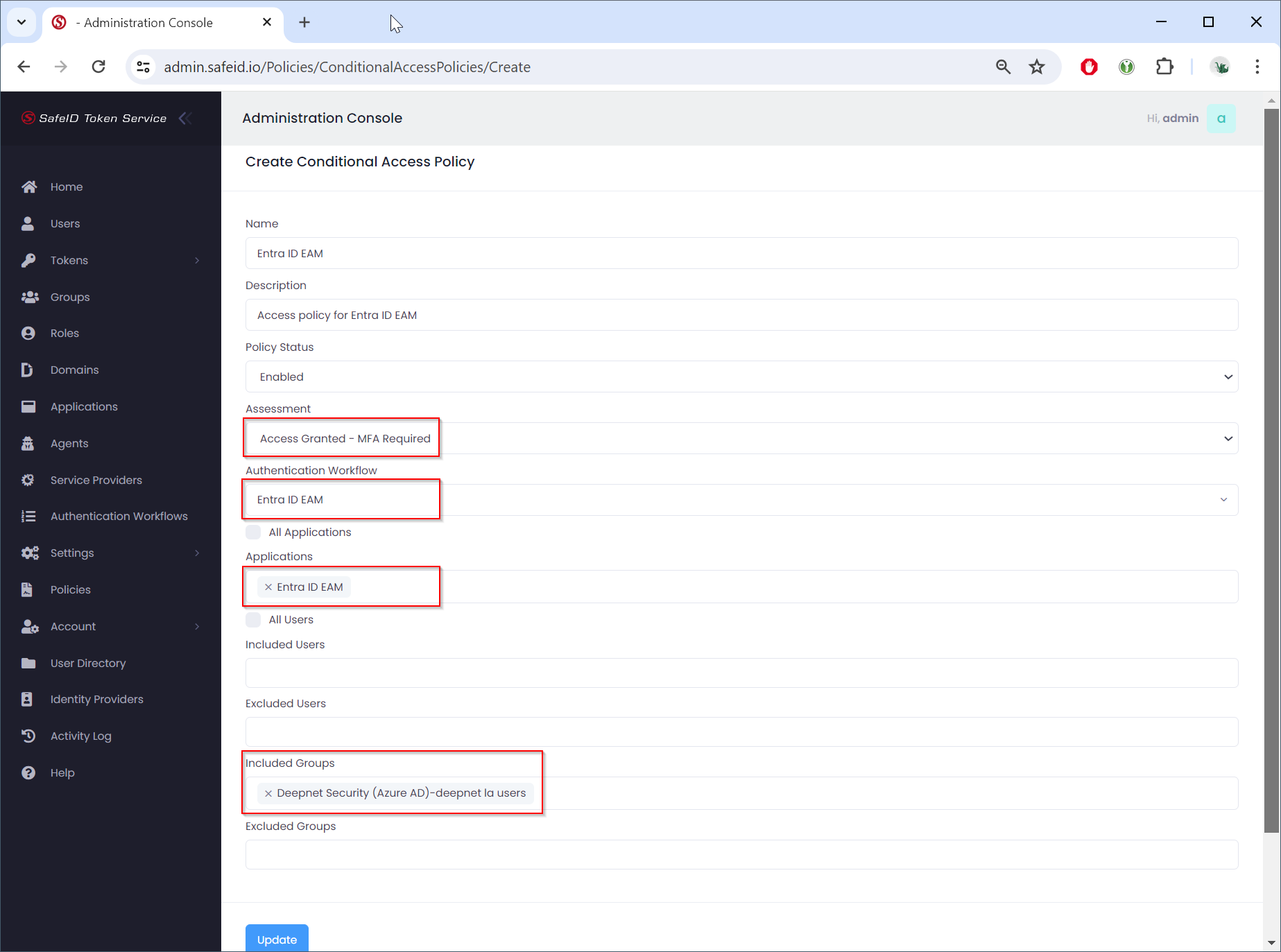
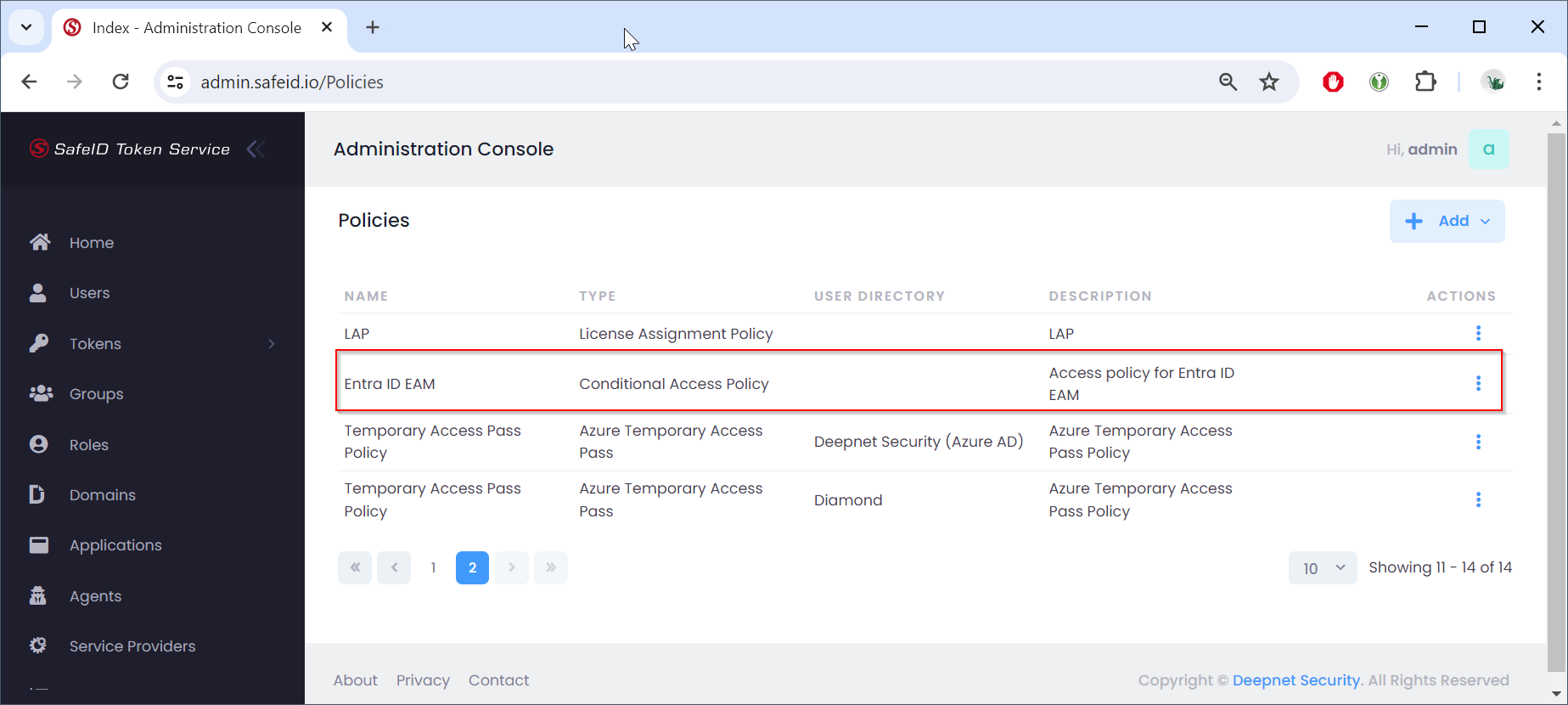
Click "Update" to save the policy
Create a service provider for EAM
- Navigate to "Service Providers"
- Click the "+ Create" button
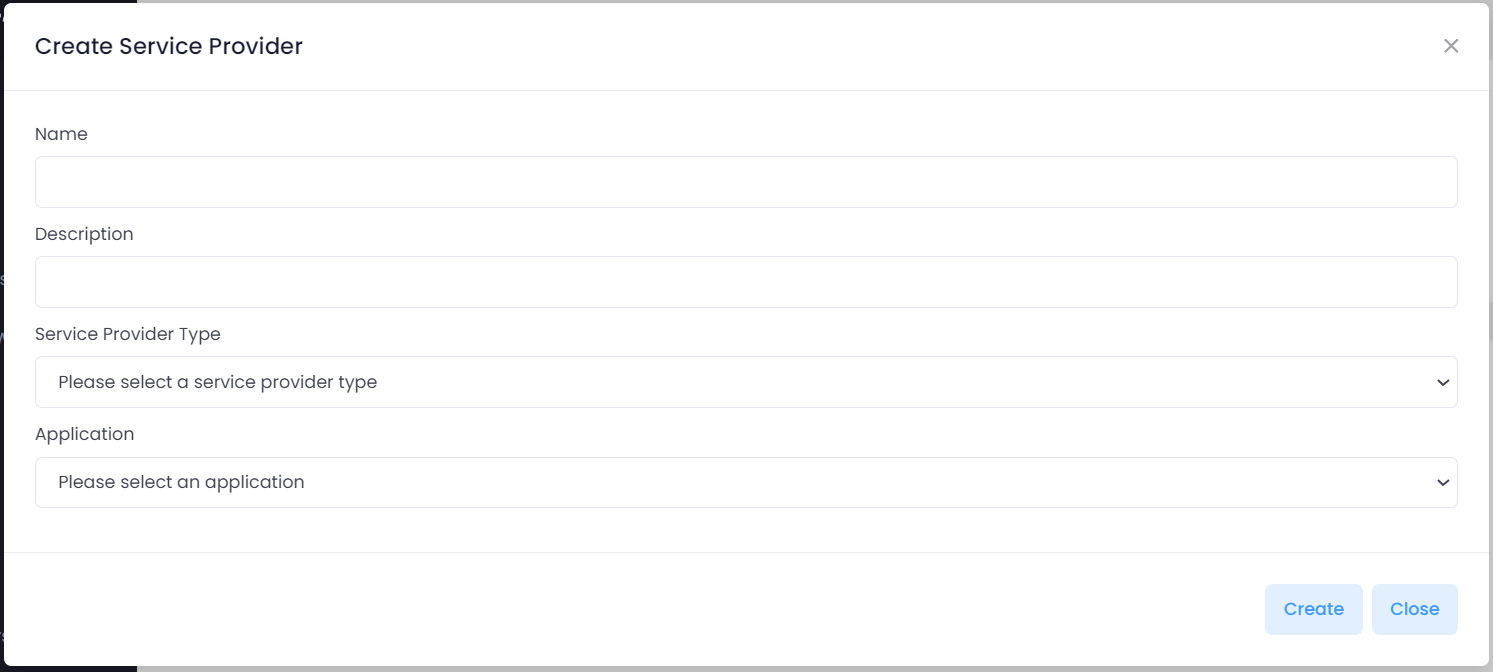
Fill in the name of the service provider to be created
Select the type of service provider, e.g. "EAM"
Select the application to be connected with the service provider, e.g. "Entra ID EAM"
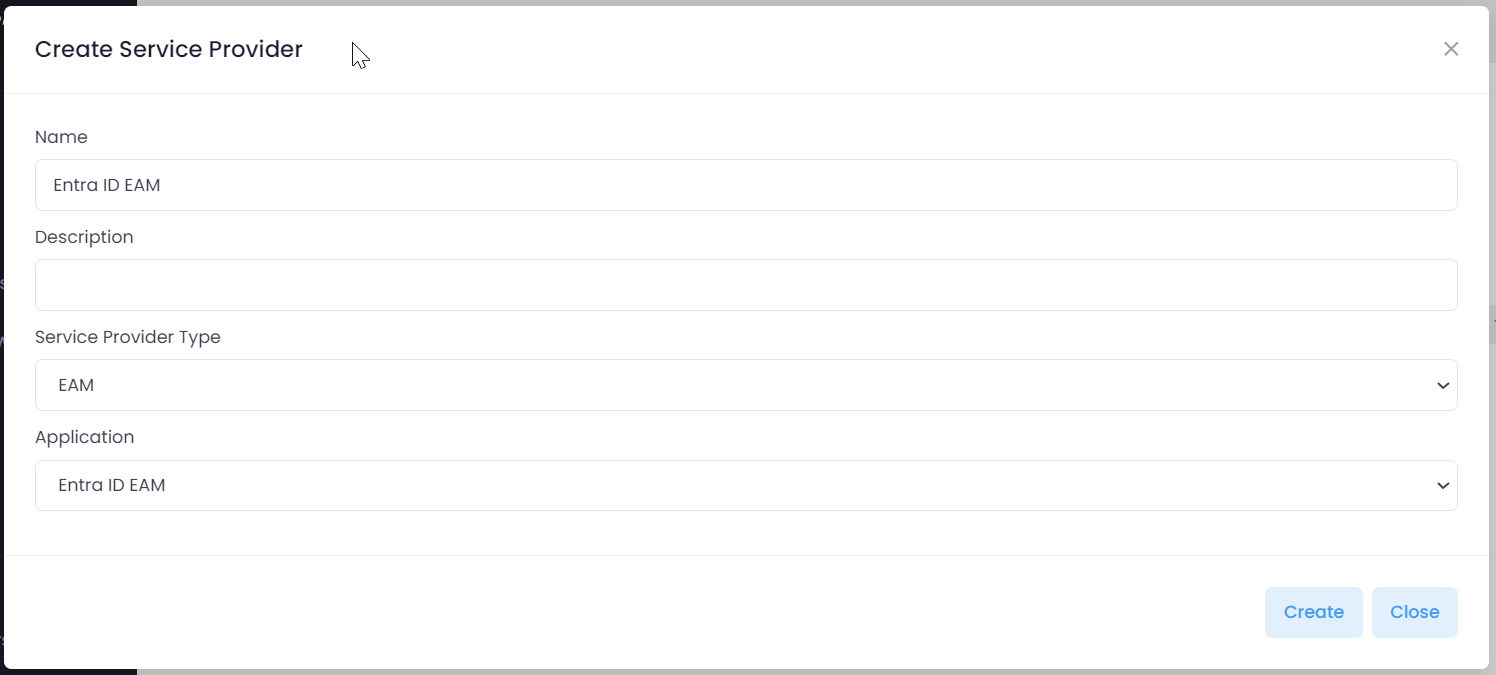
Click "Create"
You will now be presented with confirmation of the service provider creation along with a GUID.
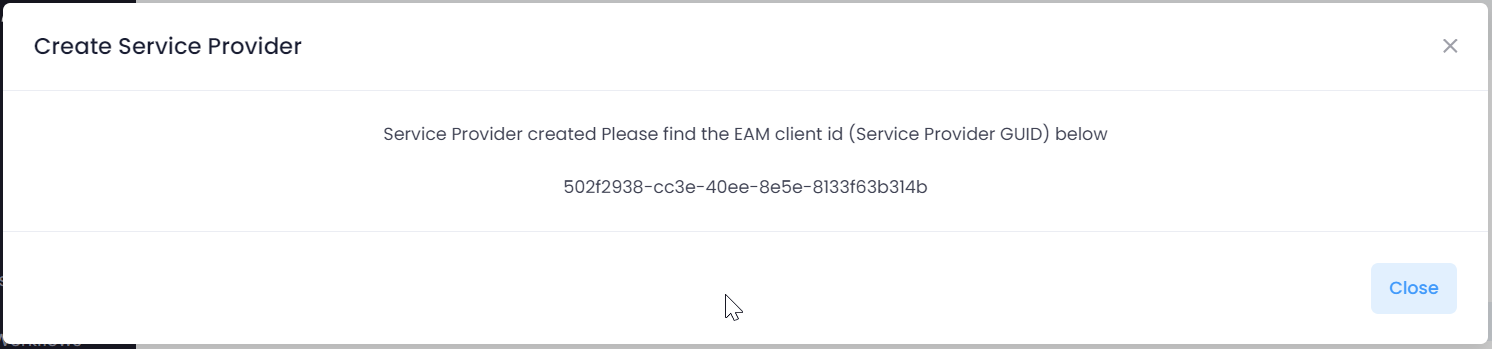
Please note the GUID, as it will be required in a subsequent step.
Click "Close"