The same flow from Microsoft's own side, end to end — starting in the account's Security info page, through Microsoft's passkey setup screens, intoAndroid's provider picker, and on to SafeKey FIDO Bridge.
1. Go to mysignins.microsoft.com → Security info, then tap Add sign-in method.
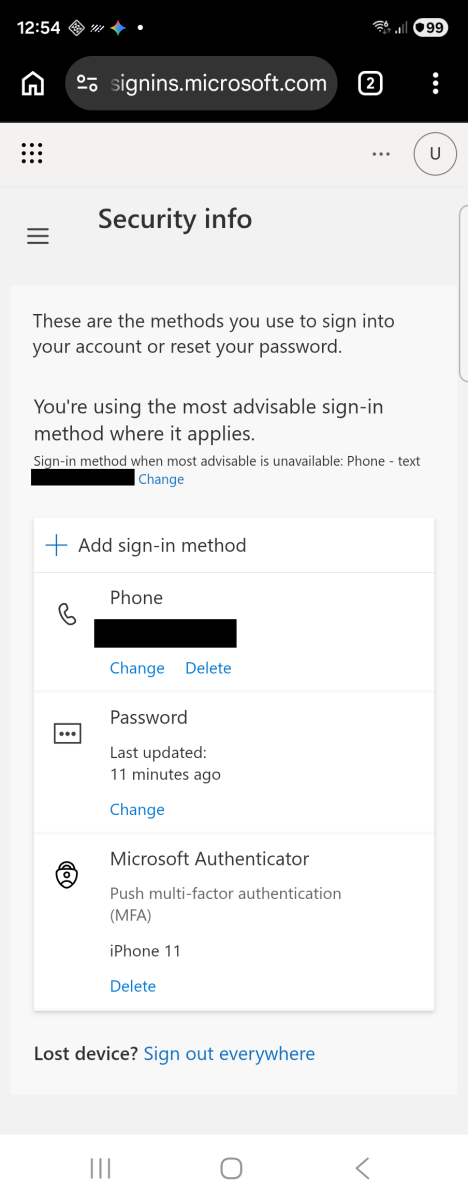
Security info → Add sign-in method
2. Choose Passkey from the list of sign-in methods.
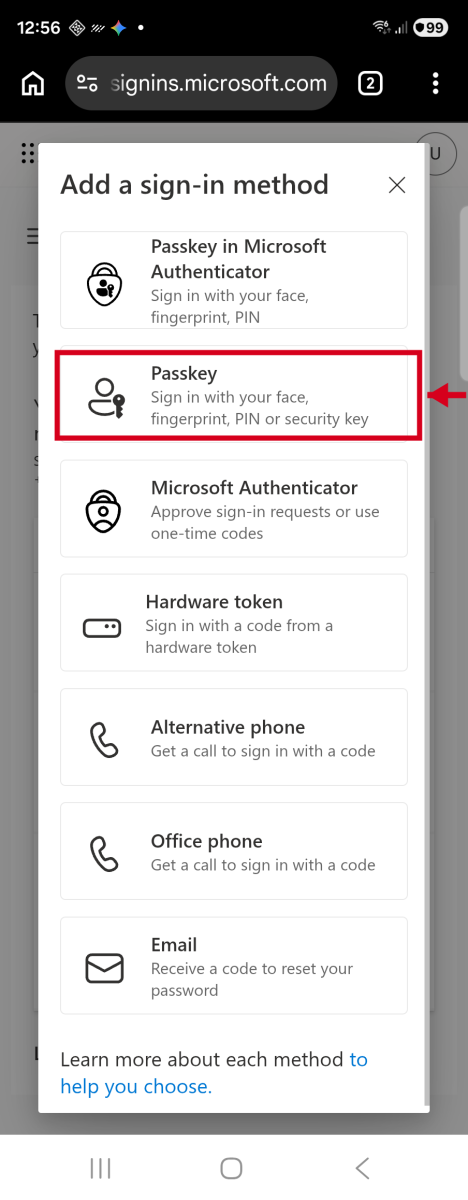
Choose "Passkey"
3. Microsoft shows a short intro to passkeys.
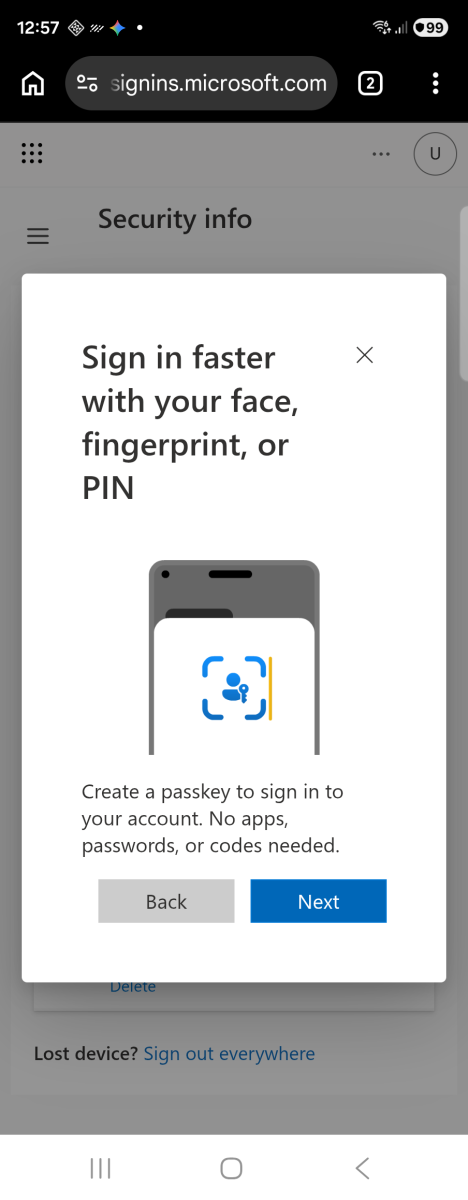
Microsoft's passkey intro
4. Microsoft hands off to Android's own passkey system sheet. Click More options (this is usually how it looks with more than one passkey provider installed).
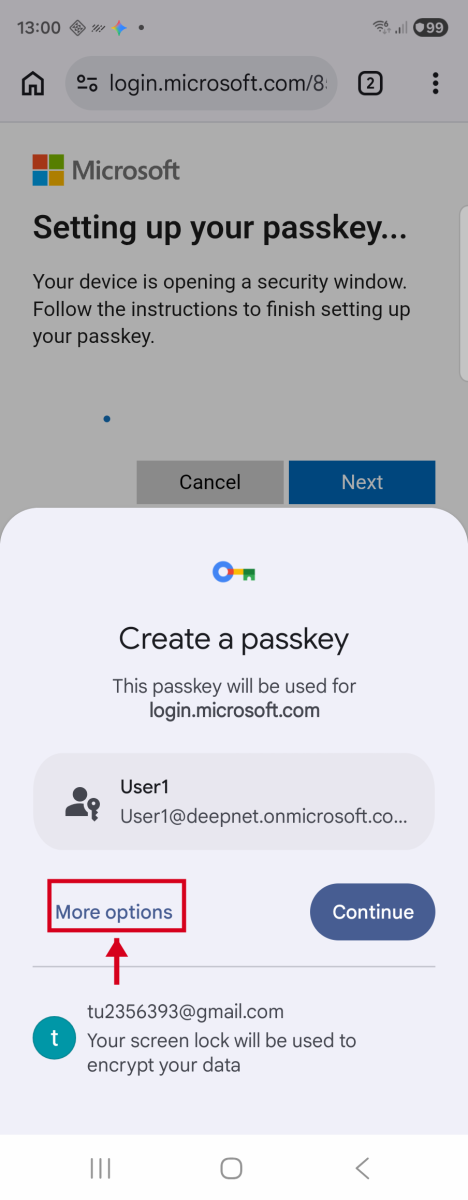
System sheet opens — tap "More options"
5. Choose SafeKey FIDO Bridge as the way to save your passkey.
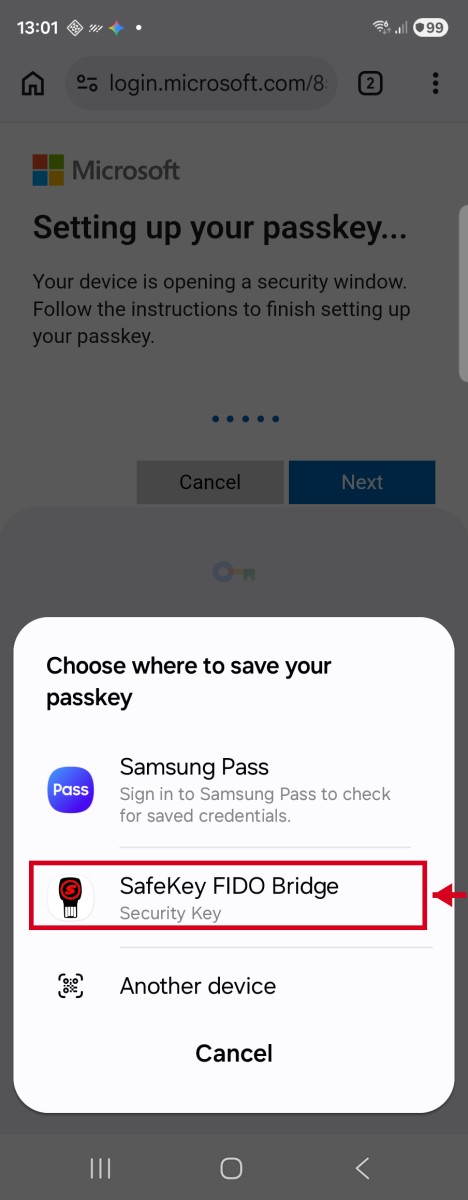
Pick SafeKey FIDO Bridge
6. Once SafeKey FIDO Bridge is selected, press Create to begin the passkey creation.
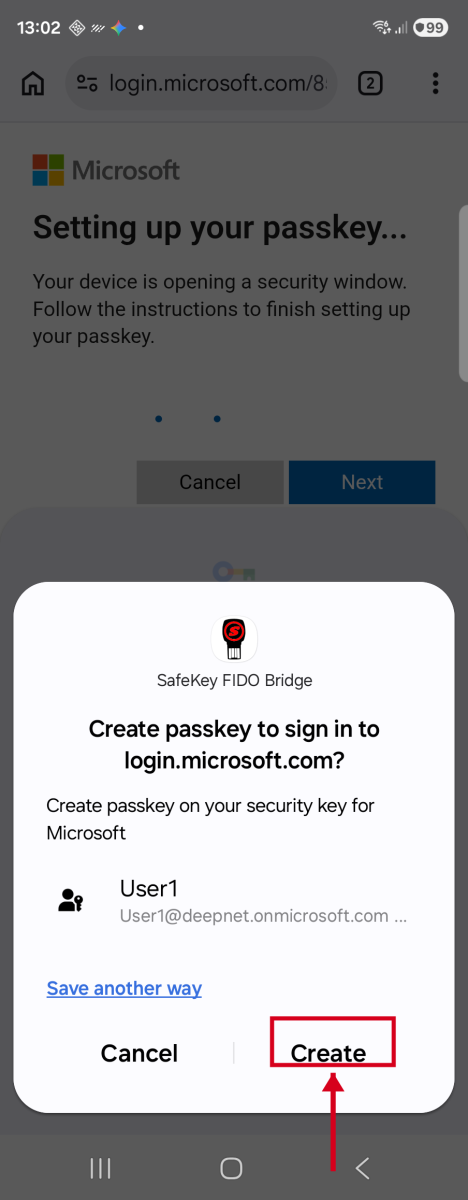
SafeKey FIDO Bridge recognized
7. Enter the security key's PIN.
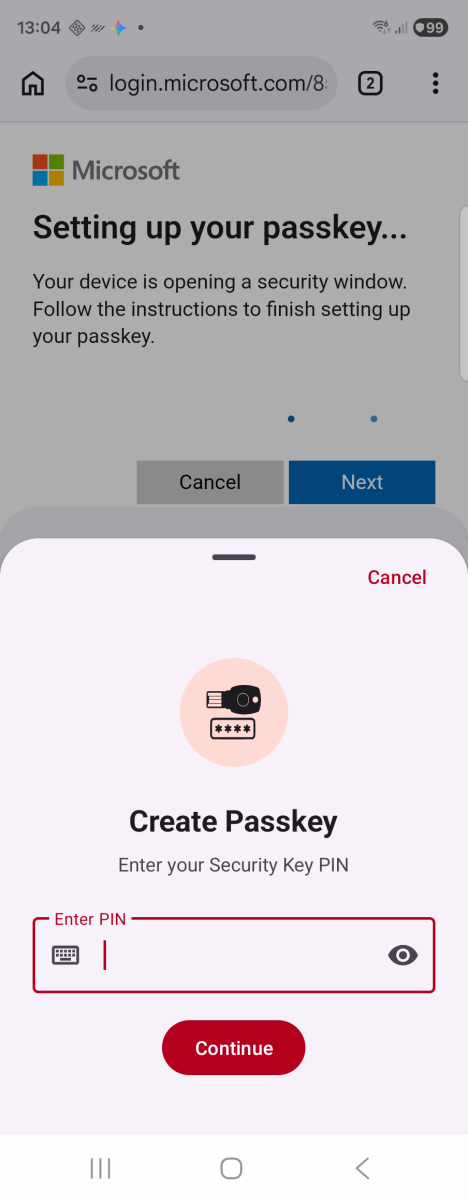
Enter the Security Key PIN
8. Hold the key to the phone or plug it in when prompted.
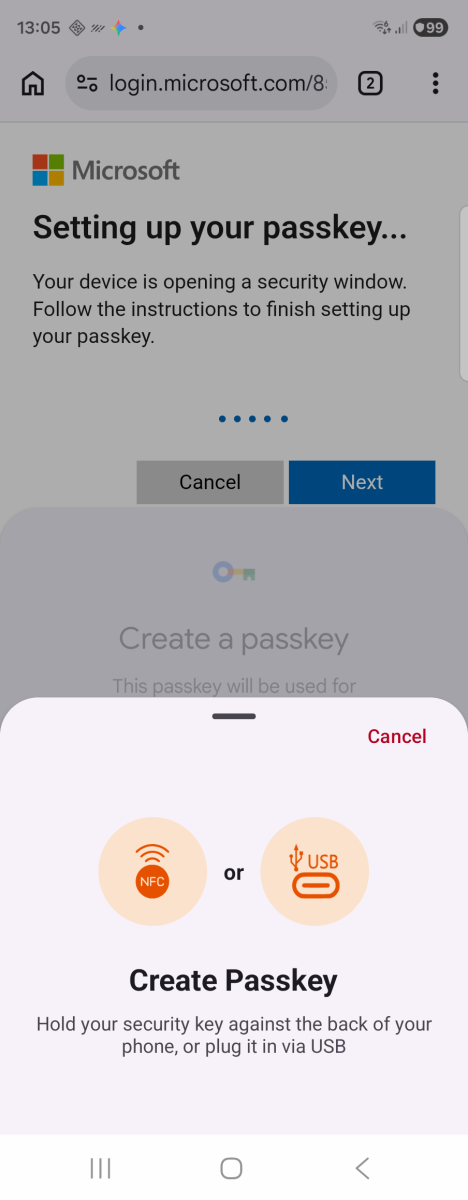
Waiting for the key
9. The app verifies the PIN with the key.
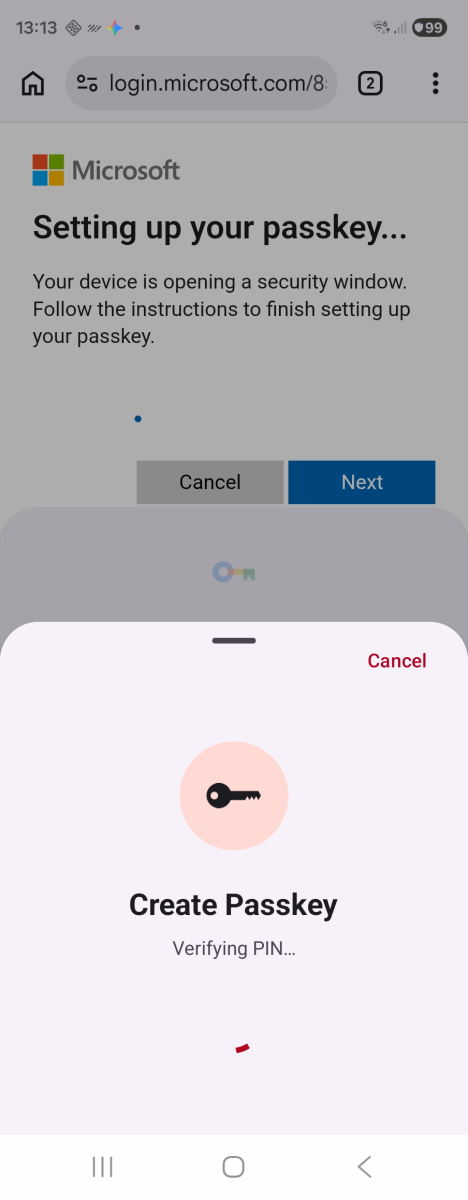
Verifying PIN
10. Microsoft asks you to name the passkey so you can recognize it later.
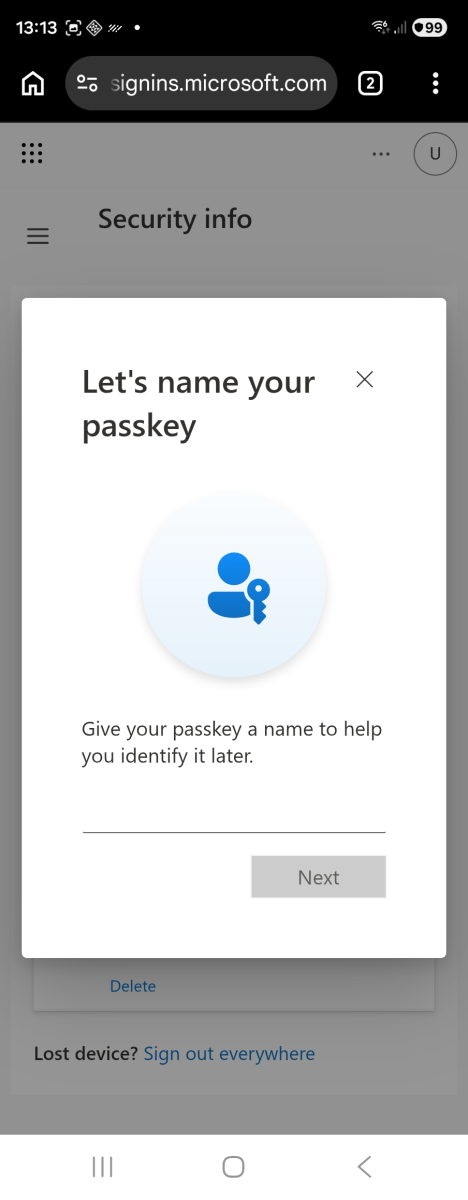
Name the passkey
11. Microsoft confirms the passkey was created — tap Done.
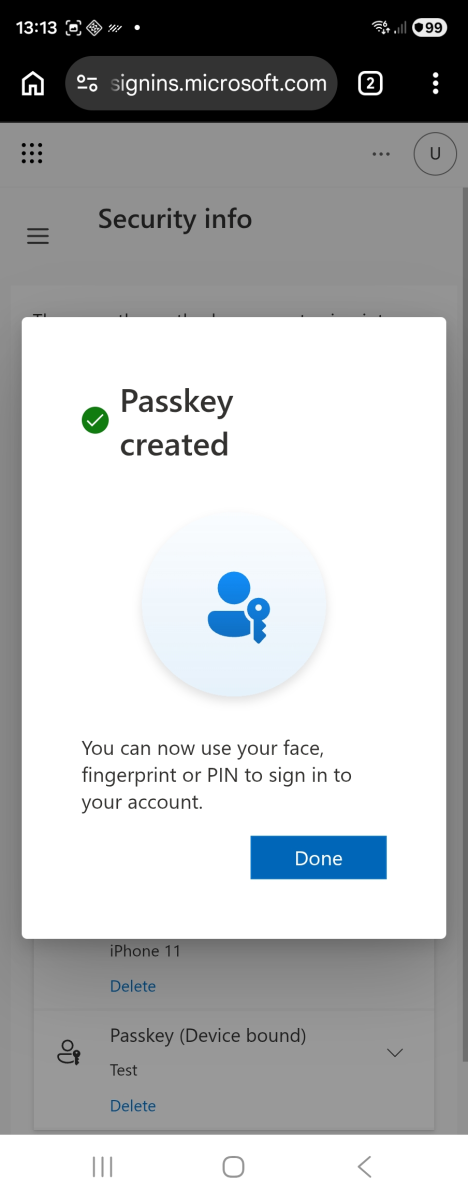
Passkey created
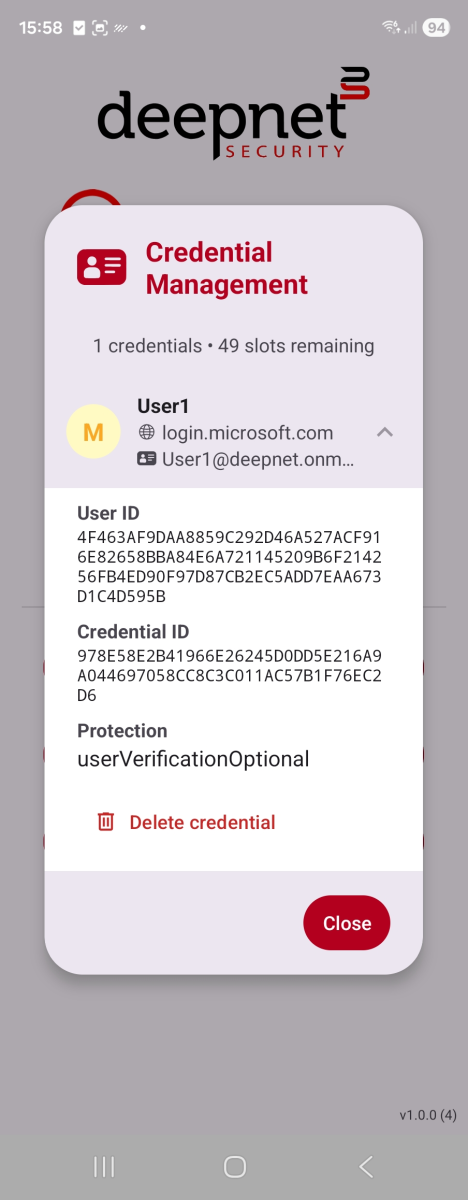
12. The new passkey now appears under Security info as Passkey (Device bound), with the name you gave it. The same can be seen in Credential Management in the app.
|
|
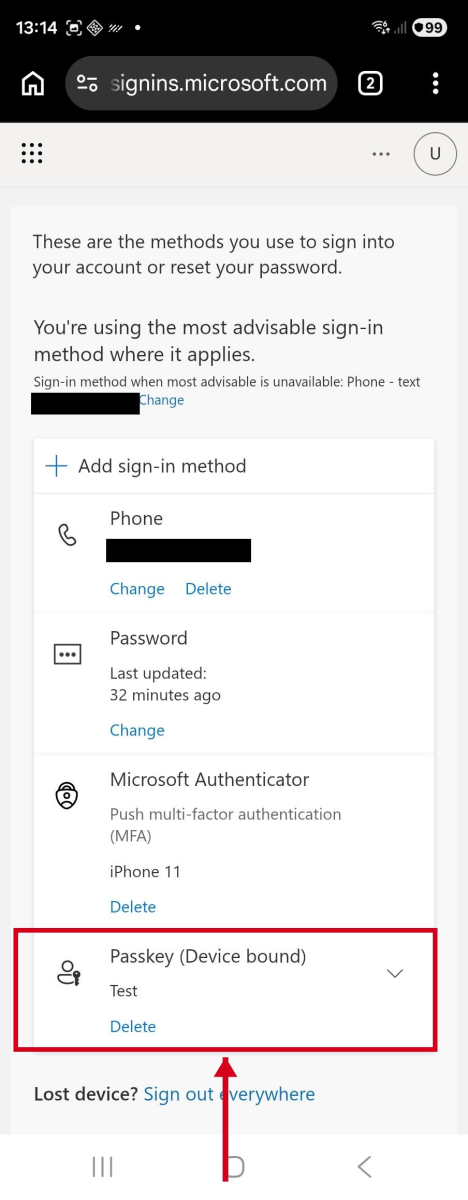
Phone numbers in these screenshots are redacted. The account shown is a test tenant, not apersonal account.