Create a Service Provider Profile for Secret Server on DualShield
Log into the Dualshield Administration Console
Go to SSO>Service Providers
Click on on the top right.
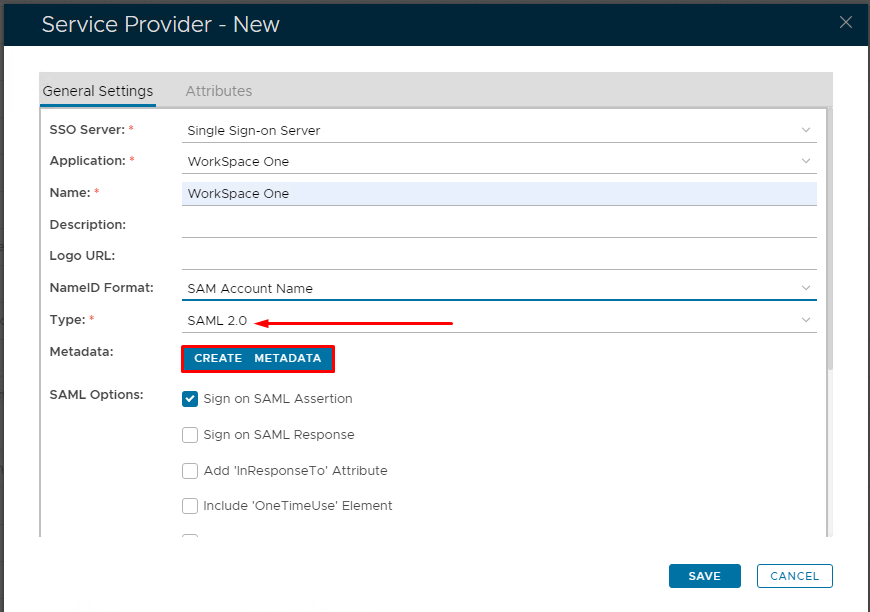
Fill in the details as per screenshot on right and make sure you select SAML 2.0 as Type.
Click on Create Metadata
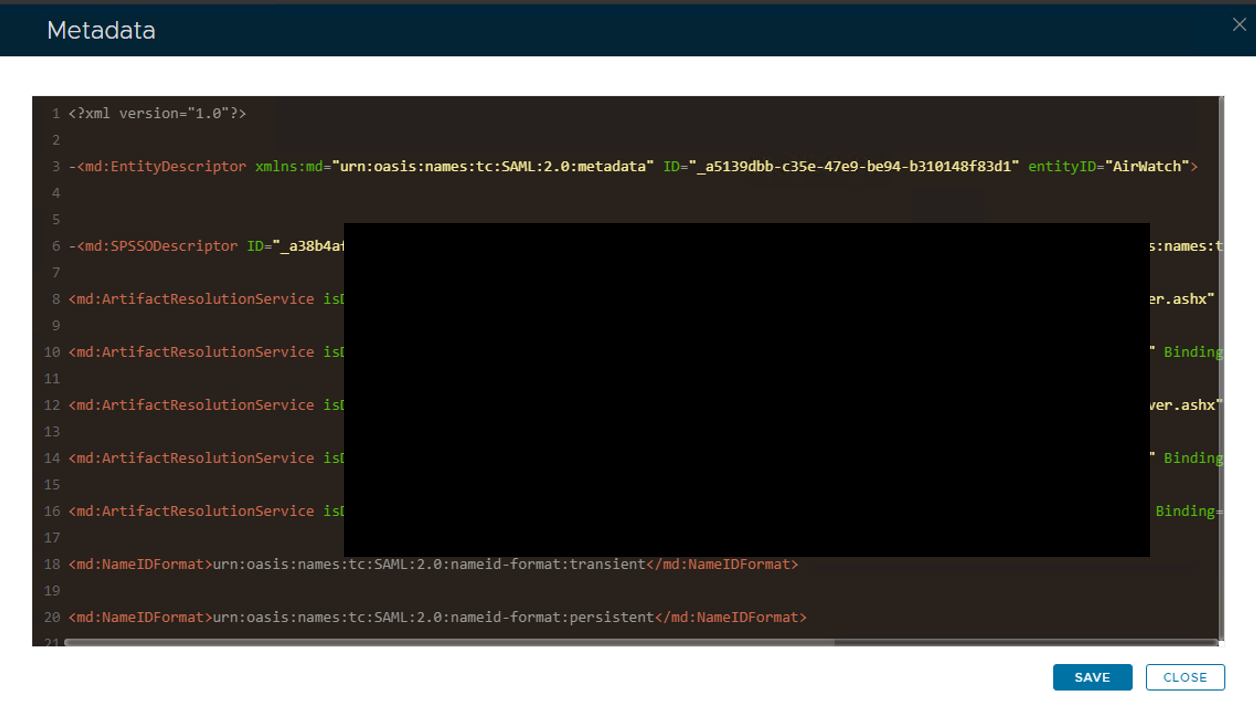
Open the Service Provider Metadata file you obtained in Workspace One Configuration.
Copy and past the metadata into Notepad or Notepad ++.
Remove the last three ACS locations and edit the file so it looks as follows.
Copy and paste the edited file into the Service Provider Metadata Windows and click Save
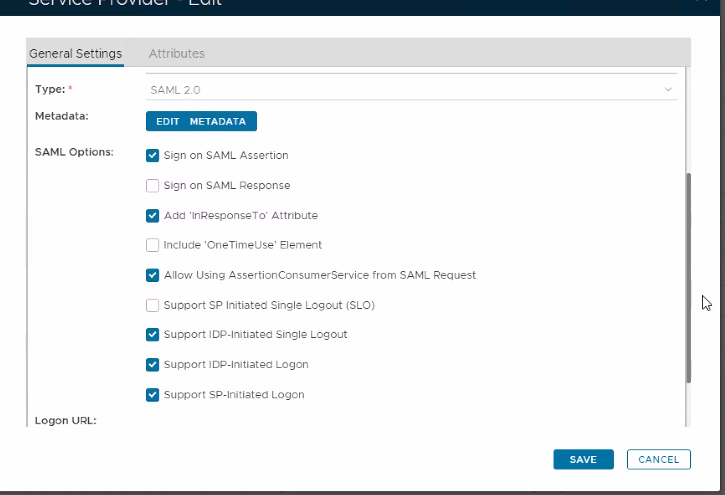
Please set the SAML Options as below.
Select Attributes at the top and then click Create
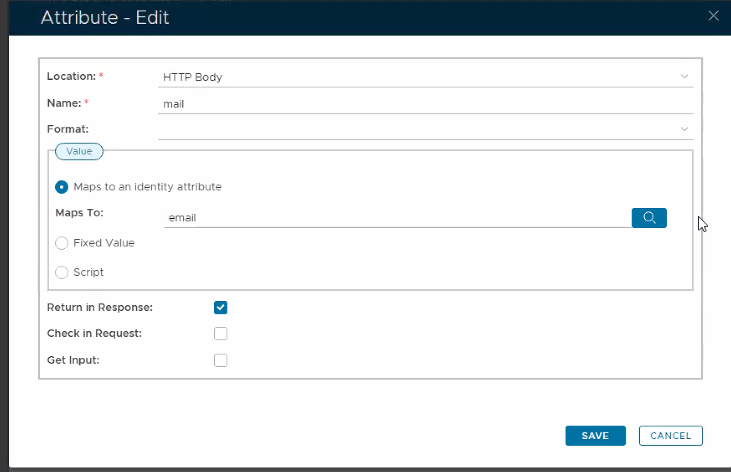
You have to create three attributes.
The first one is as follows:
Click Save.
Click Create to create the second attribute...
Click Create to create the third attribute...
Click Save and Save again.
 on the top right.