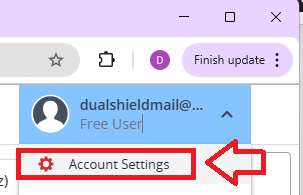
Log in to your LastPass user account, then from your account dropdown select "Account Settings";
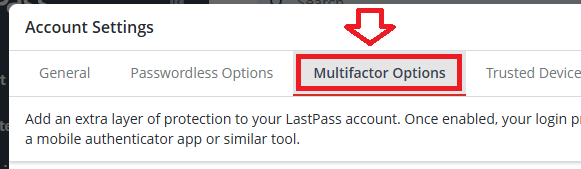
To add a FIDO2 key as an authentication method we need to select the option "Multifactor Options";
.
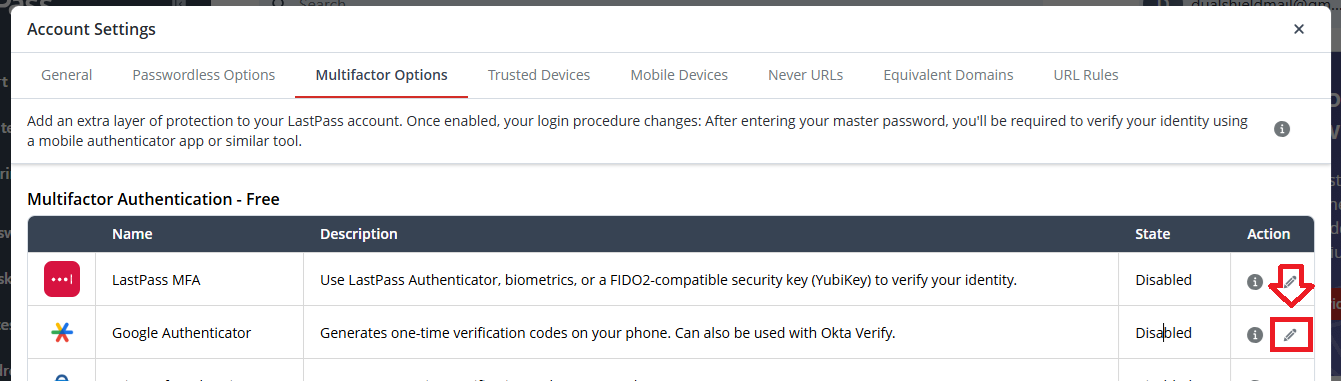
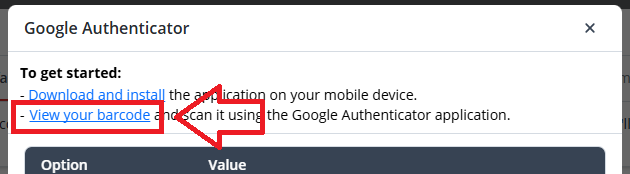
A new window will now open title "Google Authenticator", click on the link "View your barcode";
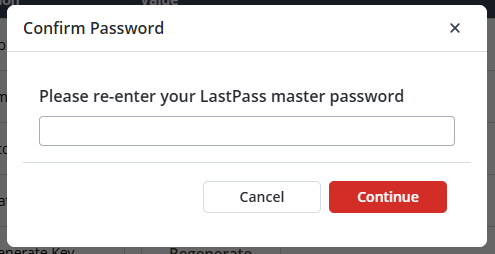
You will be asked to re-enter you LastPass master password, after entering the password click  ;
;
A QR code will now be displayed (see example below);
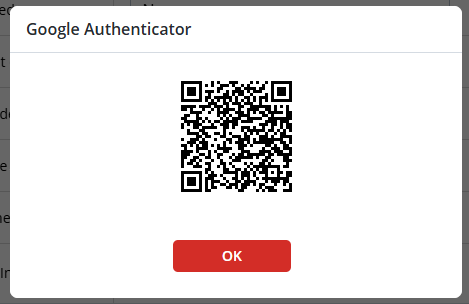
You can use the QR code to program our programmable tokens using the instructions found in the following procedure;
Once you have programmed your token you will need to verify it with LastPass.
Remove the QR code (by clicking  ),
),
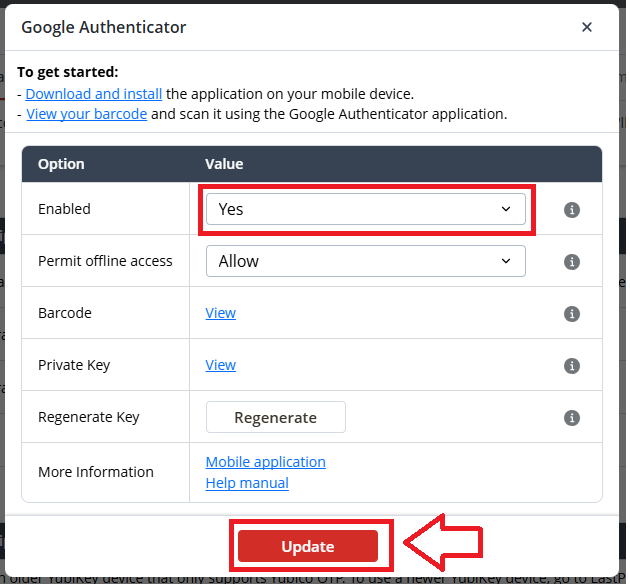
You are now ready to enable and verify the token. using the drop-down (indicated below), change the enabled state to "Yes";, then click 
You will be asked to re-enter you LastPass master password, after entering the password click ;
Next you are asked for the verification code, obtain a 6 digit code from your programmable token, enter it in the box, then click  ;
;
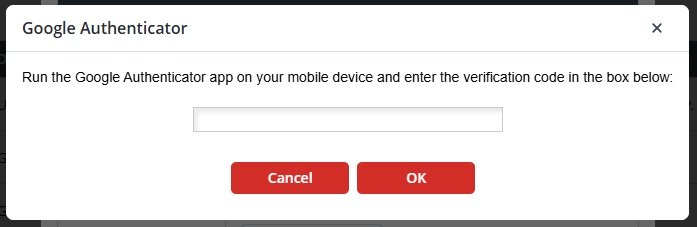
You will be shown confirmation that your verification code has been accepted, click ;
Upon returning to the MFA configuration page, you will now see confirmation that the authentication method has been enabled;

You are now able to use your programmable hardware token as a source of OTP codes when logging in to LastPass.