Log in to your Amazon shopping account, then click on the menu dropdown (indicated below);
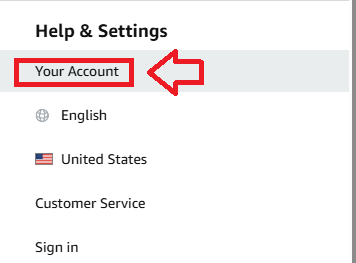
In the left hand menu column, scroll down to the section "Help & Settings", then click on the option "Your Account";
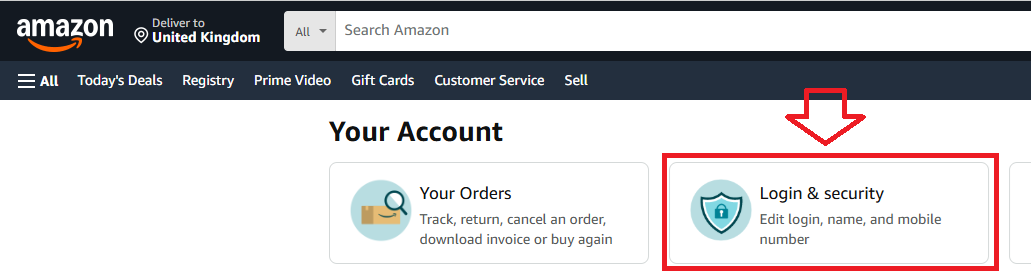
The web page will now be headed "Your Account" and will present account based setting options.
Select the option "Login & Security";
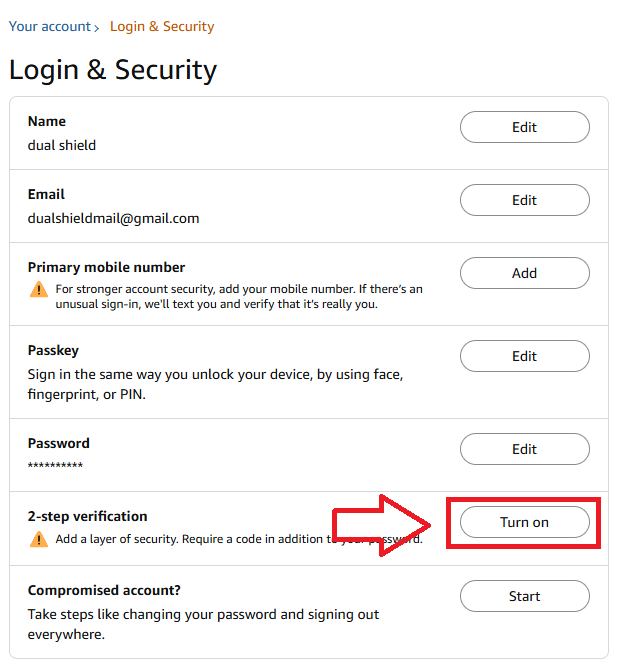
A new window titled "Login & Security" will now open, against the option "2-step verification", click on the button  ;
;
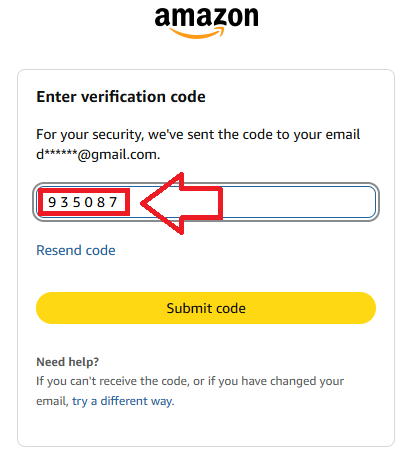
Before enabling 2-step verification you will be asked to enter a verification code (the code will be sent to your email address).
Obtain the 6 digit code that was emailed to you, enter it into the form, then click  ;
;
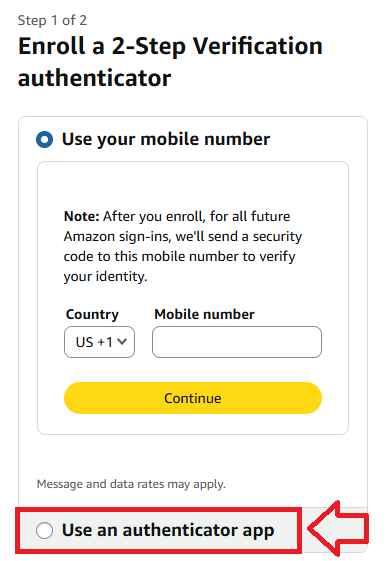
You will now be asked to enrol a 2-step verification authenticator (we will be using our programmable token for this purpose).
Select the option "Use an authenticator app";
A QR code will now be displayed (we will now use this code to burn onto our programmable token);
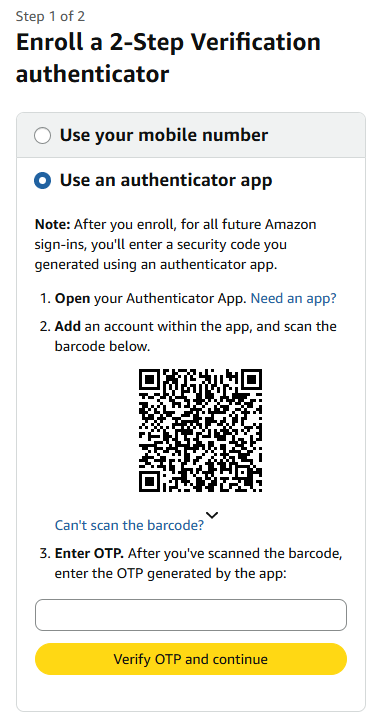
You can use the QR code to program our programmable tokens using the instructions found in the following procedure;
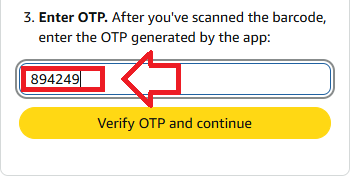
Once you have programmed your token you will need to verify it with Amazon.
You now need to provide a 6 digit OTP code from your recently burned programmable token, enter the code then click  ;
;
Finally, you will be presented with an option for supplying the OTP code as part of the password);
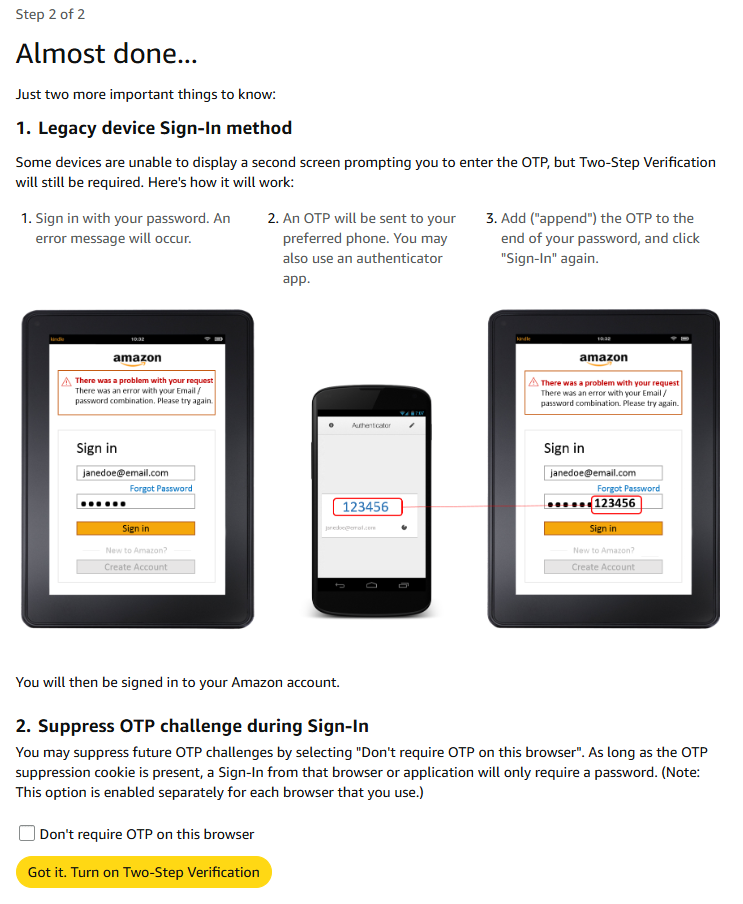
If this option is not needed by your devices you can just select the option "Don't require OTP on this browser", then click 
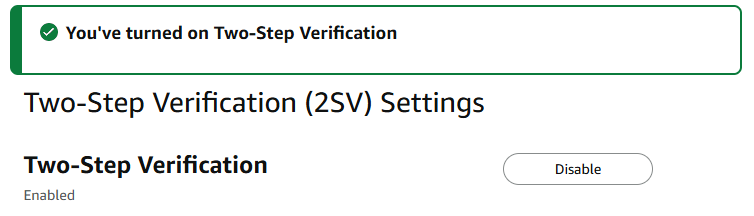
Two-Step Verification will now be enabled, and once again you will be prompted to enter a code from your token, add a fresh OTP code and click  ;
;
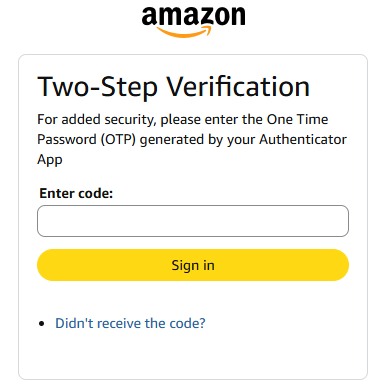
You are now ready to use your programmable token as an OTP source when you next log in to your Amazon account.