
Log in to your Crowdin Account, then click on you account icon, then click on "Settings" (see example below);
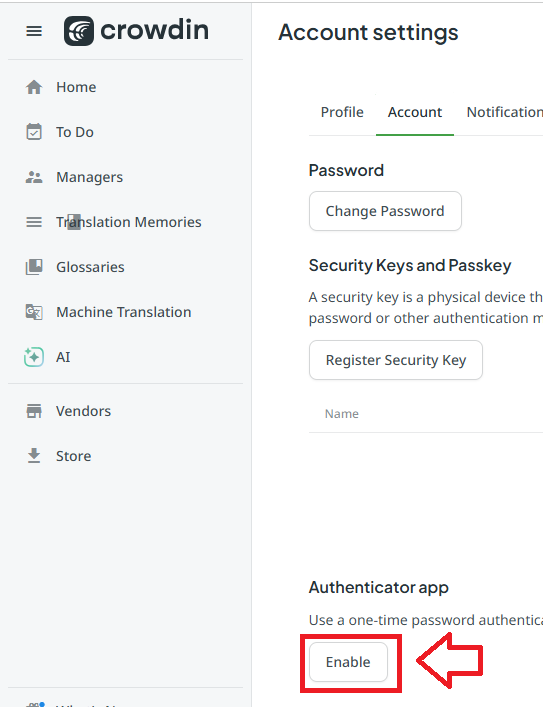
In the "Account Settings" section, scroll down to "Authenticator app", then click  ;
;
You will then be presented with a QR code;
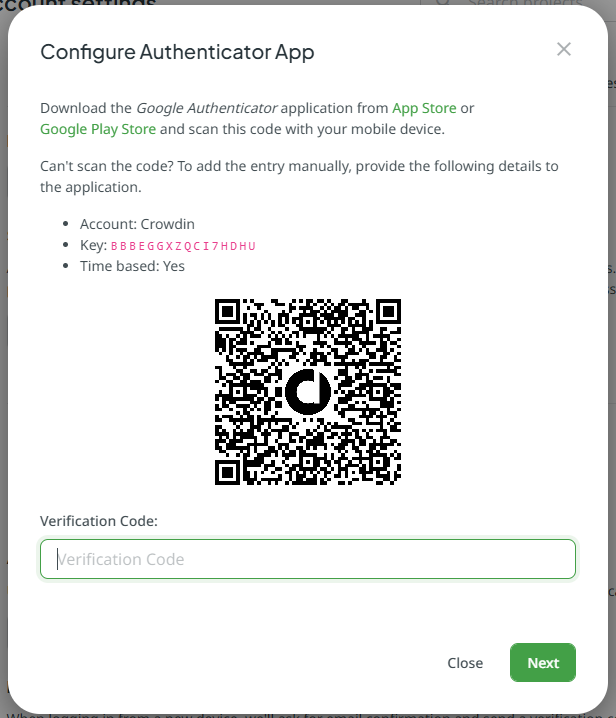
As the generated QR code is very compact we strongly suggest you enlarge this QR code prior to scanning it in the programming app.
The QR code can now be burned onto you programmable token (see procedure below);
Once you have programmed your token you will need to verify it with CloudFlare.
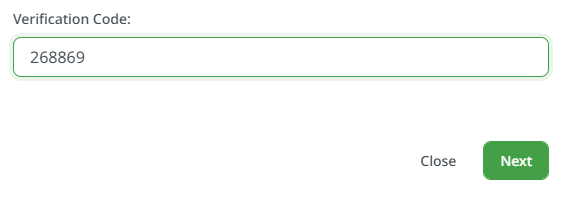
Obtain the requested 6-digit code from your programmable token and enter it into the field prompted "Verification Code", then click  ;
;
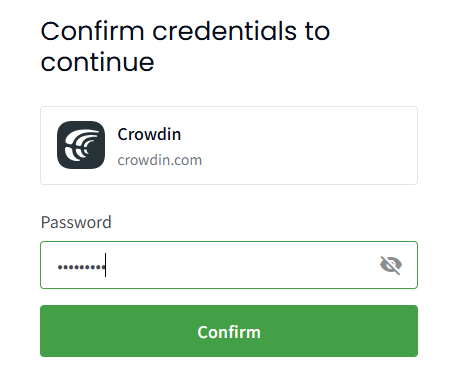
You will then be asked to confirm you credentials – at the "Password" prompt enter your password, then click  ;
;
You will then be presented with a list of recovery codes - we advise you keep a copy of these codes (as a precaution to the token being lost etc).
After exiting the last screen you will return to your account settings and will discover that the Authentication app option is now enabled;
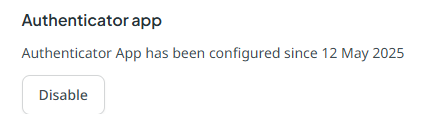
The hardware token is now ready to be used when you next log in to your Crowdin account.
Log out, then back in to your Croudin account, then after supplying your username and password you will be prompted for your second factor;
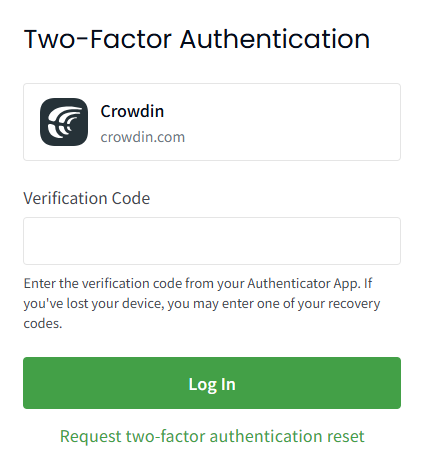
Obtain an OTP code from your hardware token, then supply the code at the prompt "Verifcation Code", then click  , and you will be logged in to your Crowdin account