...
Click the link below to download the tool
SafeKey/Classic OTP Programming ToolProgrammer (G2)
Unzip it into a folder on your local hard drive.
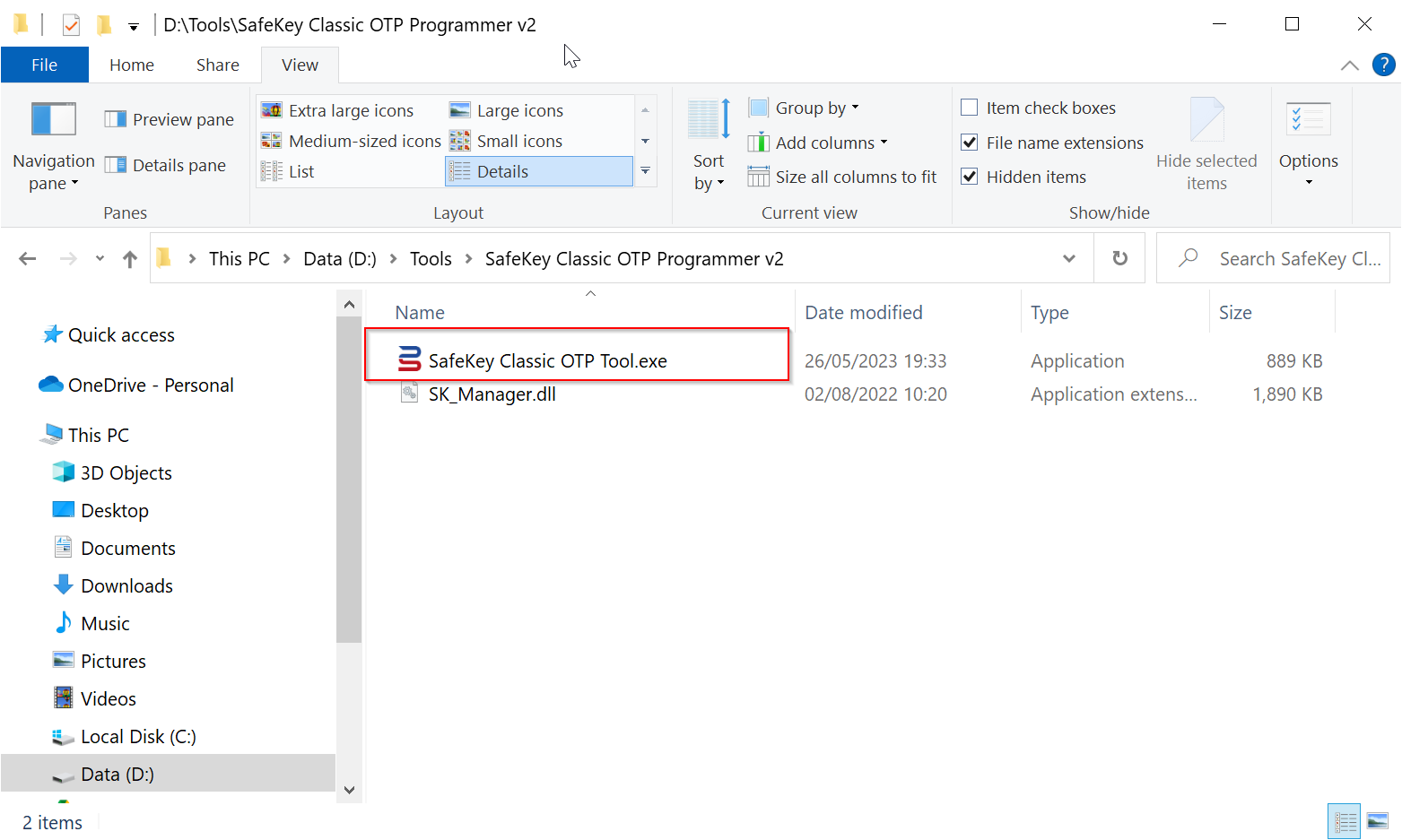
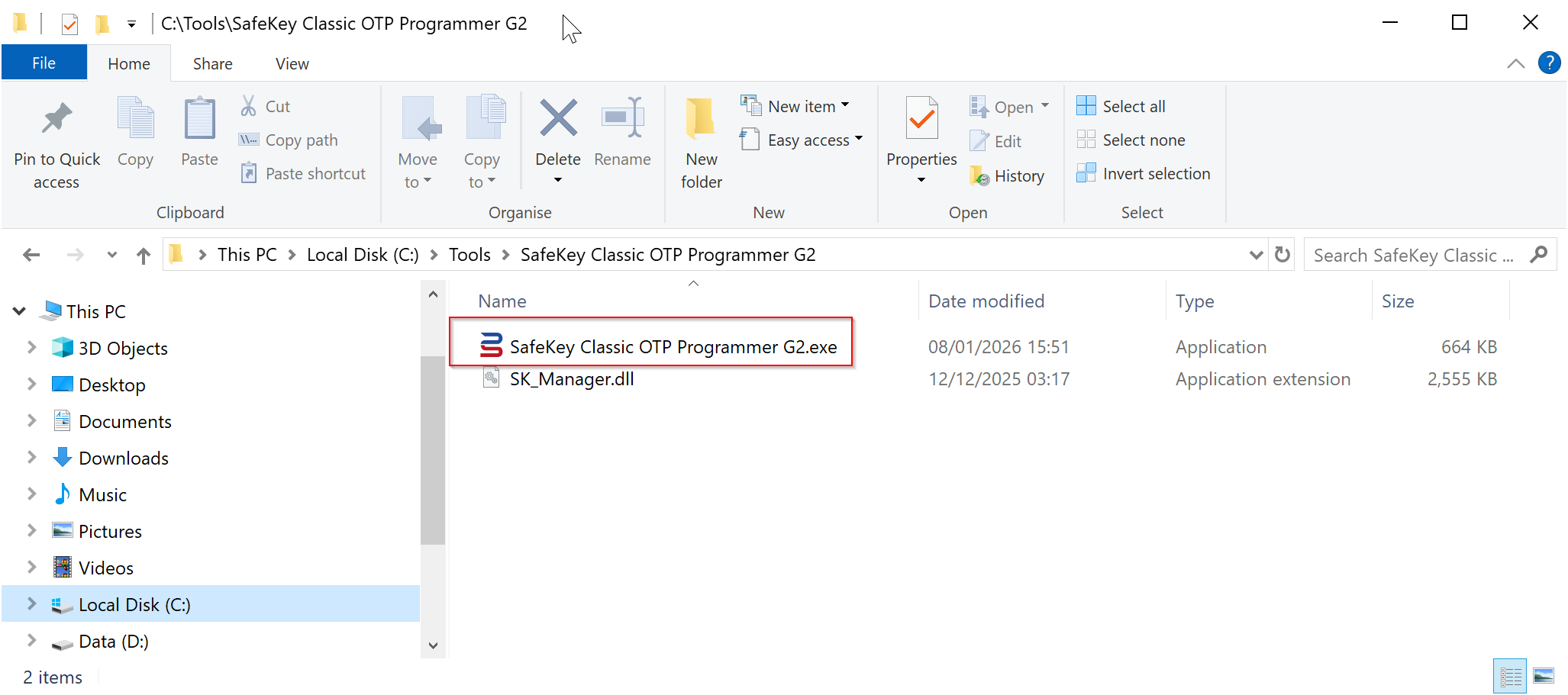
Create a TOTP Token
...
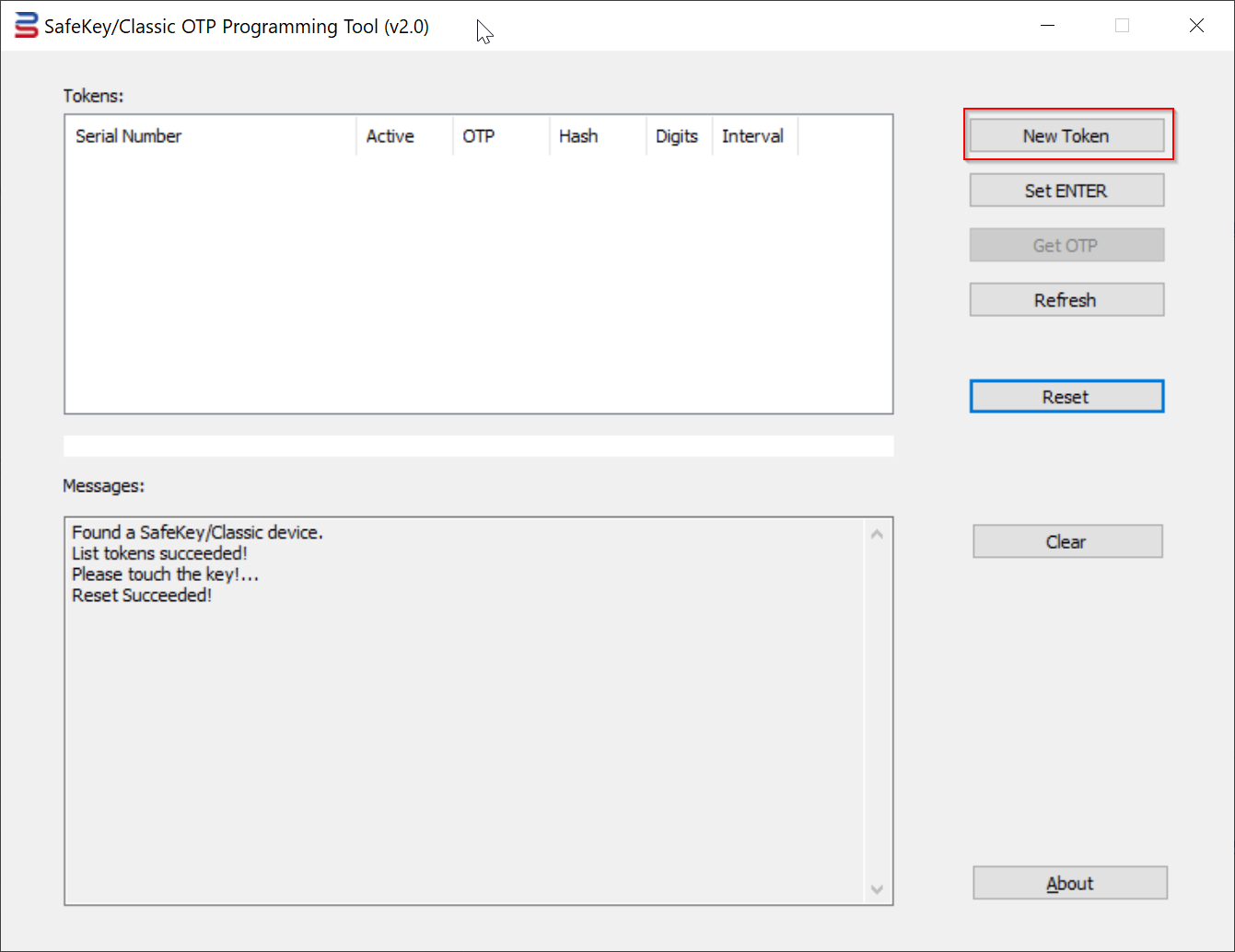
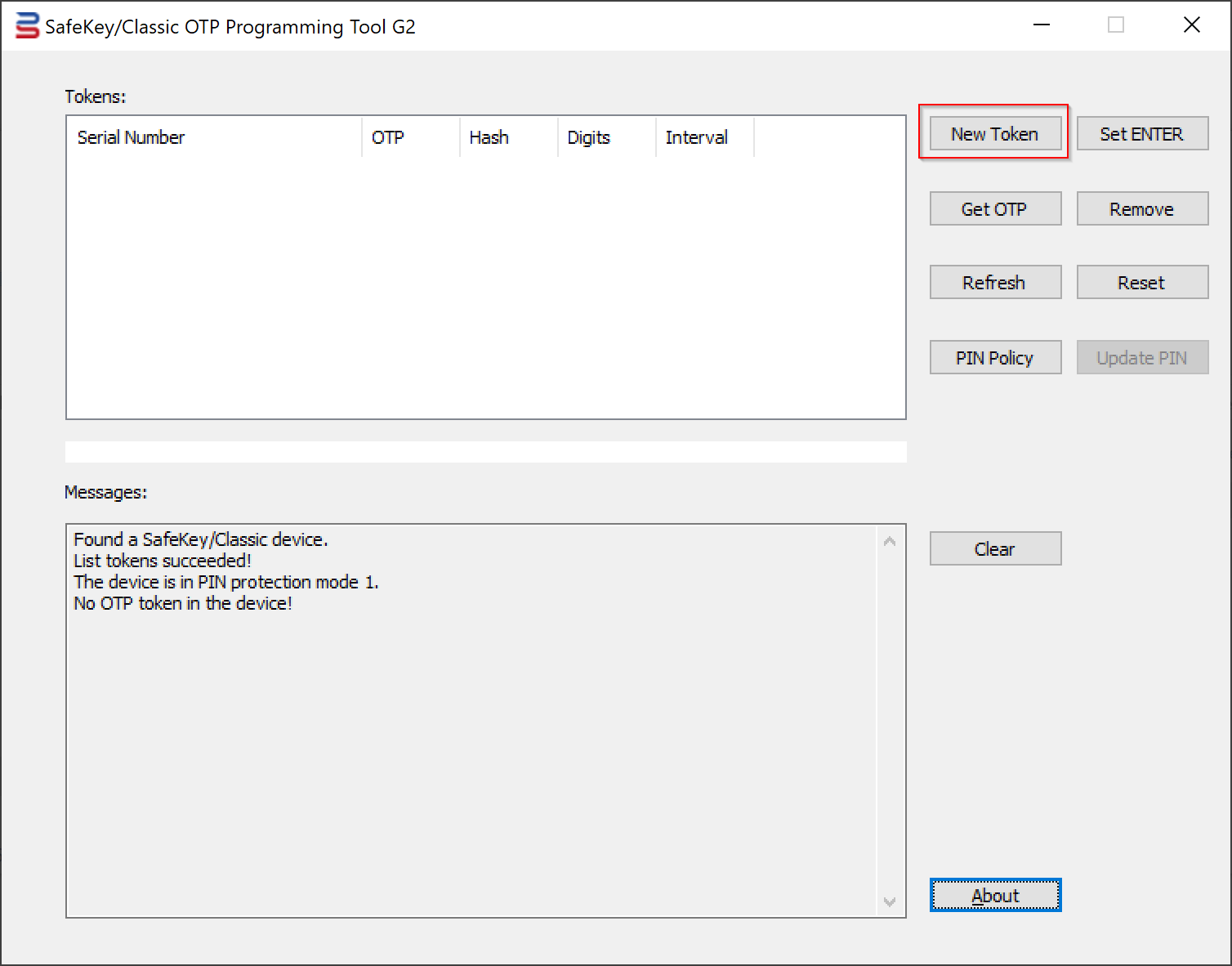
2. Run the SafeKey/Classic Programming Tool Programmer tool as Administrator
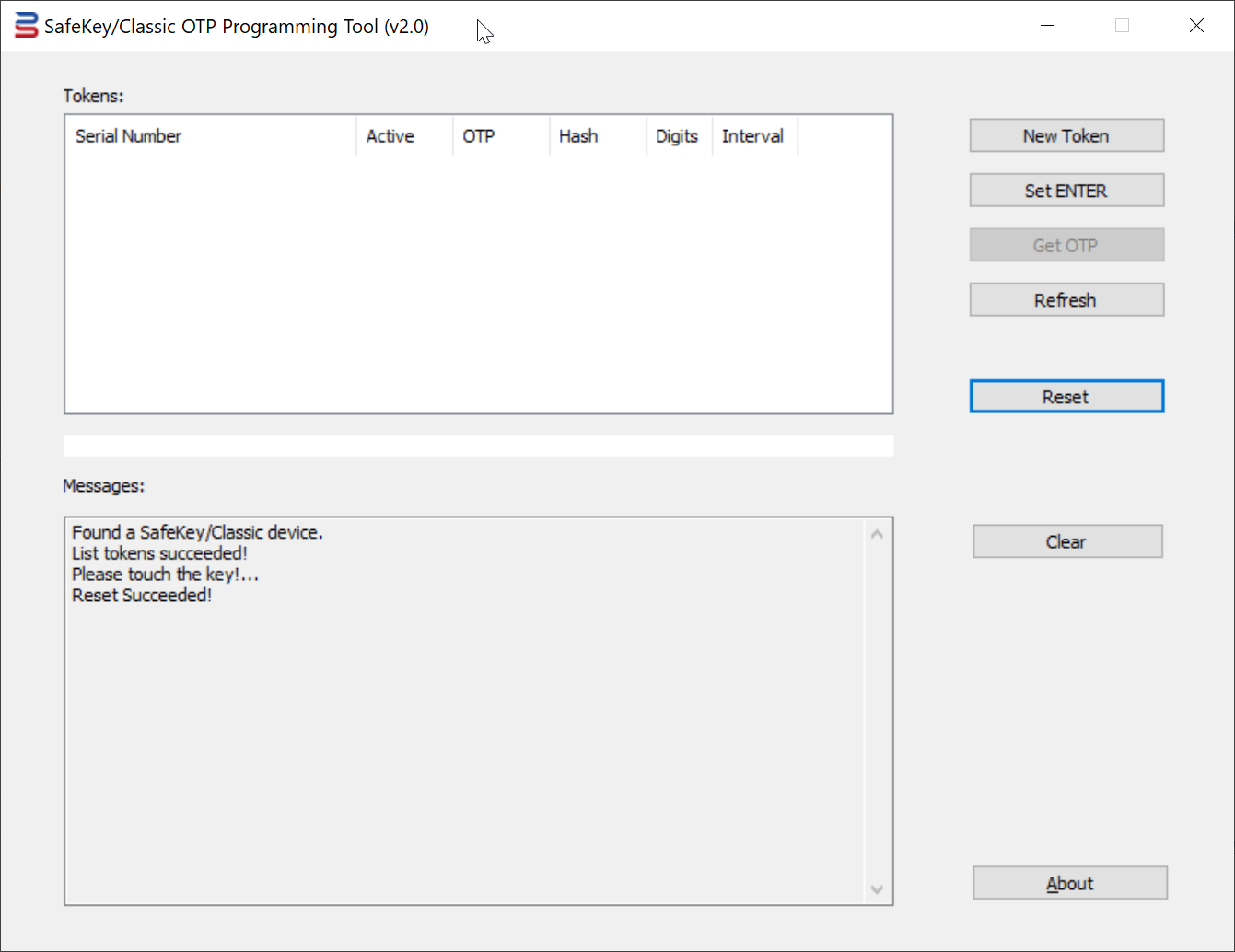
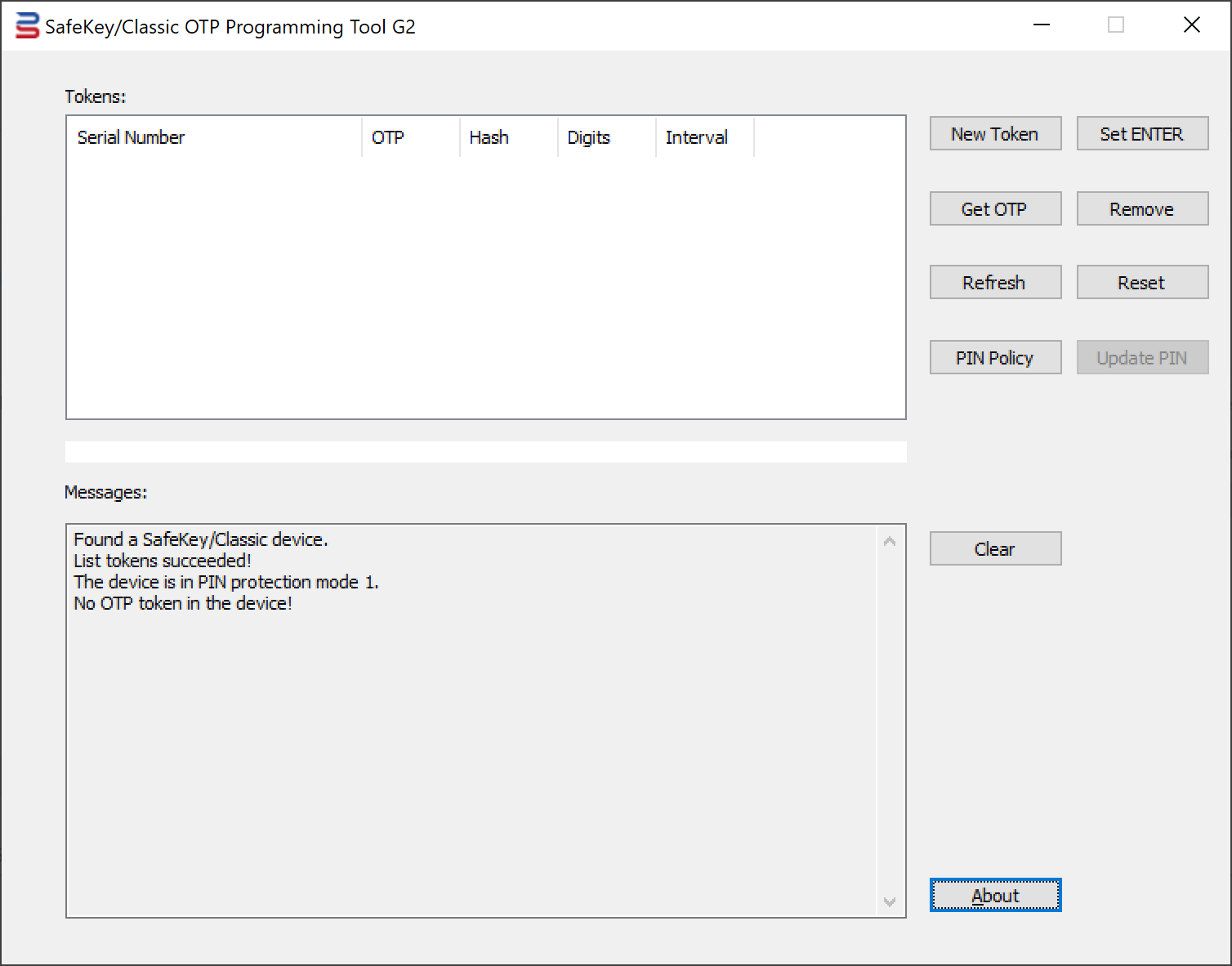
3. Press the "New Token" button
The "New Token" dialog box will pop up
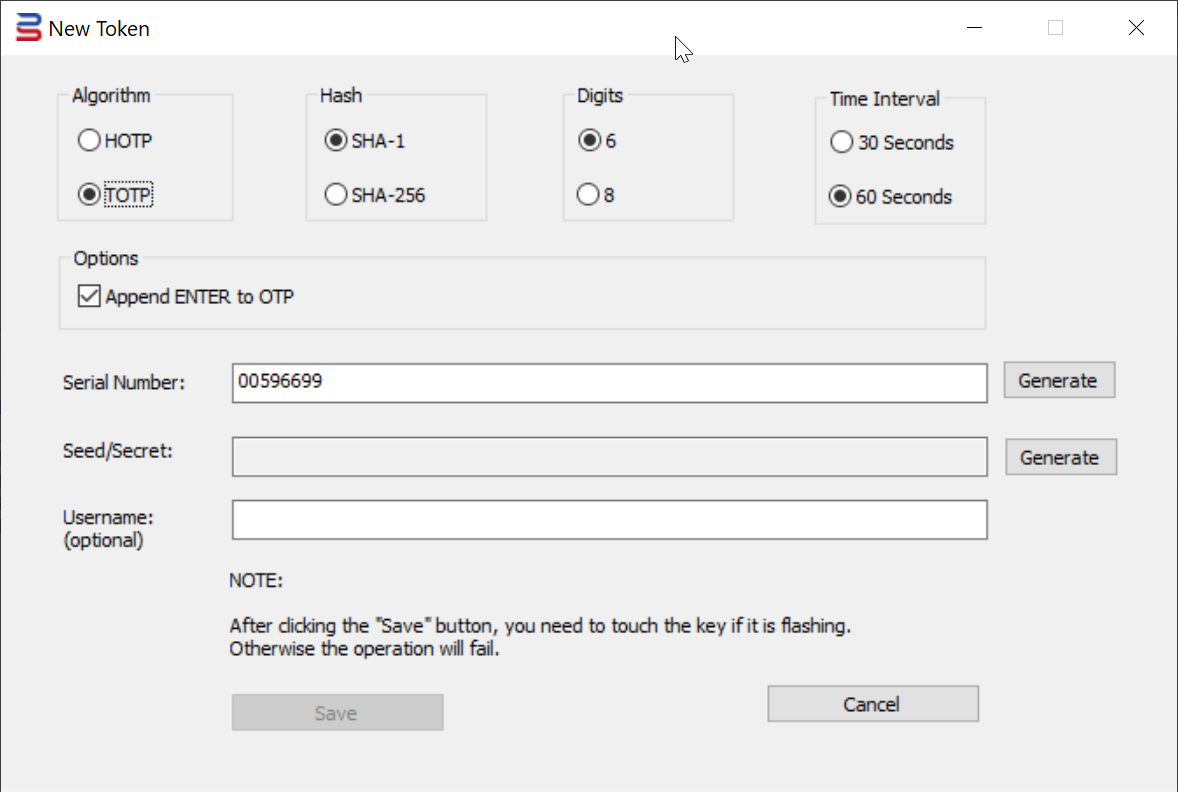
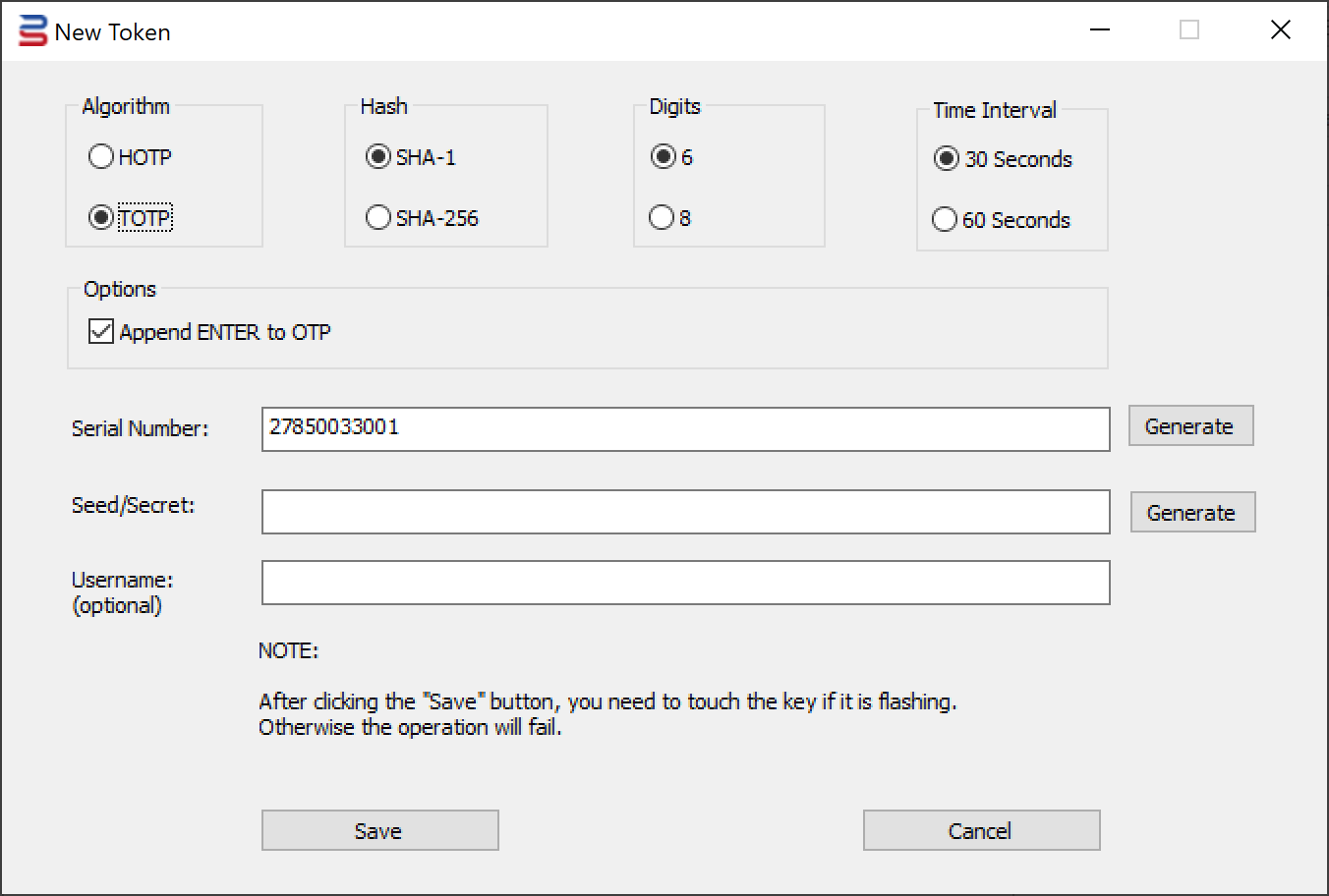
4. Select the option "Algorithm", e.g. "TOTP"
...
7. Select the option "Time Interval", e.g. "30 seconds"
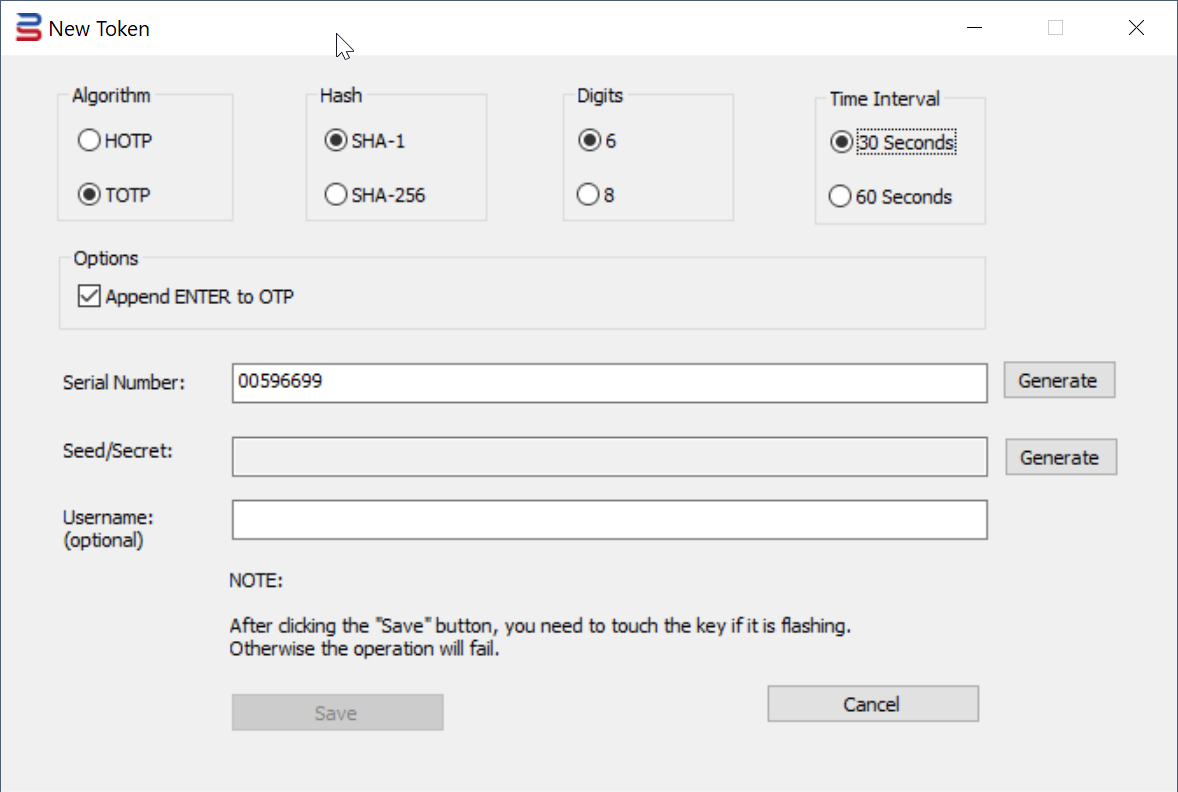
98. Press the "Generate" button to generate a random Seed/Secret datadata
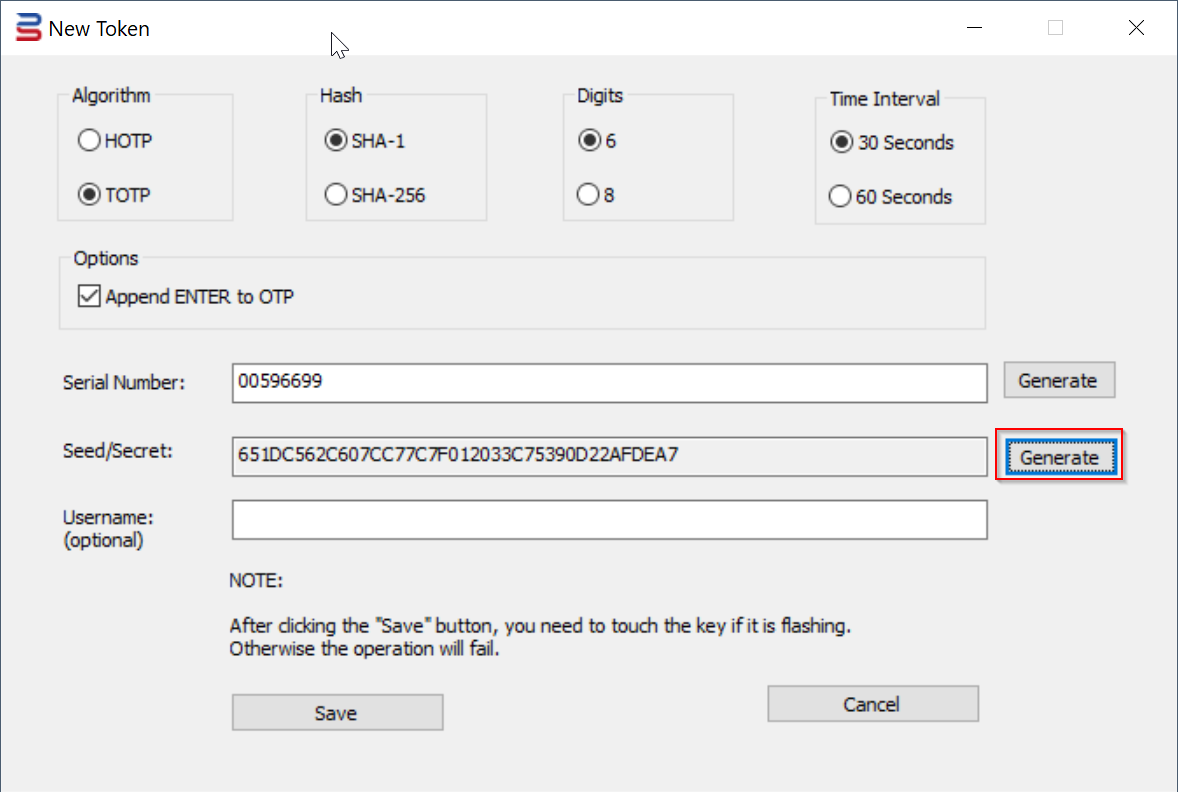
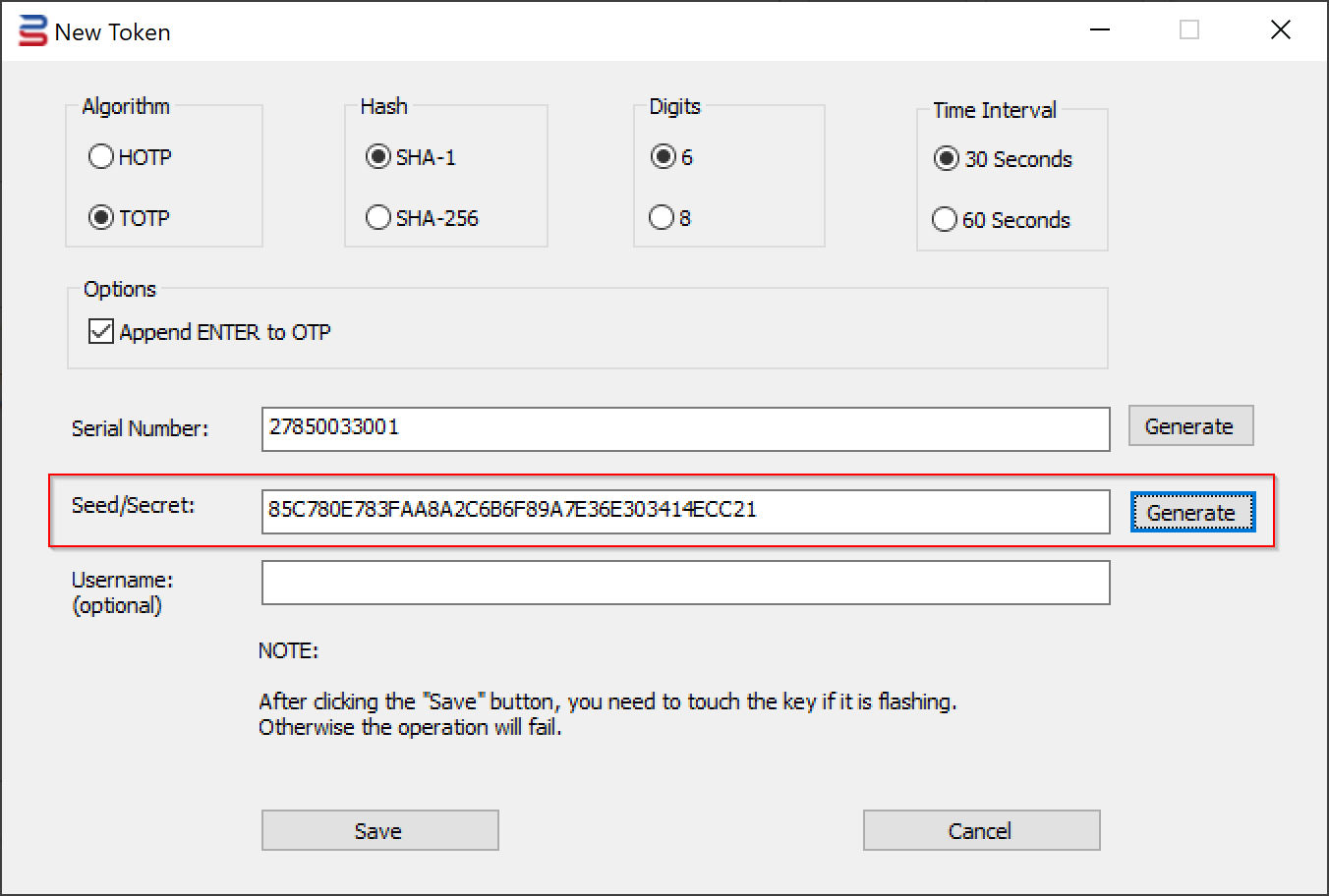
9. Optionally, you can also generate a random Serial Number, or you can enter your own Serial Number
Alternatively, you can also copy & paste a secret/seed data
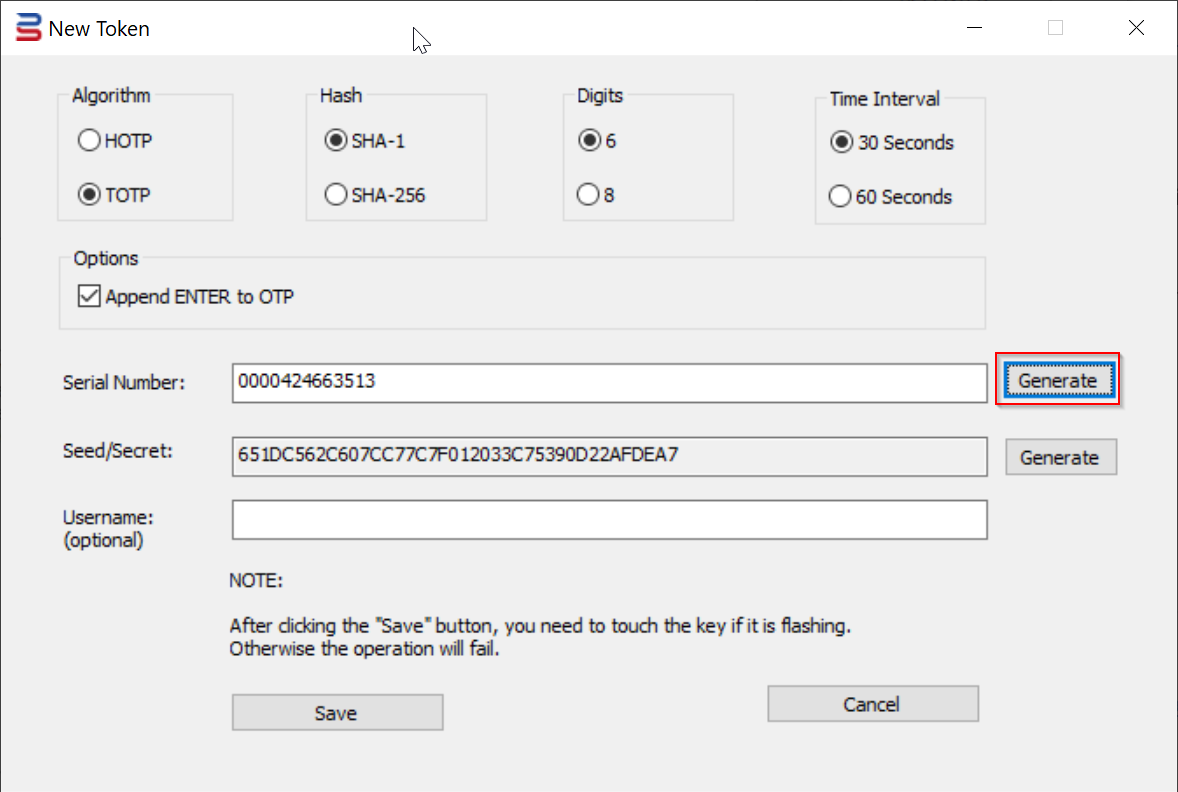
10. If you're programming the key for an O365 user, then you might want to enter the user's UPN in the Username box
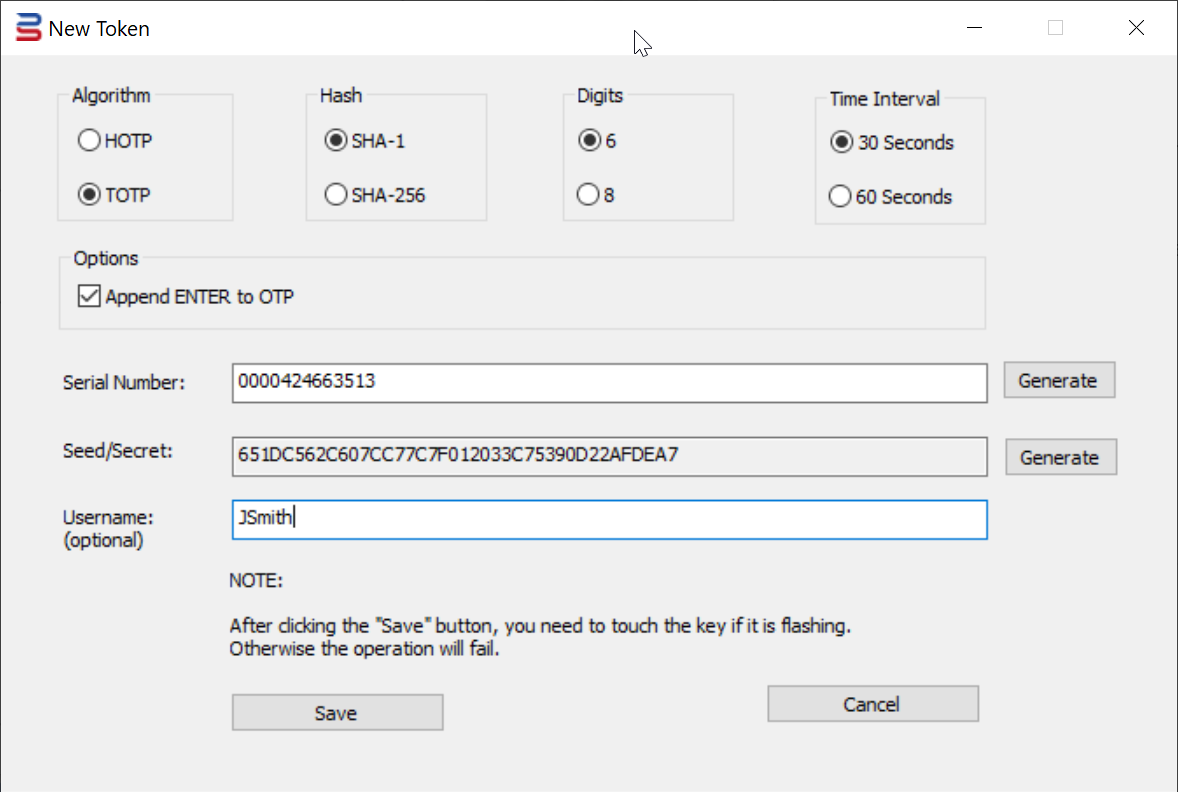
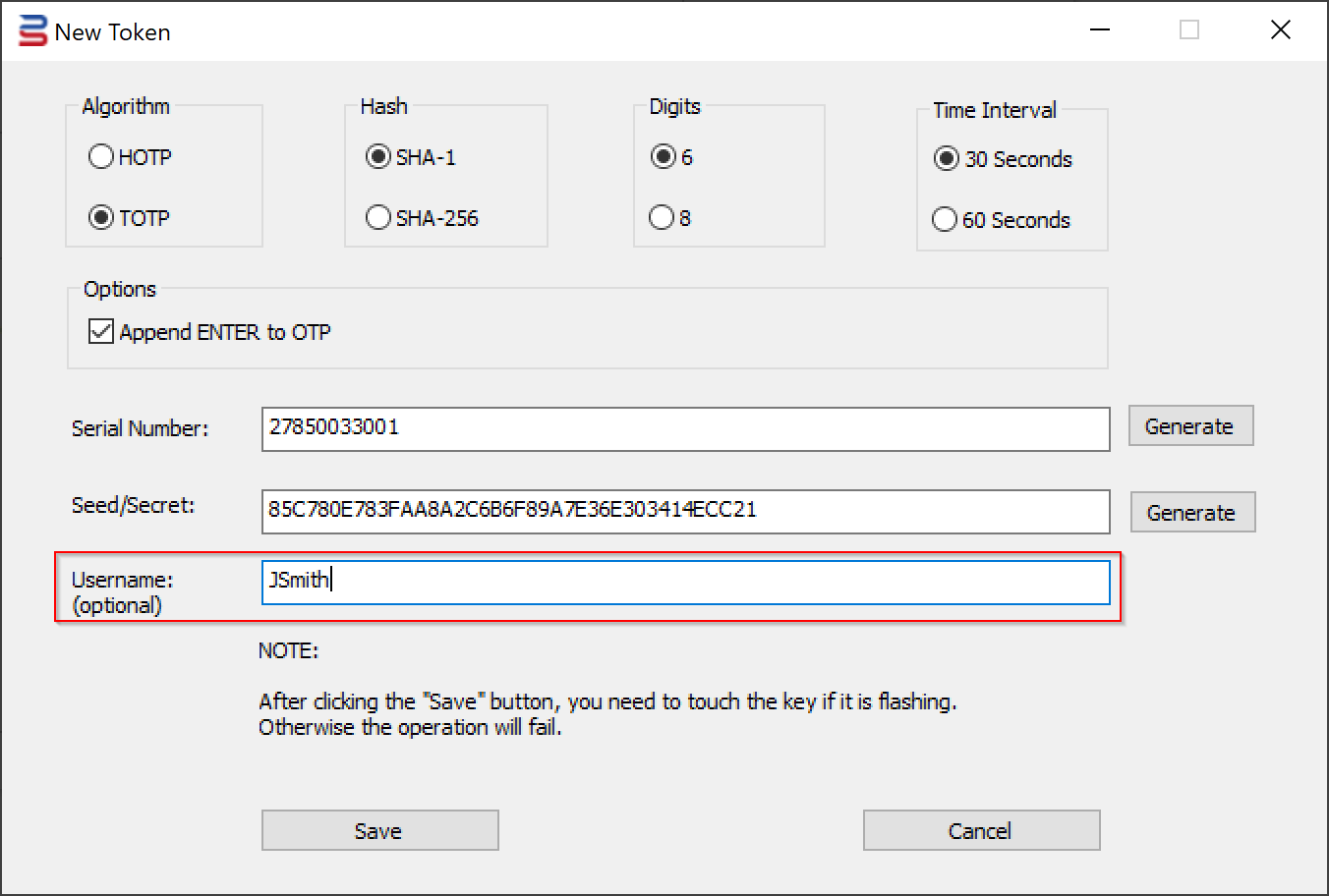
11. Finally, press the "Save" button, and touch the key immediately to save the token into the USB key.
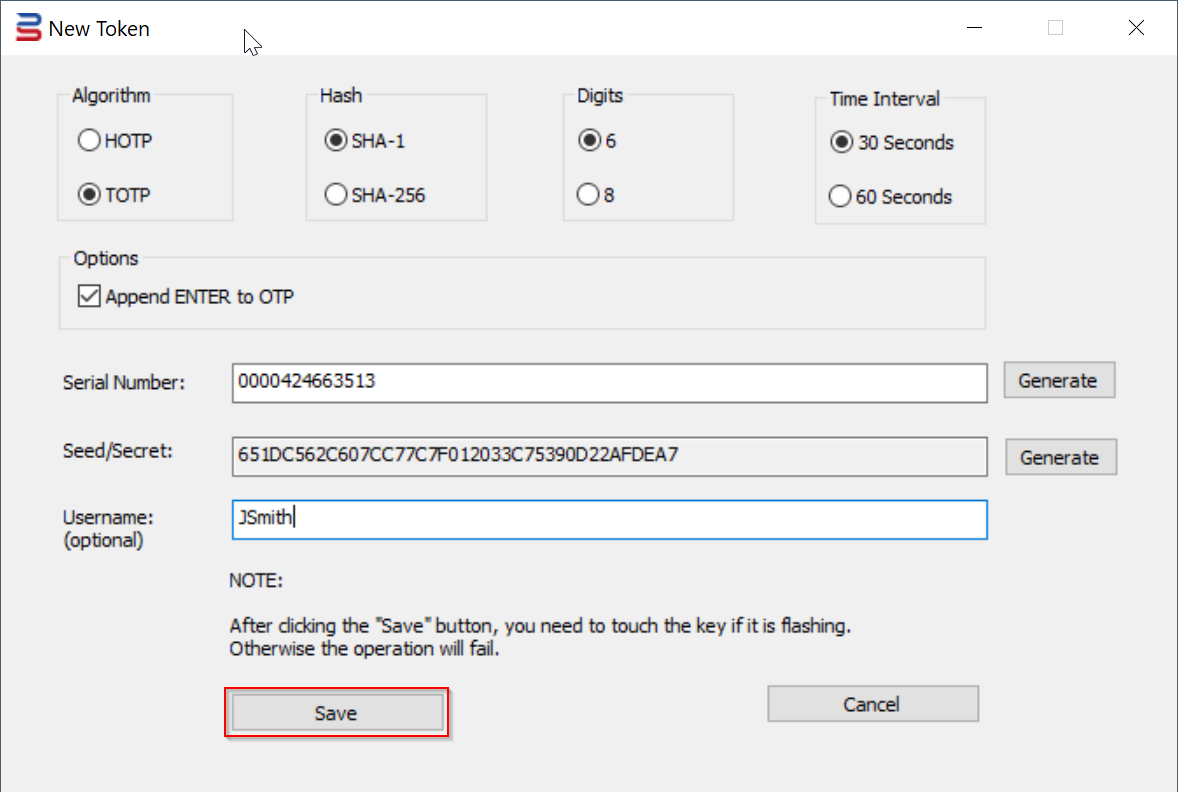
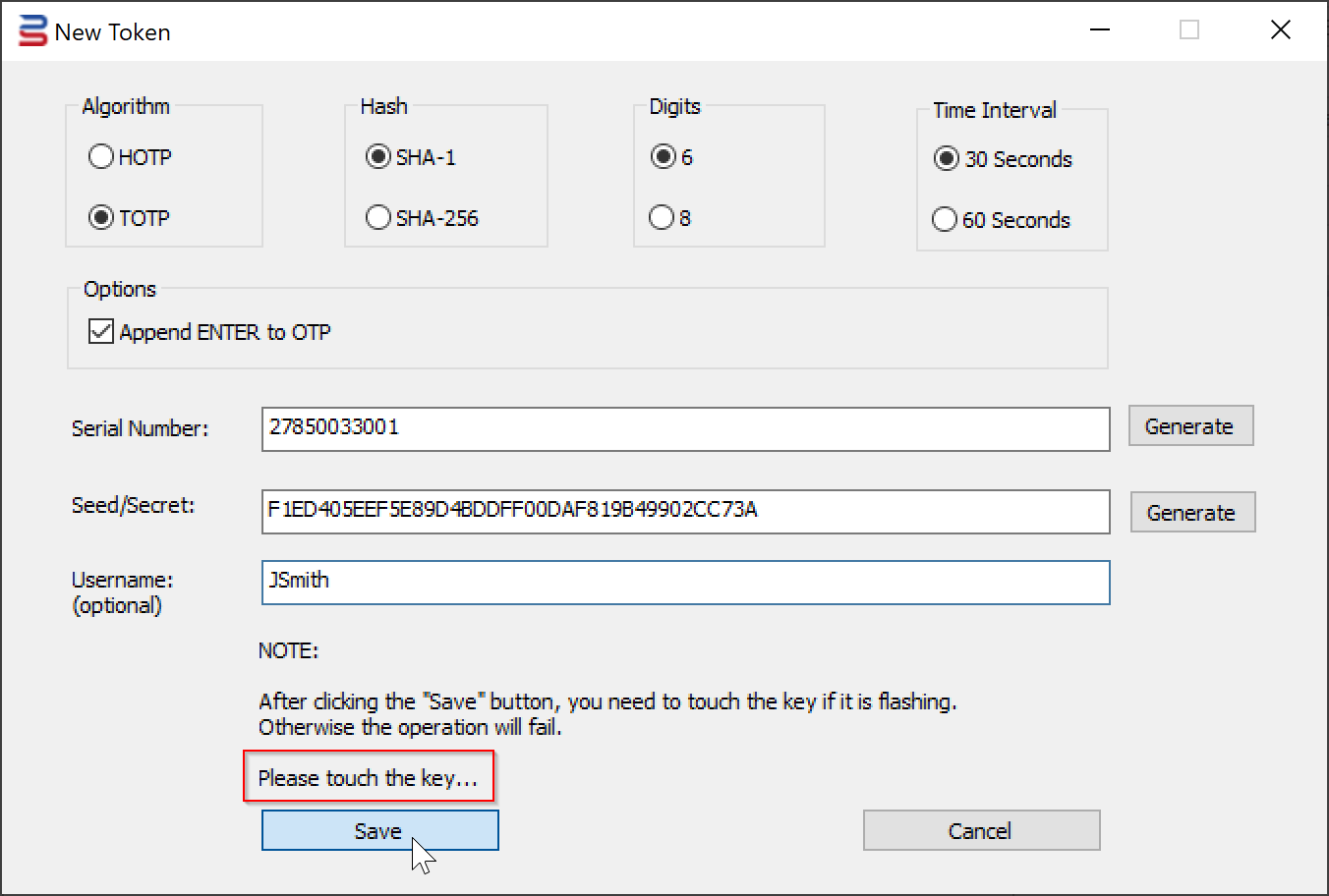
You will see the key flashing. You must touch the key immediately to complete the operation
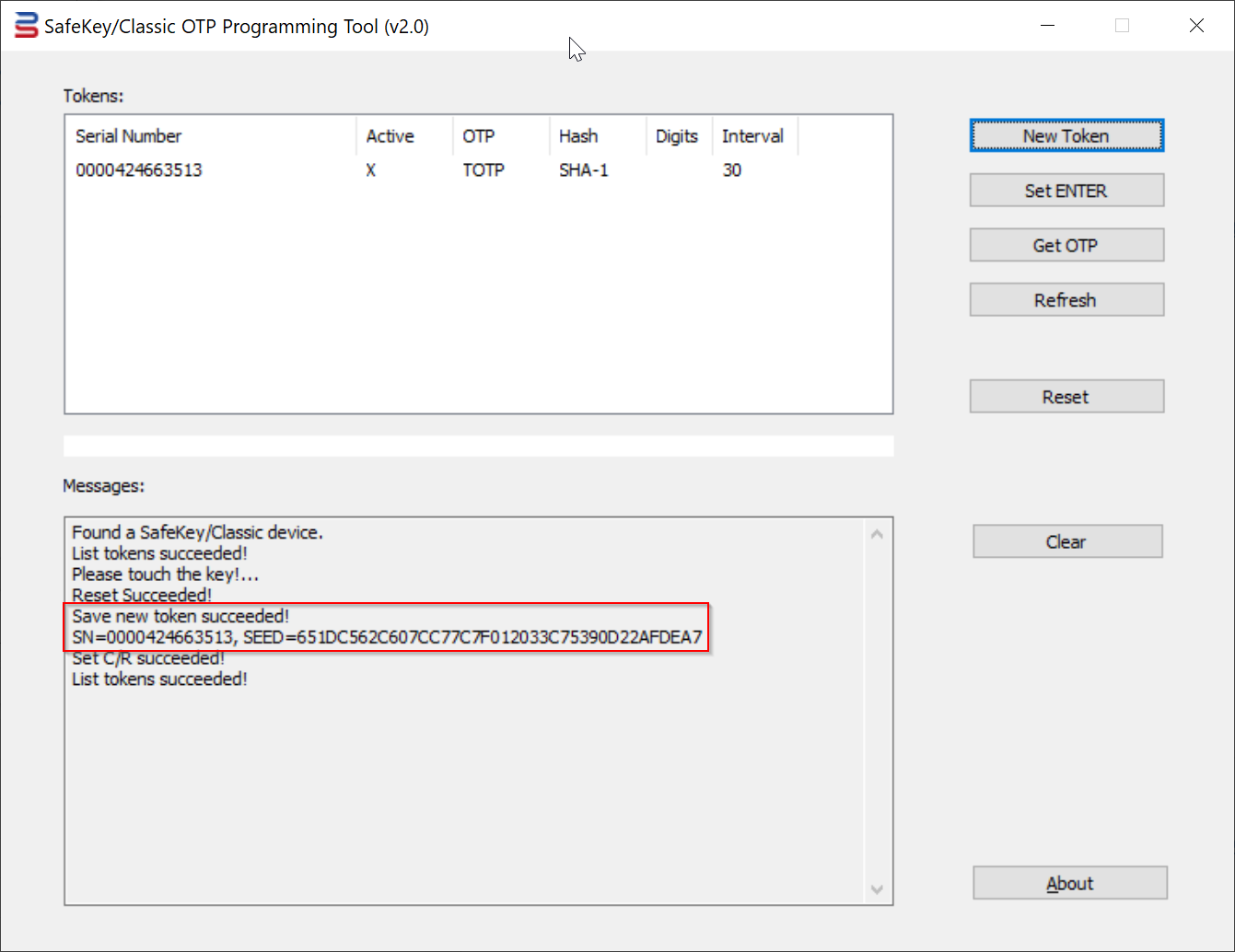
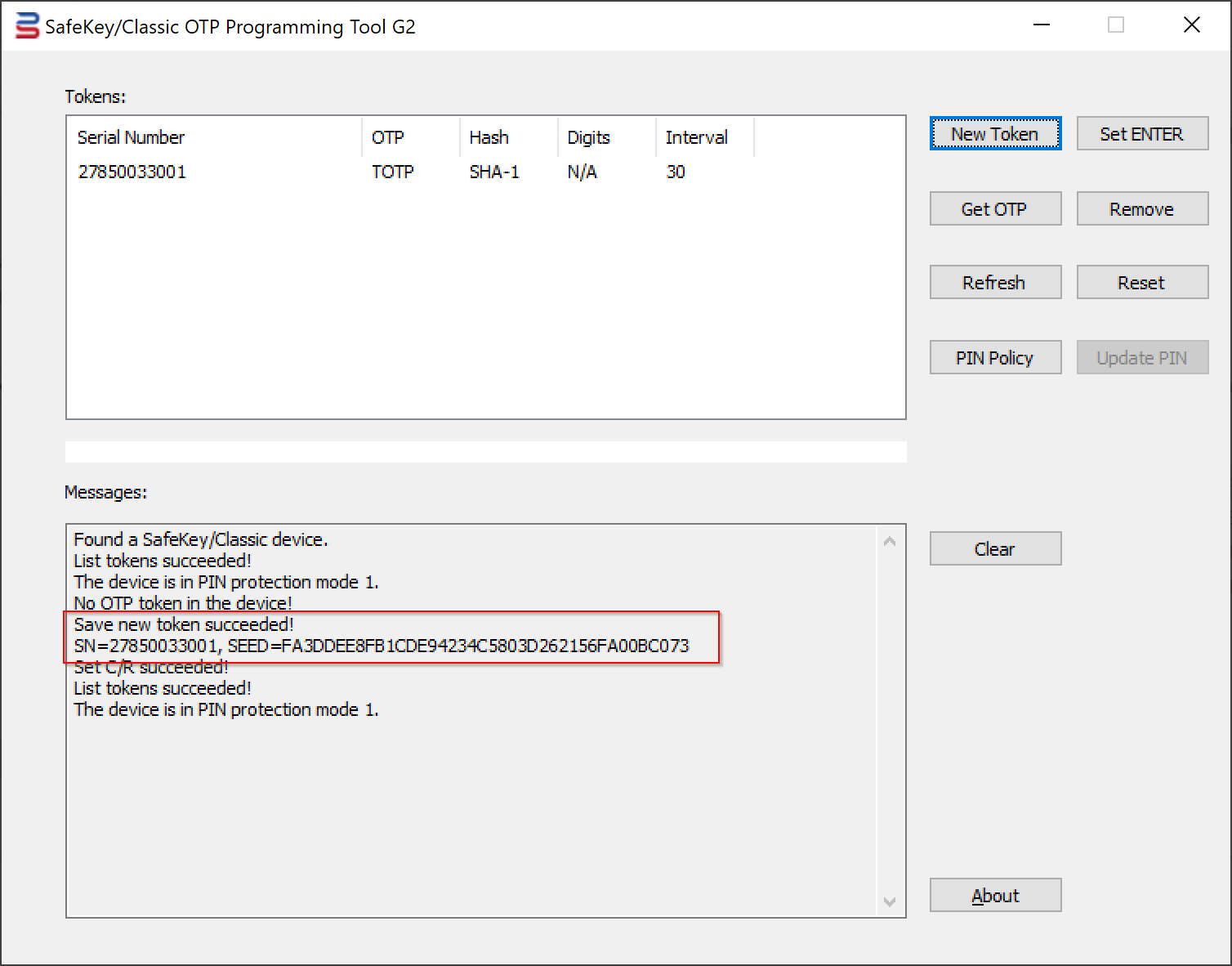
To continue programming more SafeKey devices, insert a new key and repeat the Step 9 to 11.
...
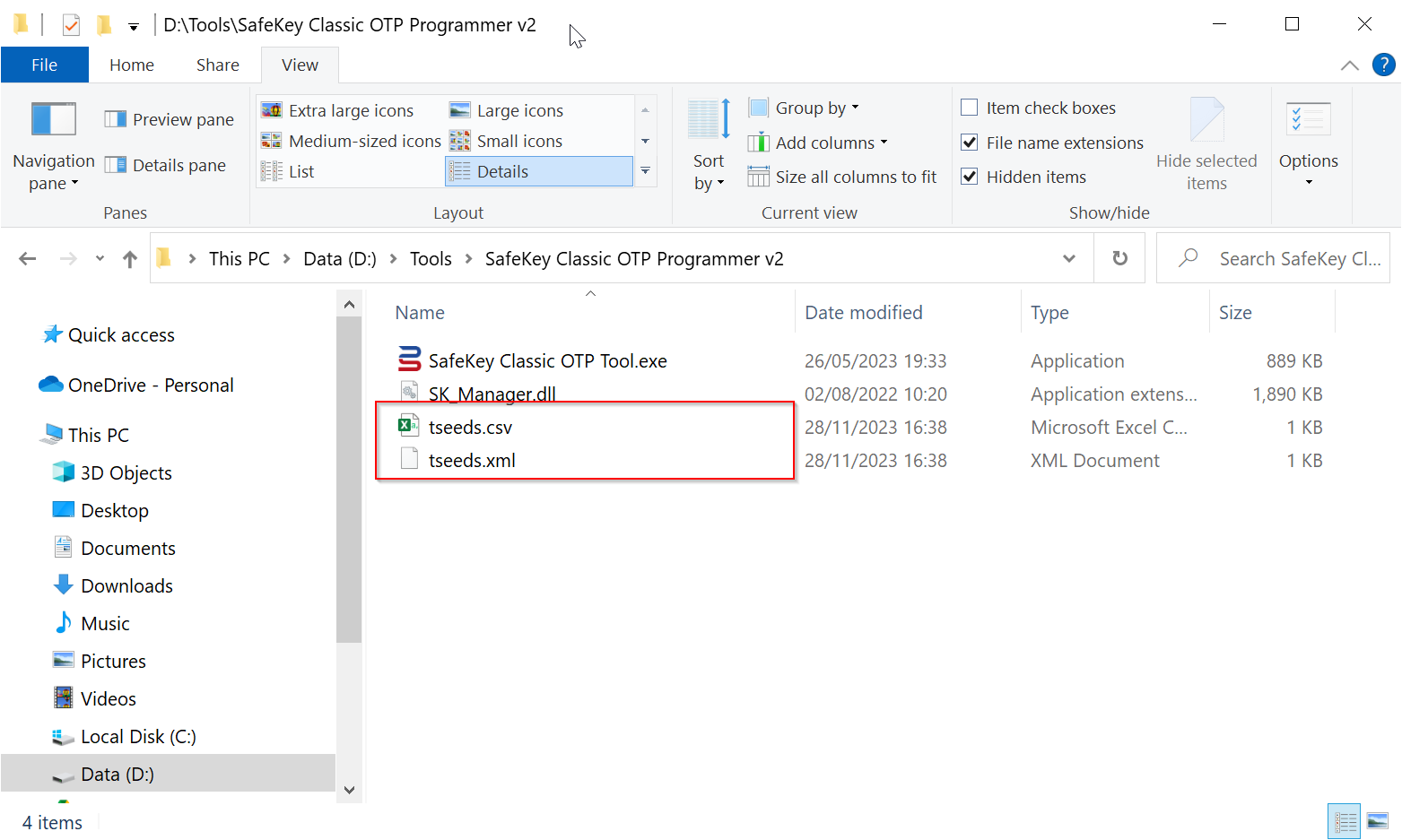
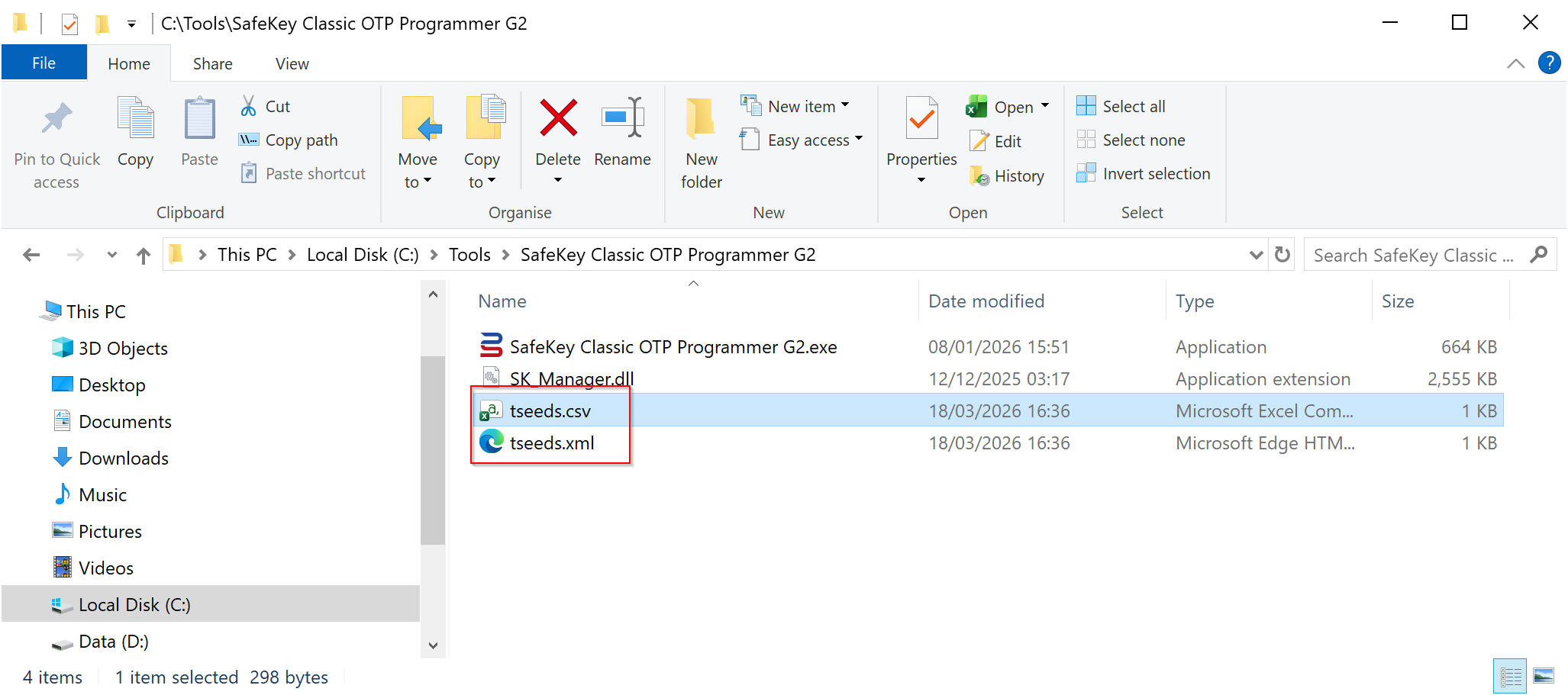
| File Name | Comment |
|---|---|
| tseeds.csv | This CSV is for TOTP tokens. It is in the format for Azure MFA. Token secret is encoded in BASE64 |
| tseeds.xml | This XML is for TOTP tokens. It is in the format for DualShield MFA |
| hseeds.csv | This CSV is for HOTP tokens. It is in the format for general purposes. Token secret is encoded in HEX |
| hseeds.xml | This XML is for HOTP tokens. It is in the format for DualShield MFA |
Related Articles
...