Navigate to the token inventory by clicking "Tokens | Tokens" in the control panel, then select "FIDO Tokens" from the drop list next to "Inventory" in the content

Find and locate the FIDO key that you want to assign to a user, e.g. S/N 129301831, click the ACTIONS menu icon to the right of the token
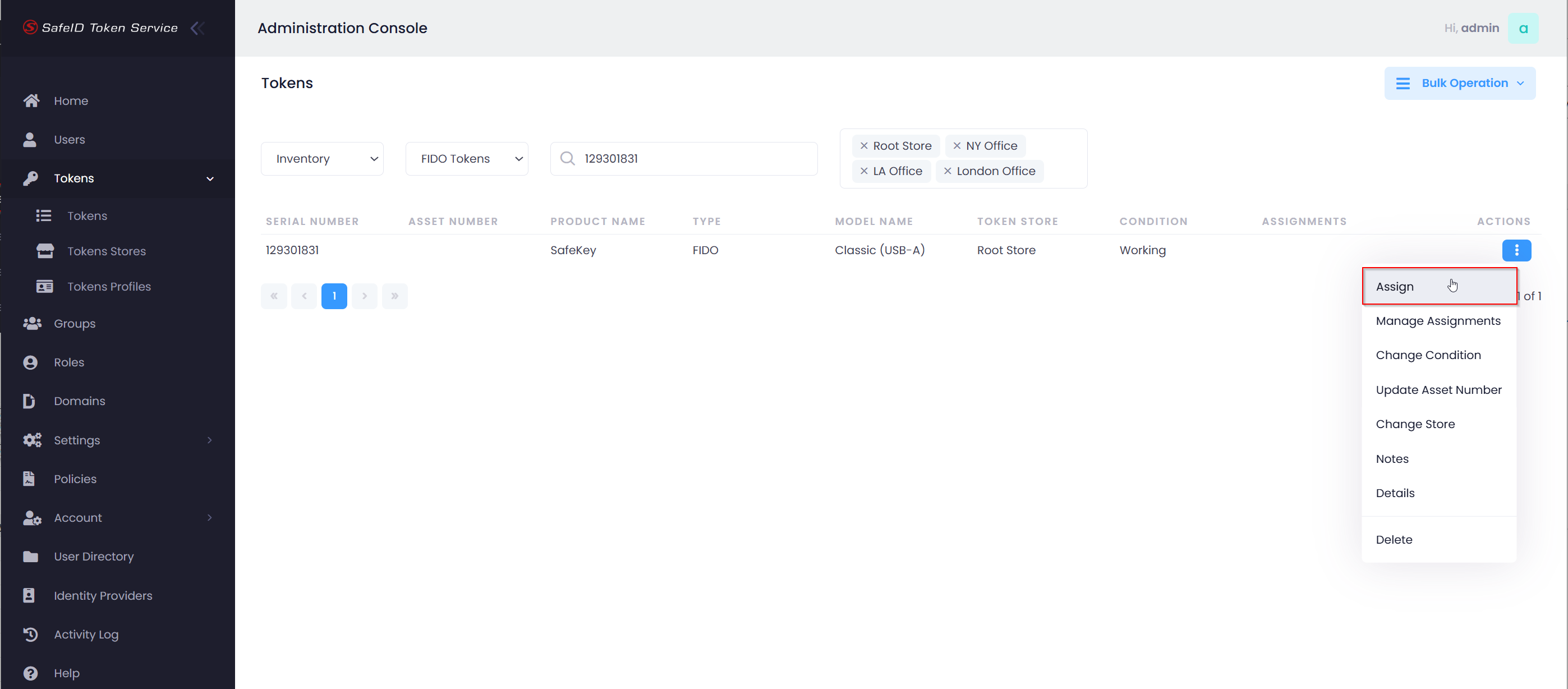
Select "Assign" from the actions menu
If this is the first time you are trying to assign a FIDO key to a user, then you will get the prompt below
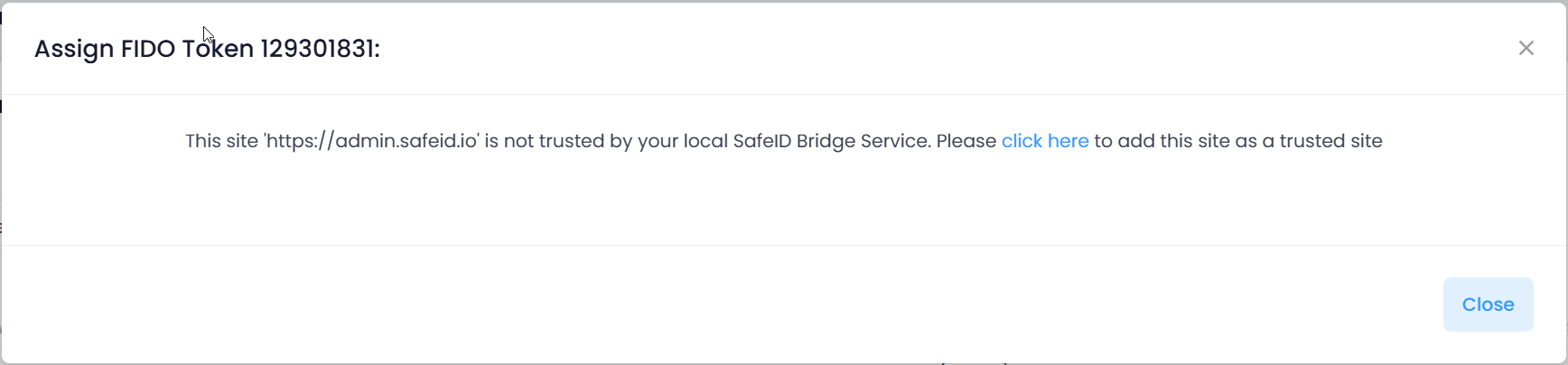
Click "click here" and follow the instructions below to add the SafeID admin console as a trusted site to your local SafeID Bridge Service
| Expand | ||||||
|---|---|---|---|---|---|---|
|
Once you have added the SafeID admin console as a trusted site to your local SafeID Bridge Service, click the "Close" button to dismiss the prompt. Then, click "Assign" in the token's action menu again.
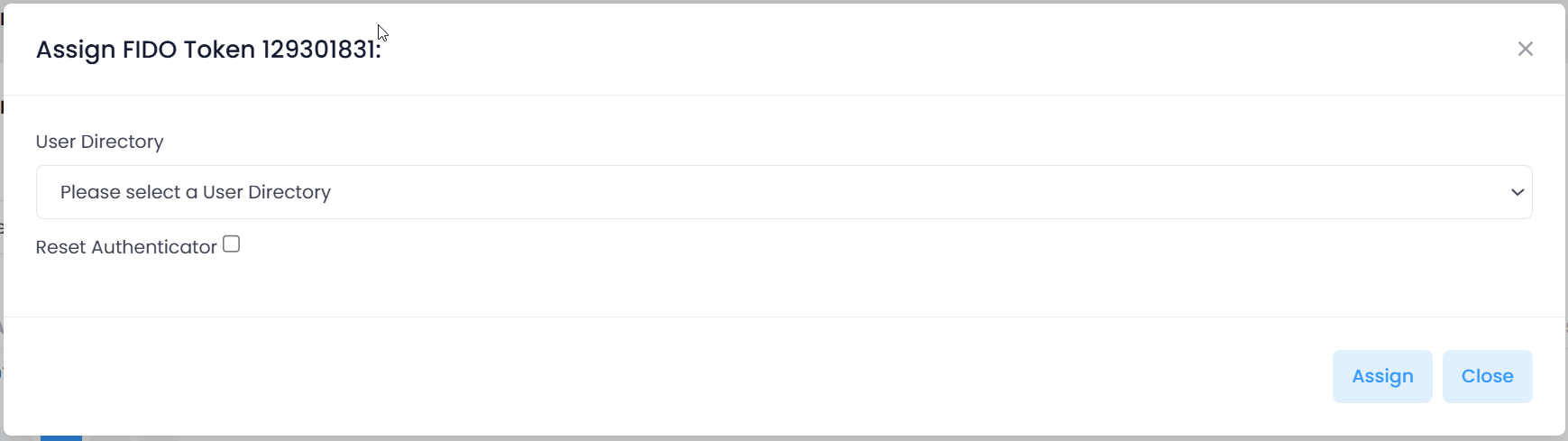
Select your User Directory
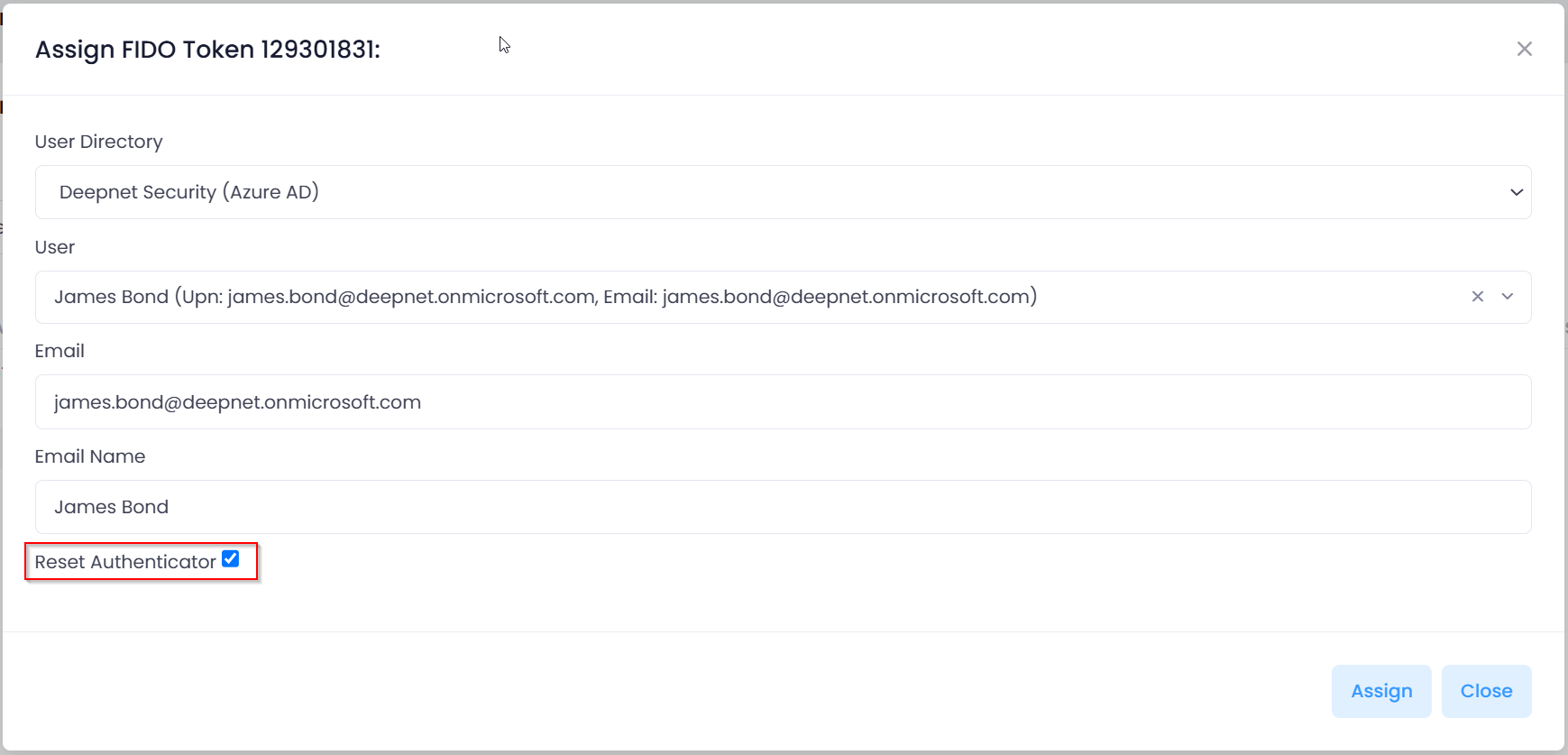
Select the user account to which you want to assign this FIDO key
Enable the option "Reset Authenticator"
Then, click "Assign"
| Include Page | ||||
|---|---|---|---|---|
|