To program a token, launch the programming tool, SafeID-Programmer.exe
Follow 4 simple steps below:
Table of Contents
Obtain Seed
There are 4 ways you can obtain the seed data or secret key:
- Scan QR Code
- Load Seed File
- Randomly Generated
- Manually Copied
| Expand | ||
|---|---|---|
| ||
Before you scan the QR code please ensure that the clock on your computer is displaying the correct date and time. You can scan the screen for a QR code, or load from a file.
If you are scanning the QR code on the screen please ensure that the QR code is not obscured by other windows, and if you have more than one monitor please ensure that both the app and the QR code are displayed on the main display (display 1). If you still have difficulty in scanning the QR code then double check that you only have one instance of the app running, and that it is the latest version of the app. In most cases when there are issues with scanning of the QR code the most likely cause is the QR code contains the wrong data and may need to be regenerated. To test the QR code you could check that the code works correctly with the authenticator app it is intended for (e.g Microsoft Authenticator), and if this fails then you know that the QR code will need to be regenerated. |

| Expand | ||
|---|---|---|
| ||
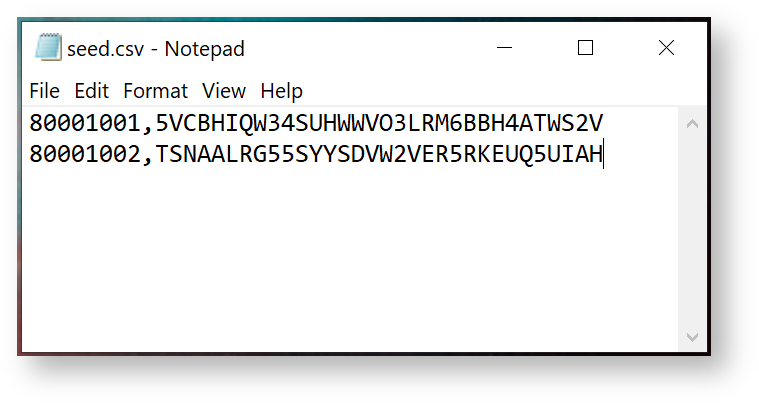
You can also load seed data directly from a file. The seed file must be in CSV format, containing 2 columns of data, i.e. Serial Number and Based32 encoded Secret Key.
|
| Include Page | ||||
|---|---|---|---|---|
|
Burn Seed
Before burning the seed into the token, you must make sure the following options are correctly set:
| Option | |
|---|---|
| Token Slot | Select the slot you want to program & save the token |
| Token Title | Enter the title or account name of the token |
| Time Step | |
| Algorithm | |
| OTP Length | |
| Sync Token Clock |
To burn the seed into the token, click "Burn"

Seed Files
If you selected to export the seed, then you will find that seed files will have been created in a sub-folder from where the app was launched (the sub-folder is called "data" and contains seed files of various formats).
