On the Management Console, navigate to "Authentication | Logon Procedure", then click on the  button;

A new window will now open titled "Logon Procedure - New";

Fill in the form with name set to "Citrix_Sharefile", Typeset to: "Web SSO", then click  ;
;

Left click on the context menu of the newly created logon procedure, then select "Logon Steps";

A new panel will now open that can be used to add logon steps to the newly created logon procedure, click on  to add the first authentication method;

A list of authentication methods that are compatible with the logon procedure type will now be listed.
Select the desired authentication method or methods, e.g. "Static Password", then click 
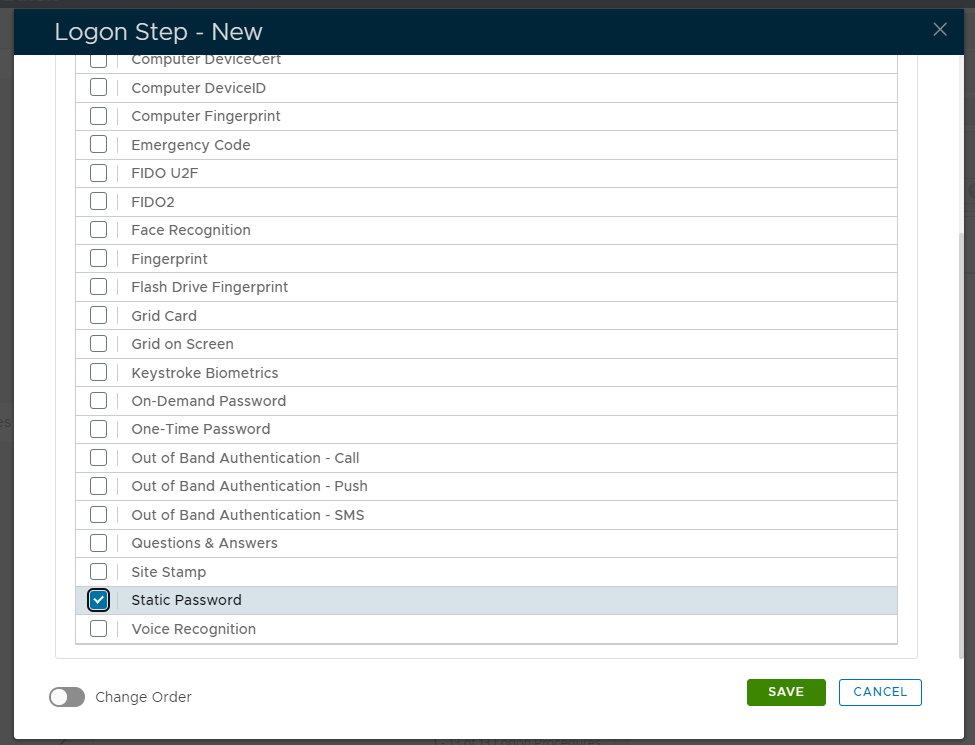
Additional steps can be added by clicking on  , and repeating the steps earlier;

In the above example two steps were added, "Static Password" and "One-Time Password".
On the Management Console, navigate "Authentication | Applications", then click on the  button;

A new window titled "Application - New" will now open;
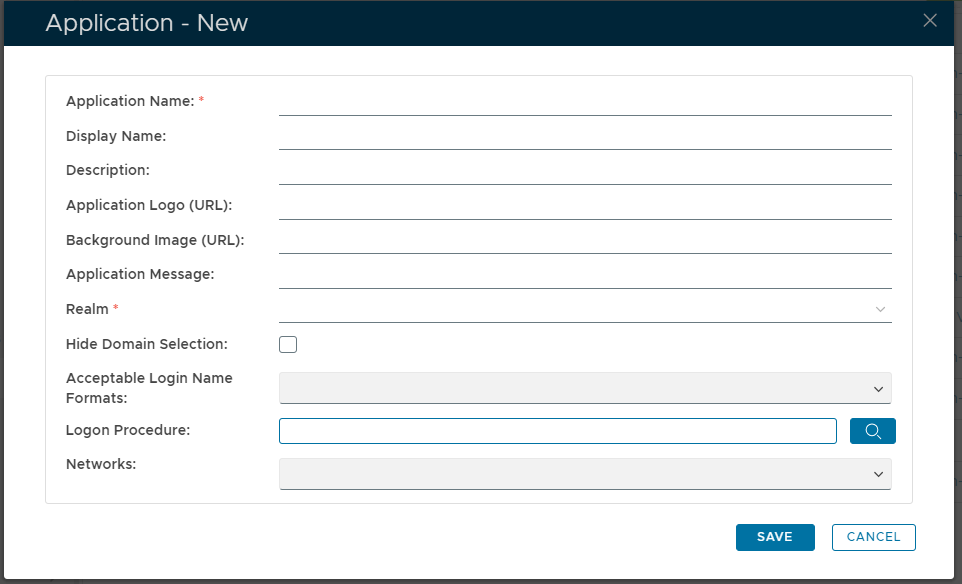
Fill in the form with "Name:" set to "Citrix_Sharefile",
"Realm:" set to: "Select your Realm",
"logon procedure" set to "Citrix_Sharefile", then click ;

Left click on the context menu of your newly created application and select "Agents";

A new window titled "Agents" will now open, tick the box of the SSO Server you will be using and click 
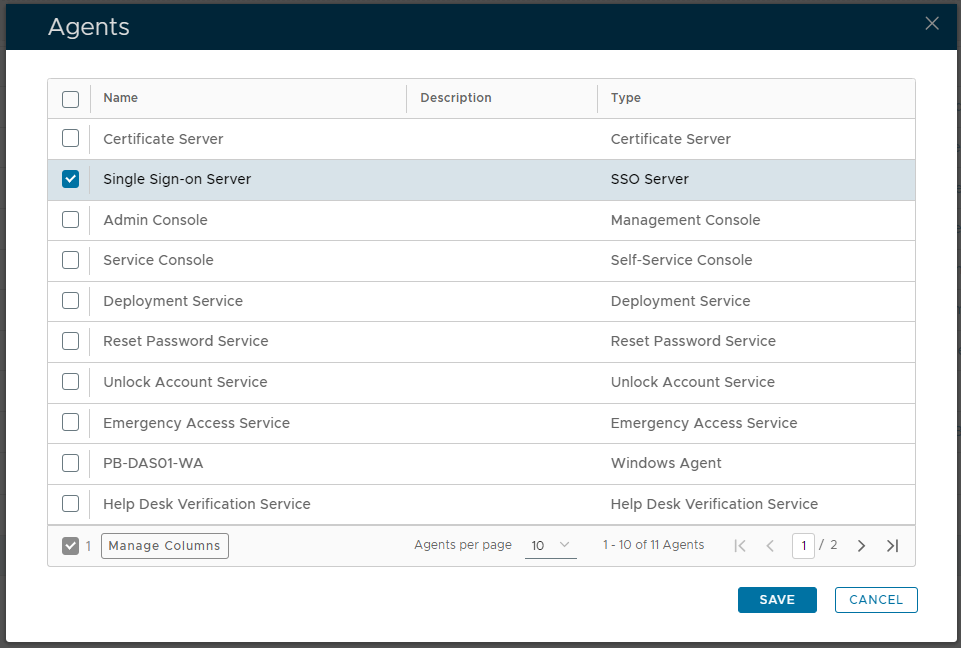
Select the drop down menu corresponding to the SSO server you will be using and click on Download IDP Metadata.
