Follow the steps below to add a DualShield SAML IDP configuration to Palo Alto
Create Identity Provider Server Profile.
Under Device tab go to Server Profiles > SAML Identity Provider and click on Import at the bottom
In the SAML Identity Provider Server Profile, enter the following information: | Option | Value |
|---|
| Profile Name | Enter a descriptive name | | IDP Metadata | Click Browse and upload the IDP metadata file you obtained from the DualShield Administration Console | | Validatation check boxes | Uncheck Validate IDP Certificate and Metadata Signature boxes | | Maximum Clock Skew | 60 |
Click on OK. |
|
If import was successful the correct settings should display under the Identity Provider Service Profile: |
|
Add Authetication Profile.
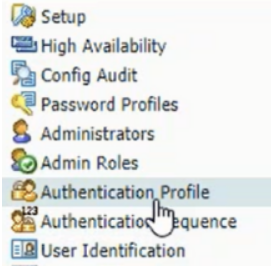
Remaining under the Device tab, navigate to Authentication Profile |
|
Click ADD at the bottom of the page
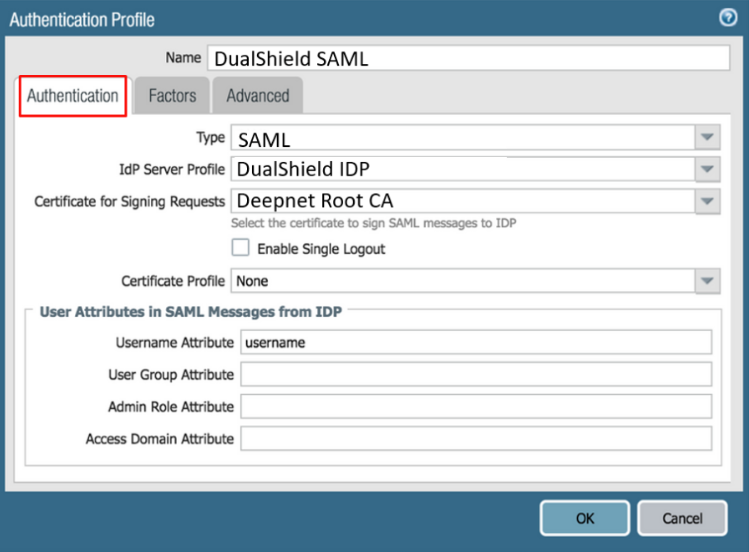
In the Authentication Profile, enter the following information: | Option | Value |
|---|
| Profile Name | Enter a descriptive name | | Type | SAML | | IdP Server Profile | Select the IDP Server Profile created in previous section from the dropdown menu. | | Certificate for Signing Requests | Import Root CA certificate | | Enable Single Logout (optional) | Check this option in order to enable SLO | | Certificate Profile | None | | Username Attribute | username |
|
|
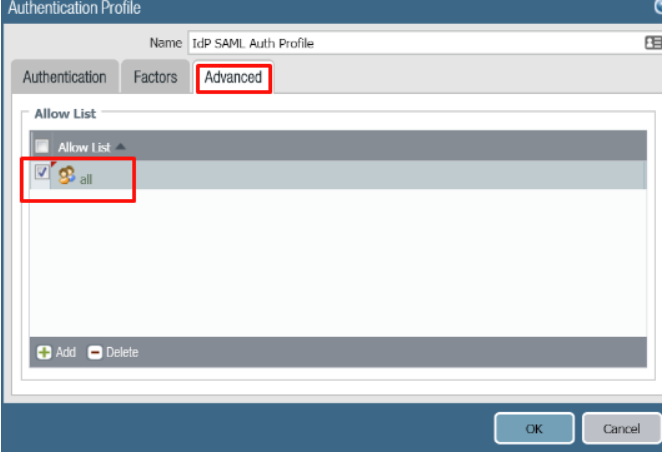
Select the Advanced tab in the Authentication Profile, and add the users/groups that are allowed to authenticate: Click OK to save the authentication profile. |
|
Click on Commit to commit these changes.
Related Articles