Some customers put the users or devices into different groups on NetMotion Server. They also may apply different authentication profiles
This section only explains the basics of setting up and moving devices and users into groups. We will assume you have prior knowledge of using NetMotion
For this to work the devices must have been connected at least once so they are listed under Connected Devices
|
|
Authentication Profile
You can configure a user authentication protocol to be global, or have individual devices or device groups use a different authentication profile.
Creating an authentication profile is already explained at the beginning of the section titled Configure the Authentication Profile for RADIUS Authentication
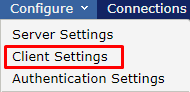
In the Mobility console, go to Configure>Client Settings
|
|
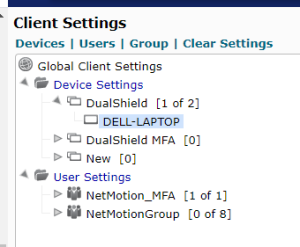
Highlight the device or device group on the left that you wish to change the authentication protocol
|
|
In Client Settings go to Authentication>Settings Profile Click on the Device Setting Override the select the Authentification Profile you wish to use for this device.
Click Apply
|
|
Device Groups
You can configure Mobility to assign devices to a group based on the operating system.
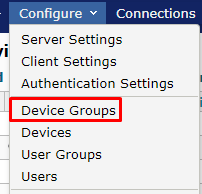
In the Mobility console, go to Configure>Device Groups |
|
Click Add at the top Give the new group a Group Name. Optionally you can add a description If you would like all new devices to be automatically added to this group when connecting for the first time check the Default Group Box If you wish to assign devices to a group based on an operating system you can place a checkmark next to the Operating systems you intend this device group to be used for. Click OK
|
|
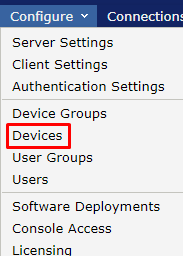
By default, a new device will be assigned to the default group. If you wish to move the device to a different group go to Configure>Devices
|
|
Select the device you wish to place in the group chose the group from the set group drop-down and click OK
|
|
Go to Configure>Client Settings Expand the group under Device settings on the left to make sure the device is there.
|
|