Here we assume you have already set the appropriate Fabric Connector configurations. This guide will only explain how to configure the SP and IDP settings.
Log in to the root FortiGate.
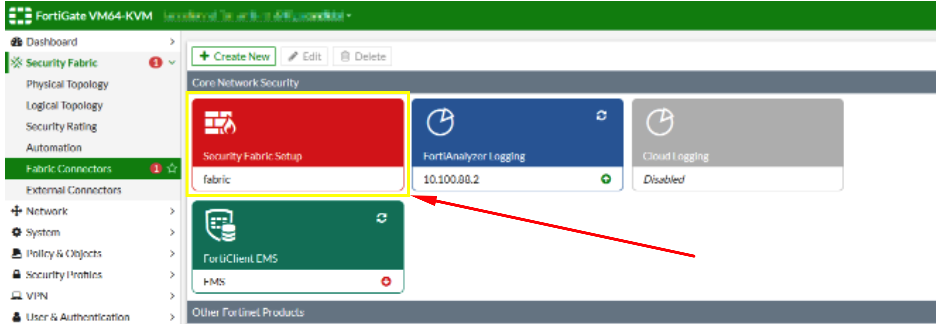
Go to Security Fabric > Fabric Connectors and double-click the Security Fabric Setup card.
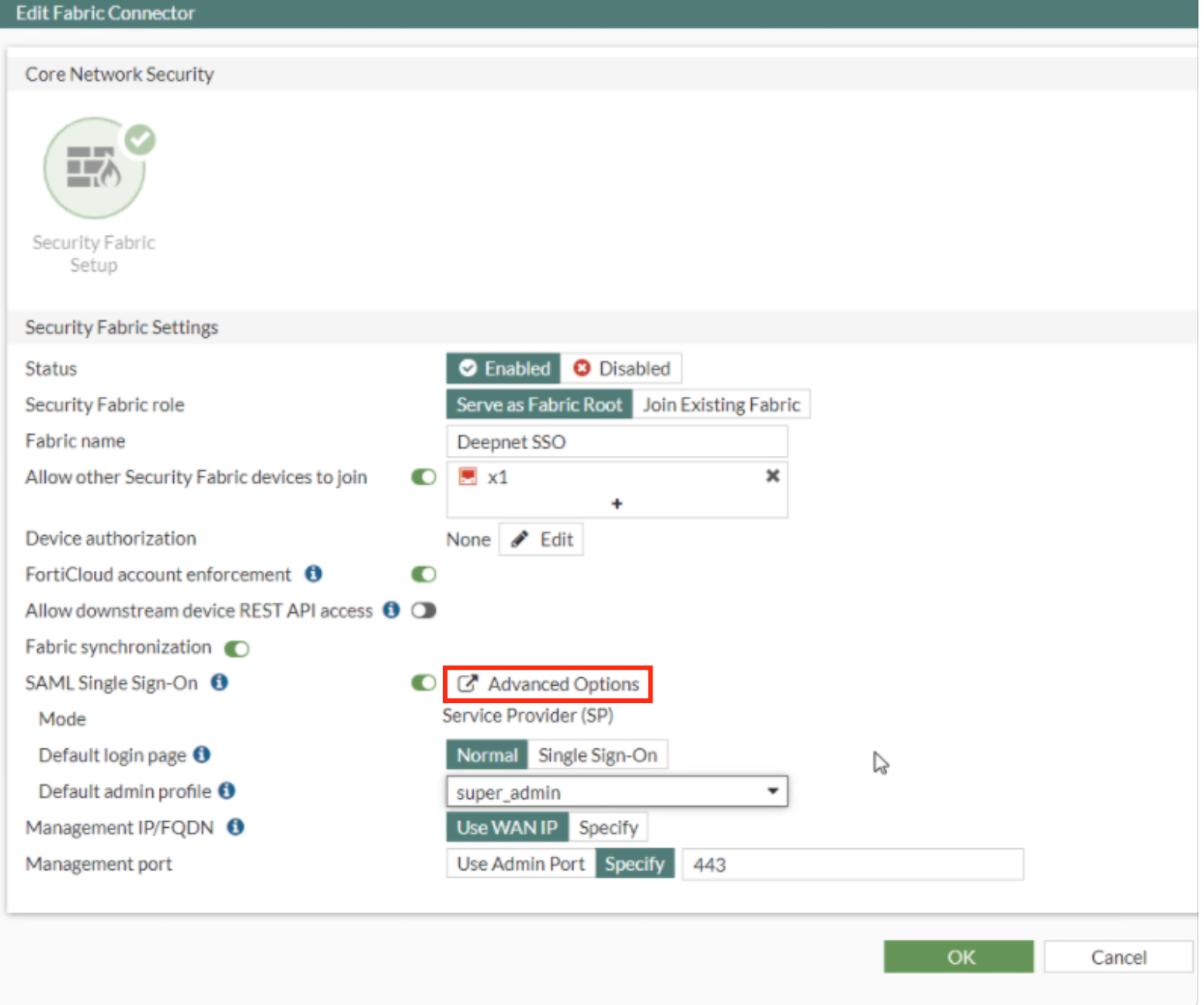
In the Fabric Connector Edit screen go down to where it says SAML Single Sign-On and click Advance Options
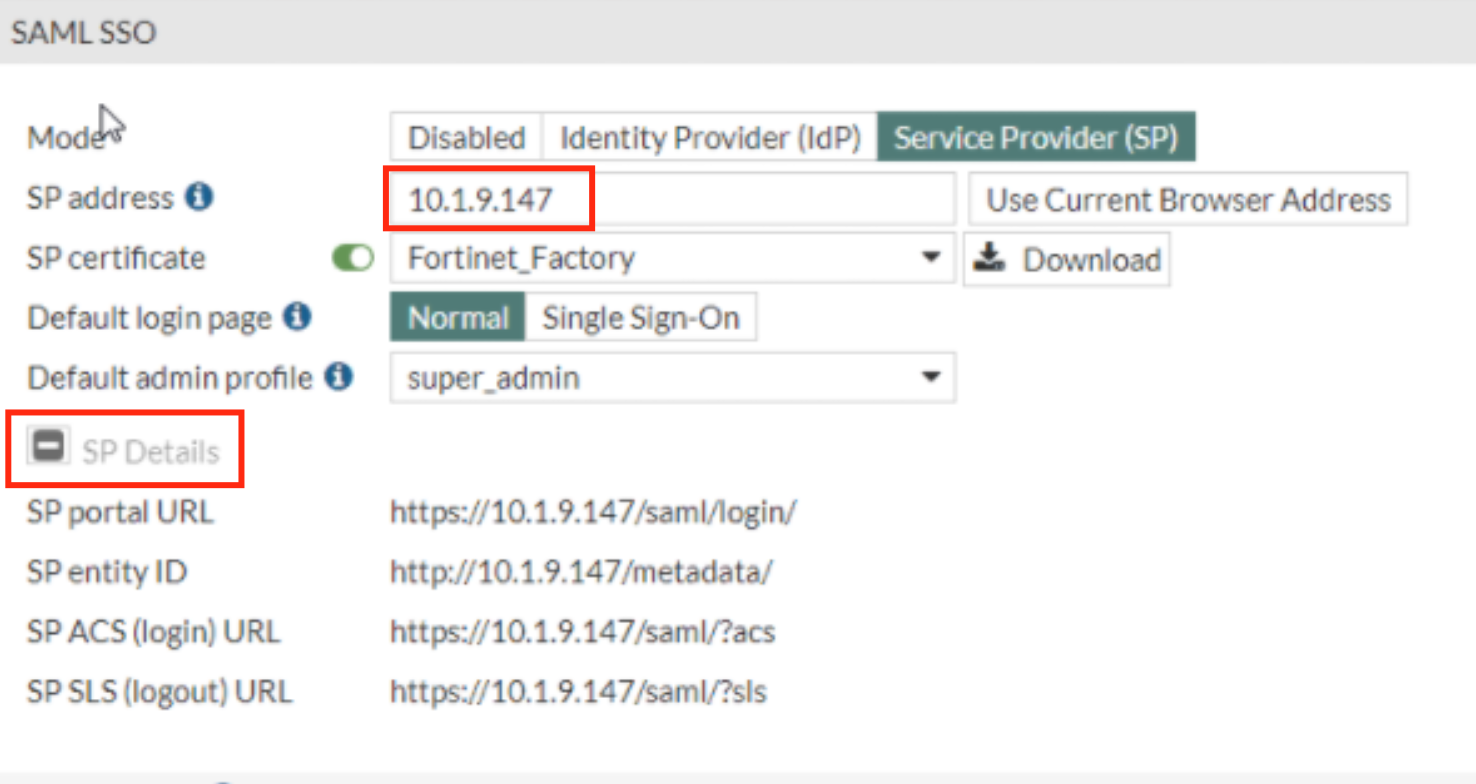
In the SAML SSO Window Specify the SP address. This is essentially the URL or the IP address of the Fortinet UI you wish to log onto.
Expand SP details
Log back in. to the DualShield Admin Console
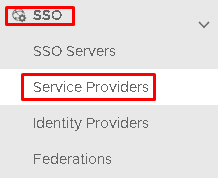
Go toSSO>Service Providers
Click onon the top right.
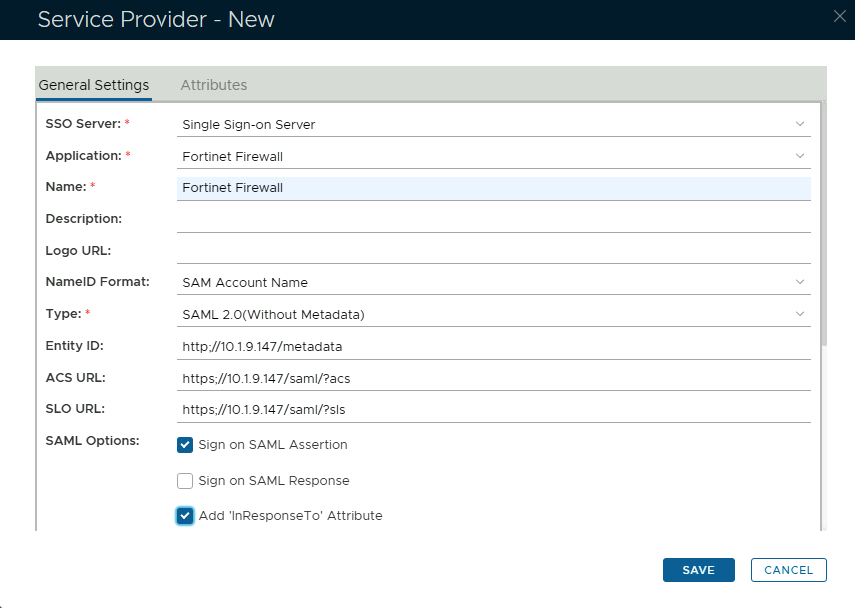
Fill in the details as per screenshot on right and make sure you selectSAML 2.0(Without Metadata)as Type.
Copy and Paste the Entity ID, ACS and Logout URL from the SP details on the Fortinet UI (see above)
The completed Service Provider dialogue box will look like this:
Click on Attributes at the top
Click Create
Use the following Values:
Option
Value
Location
HTTP Body
Name
username
Format
unspecified
Maps To
userPricipleName
Click Save
Click Save again
Go toSSO>SSO Servers
Select the drop down menu corresponding to the SSO server you will be using and click on View
Click on Display Metadata at the bottom
Search through the metadata for the Entity ID, Single Sign-On URL and Single Logout URL
Go back to the Fortinet Ui to IdP Settings. Set the IdP type to Custom.
Copy and out Entity ID, Single Sign-On URL and Single Logout URLfrom the IdP metadata on Dualshield and past them into the corresponding fields under IdP Settings on Fortinet