After you have created the all scripts and download the DualShield certificates, you need to put all those files into a same folder.
![DualShield MFA Platform > Create DualShield Identity Provider [MS-SP] > image2015-8-4 17:10:26.png](/download/attachments/62391061/image2015-8-4%2017%3A10%3A26.png?version=1&modificationDate=1638404692000&api=v2)
Run the SharePoint Management Shell as a administrator, execute "claims-authn-sso-enable.ps1"
![DualShield MFA Platform > Create DualShield Identity Provider [MS-SP] > image2015-8-4 17:23:0.png](/download/attachments/62391061/image2015-8-4%2017%3A23%3A0.png?version=1&modificationDate=1638404692000&api=v2)
Now, you have successfully created the DualShield Identity provider.
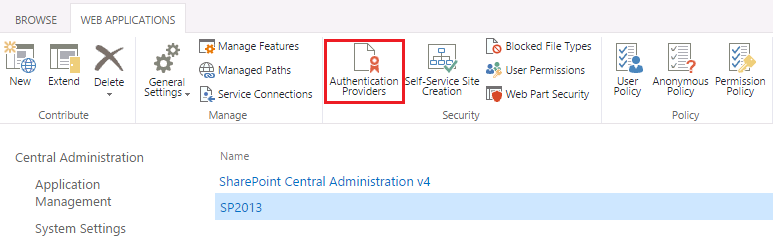
Log into SharePoint administrative web console, select a web application, e.g. "SP2013" and click "Authentication Providers" on the top.
![DualShield MFA Platform > Create DualShield Identity Provider [MS-SP] > image2015-8-4 17:34:49.png](/download/attachments/62391061/image2015-8-4%2017%3A34%3A49.png?version=1&modificationDate=1638404692000&api=v2)
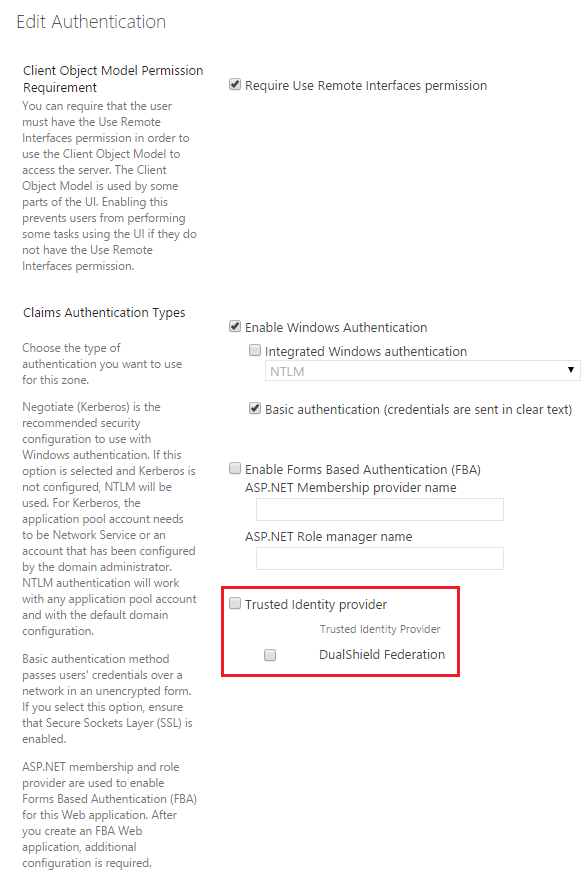
You should find the newly created "DualShield Federation" in the Trusted Identity Provider list.
![DualShield MFA Platform > Create DualShield Identity Provider [MS-SP] > image2015-8-4 17:38:14.png](/download/attachments/62391061/image2015-8-4%2017%3A38%3A14.png?version=1&modificationDate=1638404692000&api=v2)