An Email gateway can be added to a selected domain by using the following procedure;
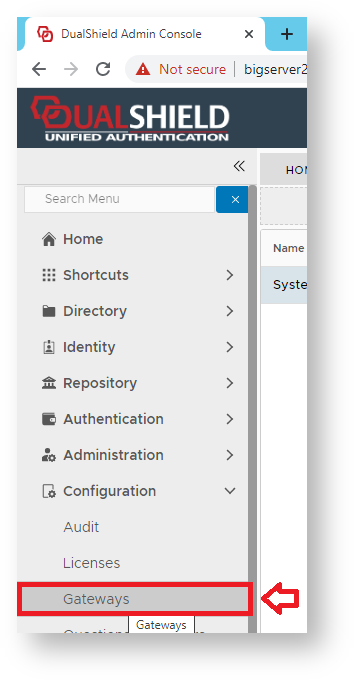
Using the Management Console, Navigate to "Configuration | Gateways", then click on the button "CREATE";
A new window will now open titled "Message Gateway – New";
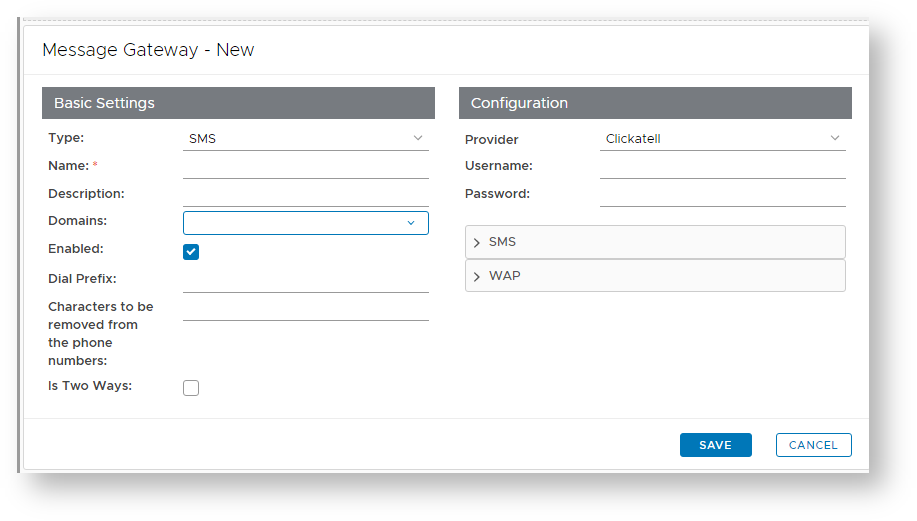
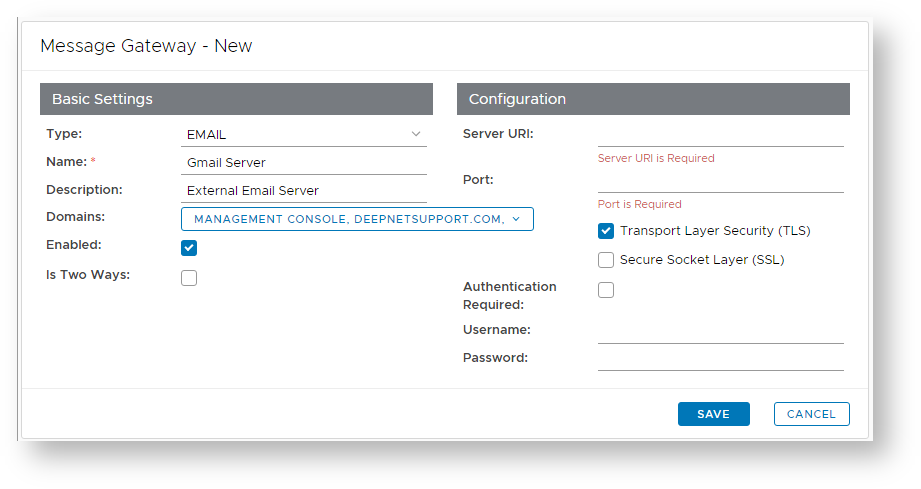
At the prompt "Type:", select "EMAIL", enter a suitable name and description for the email gateway, and select what domains will be able to use the message gateway;
For email gateways select "EMAIL". |
|
Enter a suitable name for your email gateway (e.g. “Dualshield Email Gateway”). |
|
Provide a brief description of email provider (e.g. "Company Email Server").
|
|
The Edit button ( ) allows you to provide additional configuration details for the Email Gateway (for instructions see the next step below). ) allows you to provide additional configuration details for the Email Gateway (for instructions see the next step below).
|
|
Select the Domains from which the user details can be obtained (e.g. "deepnetsupport.com").
|
|
Select if the message gateway is enabled (or not).
|
|
|
|
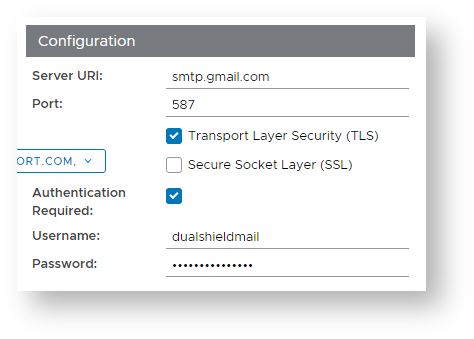
The section headed "Configuration" can be used to configure the connection configuration details for the gateway you intend to connect to.
Unless your provider requires a different setting, leave the setting unchanged with the default value of 25, |
|
Enter a TLS setting that matches the requirements of your SMTP mail server |
|
Enter a SSL setting that matches the requirements of your SMTP mail server |
|
If your mail server requires a user name, then enter it here. |
|
If your mail server requires a password, then enter it here. |
|
|
|
- The section headed "Test" can be used to check that the connection parameters are working prior to saving the template;.
Once the email gateway has been configured and tested you can save the gateway details by clicking on the "Save" button. - .
- .
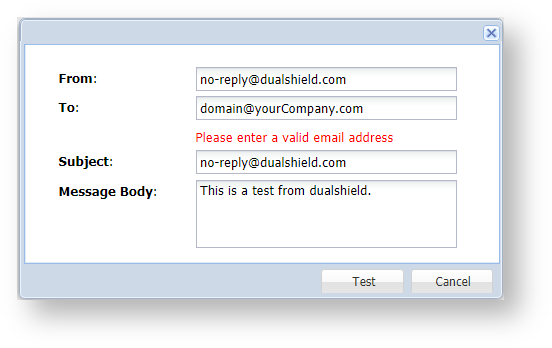
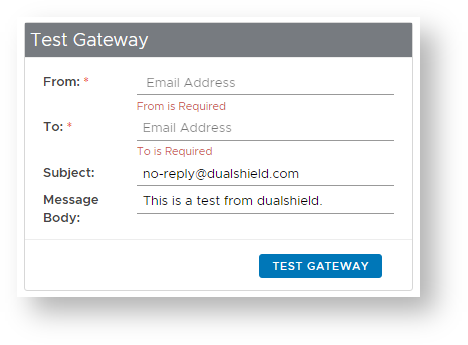
Once the email gateway has been configured it can be tested by using the context menu option "Test";
A new window will open that can be used to send a message through the newly created email gateway;