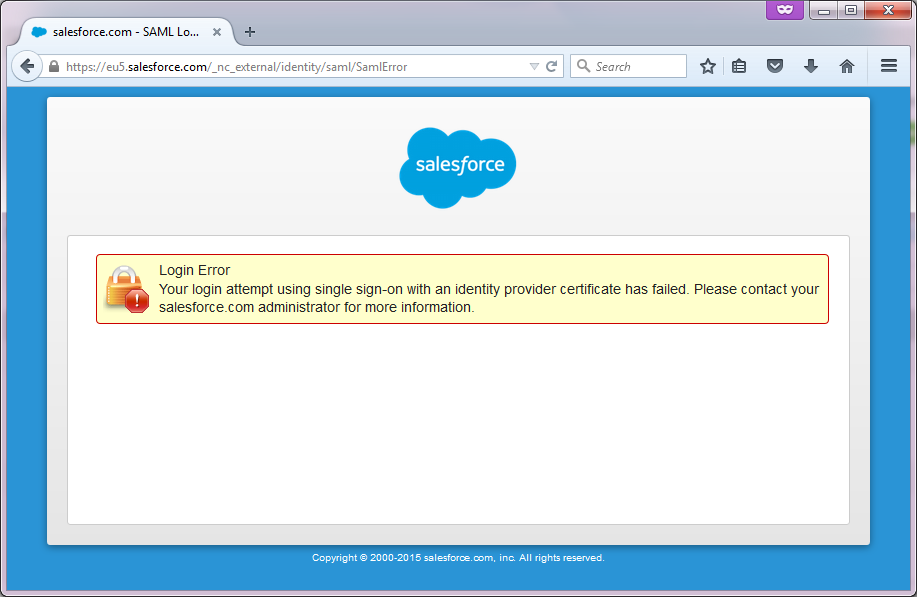
If you have been successfully authenticated by DualShield authentication server, however are now able to login to SalesForce and see the following error message:
![DualShield MFA Platform > Troubleshooting [SF] > image2015-9-11 15:27:34.png](/download/attachments/35947018/image2015-9-11%2015%3A27%3A34.png?version=1&modificationDate=1587385628000&api=v2)
Login to the Salesforce configuration console. Navigate to "Security Controls" | "Single Sign-On Settings", click "SAML Assertion Validator", and you should see the error details:
. ![DualShield MFA Platform > Troubleshooting [SF] > image2015-9-11 15:31:36.png](/download/attachments/35947018/image2015-9-11%2015%3A31%3A36.png?version=1&modificationDate=1587385628000&api=v2)
Below are examples of two common error messages.
Example 1:
![DualShield MFA Platform > Troubleshooting [SF] > image2015-9-11 15:46:53.png](/download/attachments/35947018/image2015-9-11%2015%3A46%3A53.png?version=1&modificationDate=1587385628000&api=v2)
Cause: The login name returned by DualShield does not exist in Salesforce or does not match your account name in Salesforce.
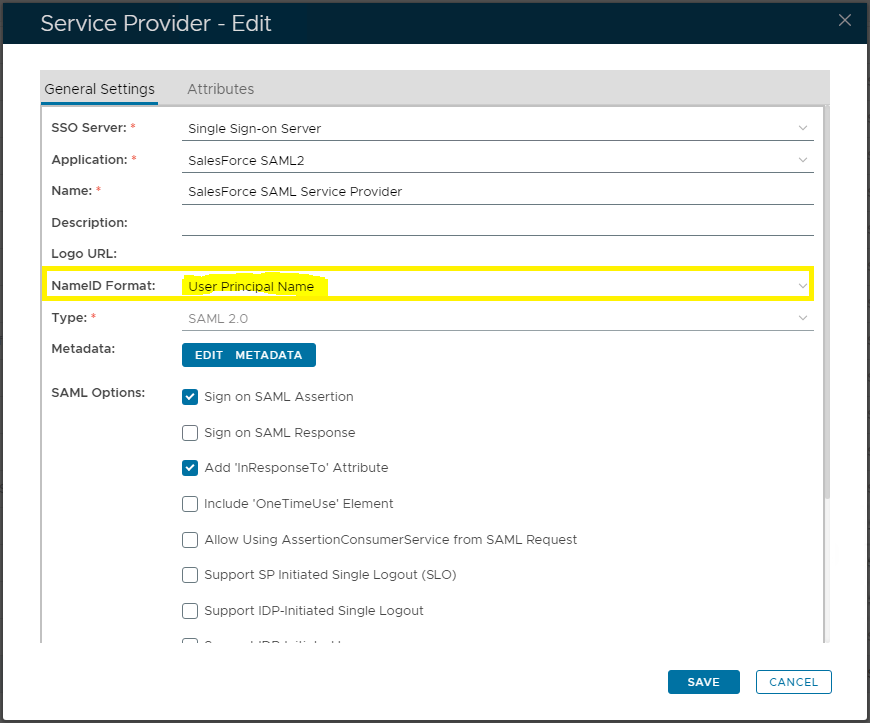
How to Fix: Change the NameID format in the Service Provider settings in DualShield to the appropriate format. For instance, if your SalesForce account name is in the format of UPN, then change the NameID format to UPN:
![DualShield MFA Platform > Troubleshooting [SF] > image-2024-12-2_16-23-17.png](/download/attachments/35947018/image-2024-12-2_16-23-17.png?version=1&modificationDate=1733156591688&api=v2)
Example 2:
![DualShield MFA Platform > Troubleshooting [SF] > image2015-9-11 15:41:35.png](/download/attachments/35947018/image2015-9-11%2015%3A41%3A35.png?version=1&modificationDate=1587385628000&api=v2)
Cause: The system clock of your DualShield Server is incorrect.
How to Fix: Correct the system clock of your DualShield Server.