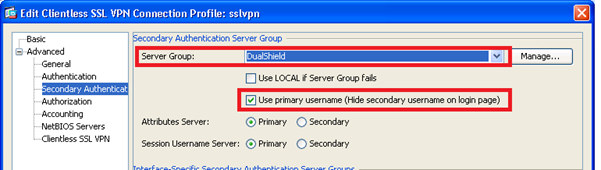
If you plan to deploy only the one-time password based authentication in your user base using OTP tokens such as Deepnet SafeID, MobileID, then you will configure your Cisco ASA in such way that it will use your AD as the primary authentication server and your DualShield as the secondary authentication server. Your AD will be responsible for verifying users’ AD passwords and your DualShield will be responsible for verifying users’ one-time passwords only.
In the DualShield Administration Console, edit the Logon Procedure for your Cisco ASA application. You should only need One Logon Step, typically “One-Time Password” as the authentication method:
![DualShield MFA Platform > One-Step Logon [ASA] > image-2024-11-28_10-36-8.png](/download/attachments/35946719/image-2024-11-28_10-36-8.png?version=1&modificationDate=1732790167913&api=v2)
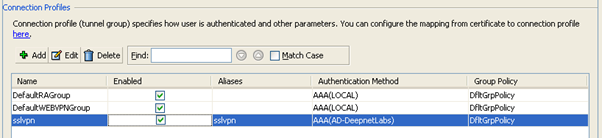
In the Connection Profiles section, select your existing SSL VPN profile and click Edit
(Click Add if you do not yet have a SSL VPN profile)![DualShield MFA Platform > Clientless SSL VPN [ASA] > image2014-4-9 17:23:23.png](/download/attachments/35946704/image2014-4-9%2017%3A23%3A23.png?version=1&modificationDate=1587385453000&api=v2)
![DualShield MFA Platform > Clientless SSL VPN [ASA] > image2014-4-9 17:23:31.png](/download/attachments/35946704/image2014-4-9%2017%3A23%3A31.png?version=1&modificationDate=1587385453000&api=v2)
![DualShield MFA Platform > Clientless SSL VPN [ASA] > image2014-4-9 17:24:10.png](/download/attachments/35946704/image2014-4-9%2017%3A24%3A10.png?version=1&modificationDate=1587385453000&api=v2)
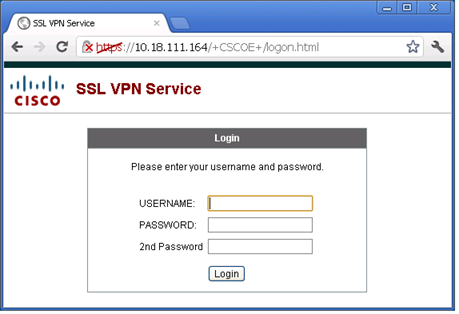
Navigate to the Cisco ASA SSL VPN logon page:
![DualShield MFA Platform > Clientless SSL VPN [ASA] > image2014-4-9 17:31:49.png](/download/attachments/35946704/image2014-4-9%2017%3A31%3A49.png?version=1&modificationDate=1587385453000&api=v2)
The logon form consists of 3 fields:
User name: User's domain account login name
Password: AD password
2nd Password: One-time password
You can customise Cisco ASA logon page to make it more user friendly. For instance, you may want to change “2nd Password” to “Passcode” or “One-Time Password”.
The basis of the customisation is to change relevant messages or HTML and Javascript files in the Cisco ASA appliance.
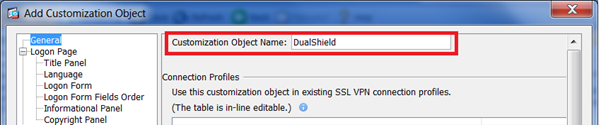
In ASDM, go to Remote Access VPN ->Clientless SSL VPN Access -> Portal -> Customization. Click on Add to add a new customization object.
![DualShield MFA Platform > Clientless SSL VPN [ASA] > image2014-4-9 17:35:27.png](/download/attachments/35946704/image2014-4-9%2017%3A35%3A27.png?version=1&modificationDate=1587385453000&api=v2)
Enter a name for the customization object
Expand Login Page and select Logon Form
![DualShield MFA Platform > Clientless SSL VPN [ASA] > image2014-4-9 17:36:29.png](/download/attachments/35946704/image2014-4-9%2017%3A36%3A29.png?version=1&modificationDate=1587385453000&api=v2)
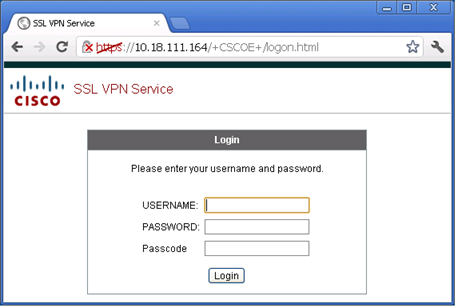
Change "2nd password" to "Passcode" in the Secondary Password Prompt.
Click "OK". Click "Assign" and assign the newly created Customization Object to the SSL VPN connection profile
![DualShield MFA Platform > Clientless SSL VPN [ASA] > image2014-4-9 17:38:34.png](/download/attachments/35946704/image2014-4-9%2017%3A38%3A34.png?version=1&modificationDate=1587385453000&api=v2)
The SSL VPN logon page will now be presented as:
![DualShield MFA Platform > Clientless SSL VPN [ASA] > image2014-4-9 17:39:20.png](/download/attachments/35946704/image2014-4-9%2017%3A39%3A20.png?version=1&modificationDate=1587385453000&api=v2)