
Applies to: DualShield v9+ on JDK 25, installed as a Windows service via procrun
Time required: about 10 minutes, plus one service restart
Why
When a DualShield server saturates the CPU, the system becomes unresponsive and the administrator almost always restarts the service or reboots the machine before any diagnostic is collected. The recovery action destroys the evidence, and the case cannot be progressed.
The settings below make the JVM record what it is doing continuously to disk. The data is already written before anyone reaches for the restart button, so a restart or even a power cut no longer loses it. After the incident, support asks for one thing — the logs folder — and gets a time-series of stack samples naming the exact method that burned the CPU.
Apply this before an incident. It is preventative, not a response step.
What gets enabled
Setting | What it gives you |
|---|---|
Java Flight Recorder (JFR) | Rolling 24h of execution samples, GC, locks, I/O and exceptions. Identifies the hot code path. |
GC logging | Distinguishes a garbage-collection death spiral from a genuine hot loop, usually within seconds of reading. |
Heap dump on OOM | Captures the heap automatically the moment an OutOfMemoryError is thrown. |
Before anything: confirm the bundled runtime supports JFR
DualShield ships a JRE, not a JDK, at C:\Program Files\Deepnet DualShield\jre. It has no jcmd, jmap, jstack or jhsdb. If that runtime was also trimmed of the jdk.jfr module then flight recording is unavailable and this page does not apply as written.
Check first:
"C:\Program Files\Deepnet DualShield\jre\bin\java" --list-modules | findstr jfr |
"C:\Program Files\Deepnet DualShield\jre\bin\java" --list-modules | findstr jfr
Prerequisites
Step 1 — create the JFR repository directory
Everything below writes into Tomcat's existing log directory, C:\Program Files\Deepnet DualShield\tomcat\logs, which DAS already writes to and the service account can already write to. Only the JFR repository subdirectory needs creating:
mkdir "C:\Program Files\Deepnet DualShield\tomcat\logs\jfr" |
mkdir "C:\Program Files\Deepnet DualShield\tomcat\logs\jfr"
The rolling JFR chunk files are kept in that subdirectory to avoid burying the Tomcat and DAS logs in them. The GC log and the shutdown recording are written to the log directory itself.
Step 2 — validate the options before touching the service
Do this first. A malformed option makes the JVM refuse to start, and diagnosing that through a Windows service is far more painful than through a command prompt.
From a command prompt, using the same JDK the service runs (jre\bin under the install directory). Every option containing a space must be quoted here, and the quotes go around the whole option, not just the path:
java "-XX:FlightRecorderOptions=repository=C:\Program Files\Deepnet DualShield\tomcat\logs\jfr" "-XX:StartFlightRecording=name=das,settings=default,disk=true,maxage=24h,maxsize=1g,dumponexit=true,filename=C:\Program Files\Deepnet DualShield\tomcat\logs\das-exit.jfr" "-Xlog:gc*,safepoint:file=C:\Program Files\Deepnet DualShield\tomcat\logs\gc.log:time,uptime,level:filecount=10,filesize=20m" -XX:+HeapDumpOnOutOfMemoryError "-XX:HeapDumpPath=C:\Program Files\Deepnet DualShield\tomcat\logs" -version |
expected the version banner prints, along with a line reporting that recording DualShield started.
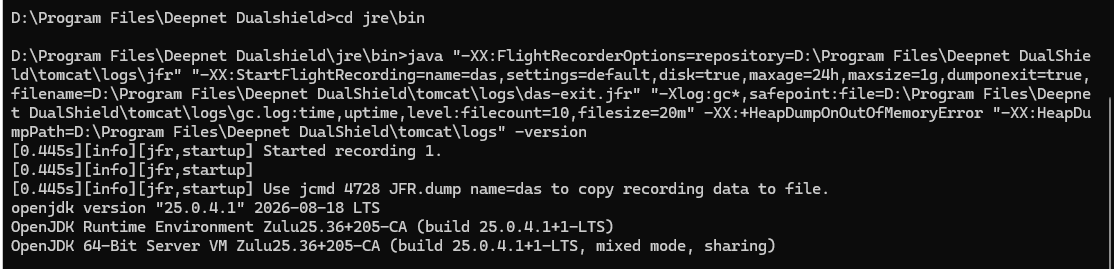
Common failures at this step:
These quotes are needed only for this command-line check and for any .bat or setenv script. Do not carry them into Step 3 — procrun stores each option on its own line and quoting them there would make the quote part of the value.
Step 3 — add the options to the service
Preferred — the procrun GUI:
1. Run DualShieldw.exe //ES//<service-name> from the DualShield bin directory.
2. Open the Java tab.
3. Append each option below to Java Options, one per line. Do not disturb the existing lines.
Alternative — the registry. DualShield's JVM arguments live in the 32-bit registry view, not the native key:
HKLM\SOFTWARE\Wow6432Node\Apache Software Foundation\Procrun 2.0\<service-name>\Parameters\Java
Edit the Options value (type REG_MULTI_SZ, one option per line). On newer procrun builds running under JDK 9+, an Options9 value may be present and take precedence — if both exist, add the lines to whichever one is already populated with the current settings.
The options to add:
-XX:FlightRecorderOptions=repository=C:\Program Files\Deepnet DualShield\tomcat\logs\jfr -XX:StartFlightRecording=name=das,settings=default,disk=true,maxage=24h,maxsize=1g,dumponexit=true,filename=C:\Program Files\Deepnet DualShield\tomcat\logs\das-exit.jfr -Xlog:gc*,safepoint:file=C:\Program Files\Deepnet DualShield\tomcat\logs\gc.log:time,uptime,level:filecount=10,filesize=20m -XX:+HeapDumpOnOutOfMemoryError -XX:HeapDumpPath=C:\Program Files\Deepnet DualShield\tomcat\logs |
-XX:FlightRecorderOptions=repository=C:\Program Files\Deepnet DualShield\tomcat\logs\jfr -XX:StartFlightRecording=name=das,settings=default,disk=true,maxage=24h,maxsize=1g,dumponexit=true,filename=C:\Program Files\Deepnet DualShield\tomca
Add these unquoted, exactly as shown. Procrun stores each option as its own line and passes it to the JVM whole, so the spaces in the install path need no quoting — and adding quotes here would make them part of the path. Quoting is only needed on a command line or in a .bat or setenv script, as in Step 2.
Step 4 — restart the DualShield service
net stop DualShield net start DualShield
Use the actual service name for the installation.
Step 5 — verify it is running
There is no jcmd in the bundled JRE, so verification is by observation:
1. tomcat\logs\gc.log exists and is growing.
2. tomcat\logs\jfr\ contains one or more .jfr chunk files within a minute or two of startup.
3. The JFR startup message appears in the service's stdout log — normally tomcat\logs\commons-daemon*.log or tomcat\logs\stdout*.log, depending on how procrun is configured. A failure to start the recording is reported in the same place.
If tomcat\logs\jfr\ stays empty, check that the directory from Step 1 was created and that the service account can write to it. If the service now fails to start at all, an option is malformed — revert Step 3 and repeat Step 2.
Overhead
Published and commonly-measured figures. These are not measured against DualShield; treat them as guidance, and measure on a representative load test if a customer needs a committed number.
DAS4G should sit at the bottom of these ranges: JFR overhead is driven by sampling threads that are actually running, and DAS4G spends most of its time blocked on LDAP, JDBC and RADIUS.
settings=default is deliberate. settings=profile samples twice as often for two to five times the overhead, and buys resolution that is not needed for an incident lasting minutes.
Collecting after an incident
Ask the customer for the Tomcat log folder, zipped — the same folder they already send for any other DualShield issue:
C:\Program Files\Deepnet DualShield\tomcat\logs{color}
Exclude *.hprof from that zip. A heap dump is as large as the live heap and will make the archive unsendable. Ask for it separately, and only if the case is an OutOfMemoryError.
This works after a restart or reboot. JFR writes chunks to the repository continuously, so the last 24 hours survive a hard kill. das-exit.jfr is additionally written on a clean shutdown.
Open the .jfr files in JDK Mission Control. Start with Method Profiling for a hot loop, and the GC log or the Garbage Collections page for a collection death spiral.
Capturing during the incident, without jcmd
The bundled JRE has no jcmd, jstack or jmap, so the usual on-demand commands are not available on a customer machine. What is available:
If a support engineer needs live jcmd access, a matching JDK 25 can be copied onto the machine and its jcmd used against the running process; nothing needs installing beyond the files. Two constraints that catch people out:
Treat this as a support-engineer tool, not something to talk a panicking administrator through.
Downloading through DAC
Because these files land in Tomcat's log directory, DAC's system log file list picks them up, so support can retrieve them through the console without RDP or file share access. The listing is non-recursive and files-only, which is why gc.log, das-exit.jfr and incident.jfr are written to the log directory itself rather than into the jfr subdirectory — the rolling chunk files in jfr\ are not listed and still need collecting by hand.
Viewing log files requires the SystemFile:view permission.
Rolling back
Remove the five options from the service configuration and restart. Nothing else is left behind. Existing .jfr and gc.log files can be deleted freely once a case is closed.
Notes