1. On the Microsoft sign-in page, choose Verify your identity, then Face, fingerprint, PIN or security key.
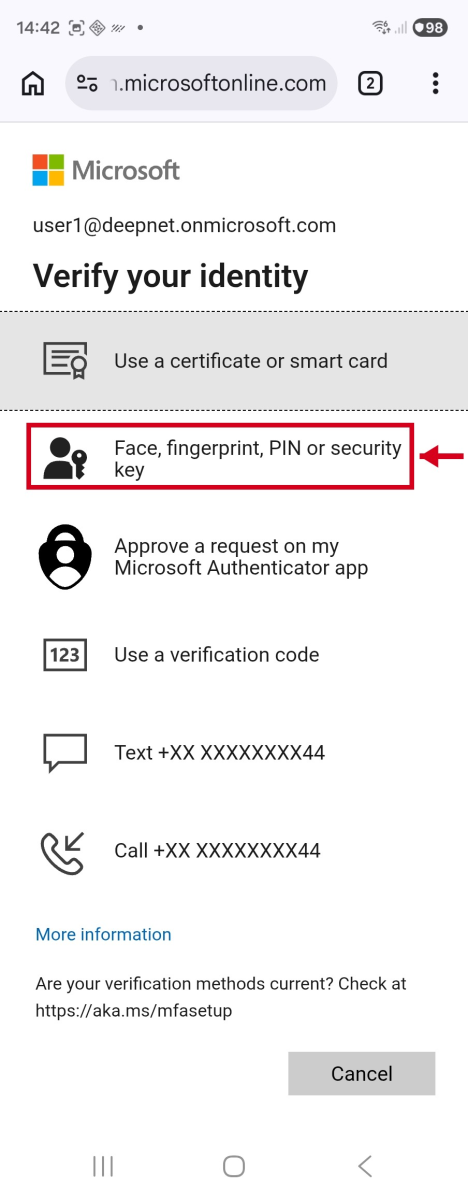
Verify your identity → choose "Face, fingerprint, PIN or security key"
2. Android's picker shows the security key passkey saved earlier — select it.
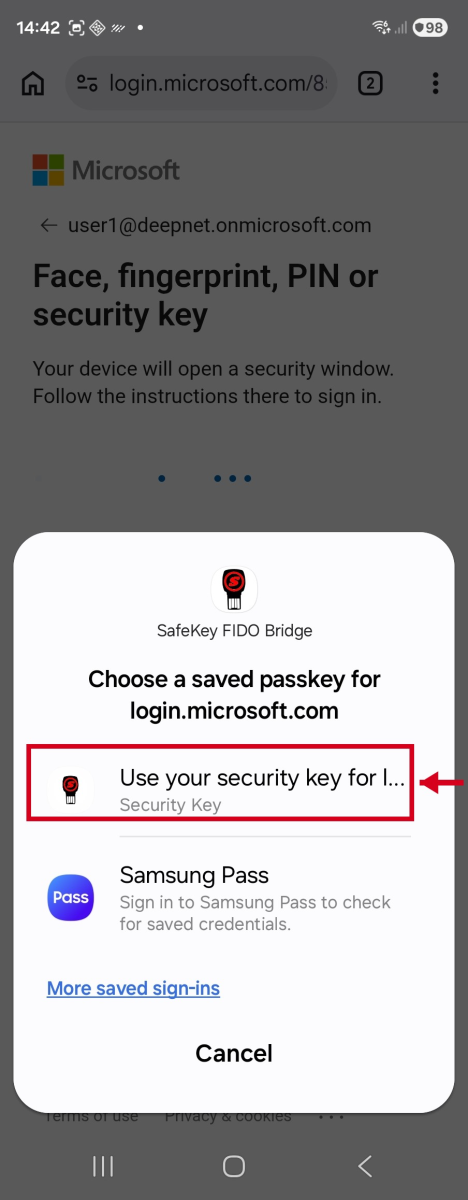
Choose the saved security key
3. Enter the security key's PIN.
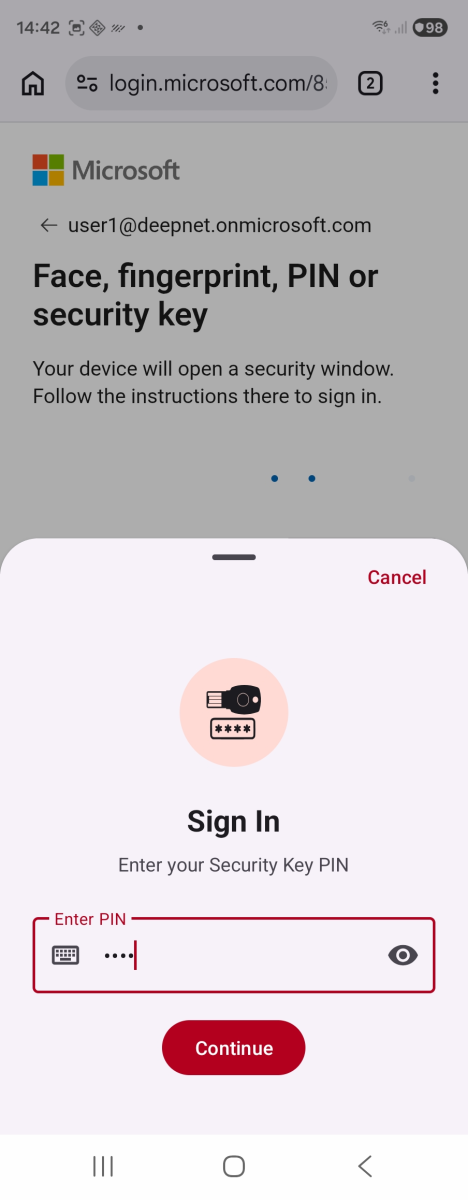
Enter the Security Key PIN
4. Hold the key to the phone or plug it in when prompted — sign-in completes once it's approved.
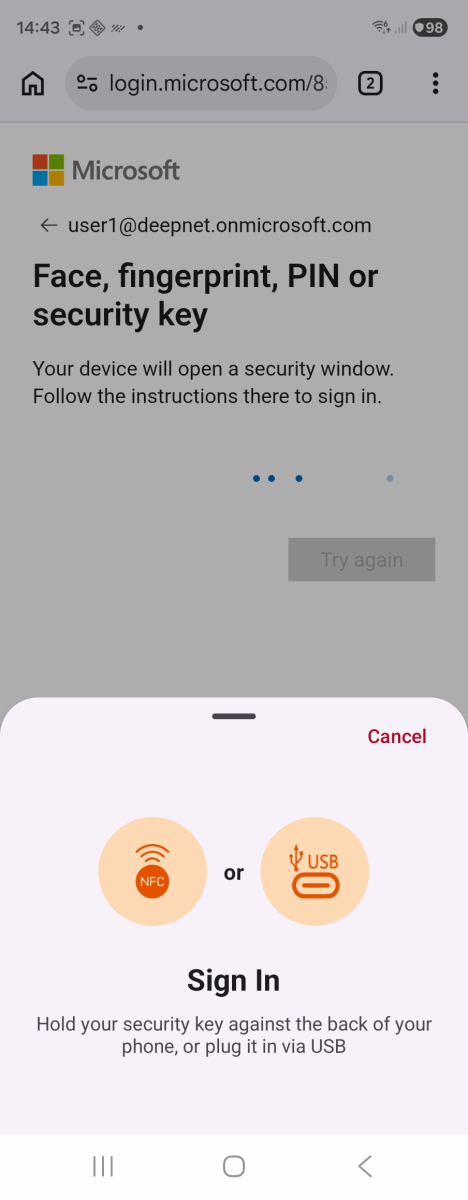
Waiting for the key
5. Once the key is approved, the app briefly shows Initializing… while the sign-in completes.
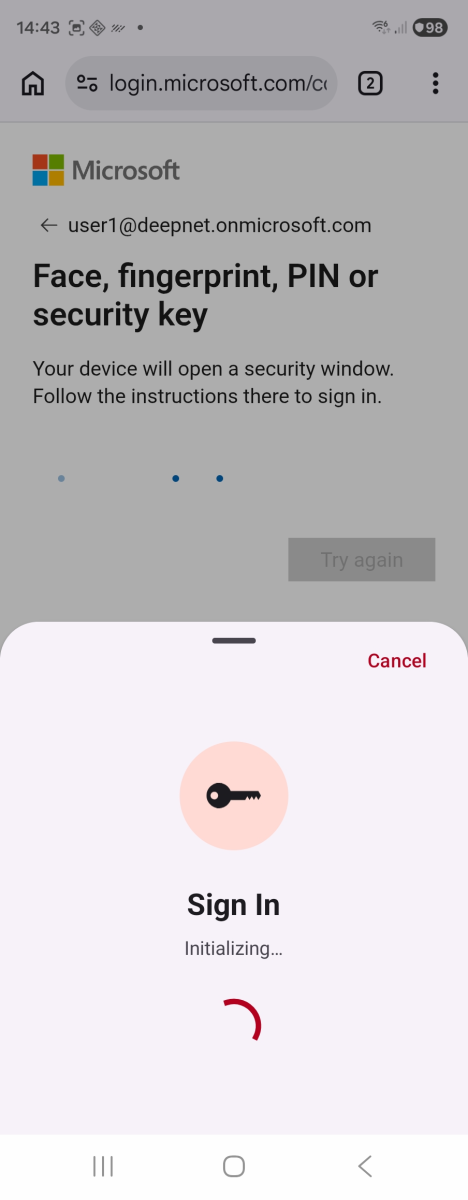
Initializing — the last moment before sign-in completes
6. Sign-in will have been completed for the FIDO2 passkey.
Microsoft remembers which provider you used last time, so this picker is usually faster toget through than the first-time setup — no need for "Save/use another way" once SafeKeyFIDO Bridge has been used once.
SafeKey FIDO Bridge — reflects the app as installed on this device.