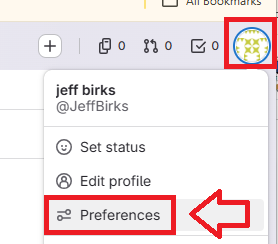
Log in to your GitLab account, click on the icon in the top right of your logon page, then against your user icon select the option "Preferences";
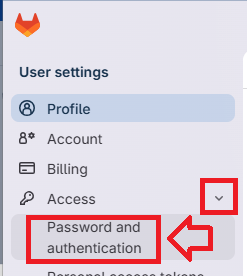
From the top left menu options, use the access dropdown to select the option "Password and authentication";
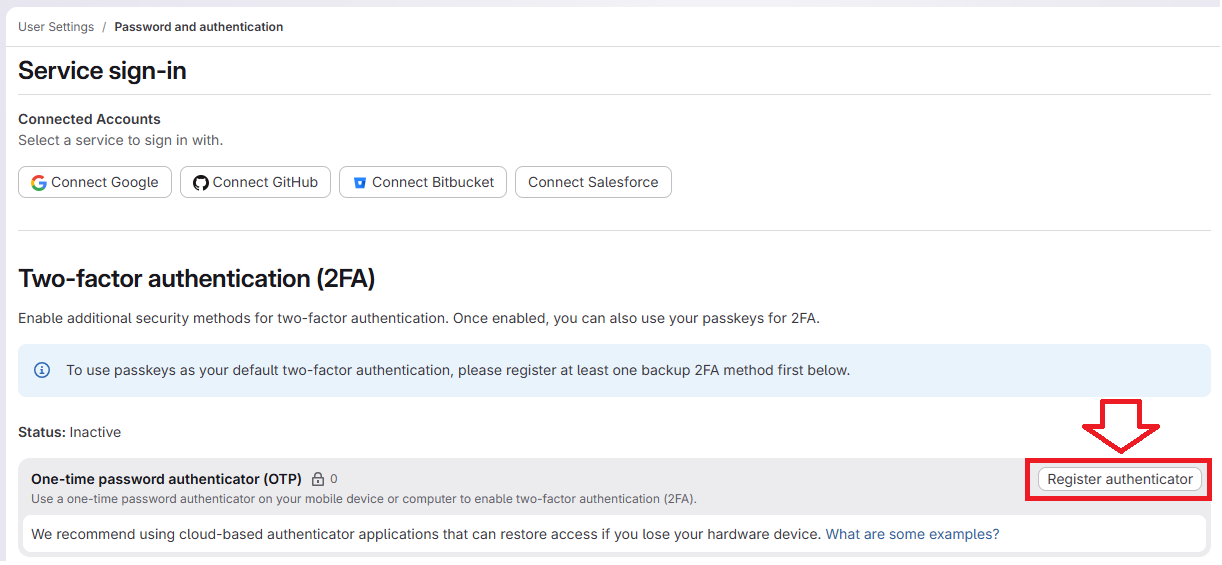
Scroll down to the section "Two-factor authentication", and in the section "One-time password authenticator (OTP)", click on the "Register Authenticator" button;
After clicking on the "Register authenticator" button you will be presented with a QR code similar to the following example;
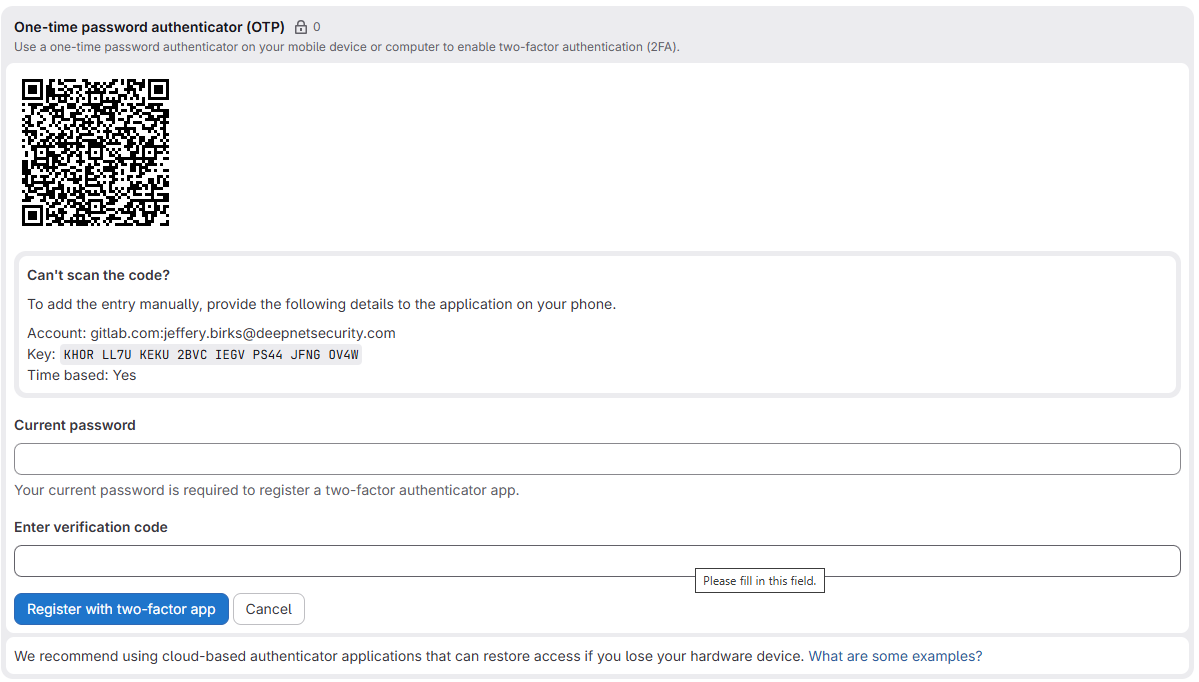
You can use the QR code to program our programmable tokens using the instructions found in the following procedure;
Once you have programmed your token you will need to verify it with Gitlab.
At the prompt "Current Password", enter your current GitLab password, and at the prompt "Enter verifiaction code", copy an OTP code from your programmable token;
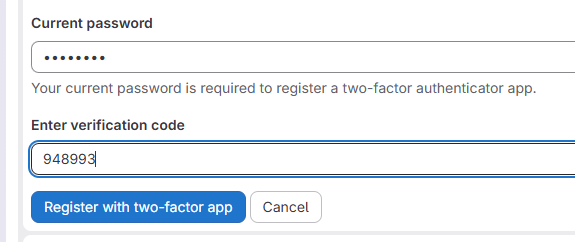
Once you entered your OTP code, press the "Register with two-factor app" button.
The token will be verified with Gitlab and ready for use when you next log in.