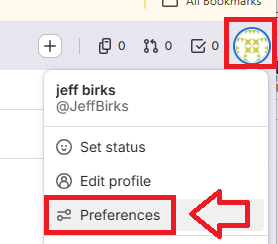
Log in to your GitLab account, click on the icon in the top right of your logon page, then against your user icon select the option "Preferences";
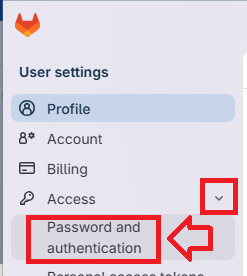
From the top left menu options, use the access dropdown to select the option "Password and authentication";
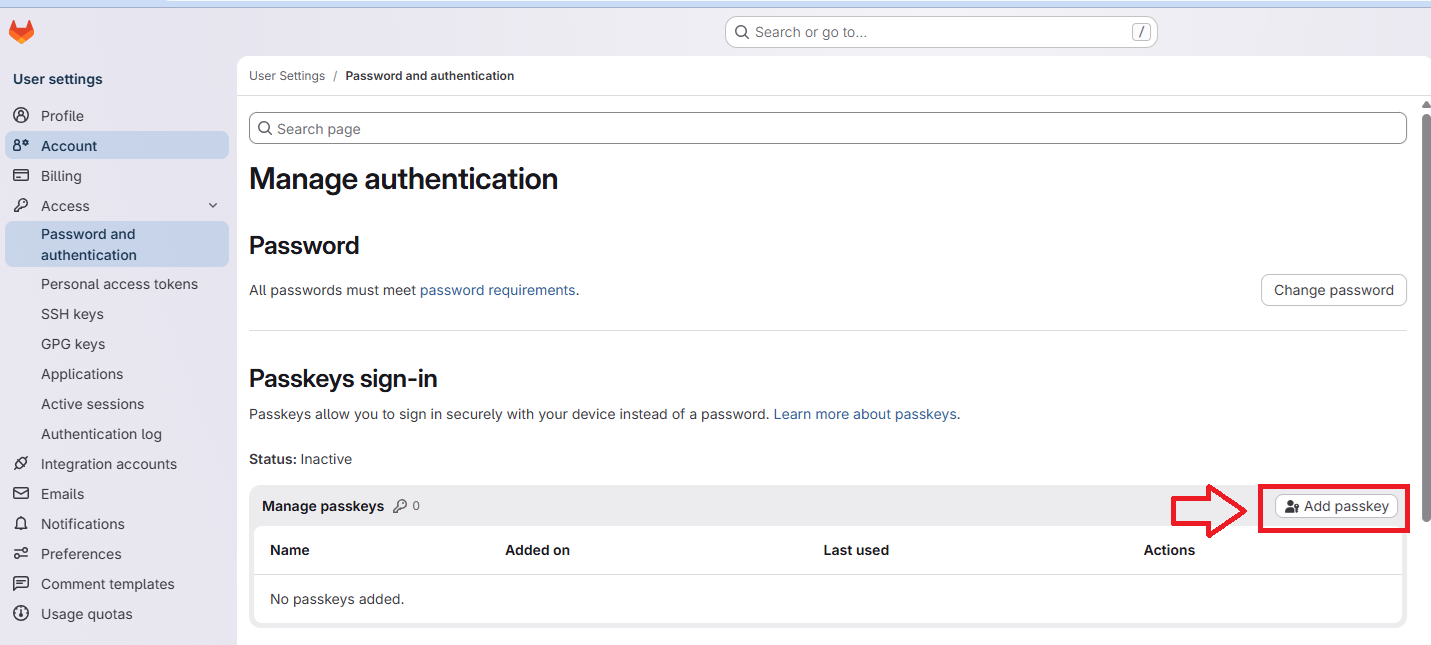
You will then be presented with options that allow you to manage your authentication options.
Scroll down to the section "Passkeys sign-in", then click on the option "Add passkey";
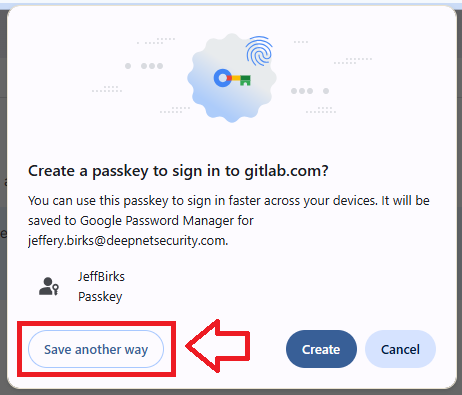
A popup window will now open that asks if you want to create a passkey, click on the "Save another way" button;
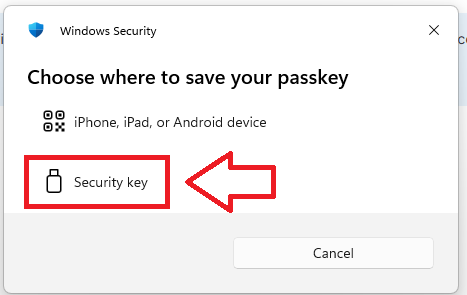
You are now asked where to save your passkey, select the option "Security key";
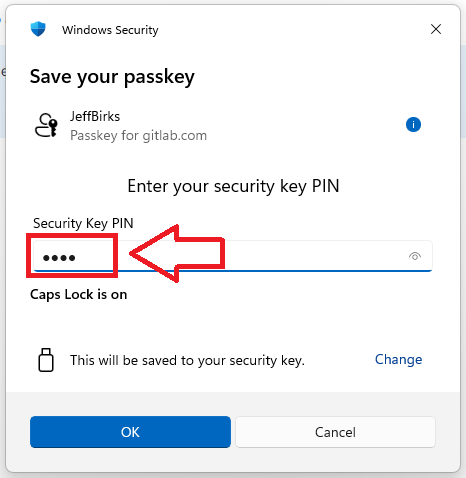
The window will now update and ask for your PIN code.
At the prompt "Security Key PIN", supply the PIN for you Fido2 key, then click "OK",
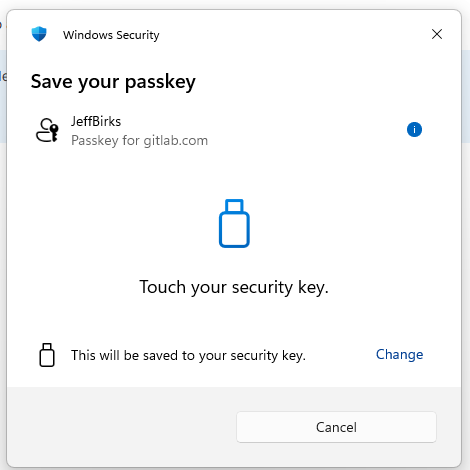
You are now prompted to touch the key (to prove you are present and giving permission for the key to be used).
Touch the necessary area on your Fido key;
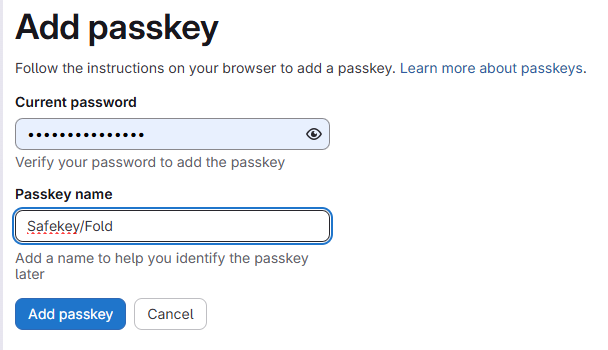
You will be asked to provide your current password for your Gitlab account, and a name for your passkey.
Supply the requested password and a suitable name for your passkey then click "Add passkey";
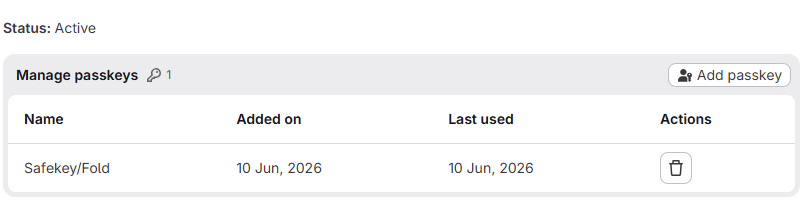
The Fido2 key is now ready to be used when you next log in to Gitlab, and the Passkeys Sign-in section will now list your newly added passkey.