HOTP tokens generate a different code each time a fresh request is made based on an internal counter that is incremented upon each request (with the initial counter being set to zero), and given both the token and the authentication server contain copies of the same seed data (secret), then provided the two counters match, they will both be able to generate the same OTP code.
Counter drift occurs when the counter on the token mismatches with the counter on the server (this will typically occur after codes have been generated on the token but not used to authenticate with the server). Typically, if an OTP code from a HOTP token has been produced that does not match, then Most standard enterprise implementations will look-ahead down the list of expected codes to find a match (typically as far as 20 to 100 counter steps), and if none are found then the code is rejected. All MFA servers will have a limit as to how far they search, so if the counter drift has exceeded this limit then a re-synchronisation between the token and the will be necessary.
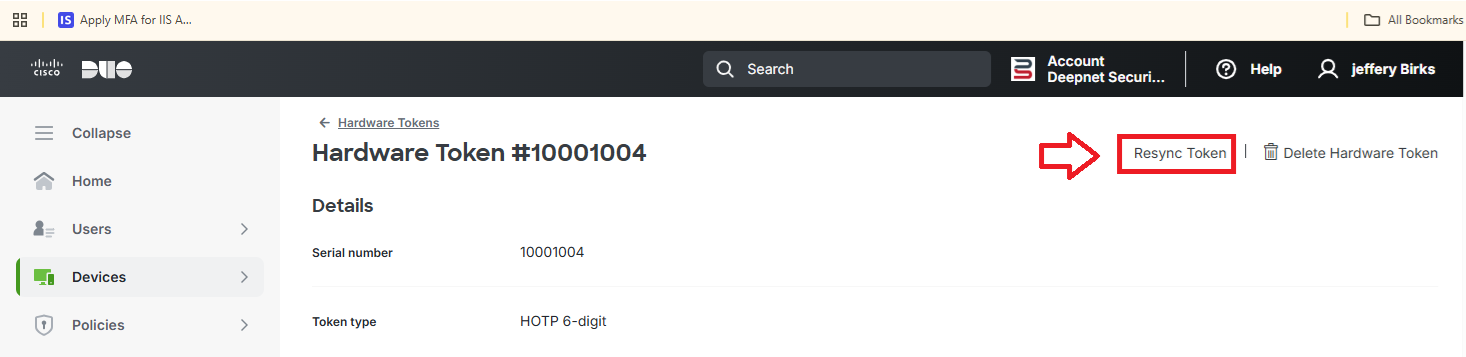
As an example, Duo has a preference for using HOTP tokens (as they don't currently have a mechanism to adjust for time drift on a TOTP token), and when a counter resynchronisation is required
In this example, after the user clicks on the "Resync Token" link a form will open where they will supply three OTP codes from the HOTP token;
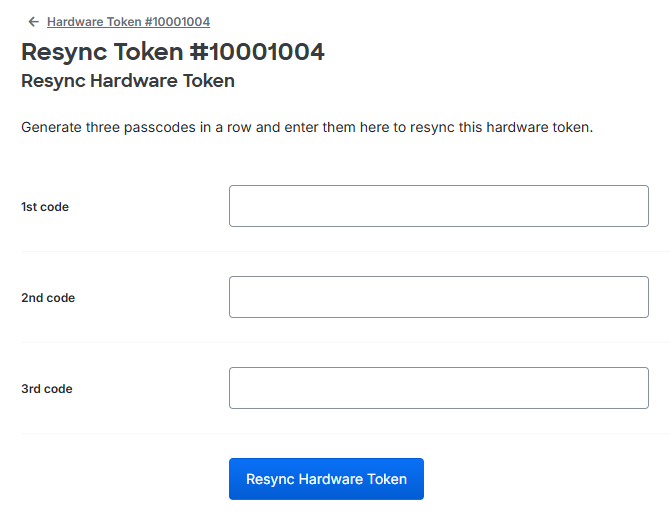
Using your hardware token you would generate the codes, supply them in order into these fields, then click the "Resync Hardware Token" button to resolve the counter drift (and you will once again be able to log in with your token).
With the DualShield authentication server a similar feature is available. Using the context menu of a HOTP token you can select the option "Synchronise" and you will be prompted to supply two codes from the token;
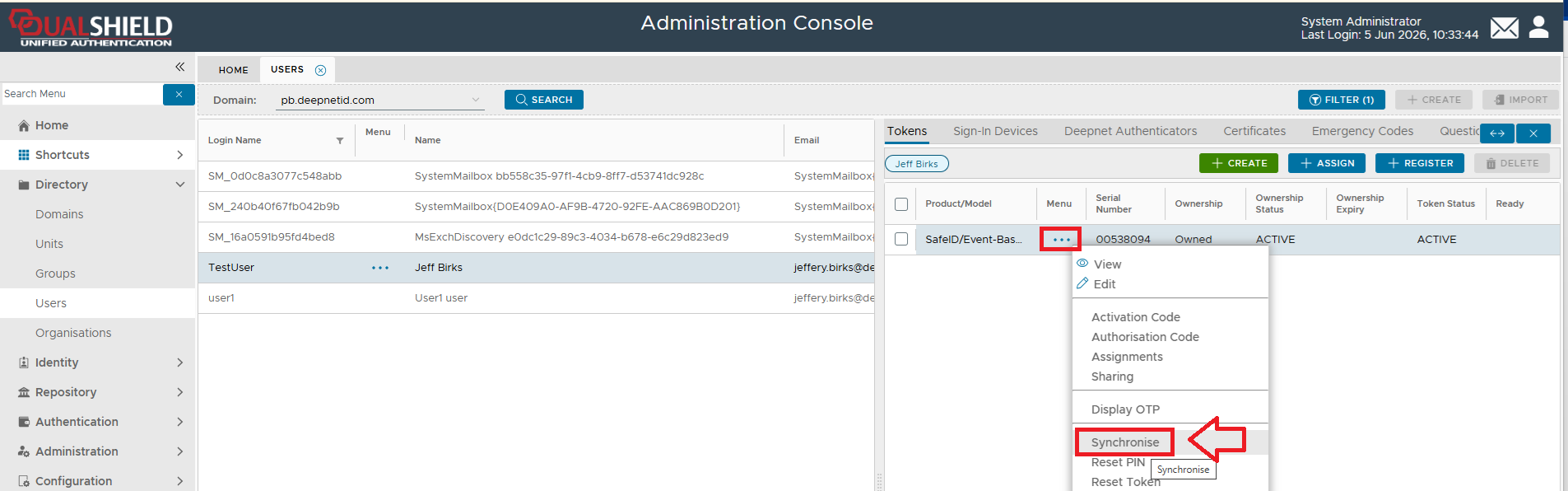
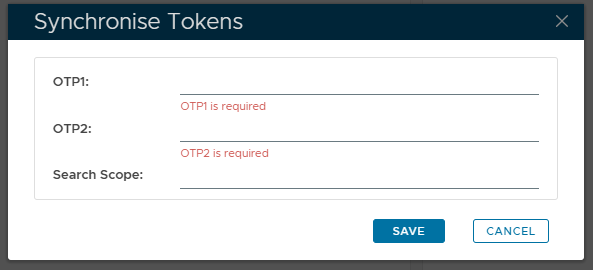
In this example the field "Search Scope" is there for you to be able to specify how deep the search for matching codes is, but the end result is the same - once a match is found the counter is updated.
Provided you have the seed (secret) that is associated with the token you are able to check the current counter setting using an online tool.
As an example, we will check the counter setting for a HOTP token with the seed secret of "0123456789abcdef0123456789abcdef" using this online tool
After clicking on the link (and filling in the secret key) we see a form such as the following;
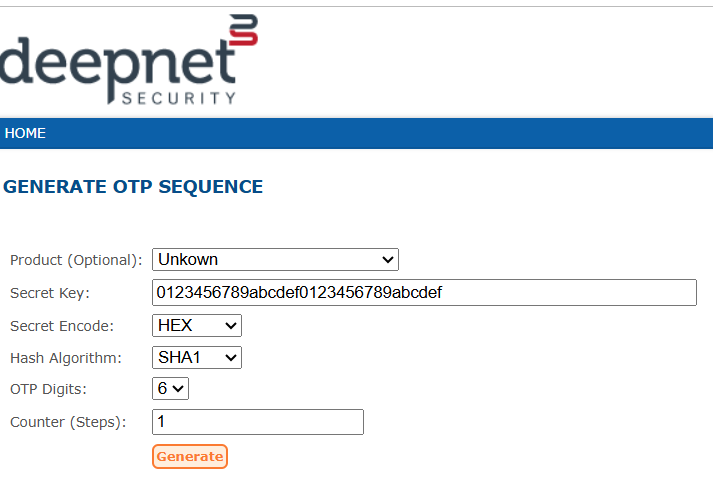
You may select the product, and it is advisable to ensure that the Secret Encode selection is correct (if the key is mostly numeric, then it is probably hex encoded, and if mostly alpha then it is probably base32).
Click on the "Generate" button you will see a large list of HOTP codes that are expected from this token
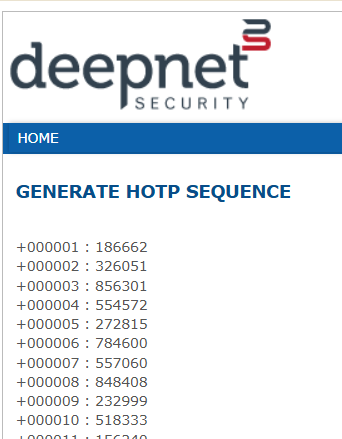
Now if we generate an OTP code on our token and it displays the value "784600", then the counter is likely to be currently set at 6 (this can be confirmed by generating another code and checking).
If you want to verify with another online tool you could use a tool such as this one (this tool works in a similar way, just ensure you paste the key into the correct field and update the list using the "Generate OTP" button).
This largely comes to to the MFA server you are using, but as an example we will look at importing HOTP seeds data into Duo.
In the case of Duo you may have a CSV file for your tokens that looks like this; "10001004, 0123456789abcdef0123456789abcdef, 0"
The first value would be the serial number of the token, the second the token's seed, and the last value (",0") is the expected counter value, If you have been testing the token and the counter has been incremented, you could change the value to match the counter of the next expected OTP code then import the CSV file with this updated parameter (and this would avoid the need for synchronising the token)