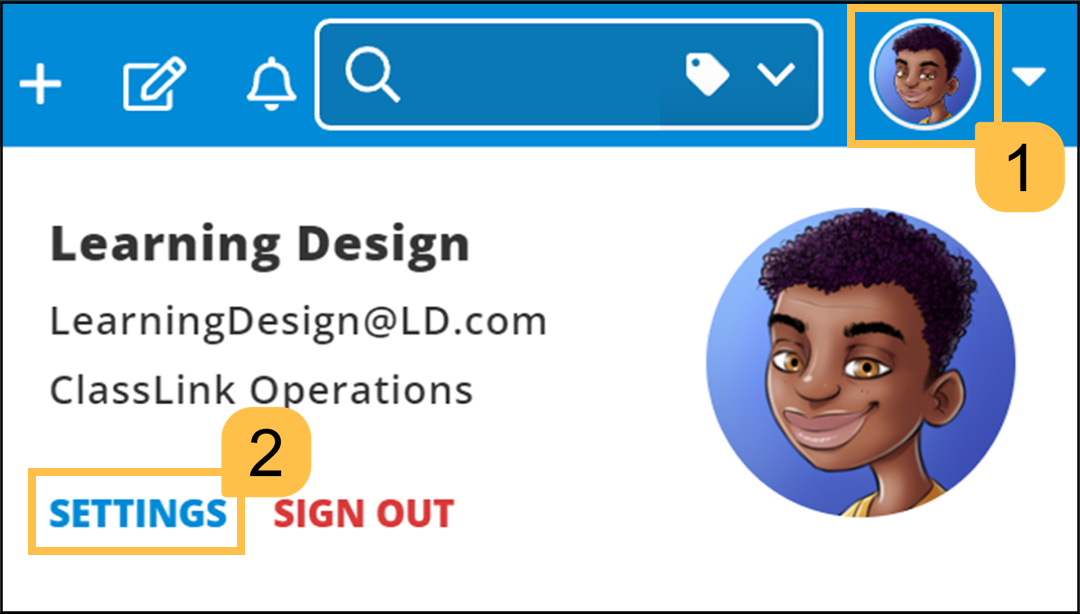
Sign in to your ClassLink account, then after logging in, click on your user icon (1), then select the option "SETTINGS" (2);
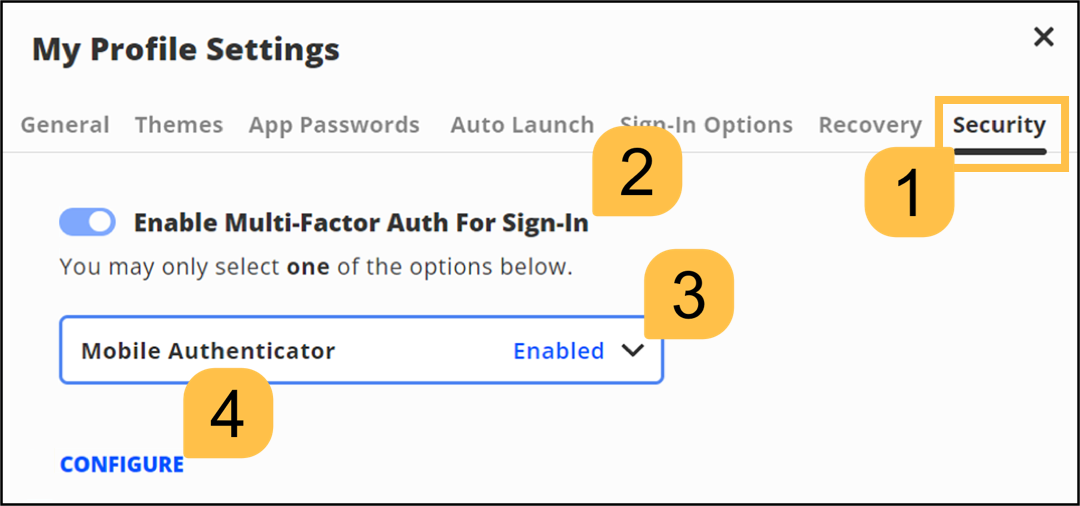
A new window will open titled "My Profile Settings".
Select the tab "Security", enable the option "Enable Multi-Factor Auth for Sign-In" (2), select the option "Mobile Authenticator" (3) then click on "CONFIGURE" (4);
A new window will now open that includes a QR code (see example below);
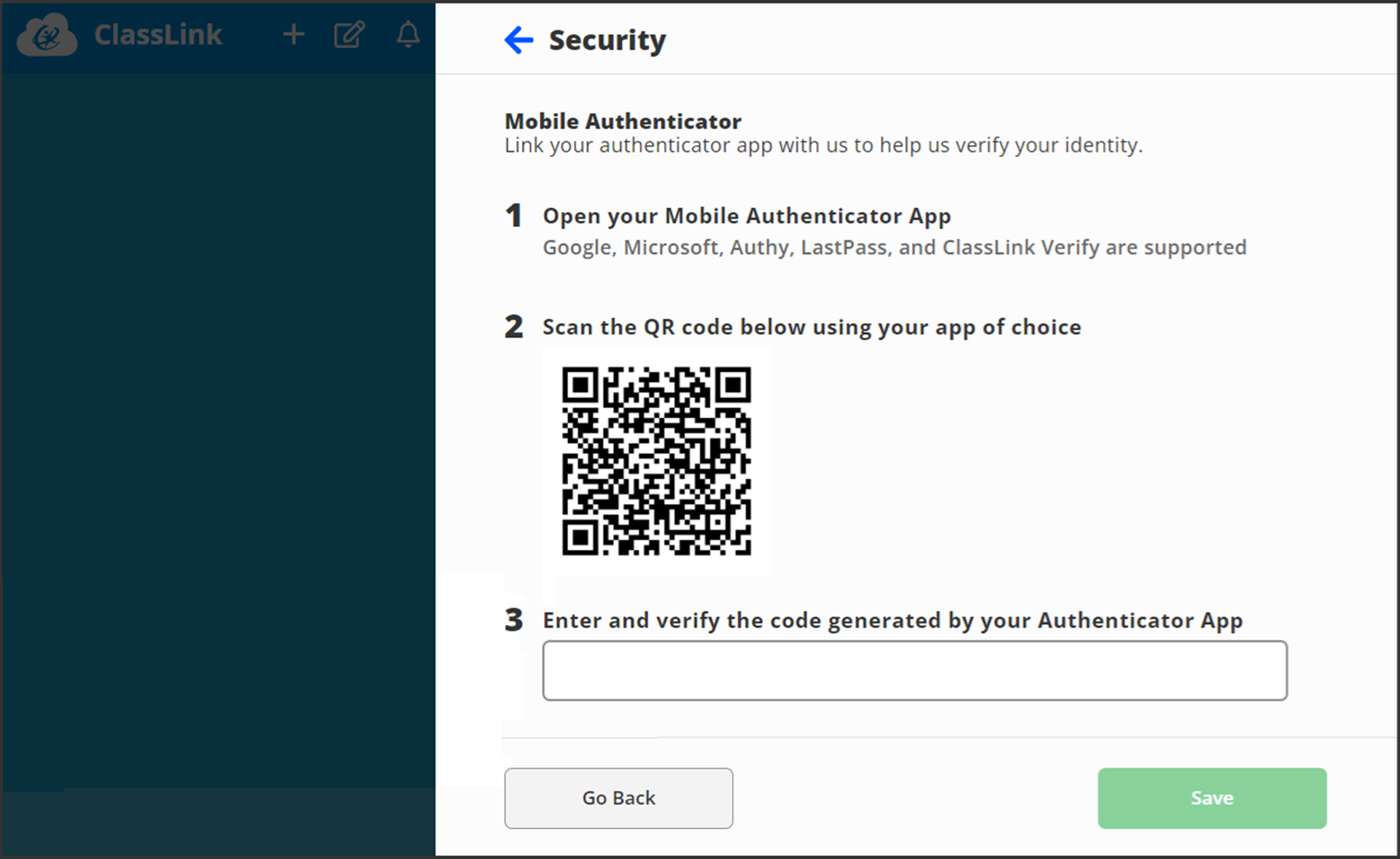
You can now use this QR code to program our programmable tokens using the instructions found in the following procedure;
Once you have programmed your token you will need to verify it with ClassLink.
At the prompt "Enter and verify the code generated by your Authenticator App", copy an OTP code from your programmable token then click ;
;
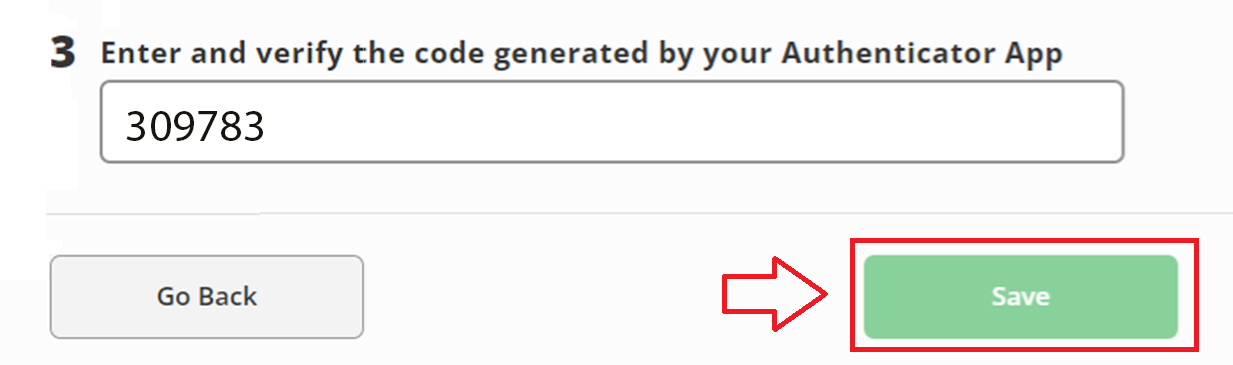
Once you enter the code, you will be able to use the programmable token to log in to ClassLink.