
Add a RADIUS Server
- Log in to the Fortinet FortiGate administrative interface.
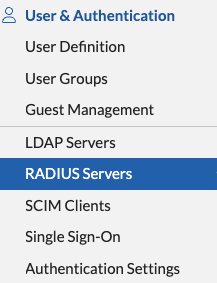
- Navigate to User & Authentication>RADIUS Servers.
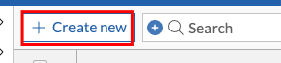
- Click the Create New button to create a new RADIUS server.
On the New RADIUS Server page, enter the following information:
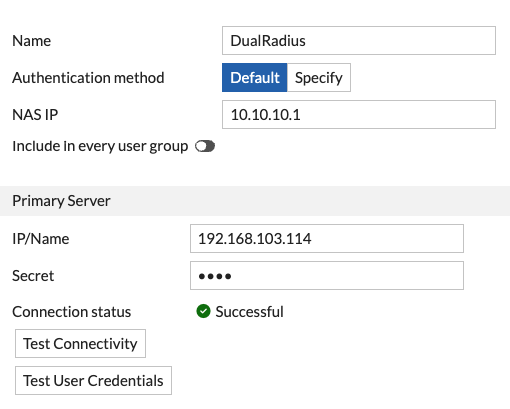
- Enter a friendly name
- Leave the authentication method as Default
- Enter the NAS IP, which in this case will be the connection address used by FortiClient
- Enter the IP address of the machine on which you have installed the DualShield Radius Server Software
- Enter the same Shared Secret which you specified in the Radius Client settings on the DualShield Administration Console.
- Test Connectivity to make sure connection to the DualShiedl Radius Server is successfull
Configure a User Group
- Navigate to User & Authentication>User Groups
- If you have an existing user group, click on it to edit its settings. If you don't yet have a user group, click Create New to create one.
On the Edit User Group or New User Group page, enter the following information:
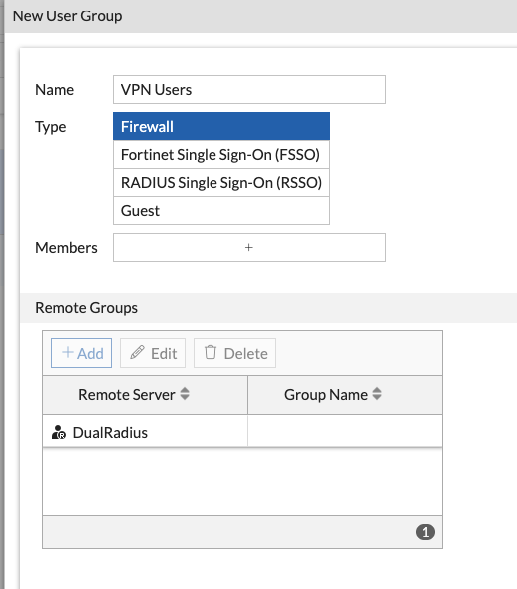
- Use a friendly name
- Type is Firewall
- You do not have to specify members.
Click the Create New button in the Remote groups section and select the DualShield RADIUS remote server. You do not have to specify a group.
- Click the OK button to save the user group settings.
Configure timeout
The Fortinet appliance has a default timeout of 5 seconds, which will fail for anything other than a passcode authentication. The timeout can be increased from the Fortinet command line interface to resolve the issue. We recommend increasing the timeout to at least 60 seconds
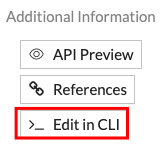
- In the User Group Edit screen click on the Edit in CLI button
- Execute the following commands:
# config user radius
edit <RADIUS Server>
set timeout 60
end