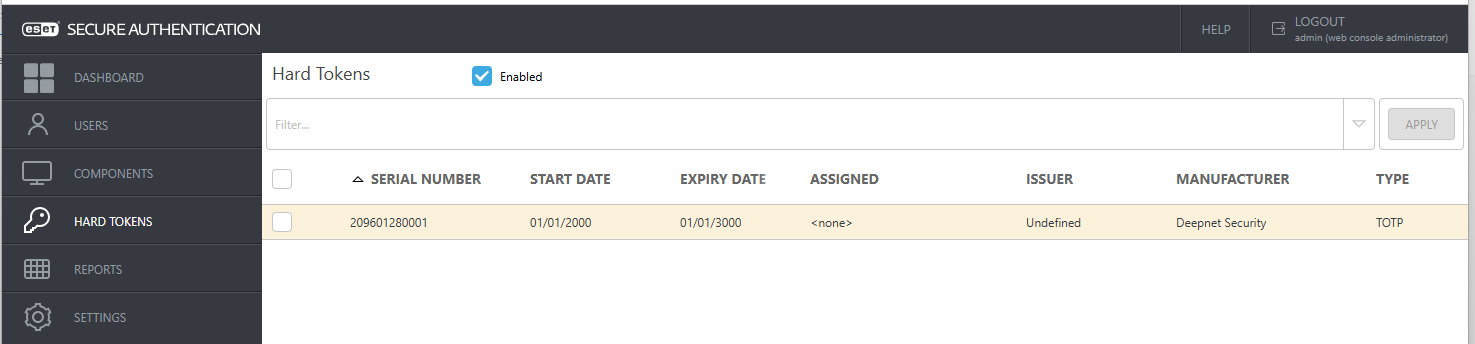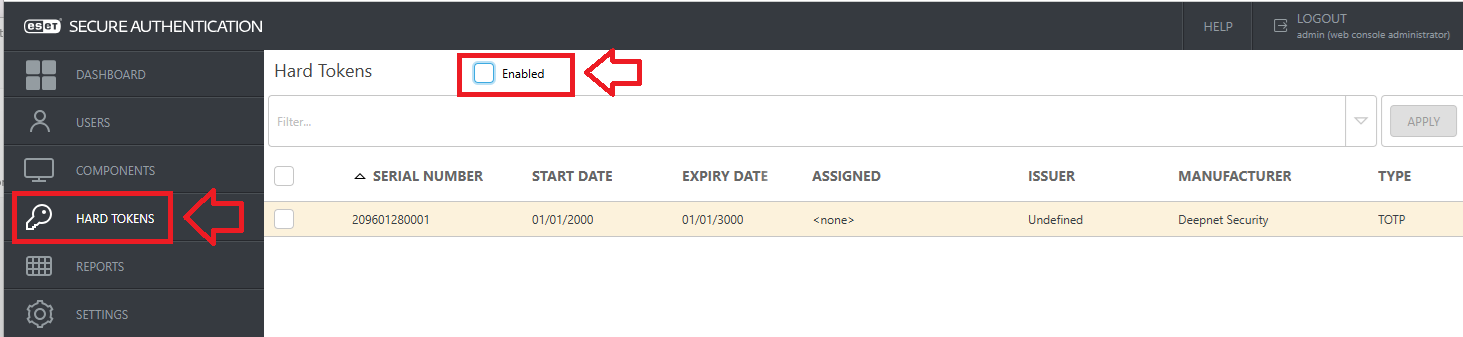
Log in to your ESA Web Console, then select the menu option "HARD TOKENS";
If the the option for Hard Tokens is not currently enabled (as in the example above) enable it by ticking the box;

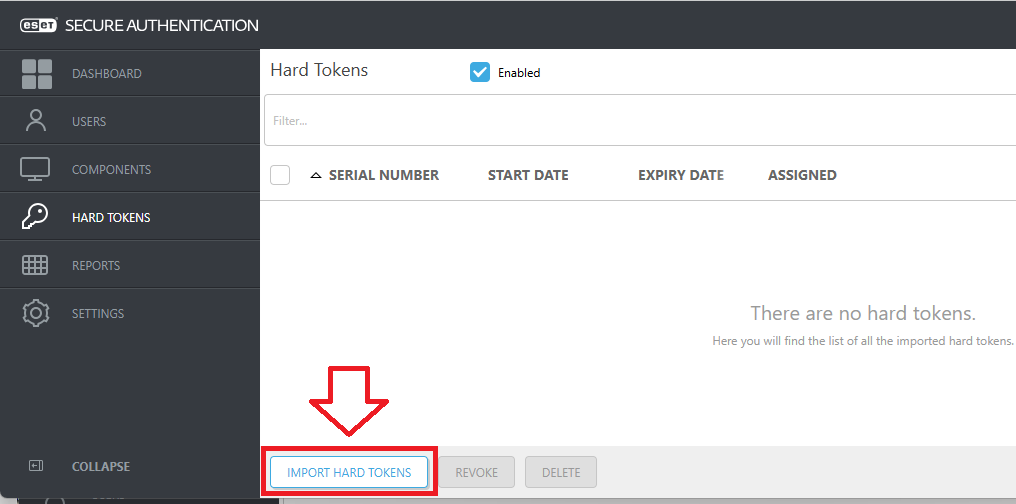
You can now import your hard token details by clicking on the button "IMPORT HARD TOKENS";
A window will now open titled "Import Hard Tokens", click on the button  ;
;
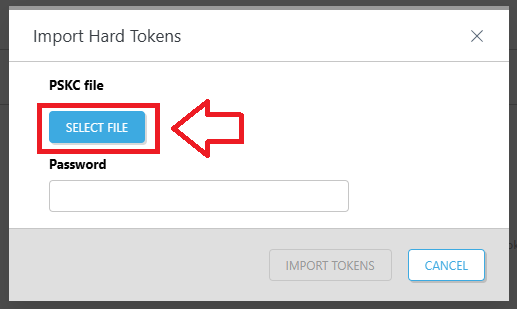
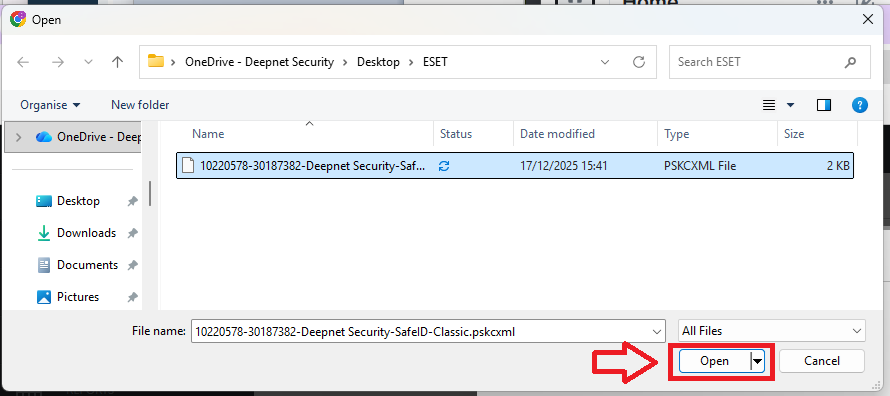
In the popup window that opens, navigate and select your PSKC seed file then click "Open";
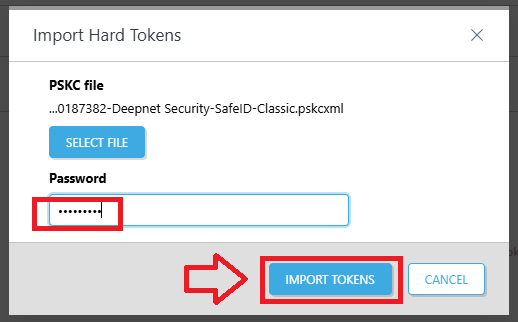
You will return to the "Import Hard Tokens" window (with the file selected)
At the prompt "Password", supply the password that you entered when requesting the seed file, then click  ;
;
Your seed details will now be imported into Eset Secure Authentication, and are ready to be assigned to your users.