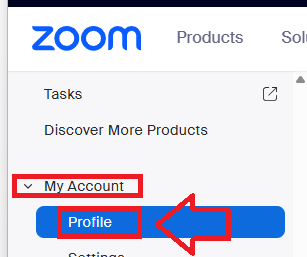
Log in to your Zoom Account, use the dropdown "My Account" to select "Profile";
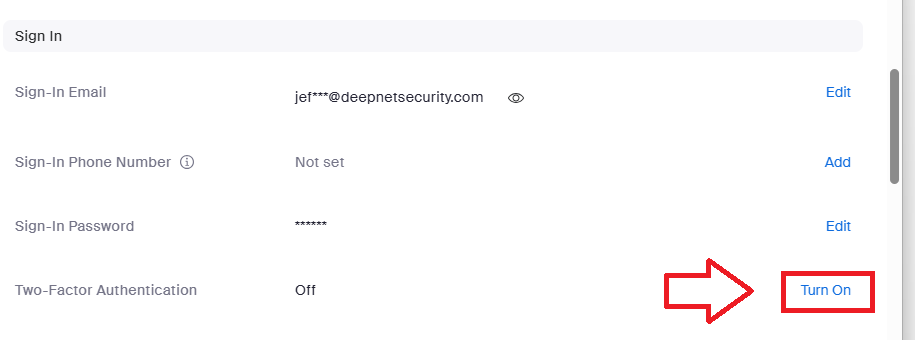
Then in the section "Sign In", use the link "Turn On" to turn on Two-Factor Authentication;
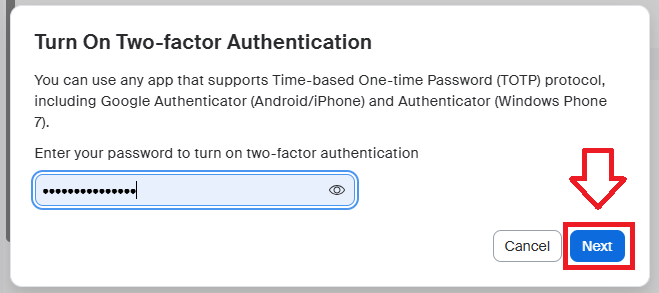
A window will now open titled "Turn on Two-factor Authentication", enter your password then click  .
.
Two factor authentication will now be enabled, but now needs to be prepared on your hardware token, click the link "Set Up";

Again you will need to supply your password, password then click .
You will now be presented with a QR code (similar to the example below);

You can use the QR code to program our programmable tokens using the instructions found in the following procedure;
Once you have programmed your token you will need to verify it with Zoom.
Click , then at the "Enter the code generated by your authenticator app:" prompt, copy a 6-digit code from your newly programmed hardware token , then click  ;
;
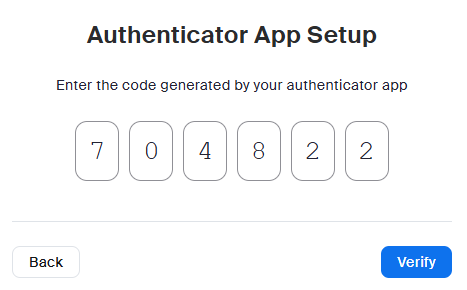
Once verified the programmable token is ready to supply OTP codes when you next login to your Zoom account;
