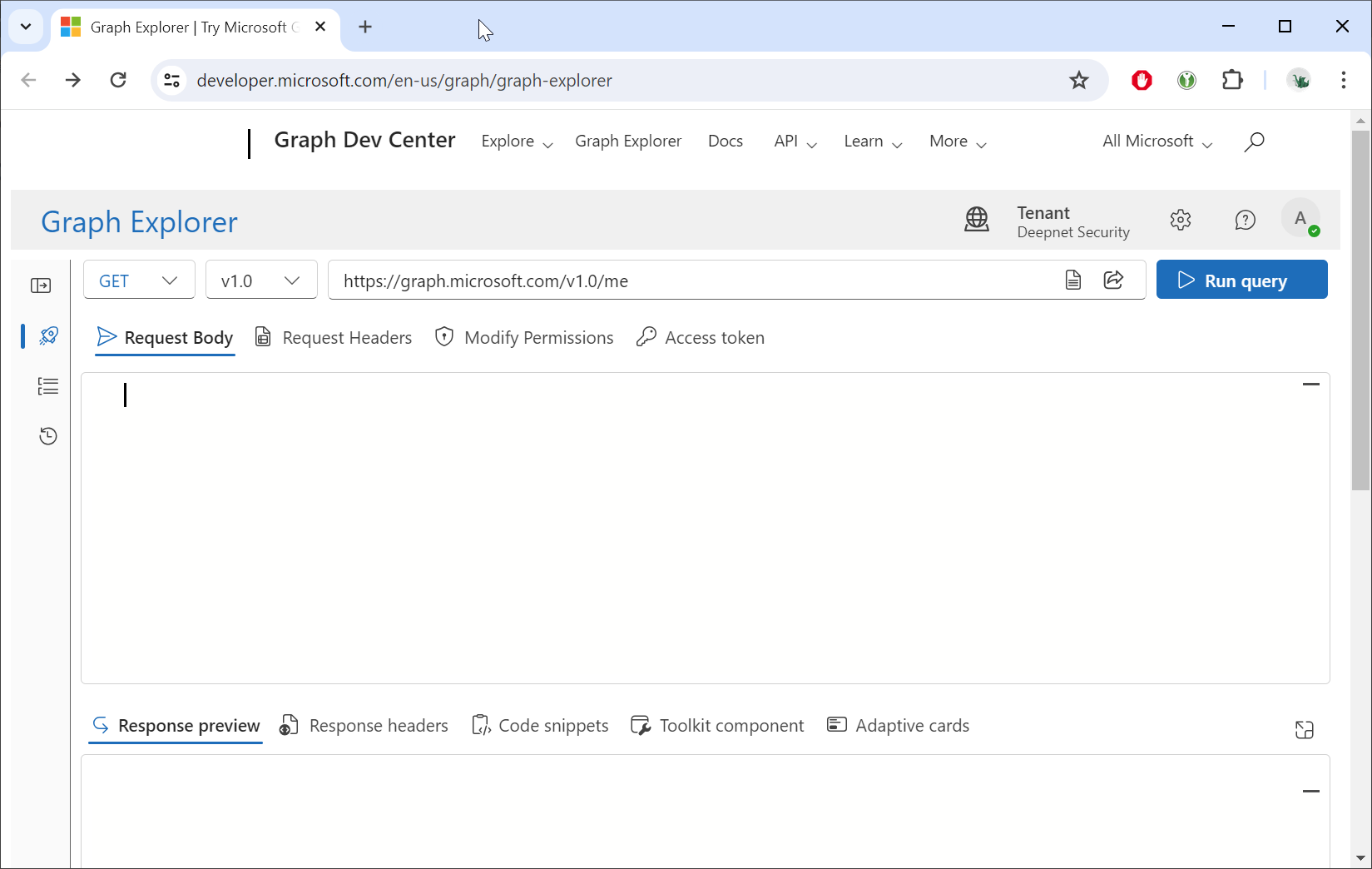
Access the Graph Explorer: https://developer.microsoft.com/en-us/graph/graph-explorer
Sign in using your Entra account
Change the HTTP method from "GET" to "PATCH", and change the endpoint to "https://graph.microsoft.com/beta/directory/authenticationMethodDevices/hardwareOathDevices"
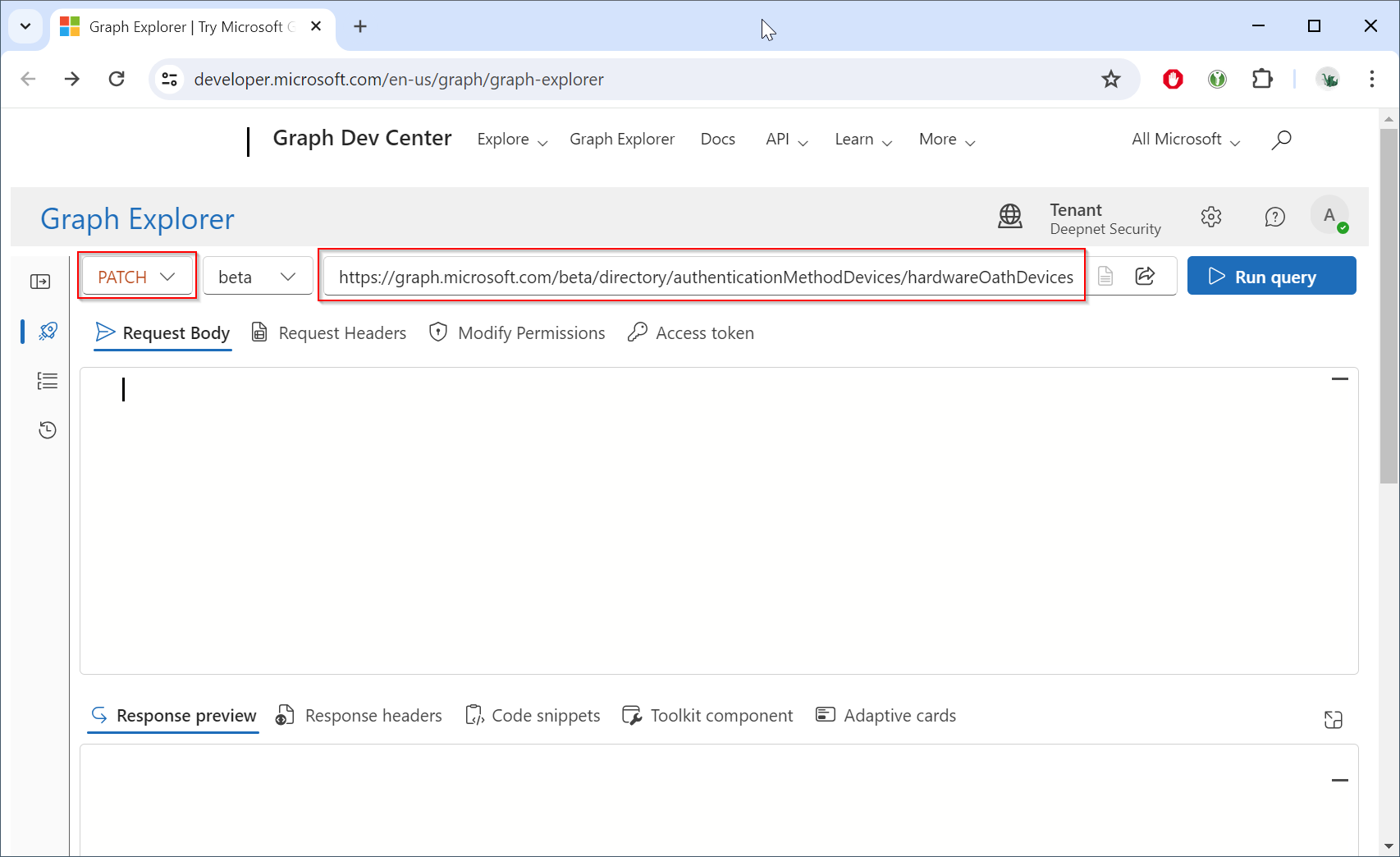
Now, click the "Modify Permissions" to check if you have the "Policy.ReadWrite.AuthenticationMethod" permission
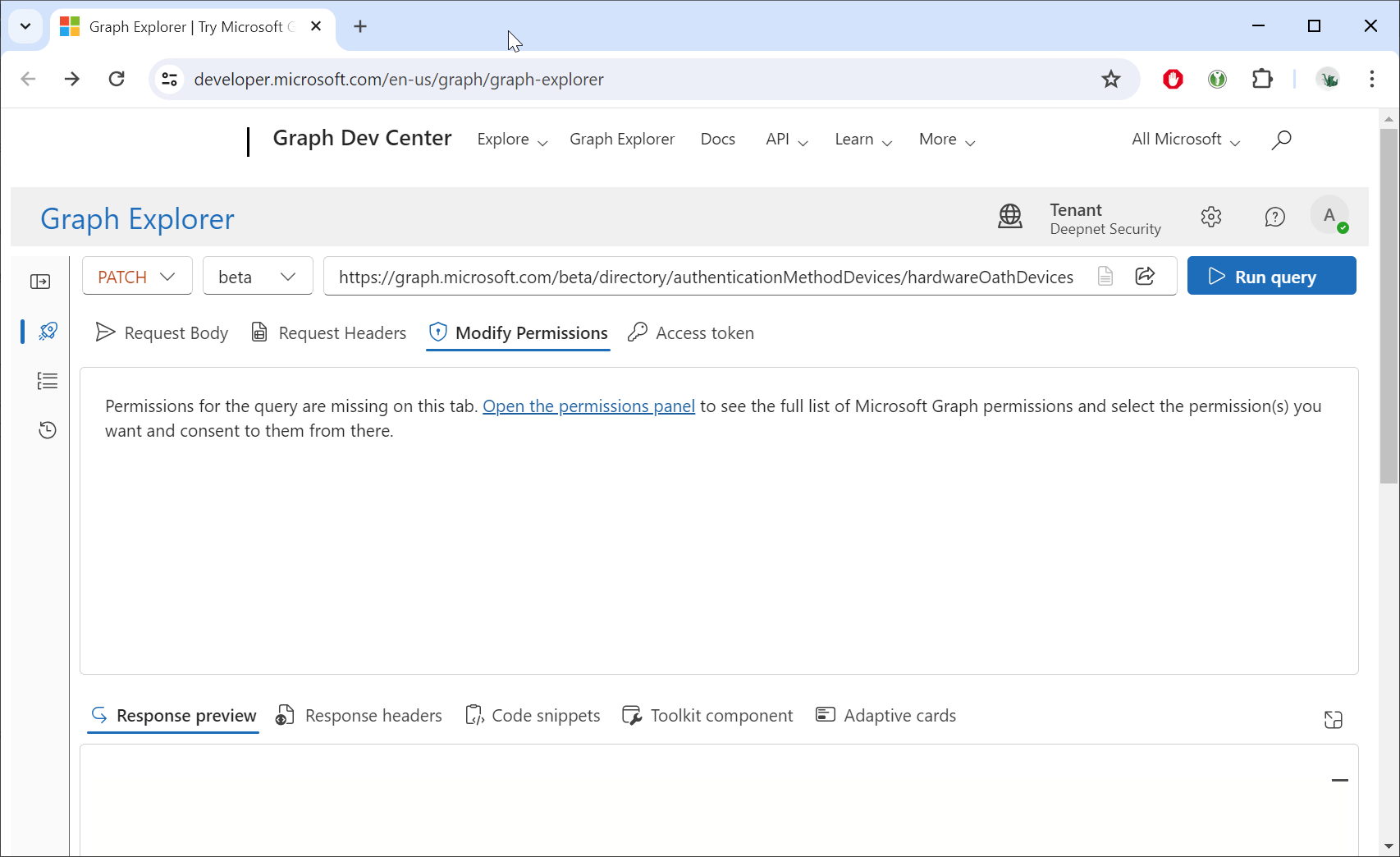
Click "Open the permissions panel" link
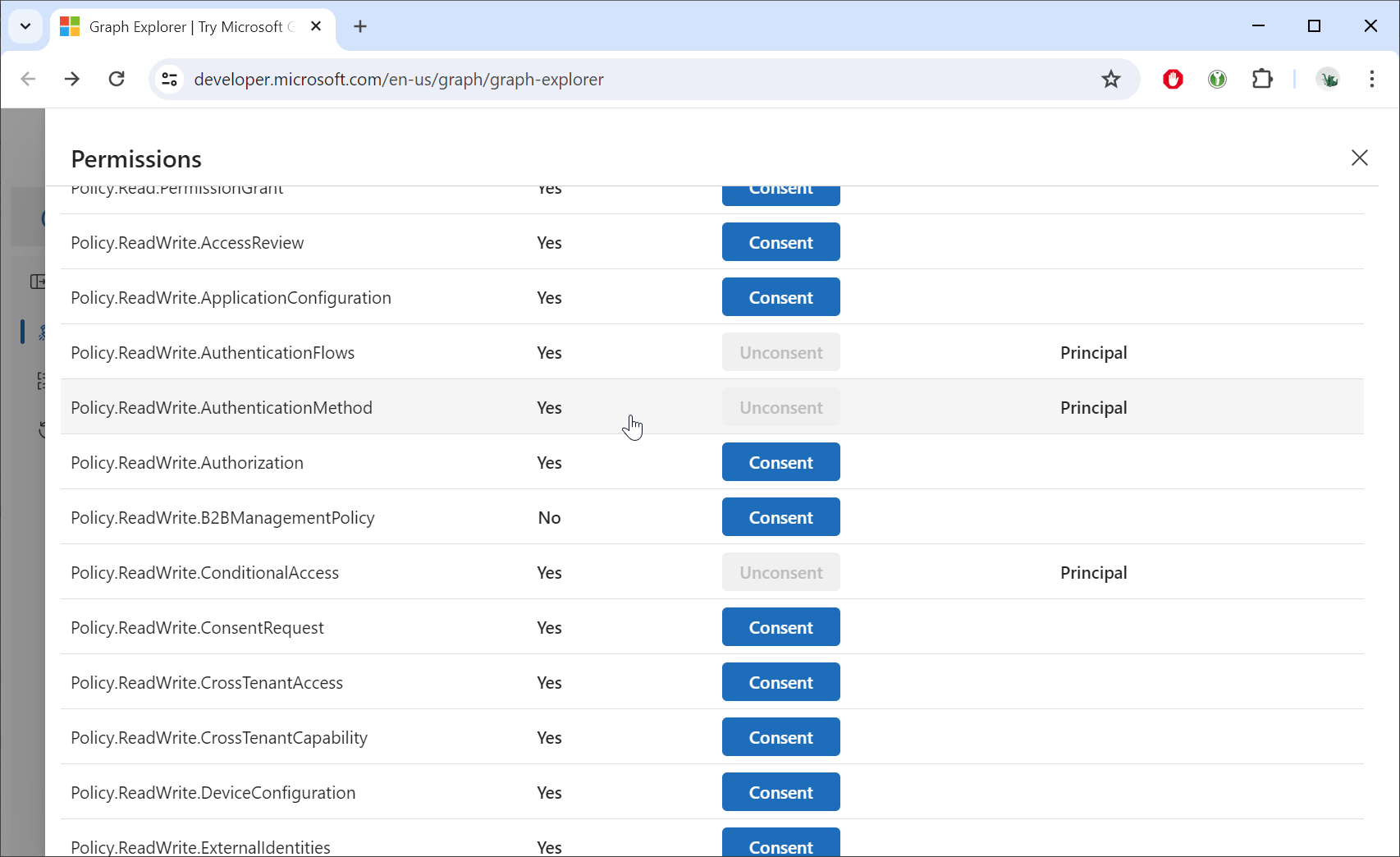
If you have not been granted the consent for the "Policy.ReadWrite.AuthenticationMethod" permission, then you need to admin the global administrator to grant the consent to use the Graph API.
Option 1 – Through Graph Explorer (Admin Account)
Option 2 – Through Azure Portal (Enterprise Applications)
|
If you have the the consent for the "Policy.ReadWrite.AuthenticationMethod" permission, then you can continue.
Click the "Request body" tab
Open the JSON file in a text editor, copy all the contents, and paste the data into the Request body
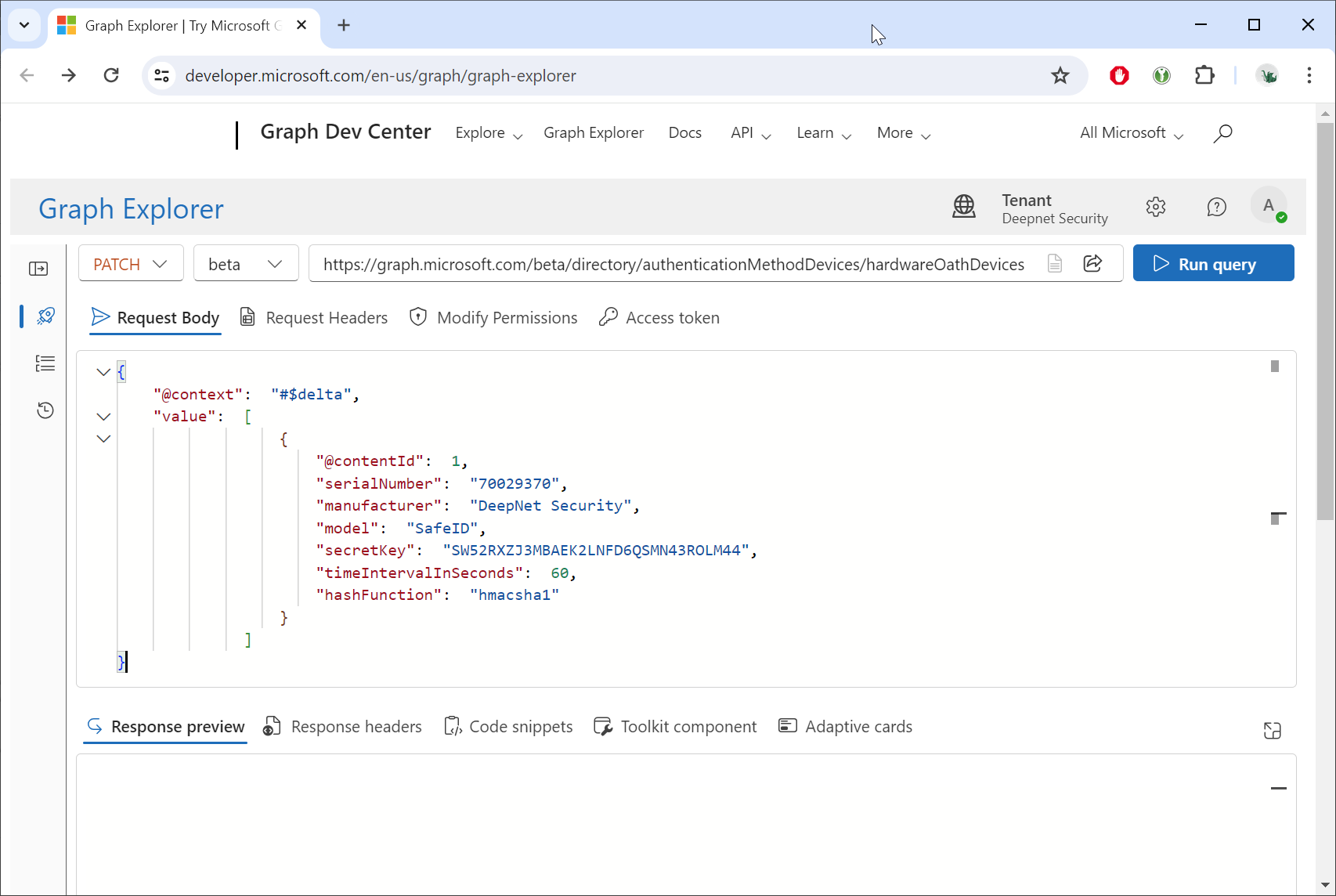
Click the Run query button.
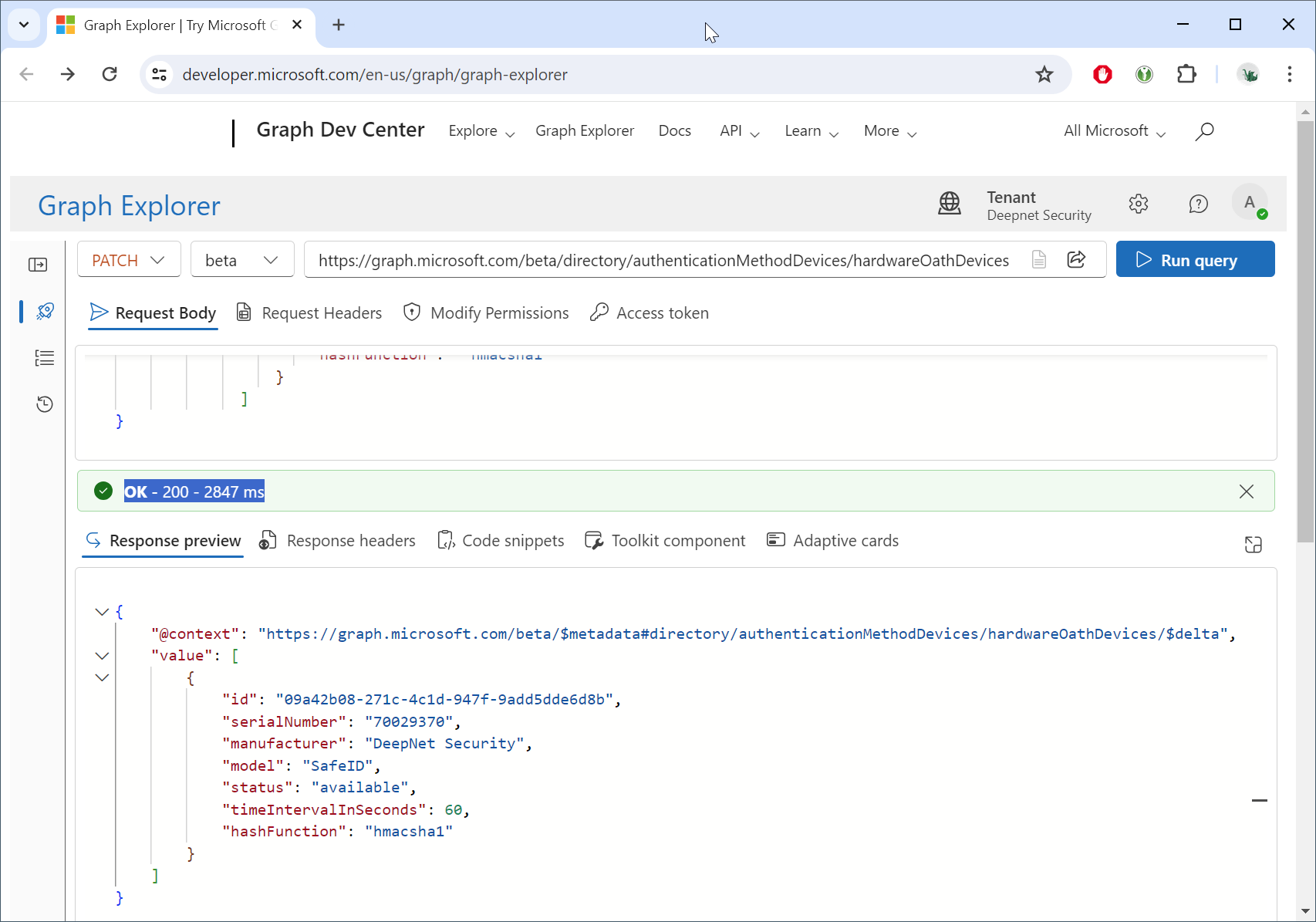
If you see "OK - 200 - ...", then the tokens have been successfully uploaded into the Token Repository in your Entra ID tenant.