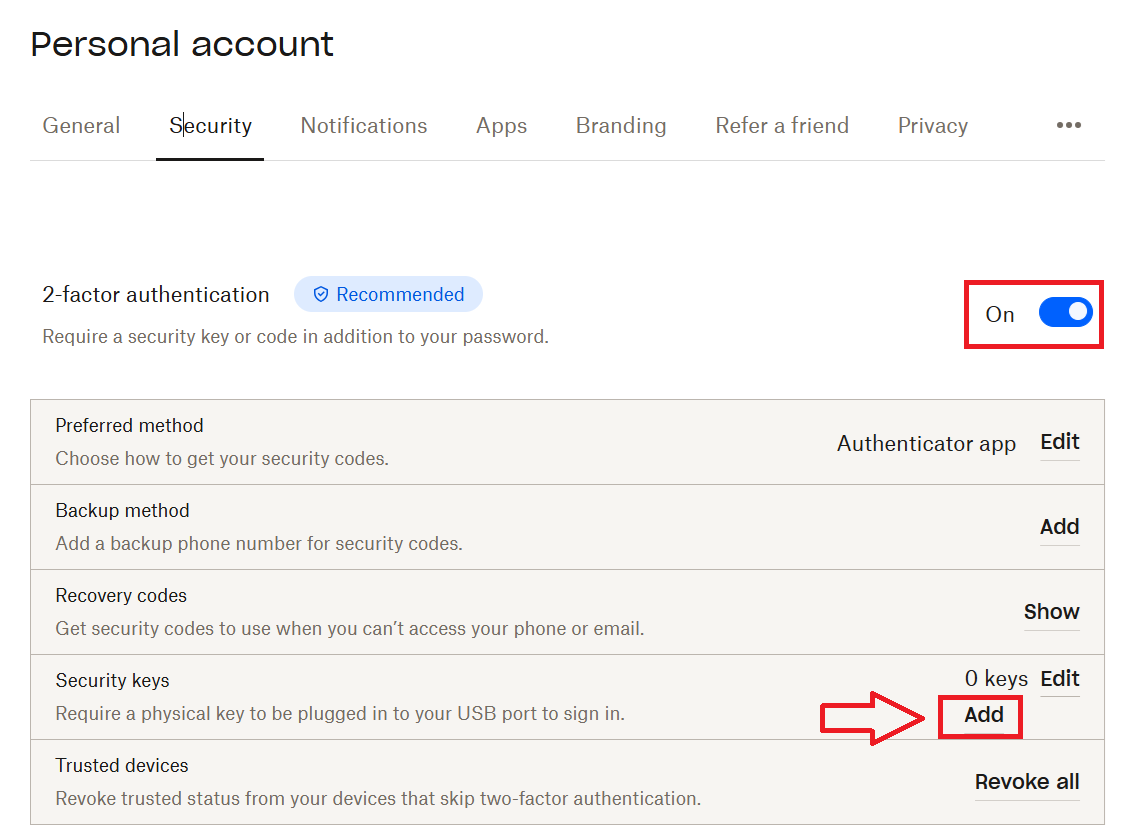
Once 2FA has been enabled (and a backup method added), you will be ready to register your Fido key.
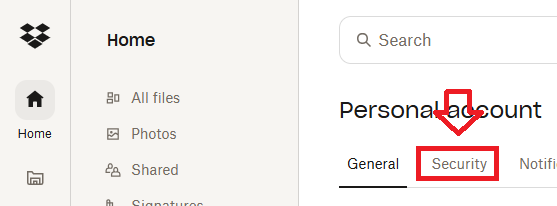
Log in to your DropBox Account, then click on your user icon and select the option "Settings";
In the section "Security Keys" select the option "Add";
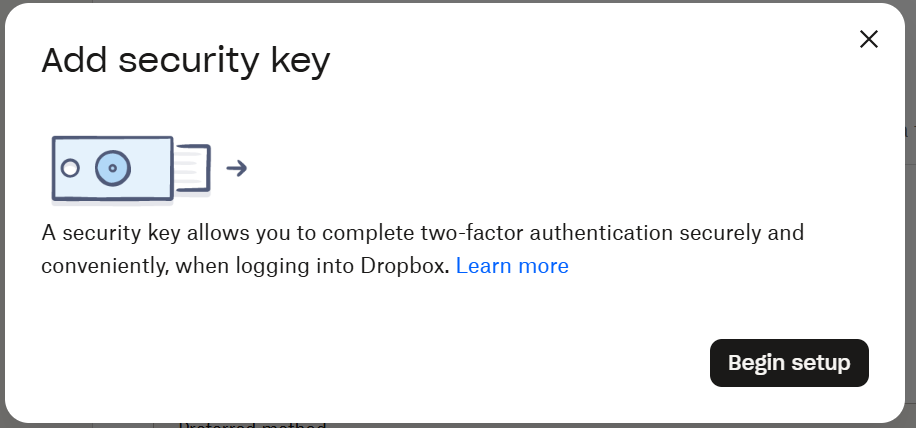
After you click on the "Add" button you will be prompted to begin setup of your Fido2 key, click  ;
;
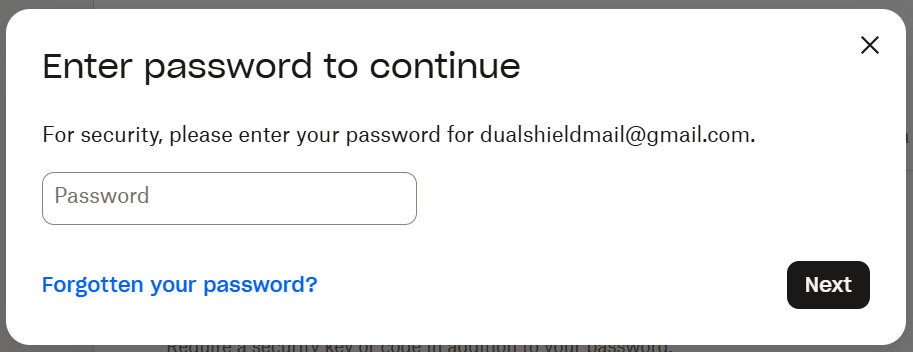
You will now be prompted to enter your DropBox account password, type in your password then click  ;
;
Insert your fido2 key into an available USB port then click  ;
;
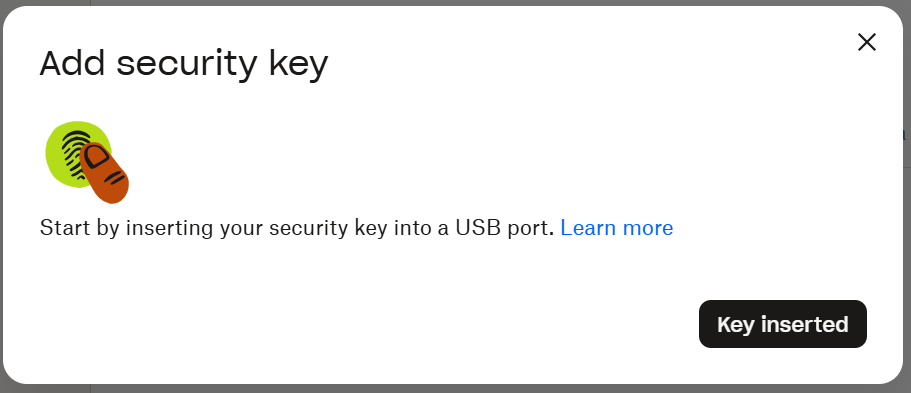
You will be asked to touch the button on your key (if your model has a fingerprint reader you may be asked to provide a finger swipe instead), click  ;
;
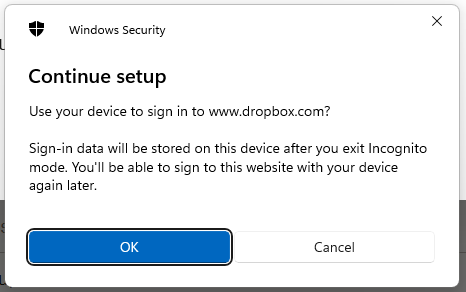
You will now be prompted to specify the device that is to be added as a passkey.
Select the option "Security key", then click  ;
;
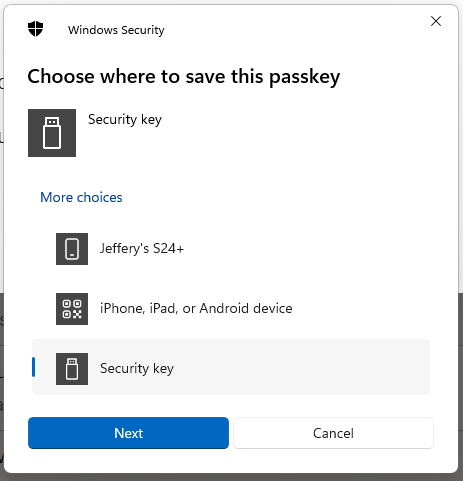
You will now be prompted to specify the device that is to be added as a passkey.
Select the option "Security key", then click  ;
;
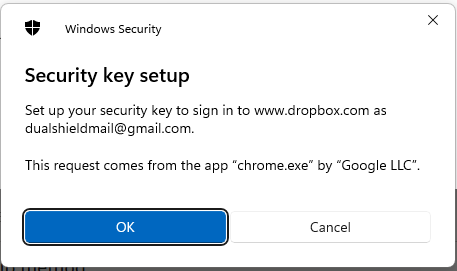
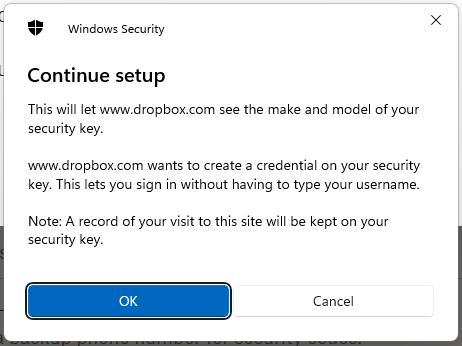
You will be asked to touch the button on your key (if your model has a fingerprint reader you may be asked to provide a finger swipe instead), click  ;
;
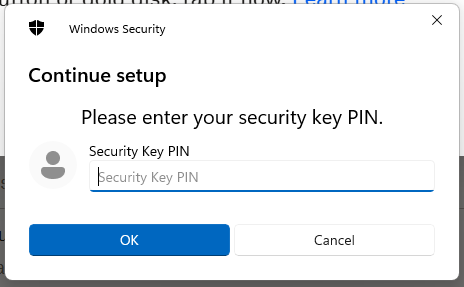
You will now be prompted to enter the PIN code for your Fido2 key.
At the prompt "Security Key PIN", enter the PIN code, then click .
(in the case of a Fido key with a fingerprint reader you will need to swipe your finger on the key);
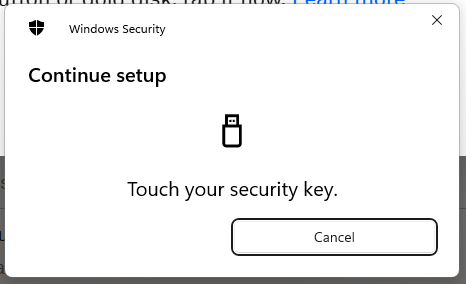
You are now prompted to touch the key (to prove you are present and giving permission for the key to be used).
Touch the necessary area on your Fido key;
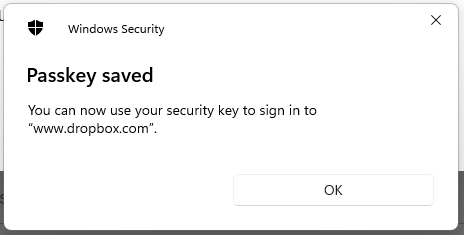
Once you have touched the Fido2 Key will be added as a passkey authentication method to your DropBox account, click "OK";
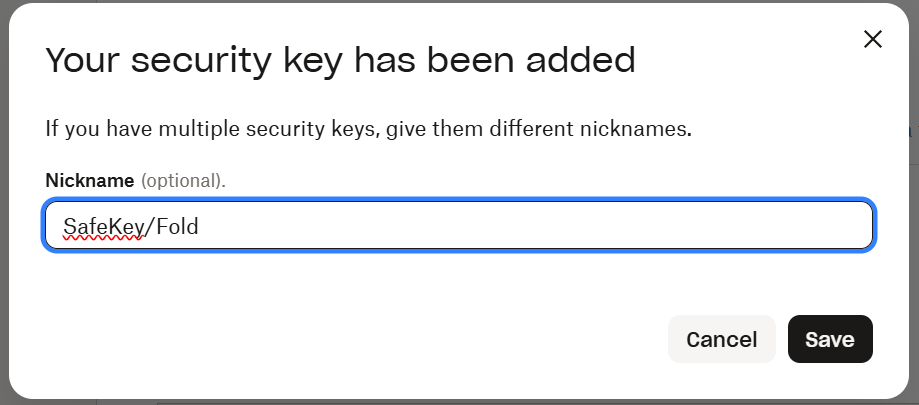
Finally you are prompted to name the Fido2 key, enter a suitable name for your key then click  ;
;
Your FIdo key will now be used as an authentication option next time you log in to your DropBox account, and the key count will be incremented to indicate the addition of the newly registered Fido key;
