
Log in to your Stripe Dashboard, then click on you account icon, then click on "Settings" (see example below);
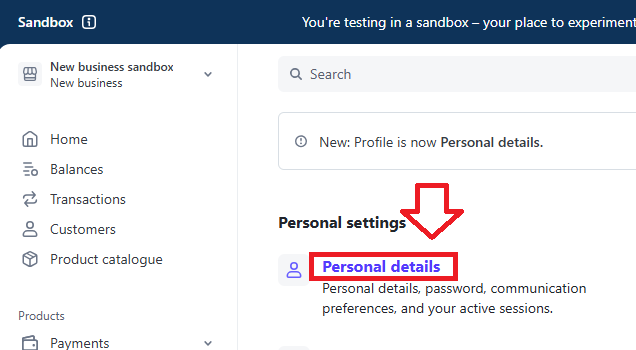
In the "Personal Settings" section, click on "personal details"
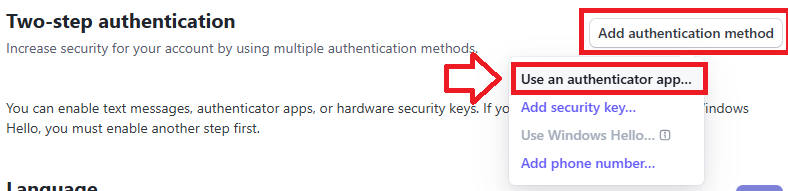
Scroll down to the section "Two-step authentication", and click on , then select the option "Use an authenticator app....";
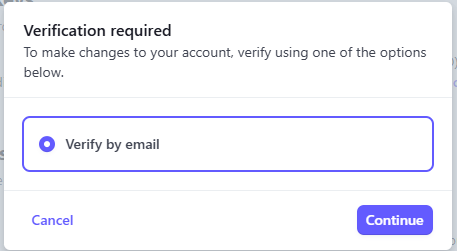
A new window will now open titled "Verification required", click on "verify by email", then click  ;
;
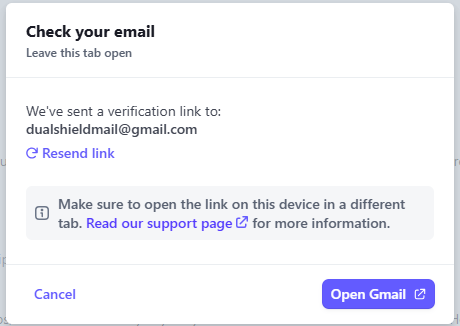
You will now be notified to check for an email that was sent to you from Stripe;
Find the link in your email account and click on it, a QR code will be generated for you (example below);
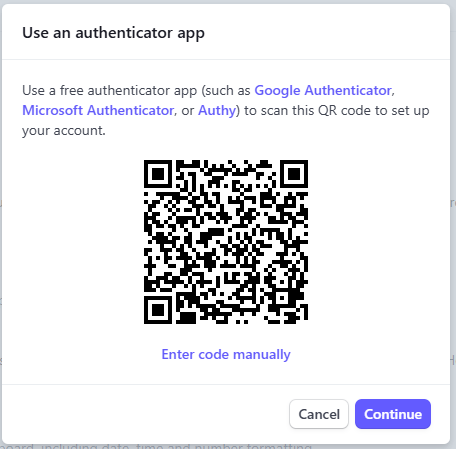
You can use the QR code to program our programmable tokens using the instructions found in the following procedure;
Once you have programmed your token you will need to verify it with Stripe.
Click on the  button, and you will be prompted for a 6 digit authentication code;
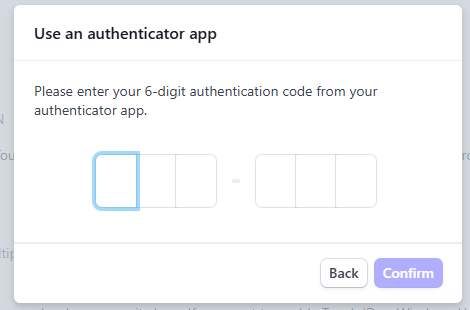
Copy an OTP code from your programmable token, and you will be presented with a backup code (which we advise you make a note of);
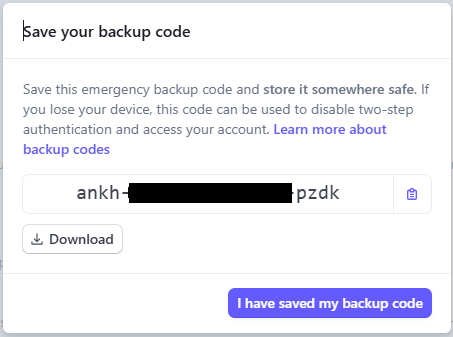
Once you have saved you backup code click  , and you will find confirmation that the new authentication method has been added;

You are now ready to log in to your stripe account using OTP codes generated by you programmable token.
Once you have programmed your token you will need to verify it with Stripe by re-logging in to your Stripe dashboard.
After supplying you username and password you will be asked to supply an verification code - copy the code from your token;
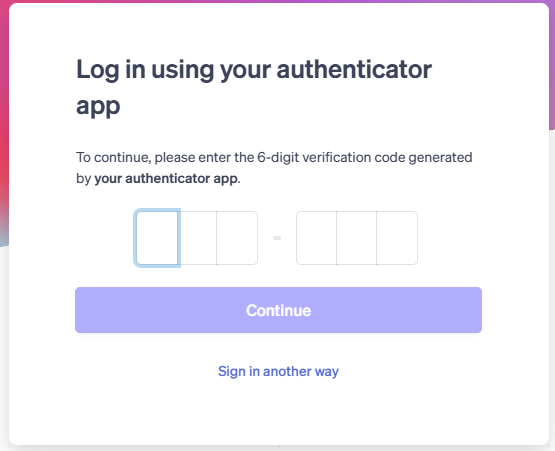
You will now be logged in to your Stripe account.