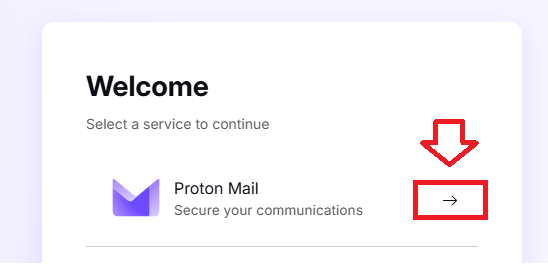
Log in to your Proton Mail account, then select "Proton Mail";
Click on the setting icon ( ), then click on the
  button;;

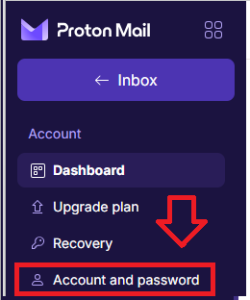
In the left hand column of the page, click on the menu link "Account and password";
Next, scroll down to the section "Two-factor authentication";
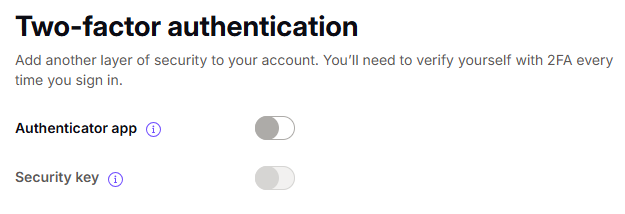
Before a Fido key can be used as an authentication method you will first need to ensure that the authenticator app option is enabled (this will allow authentication either using an authenticator app, or via a hardware token.
If your Security key 2FA option is greyed out (as in the example above), then you will first need to add an authentication app (or hardware token) using the following procedure;
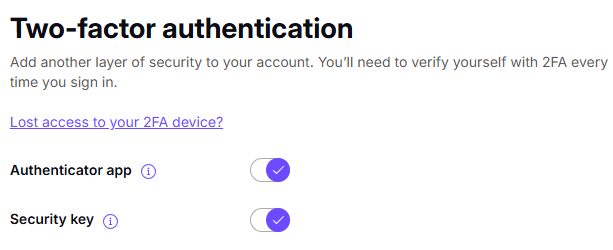
Once you have added the backup authentication method (Authenticator app or programmable token), the first option ("Authenicator app") will be ticked, and second ("Security key") will be available (example below);
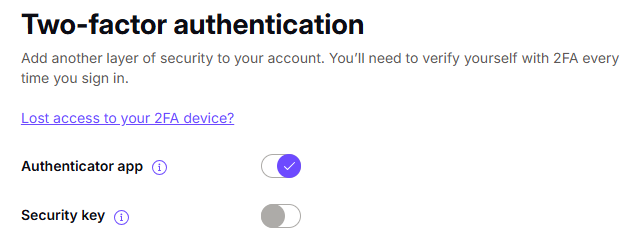
To enable logon using a Fido2 key, enable the slider "Security Key", enable this feature by clicking on the slider (indicated below);

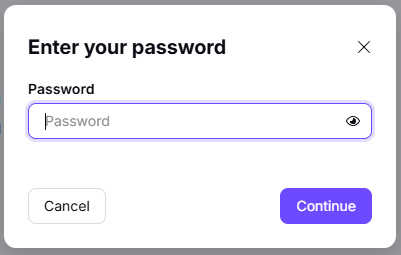
You will be prompted to enter your Proton password, enter your proton password then click  ;
;
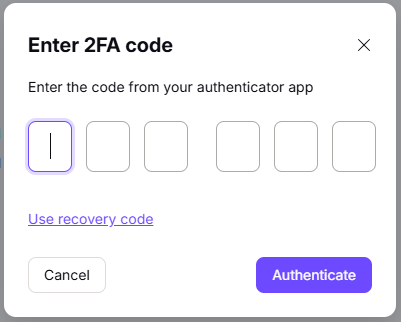
Now enter an OTP code (either from your authentication app, or programmable hardware token);
Once the OTP code has been entered you will be ready to register your Fido2 key, click  ;
;
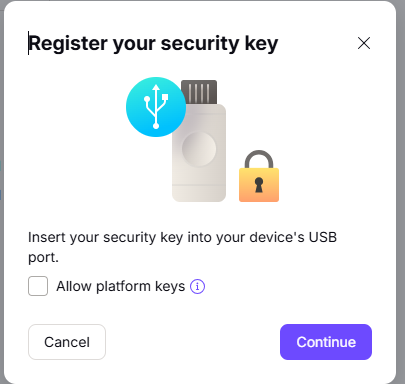
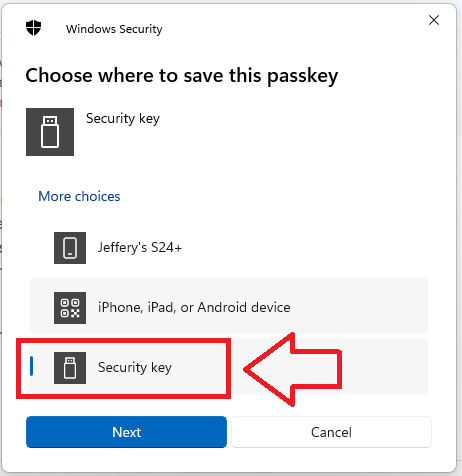
You will now be presented with a list of possible passkeys, select "Security Key", then click  ;
;
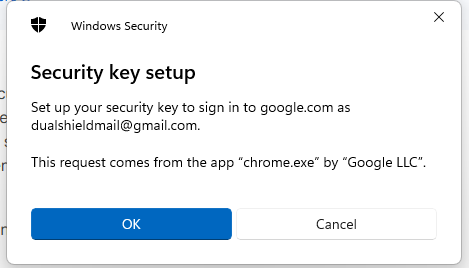
You are now notified that access to google will be prepared with your Fido2 security key - click  to proceed to the next step;
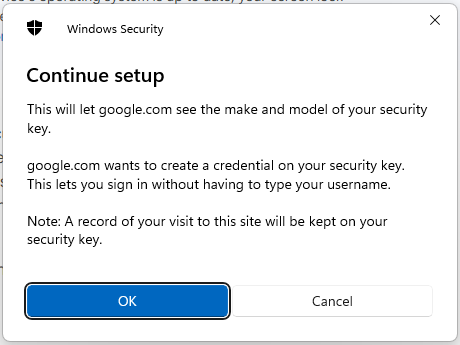
Google will now ask permission to examine your Fido2 key, insert the key into a USB port then click ;
You will mow be asked to touch the button on your key (if your model has a fingerprint reader you may be asked to provide a finger swipe instead);

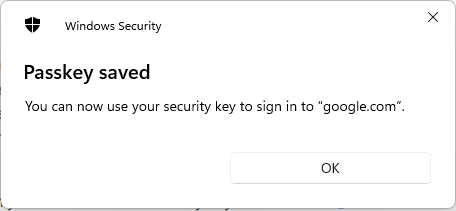
Provided you press the button on the Fido2 key in the allowed time, the passkey details will be stored on your Fido2 key, and you will be presented with the following confirmation;
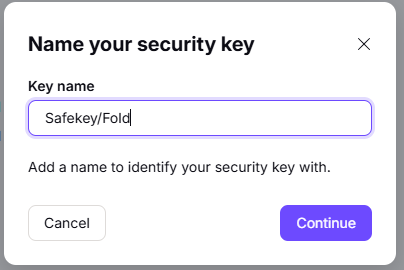
In the field "Key name", supply a suitable name then click 
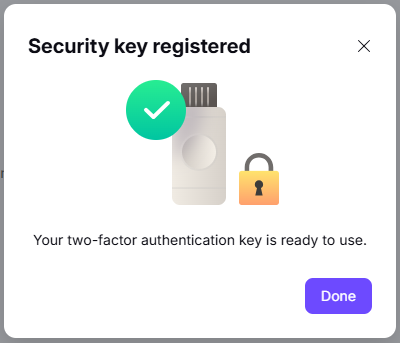
You will now be notified that the security key has been registered, click