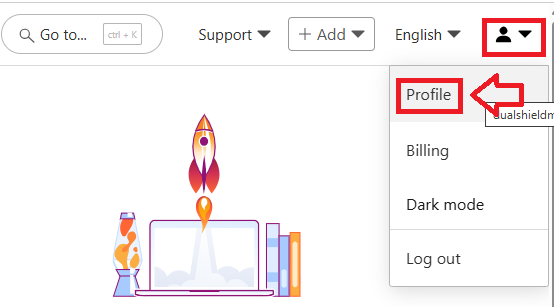
Sign in to your CloudFlare account,, after logging in click on your user icon then select "Account Management";
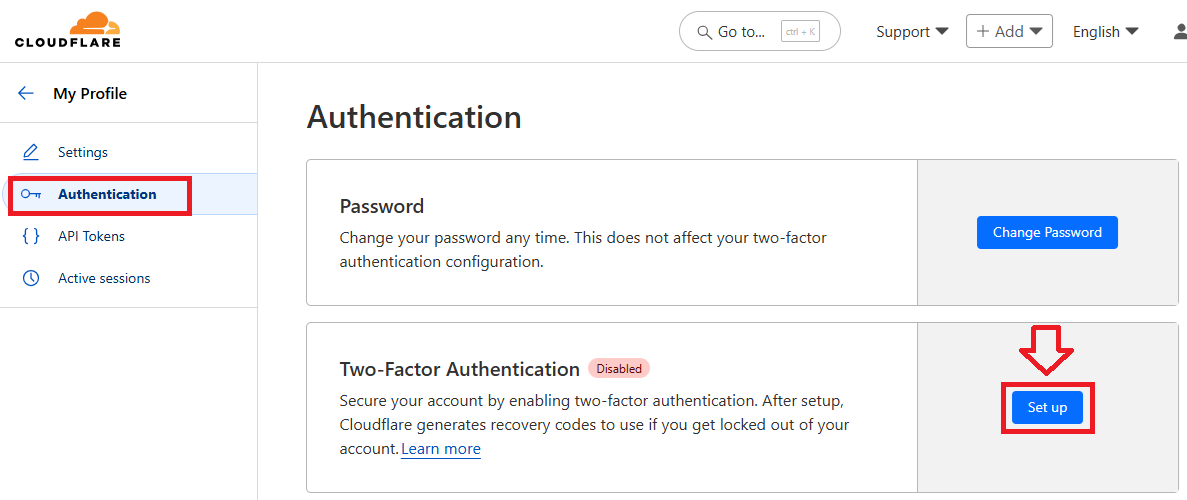
In the left hand column click on  , then in the section "Two-Factor Authentication" click on
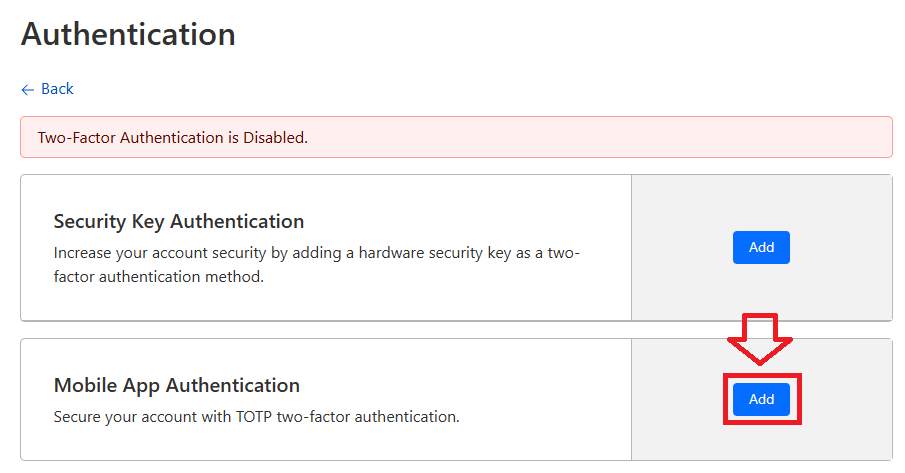
You will now select the authentication option "Mobile App Authentication";
A QR code will now be displayed (with fields for an OTP code and password below it);
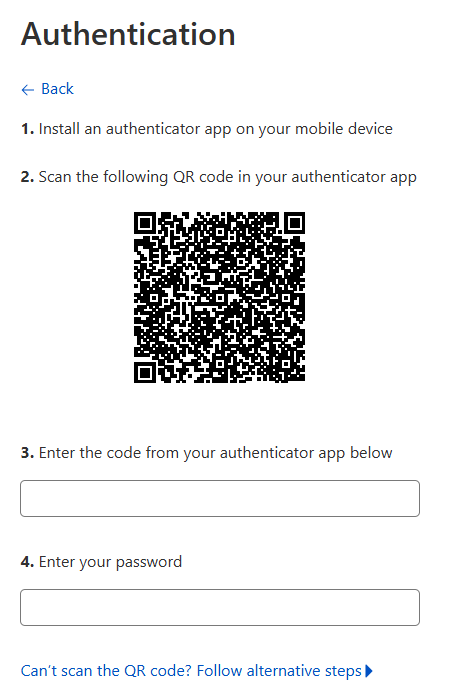
As the generated QR code is very compact we strongly suggest you enlarge this QR code prior to scanning it in the programming app.
To enlarge the QR code left click the window with the graphic, then whilst holding down the left control key use the mouse scroll while to enlarge the QR code.
Once the QR code has been enlarged use our programming app to burn the details in the QR code onto you programmable token (see procedure below);
Once you have programmed your token you will need to verify it with CloudFlare.
Obtain the requested 6-digit code from your programmable token and enter it into the field prompted "Enter the code from your authenticator app below", and in the following box supply your password;
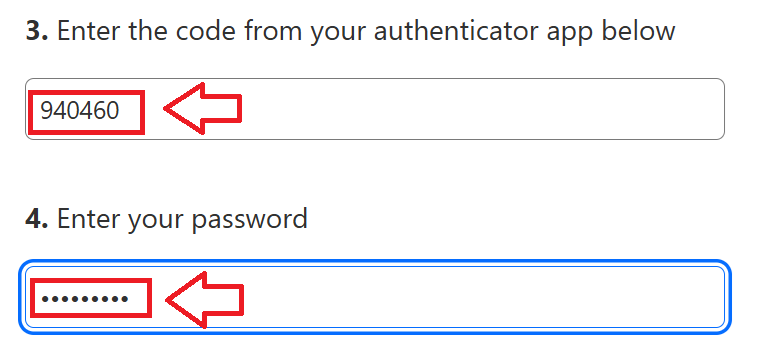
After submitting these details you will be provided with an option to review your recovery codes (which can be retained for emergency access at a later date);
Your will now be ready to log in to CloudFare using the OTP codes generated on your programmable hardware token.