Introduction
The Unlock Account Service is a web portal that allows users to unlock their locked account.
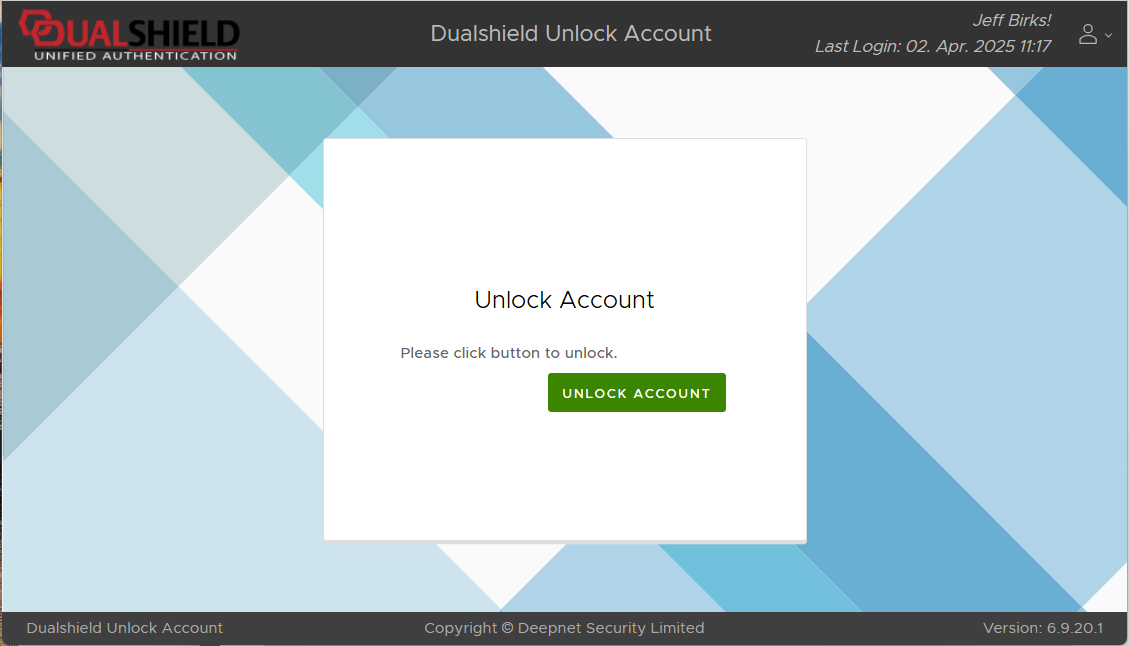
Before the service can be made available for the users, there are some necessary preparations that must be performed;
 Setting up the Logon Procedure and Logon Steps
The Logon Procedure defines how users will be authenticated when they attempt to login to the portal. You can define a logon procedure of 1-step, 2-step and 3-step verification, for instance.
The Unlock Account Service logon procedure can be prepared using the following procedure;
In the Admin Console, navigate to "Authentication | Logon Procedures", left click on context menu for the logon procedure "Unlock Account Service", then select "Edit"; 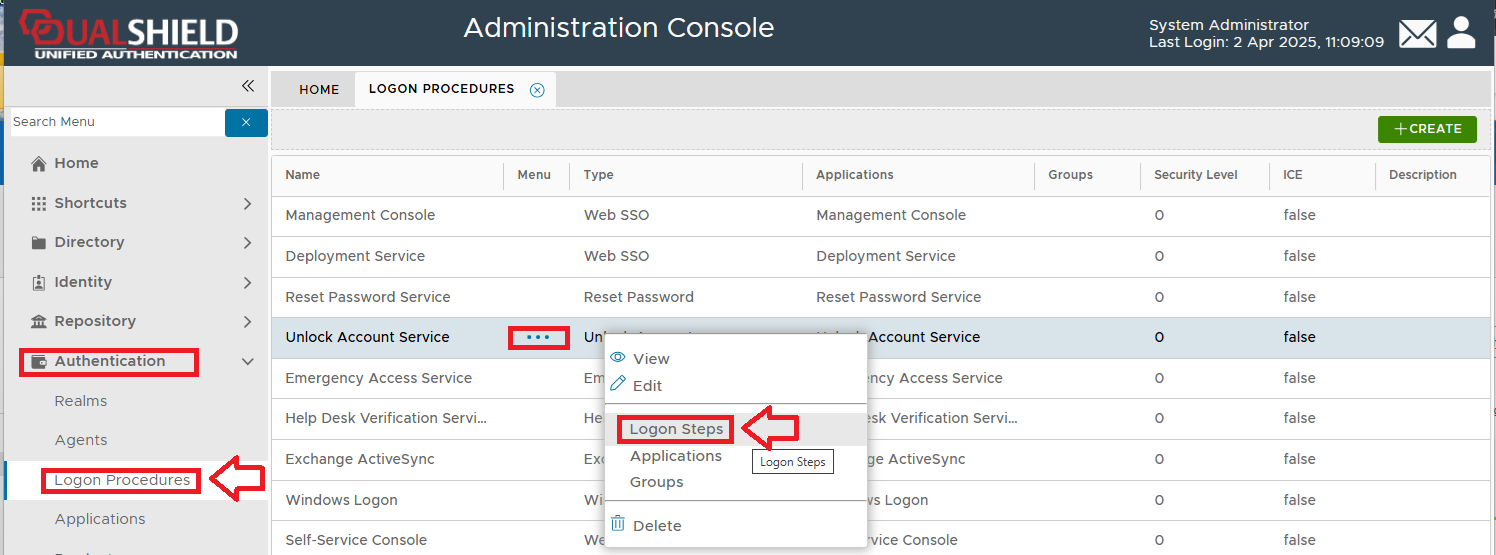
You will then be shown the logon steps used for the Unlock Account Service (the example below shows the default logon steps and methods for this service); 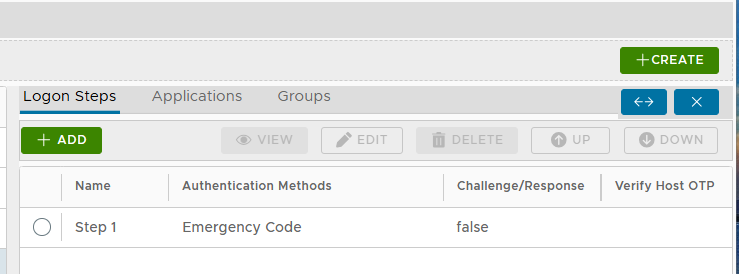
To change the authentications methods for a logon step, select the step to be edited, then click on the  button; button; 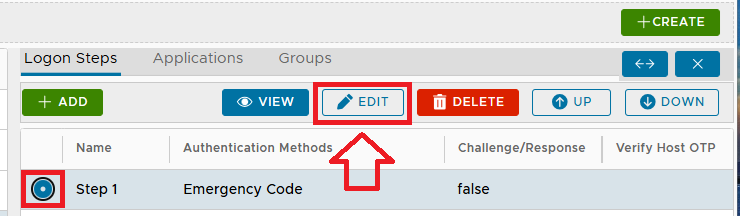
A new window will now open titled "Logon Step - Step 2" showing the currently selected authentication methods for this step; 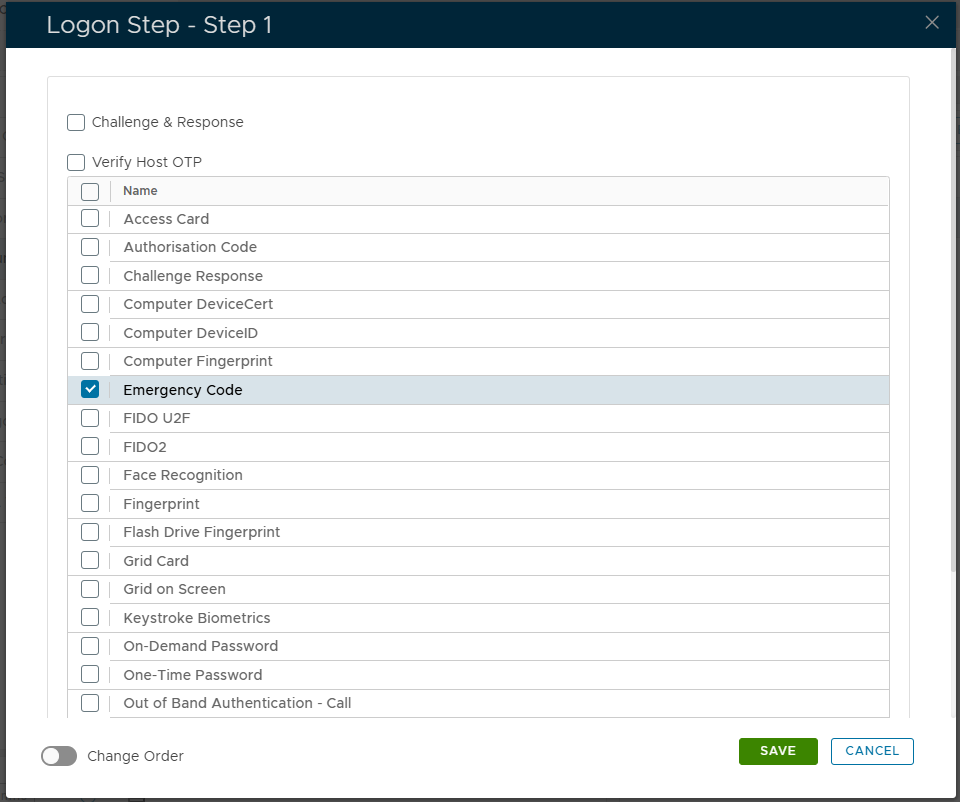
You can define the logon steps according to your own requirements by selecting the required options in this list then clicking  . . You also have the option to add additional steps to the logon procedure (using the  button); button); 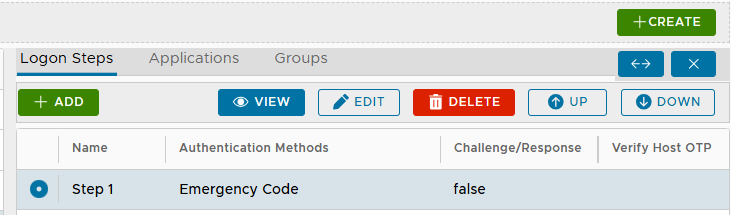
|
|
 Setting up the Application
In the Admin Console, navigate to "Authentication | Applications", then select the application "Unlock Account Service";
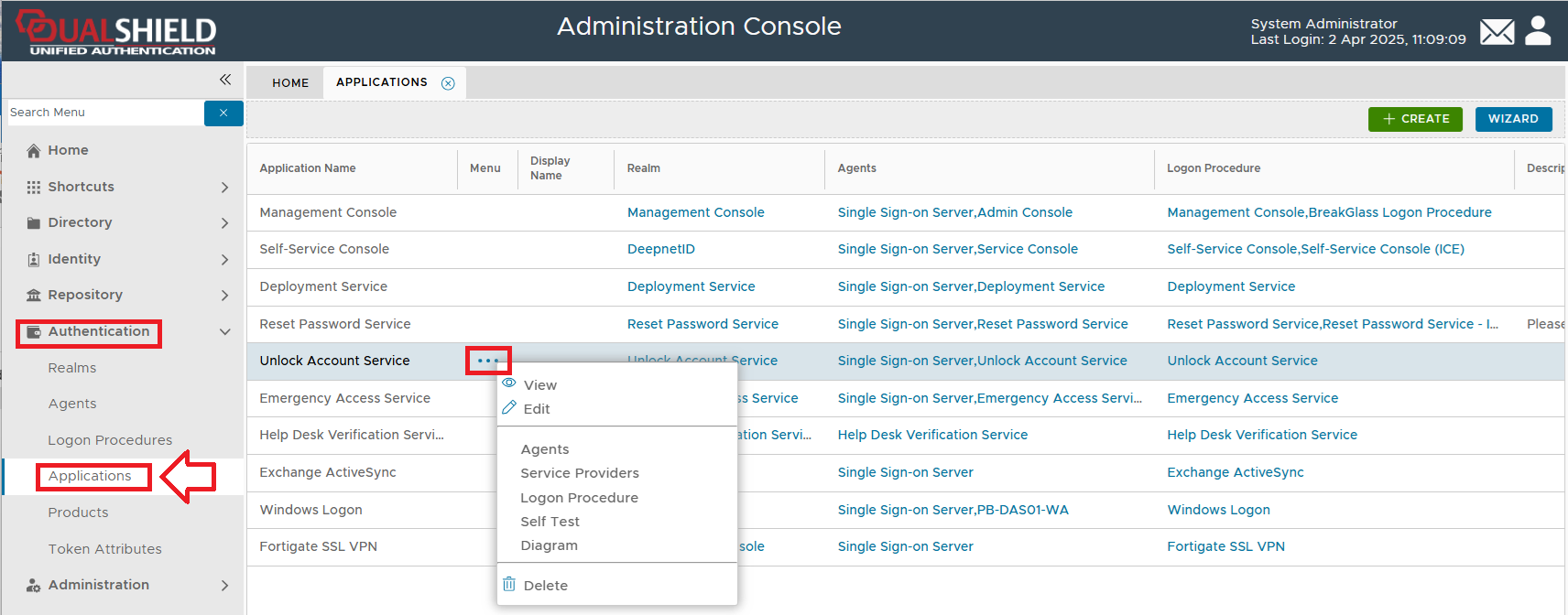
The application named "Unlock Account Service" is pre-defined during installation (so you would not normally need to make changes to this default setup), however the application parameters can be inspected using the context menu.
 Setting up the Realm
A Realm is a group of user domains. It defines who is allowed to access the application that's associated with the realm "Unlock Account Service", and the portal can only be accessed from the domains that are specified against this realm.
The domains for the realm "Unlock Account Service" can be specified using the following procedure;
In the Admin Console, navigate to "Authentication | Realms", then left click on the context menu for the realm "Unlock Account Service", then select "Domains"; 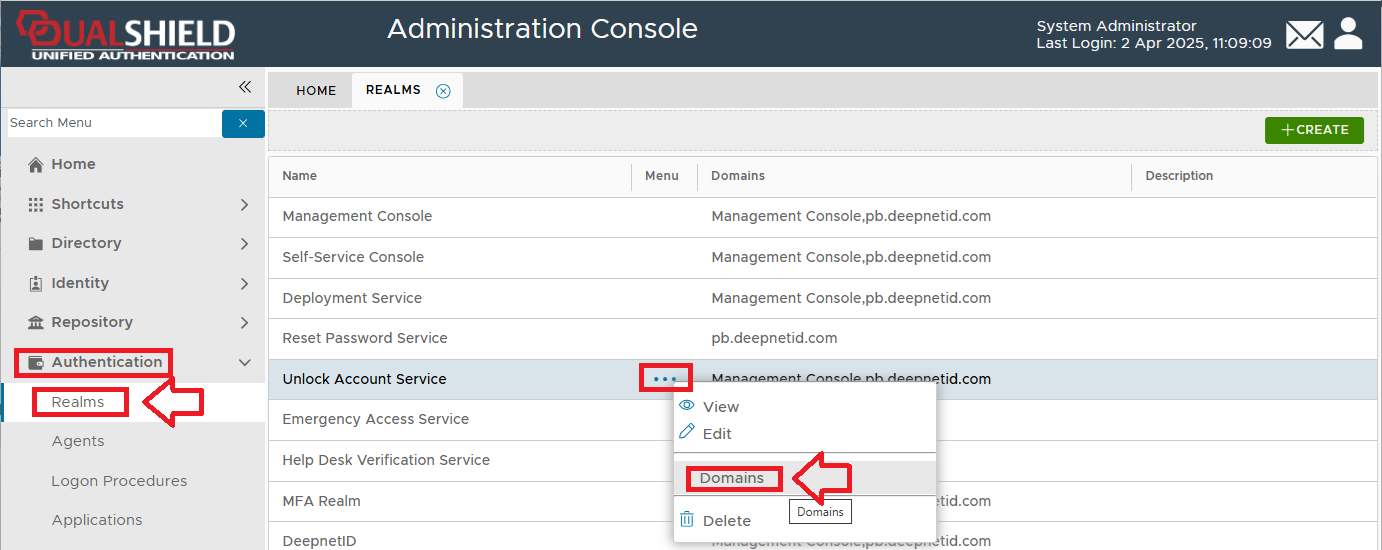
A new window will open titled "Domains" (by default this list is empty); 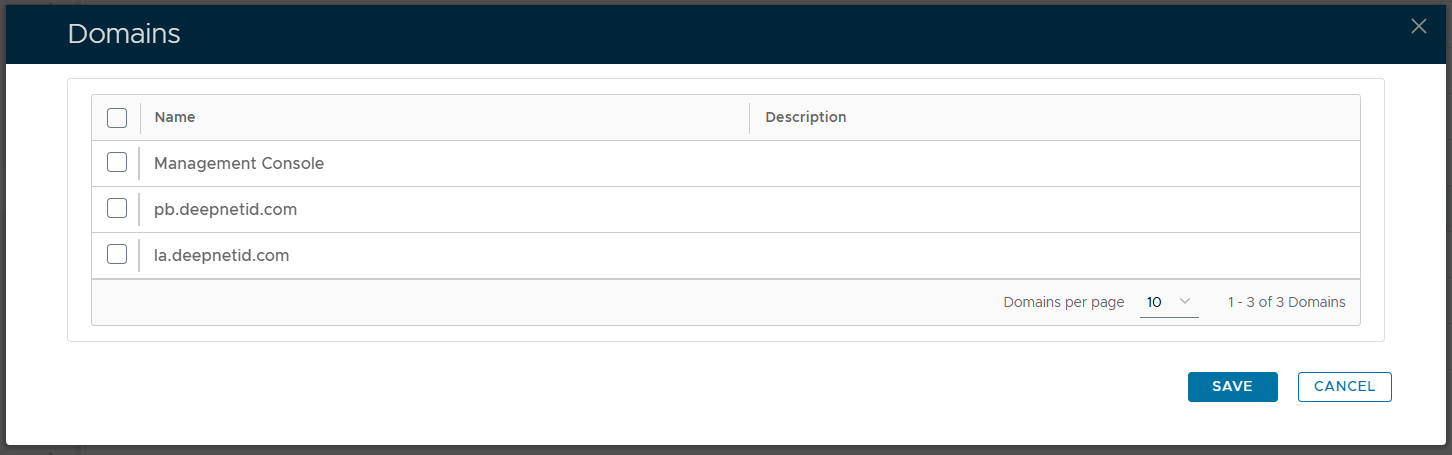
You will need to add to this list any domains that your users will be members of (e.g. "pb.deepnetid.com"); 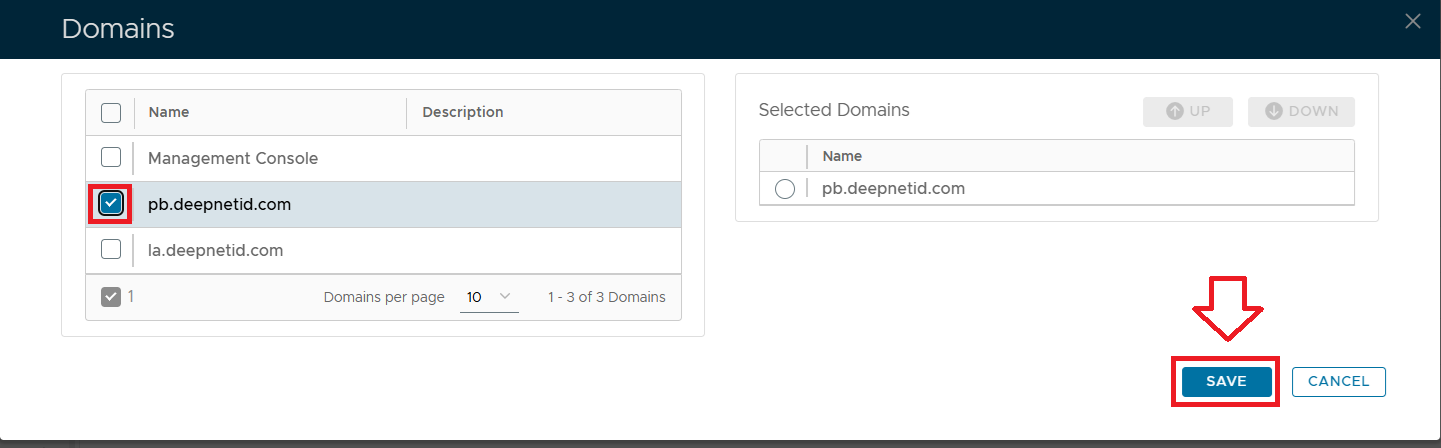
After selecting the domains to be added click the  button, and the new domains will be added to the realm. button, and the new domains will be added to the realm. |
|
 Setting up the Policy Settings
Lockout policies define how many failed logon attempts users can make before the system locks the associated user account.
Allow users to unlock accounts using the Unlock Account Service
Use the following procedure to allow users to allow users to unlock their accounts using the Unlock Account service;
Edit the Self-Service Policy; From the Home page of the Management Console, left click on the menu item "Administration", select "Policies", then in the new tab "POLICIES", select the category "Self Service", then click the  button;. button;. 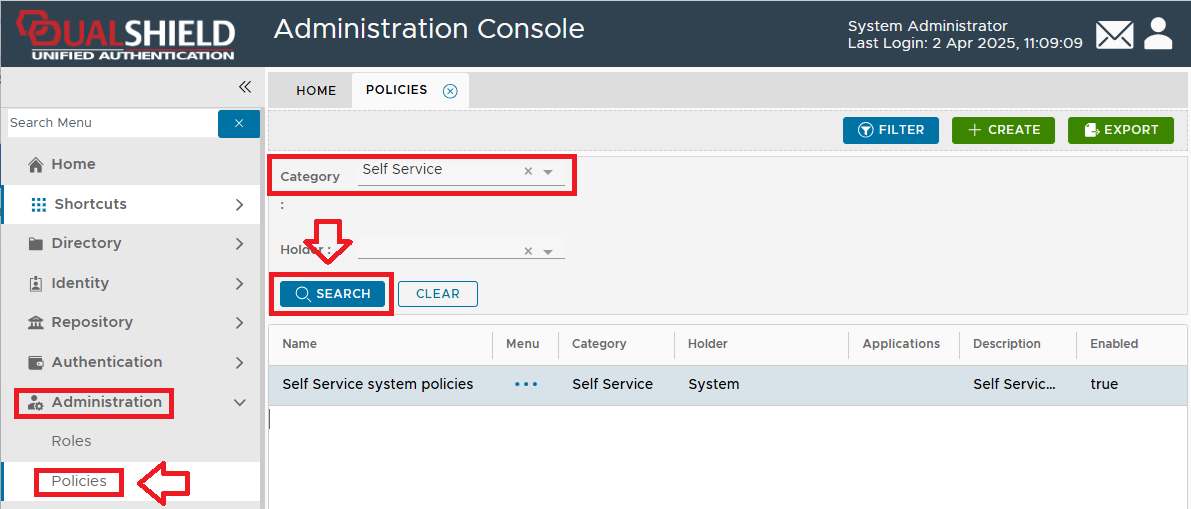
The Self Service policy settings can now be viewed (or edited) by left clicking on the context menu of the Emergency Code policy, then selecting either "View" or "Edit"; 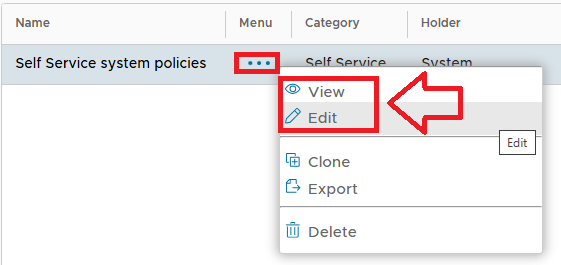
|
Expand the section "Unlock Account Service", and ensure the setting "Enabled:" is enabled; 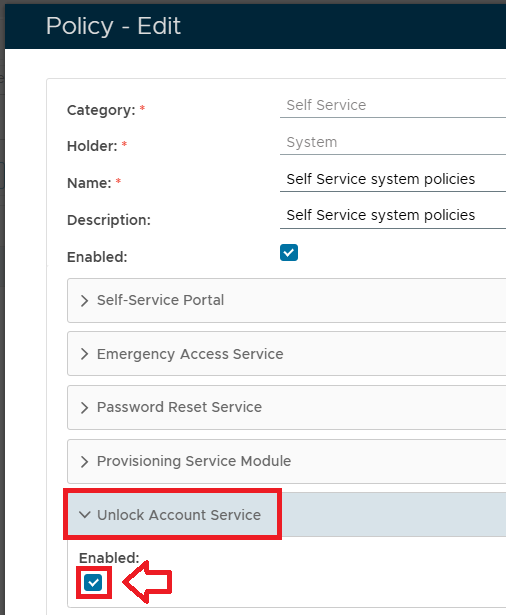
|
|
Lockout Policy Settings
As well as policy settings for the unlock account service, we also have policy settings that specify Lockout settings;
Amongst other things, this policy will allow you to specify how many times a user may fail to login (before the account is locked), and how long lockout occurs.