Introduction
Normally an application will only have a single logon procedure, but it is possible that you might like to use more than one logon procedure with a single application (you might for example want to offer 2fa authentication to most of your users in a domain, but offer 3fa authentication to user in this domain who are members of a specific group).
In the following example we are going to add a second logon procedure to the application "Reset Password Service".
It is important to note that if a group-held logon procedure is being used, then a separate global logon procedure will also be required that provides the logon steps that will be used during logon by users who are not members of the group.
Creating a group-held logon procedure
Since we will be working with logon procedures we first navigate to "Authentication | Logon Procedures";
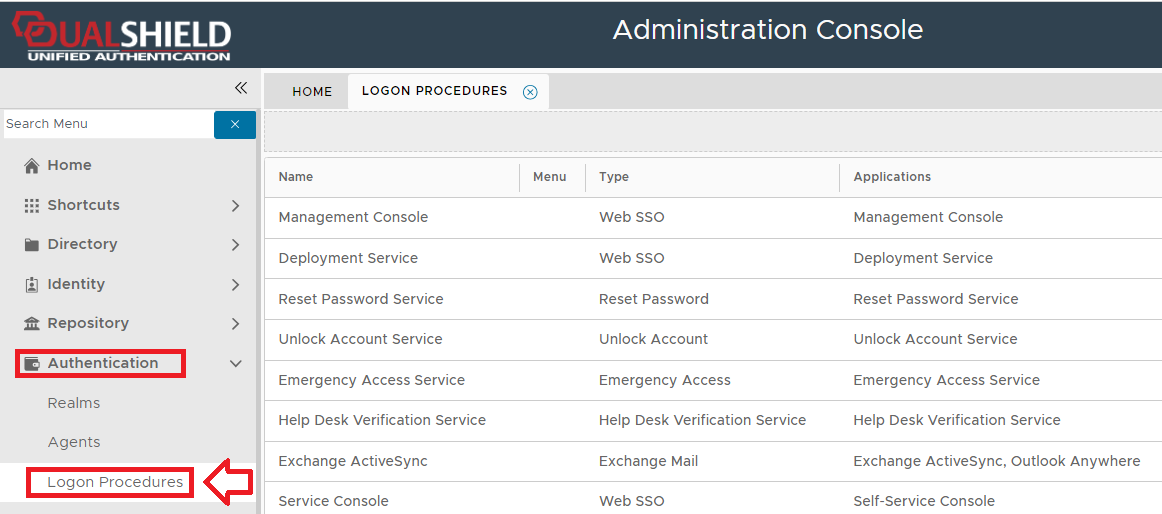
In this example we have already protected the application "Reset Password Service" with a single logon procedure that has the same name as the application (this is our global logon procedure for the application), and has the following logon steps;
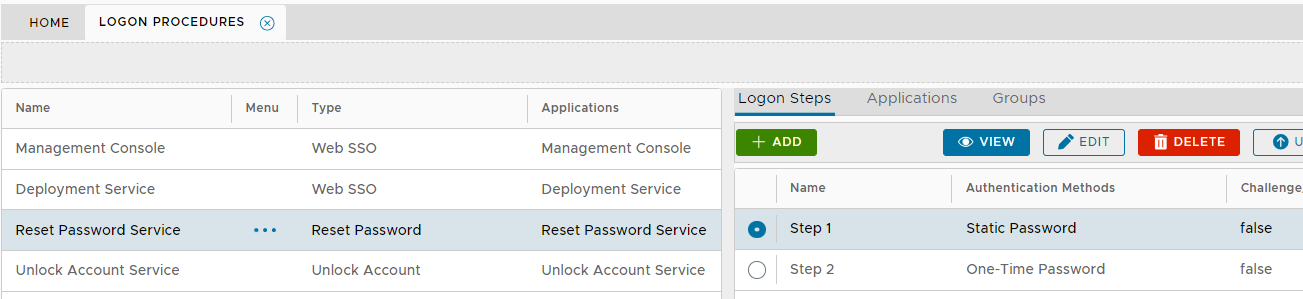
In this example, we will continue to use this global logon procedure for most users, but we will use a separate logon procedure for users that are members of an AD group.
In order to add a second logon procedure to our parent application we need to perform the following steps (in this order);
1. Create a new group in AD
For this example we are going to create a group called "3FA required" as the logon procedure it will use will have 3 login steps, and will use a new logon procedure with an additional logon step (hence 3fa rather than 2fa).
2. Create a new logon procedure and make this procedure a group-held procedure
Now that a new logon procedure has been created we need to make it held by the group whose members will be using this logon procedure ("3fa required" in this example).
We will be using this new logon procedure for all user that are members of the newly created AD group (and in this example the new procedure will have 3 steps). To create the new logon procedure we click on the  button and provide suitable names and types for this new logon procedure; button and provide suitable names and types for this new logon procedure; 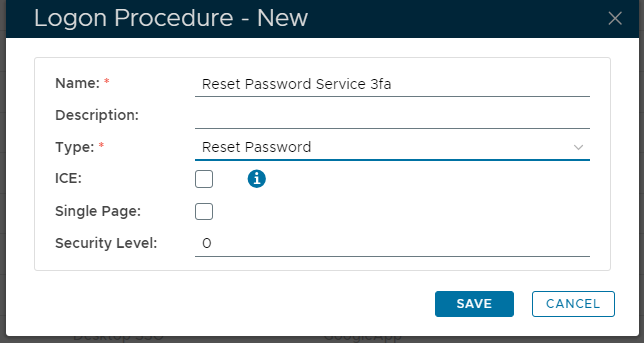
Please ensure that the "Type" of the logon procedure matches the type of global logon procedure for the application (in this example the type must be "Reset Password") Once the parameters have been entered we click  to save the new logon procedure. to save the new logon procedure. |
|
It is important that before adding our newly created logon procedure to the parent application we first ensure that the procedure is group held. To make the procedure group held we left click on the context menu of the procedure, then select the option "Groups"; 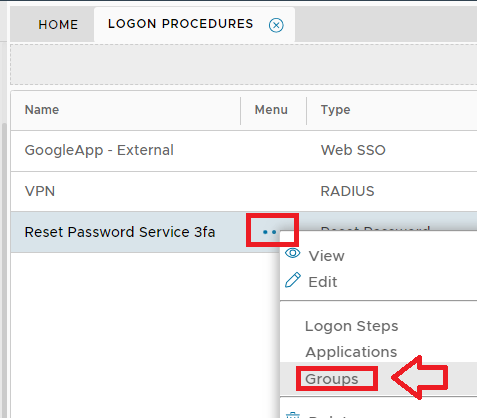
We haven't currently assigned any groups to this so after creating a group in AD (for the users that will use 3fa) we click on the  button; button; 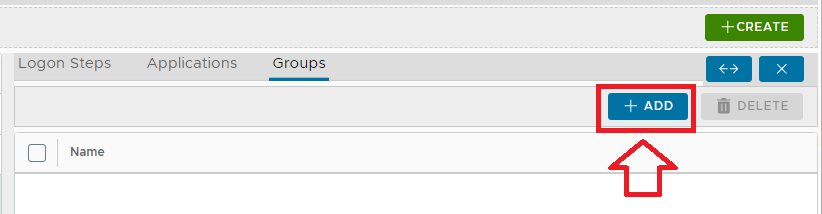
A new window will now open titled "Groups"; 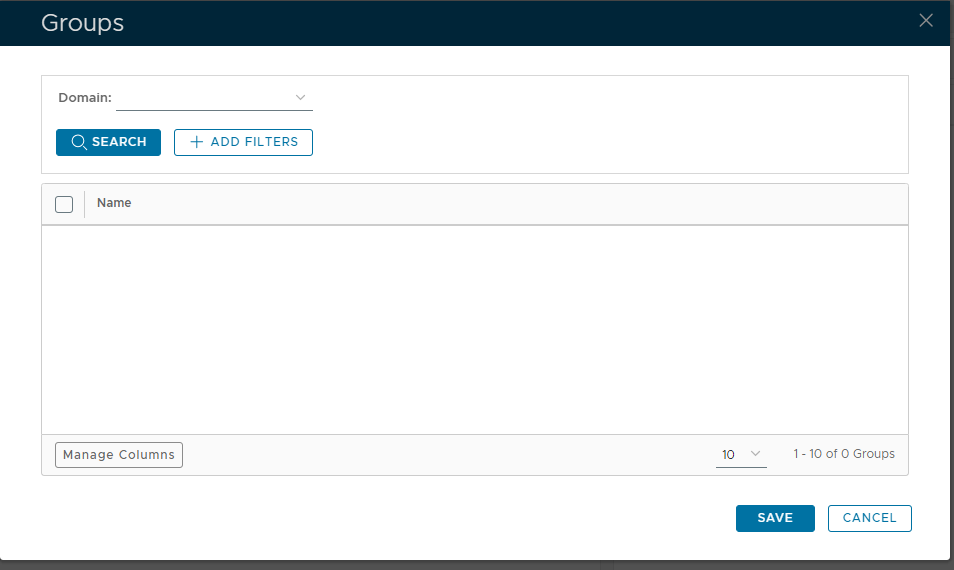
At the prompt "Domain:" we select the domain that our newly created group is a member of, then click  to update the list of groups on the form; to update the list of groups on the form; 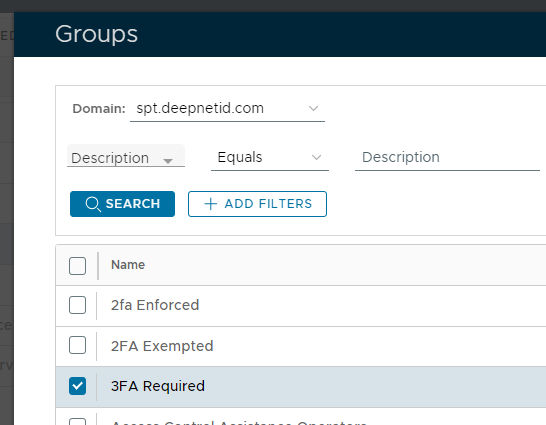
We now select the newly created AD group, click  , and the new group assigned logon procedure will be added to the list; , and the new group assigned logon procedure will be added to the list; 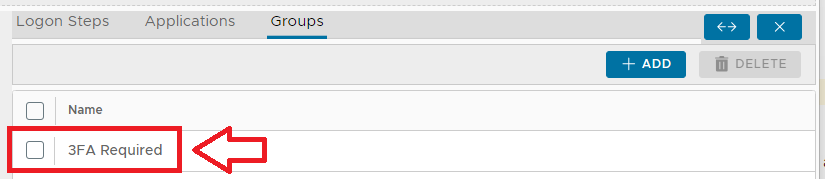
Once the group is listed the logon procedure will be group held (the tick box does not need to be ticked). |
|
3. Add the logon steps to the new logon procedure
We now need to add the logon steps to the logon procedure (in this example the new procedure will have 3 logon steps).
First we click on the "Logon Steps" tab 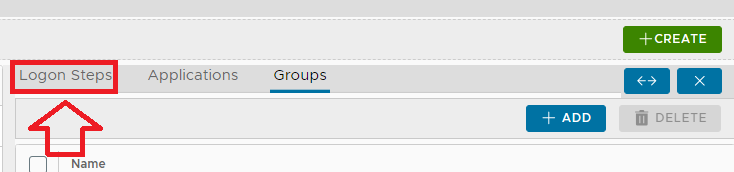
We can now use the  button to add logon steps (for this example we will duplicate the steps in the other logon procedure, but we also add a third step "FIDO2"); button to add logon steps (for this example we will duplicate the steps in the other logon procedure, but we also add a third step "FIDO2"); 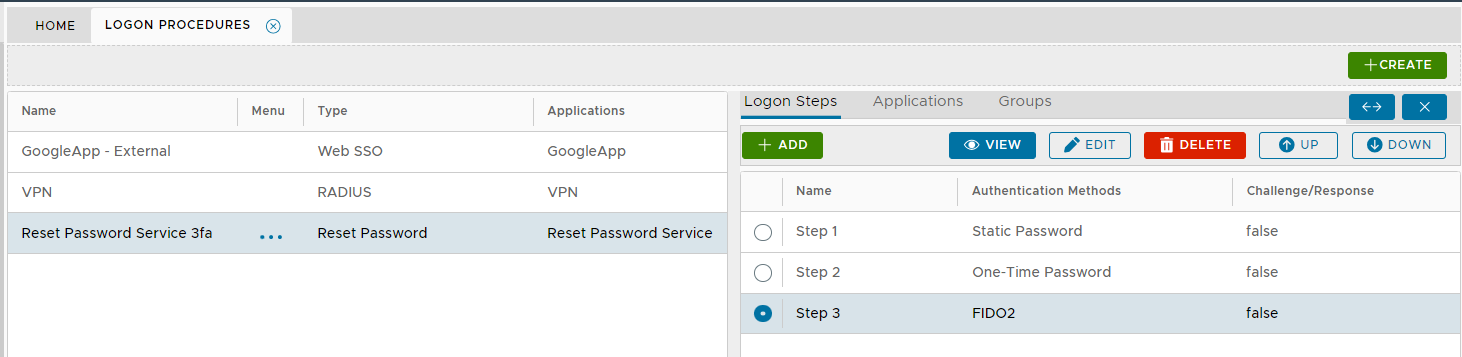
Once all the required logon steps have been created we are ready to add this newly created group held logon procedure to our parent application. |
|
4. Add the newly created logon procedure to the parent application
We now have two logon procedures, one group held, and one global (we are now ready to add to the new logon procedure to the parent application).
To add the newly created group held logon procedure to the parent application we select the "Applications" tab; 
Now scroll down to the parent application, select the application, then click the  button; button; 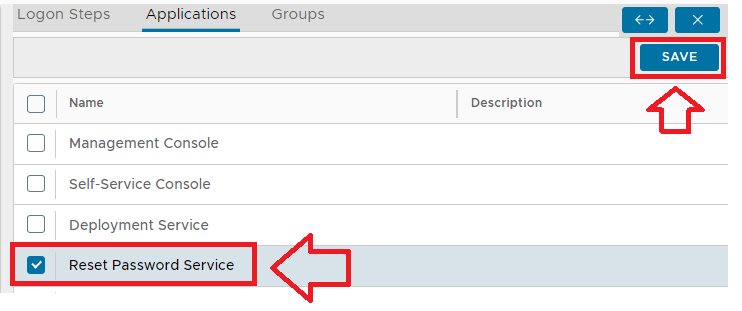
Our application will now have both a standard logon procedure (also referred to as the global logon procedure), and a group held logon procedure we will find that the logon procedure that is used with this application will depend on if the users are member of the "3FA Required" AD group. |
|
5. Before we use the newly created logon procedure we make the following checks;
- Ensure that you application is now assigned to the newly created group held logon procedure, and that the logon steps are suitable authenticating users who are members of this group when logging in to the protected application.
-
- Ensure that the application is also assigned to a separate global logon procedure that has the same type as the group held logon procedure, but has logon steps suitable for users who are not members of the group.
User Experience
In the following test we will log in with two users, "TestUser" (who is a member of this group), and "User1" (who is not a member);
First we supply the username; 
then the password (note at this stage three authentication steps are showing); 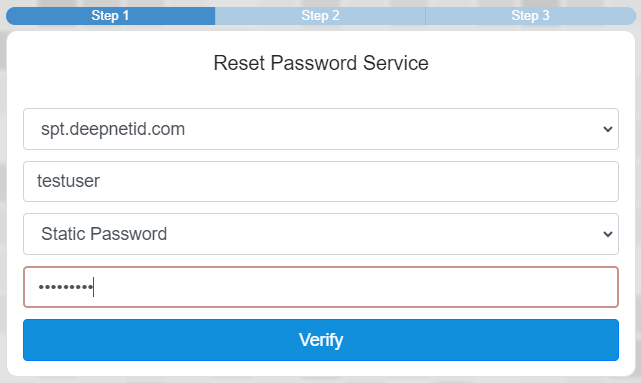
and we are now prompted to supply our OTP code (which we supply); 
Finally, as we are a member of the 3FA group we are now asked to authenticate using our FIDO key; 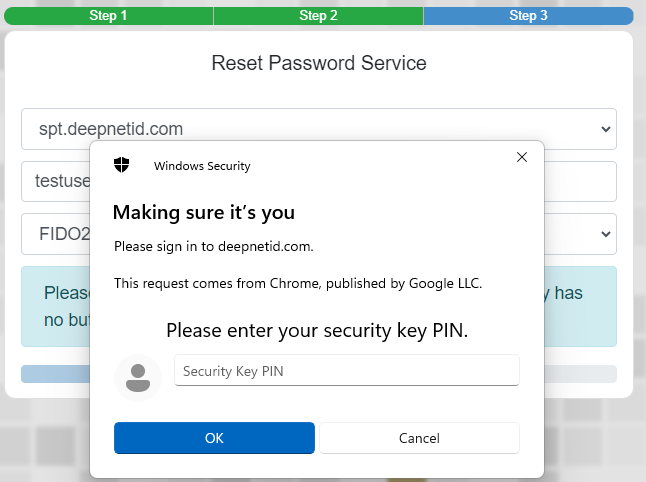
After supplying our PIN code and tapping on the Fido key we ae granted access to the application. |
|
First we supply the username; 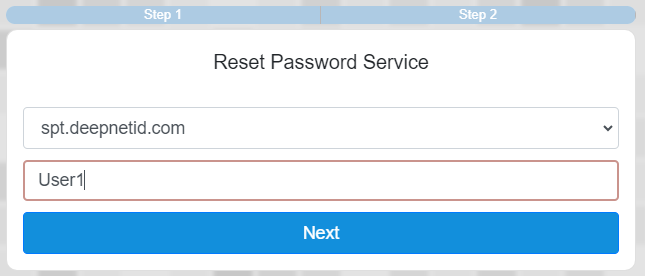
then the password (note only two authentication steps are showing at this stage); 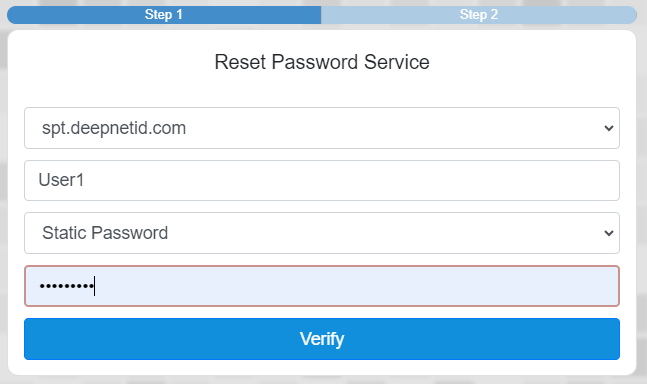
and we are now prompted to supply our OTP code (which we supply); 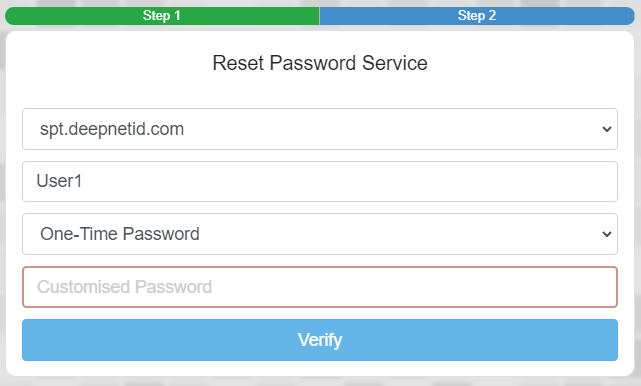
after entering the OTP code authentication is complete and we are logged in to the portal. |
|