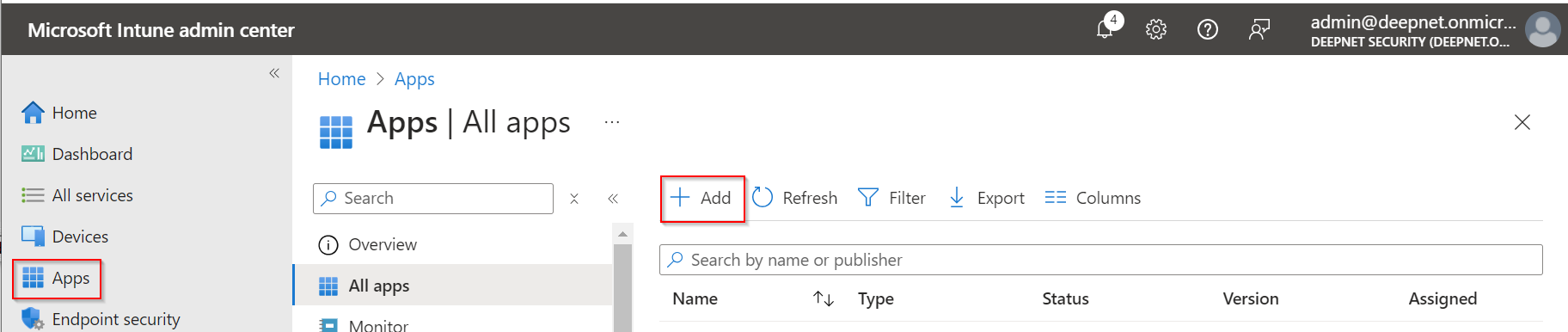
Sign in to https://intune.microsoft.com/, and navigate to Apps
Click "Add"
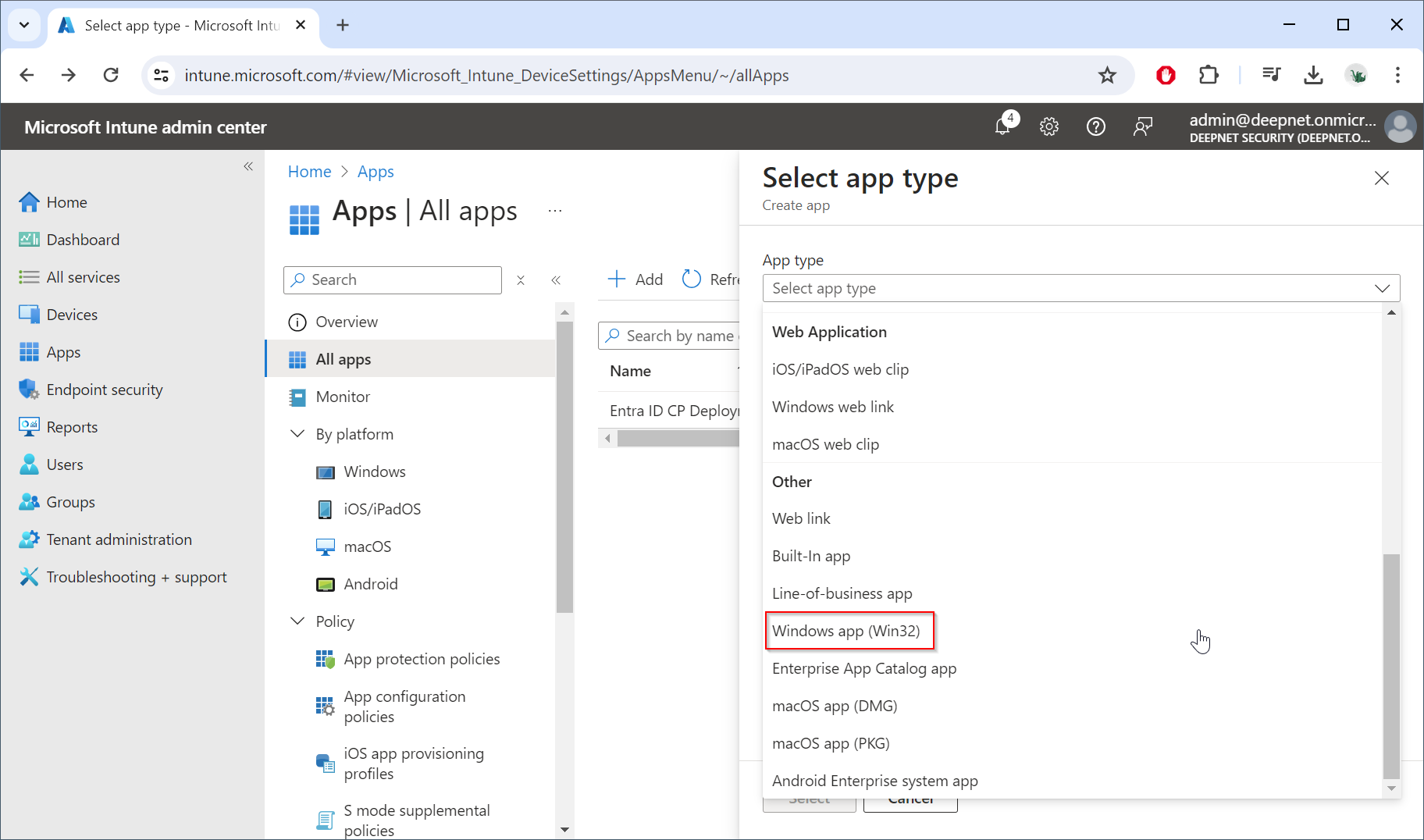
In "App type", select "Windows app (Win32)"
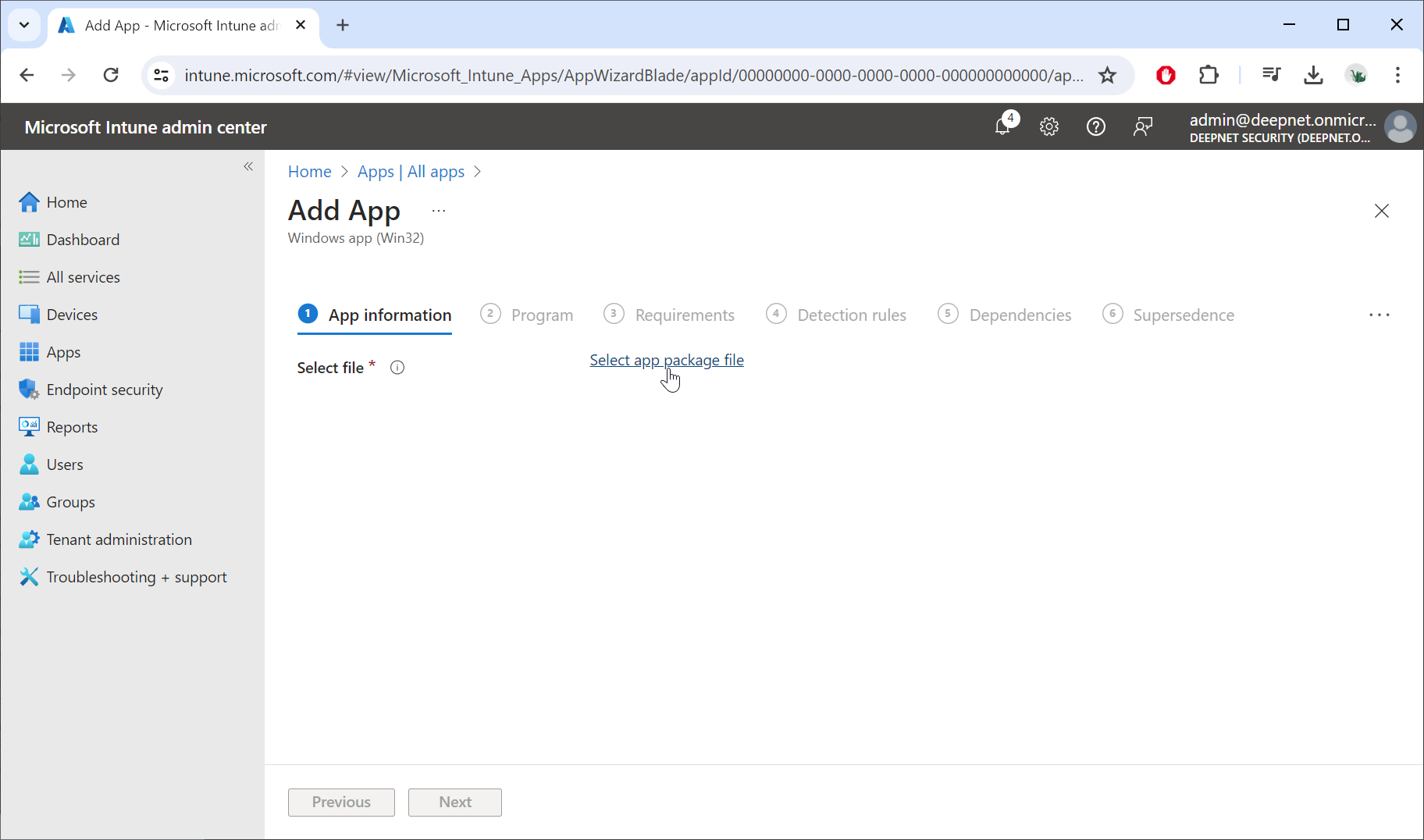
Click "Select app package file"
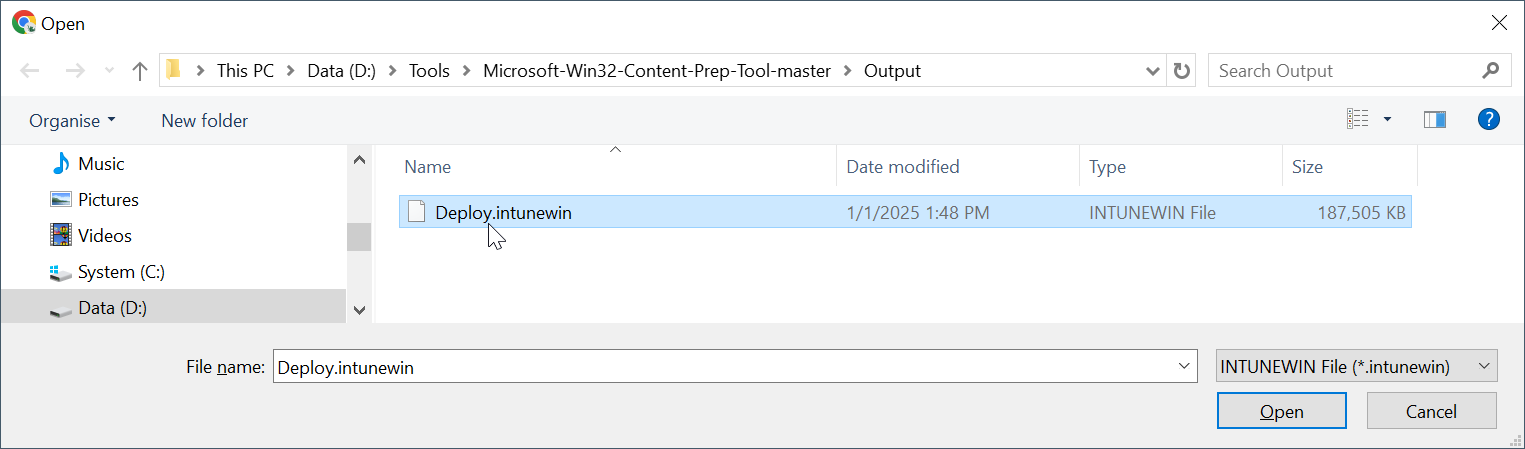
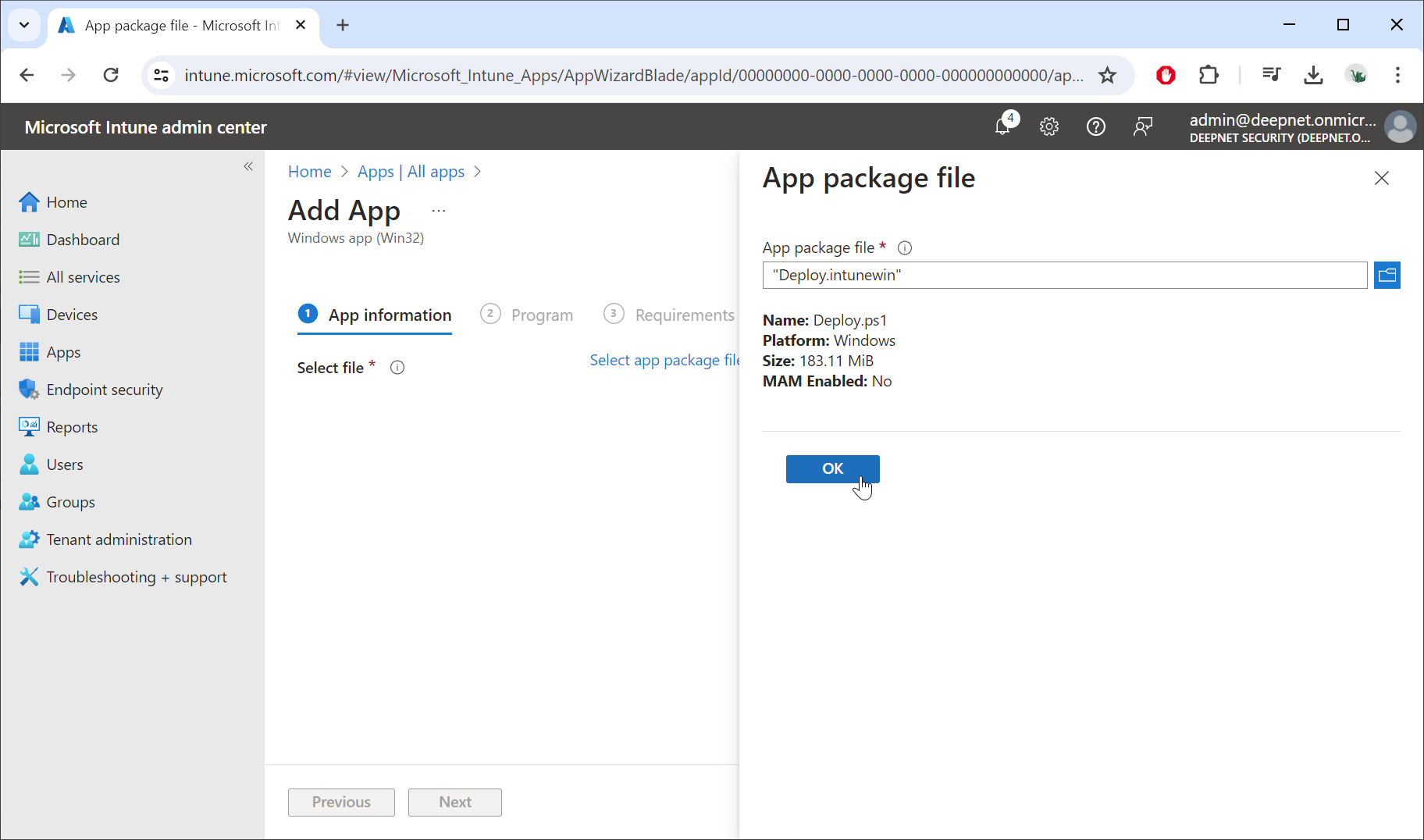
Click "OK"
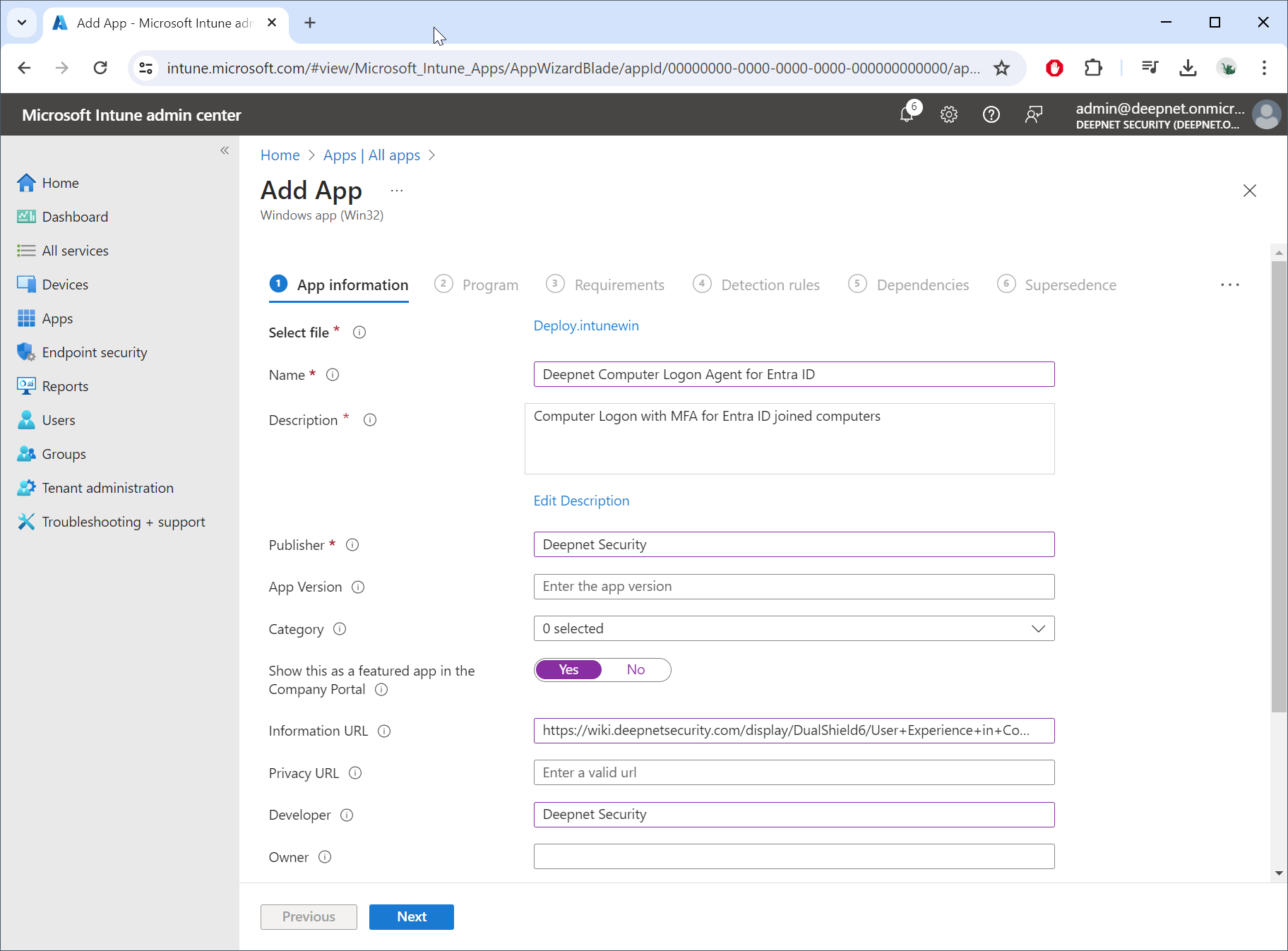
Click "Next"
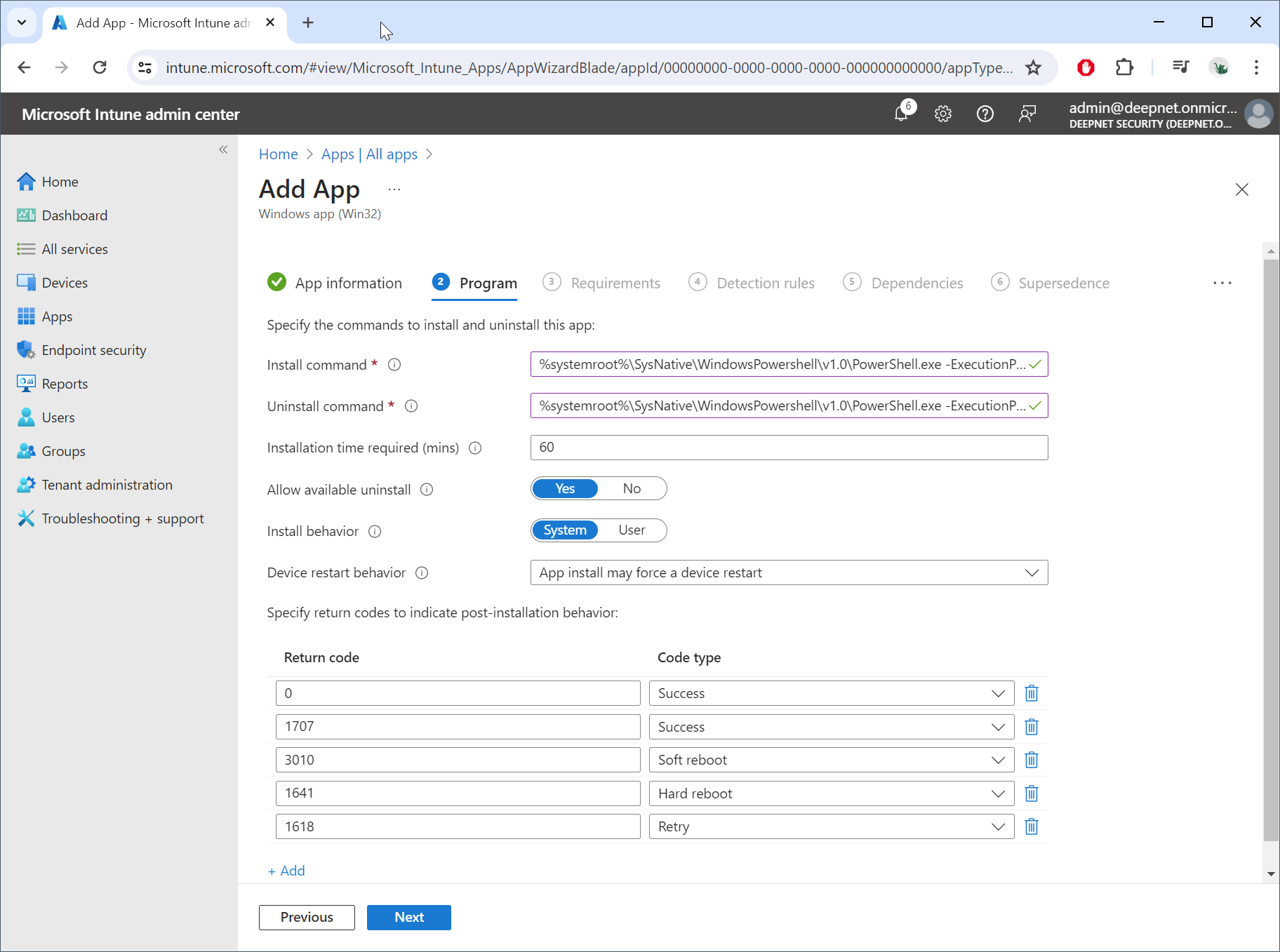
In the Install Command box, enter:
%systemroot%\SysNative\WindowsPowershell\v1.0\PowerShell.exe -ExecutionPolicy Bypass -File Deploy.ps1
In the Uninstall command box, enter,
%systemroot%\SysNative\WindowsPowershell\v1.0\PowerShell.exe -ExecutionPolicy Bypass -File Remove.ps1
Click "Next"
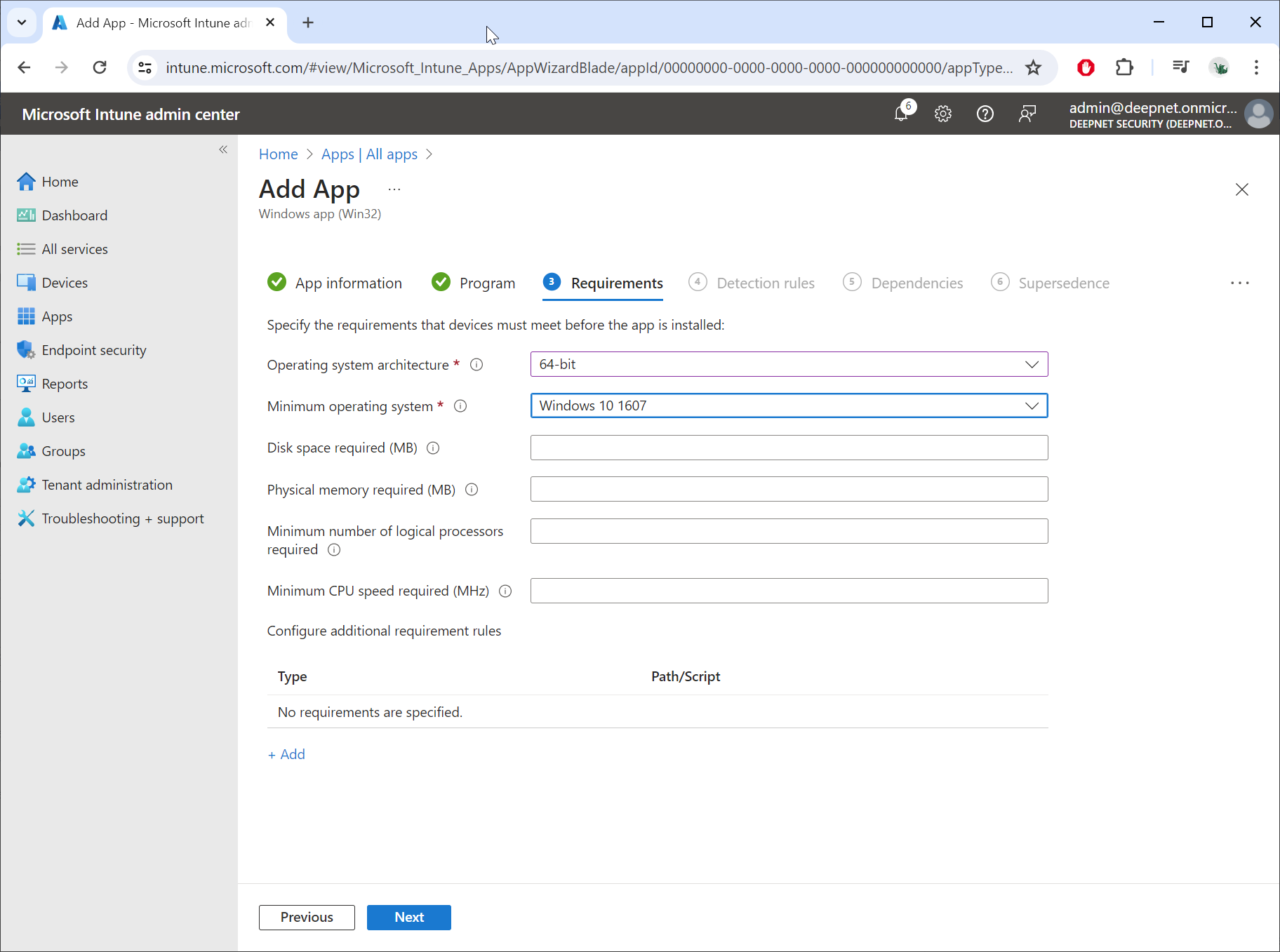
In "Operating system architecture", select "64-bit"
In "Minimum operating system", select "Windows 10 1607"
Click "Next"
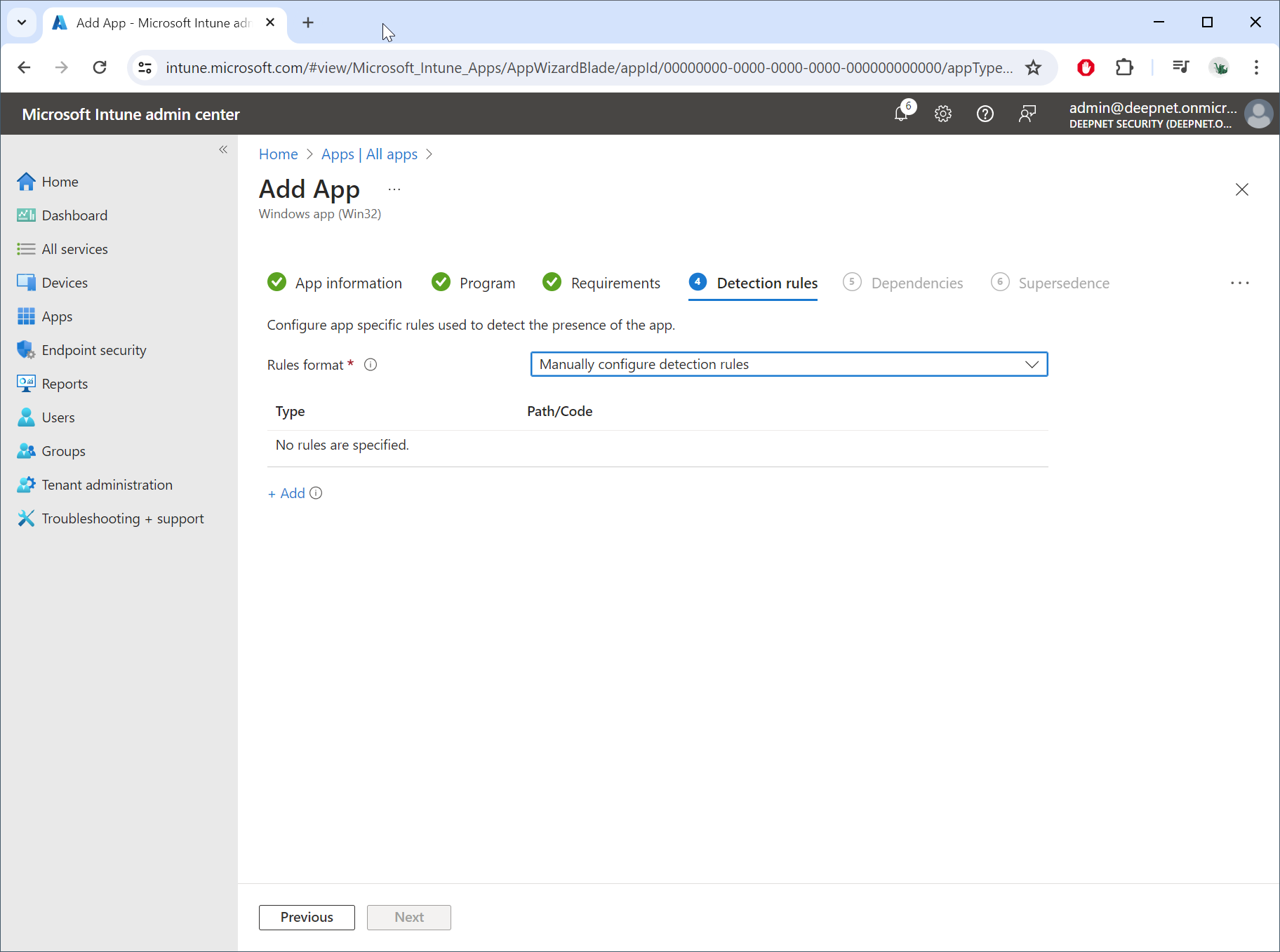
In "Rules format", select "Manually configure detection rules"
Click "+Add"
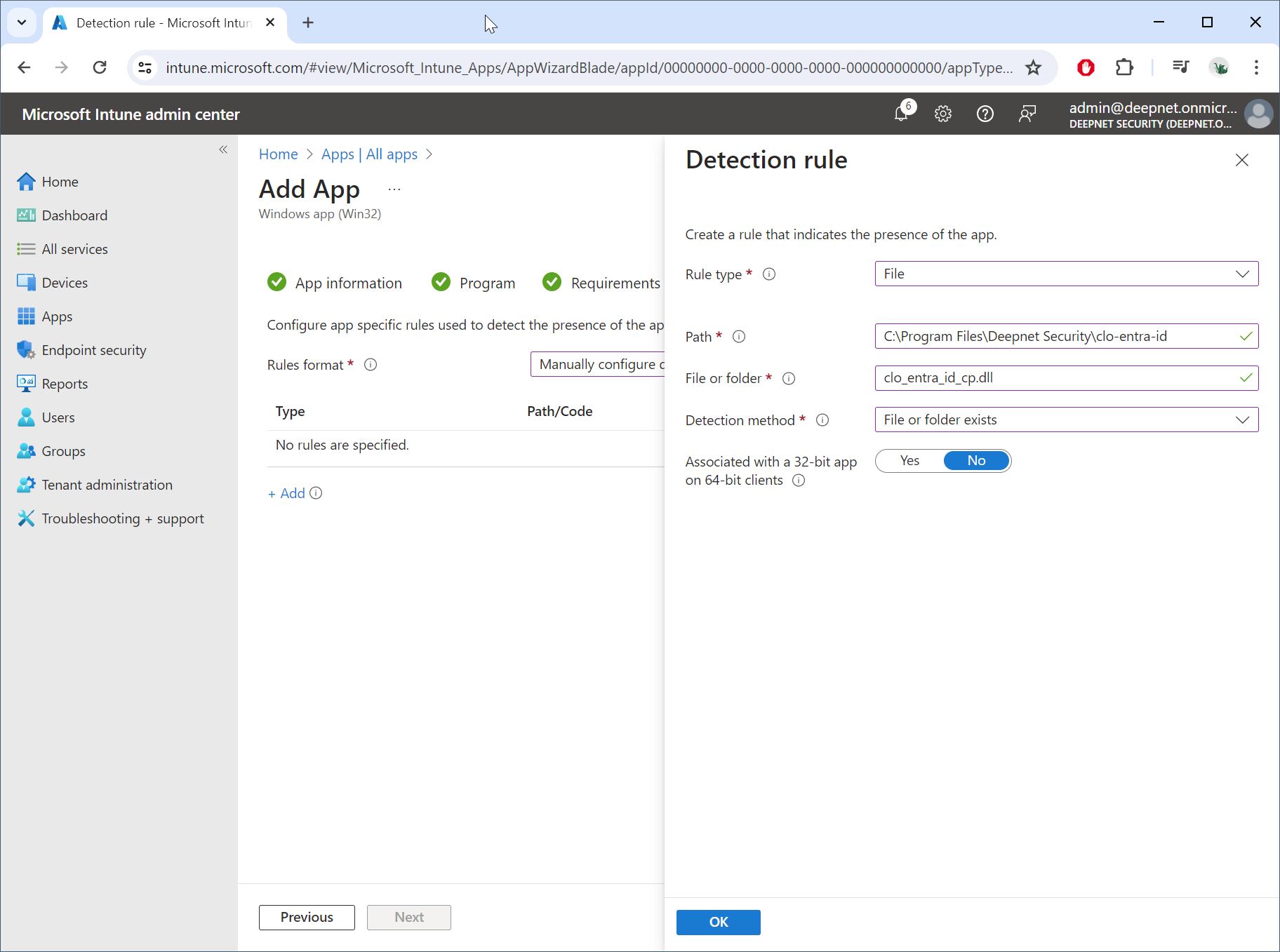
In "Rule type", select "File"
In "Path", enter "C:\Program Files\Deepnet Security\clo-entra-id"
In "File or folder", enter "clo_entra_id_cp.dll"
In "Detection method", select "File or folder exists"
Click "OK"
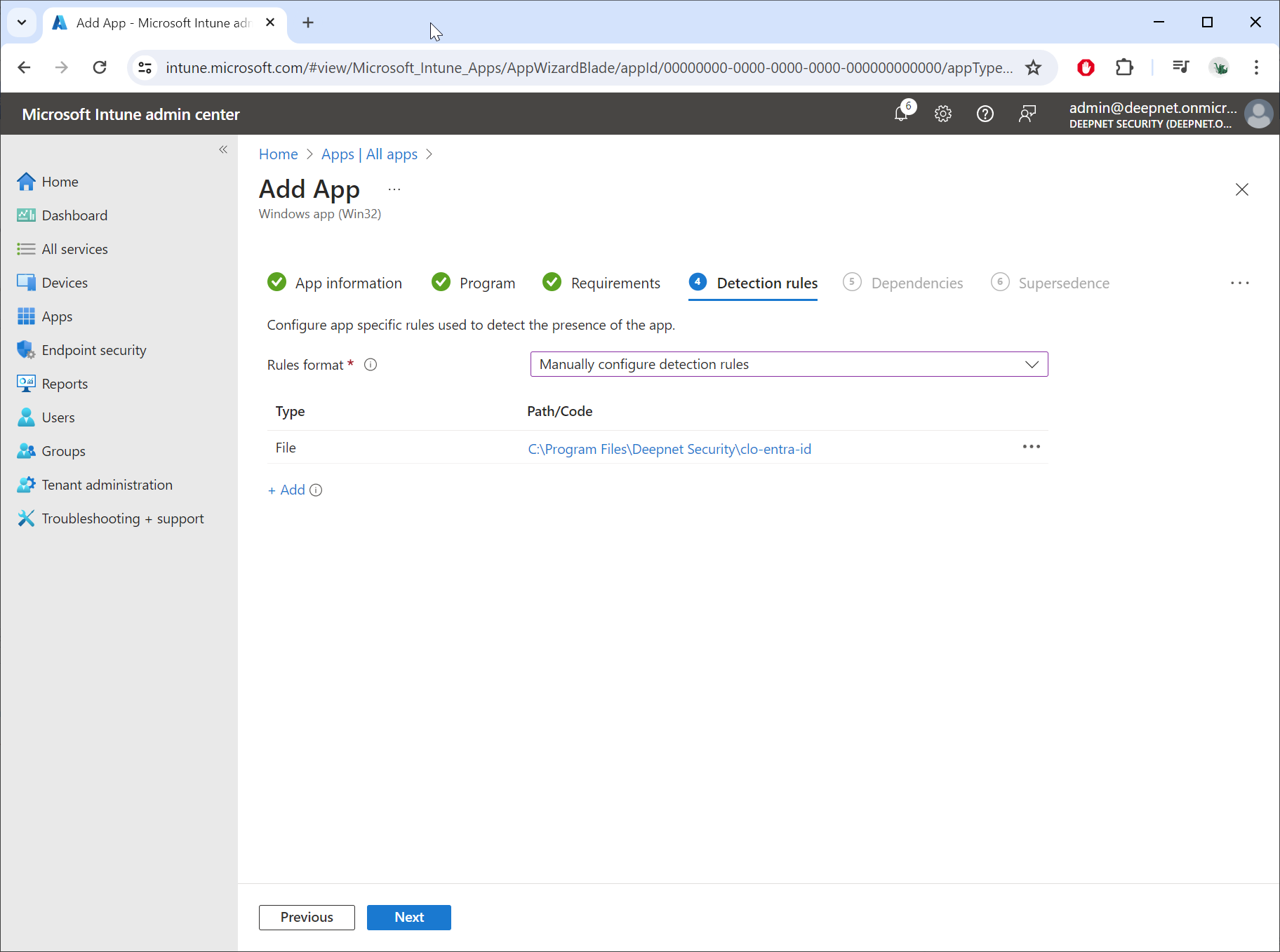
Click "Next"
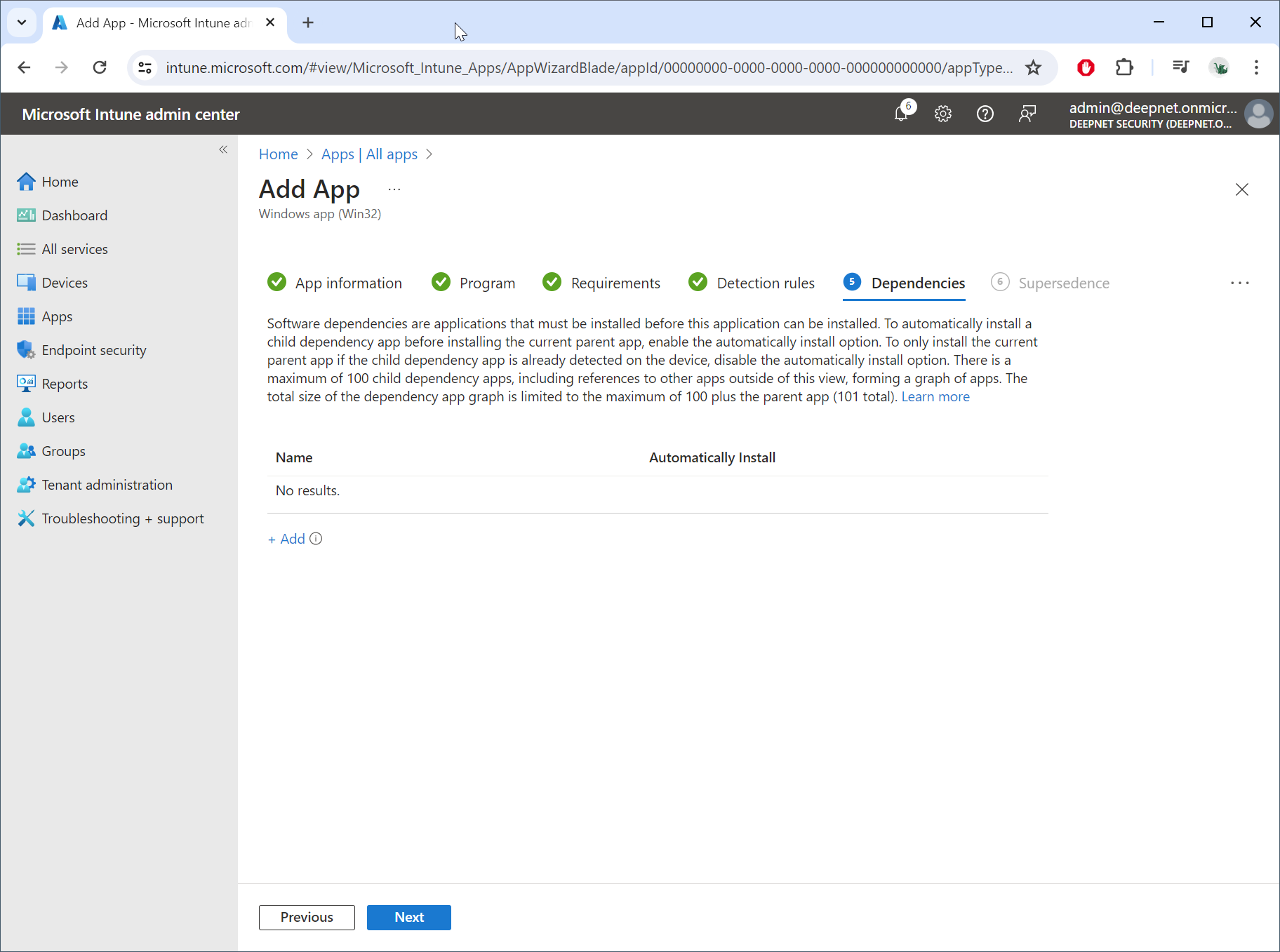
Click "Next"
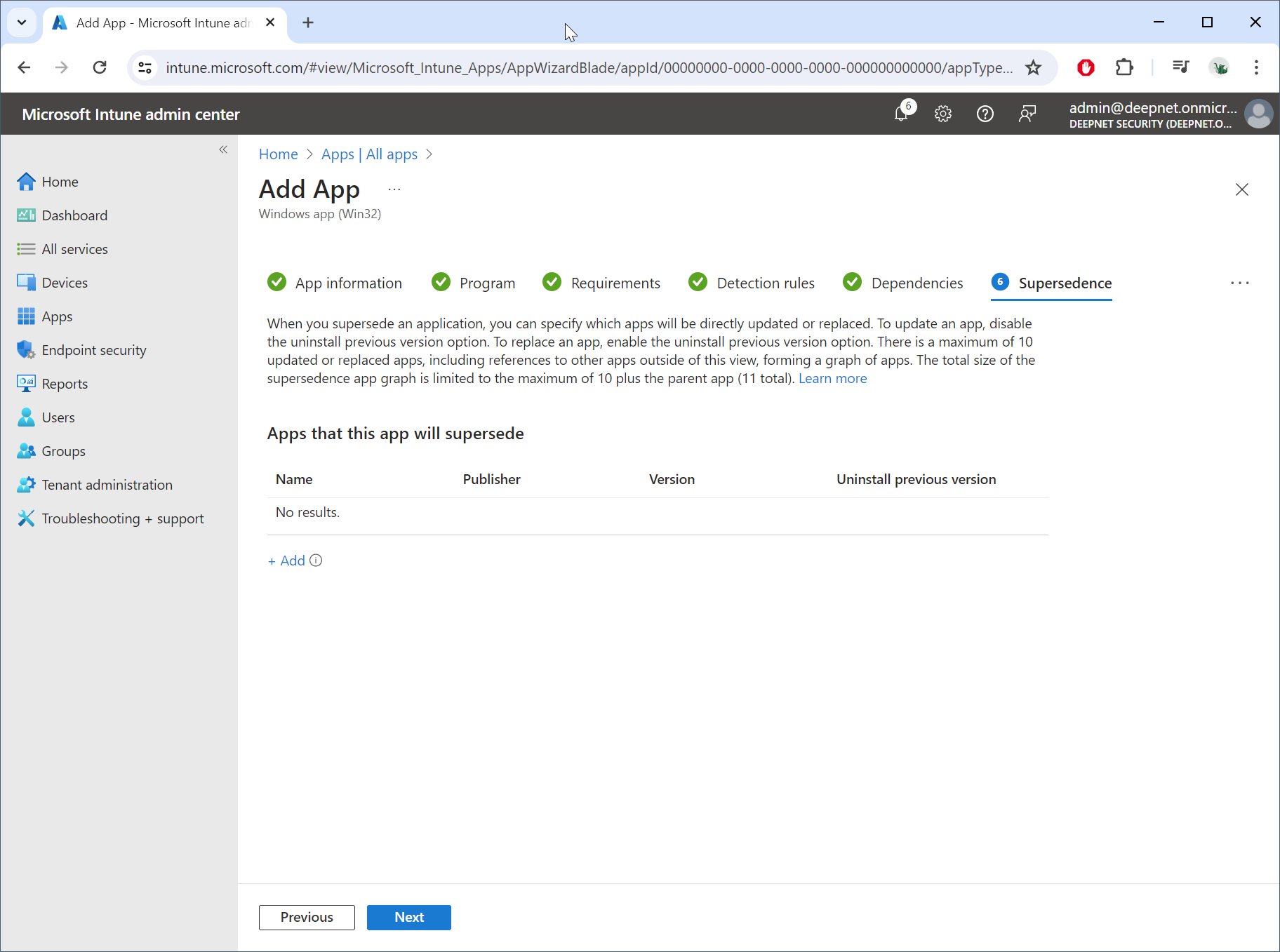
Click "Next"
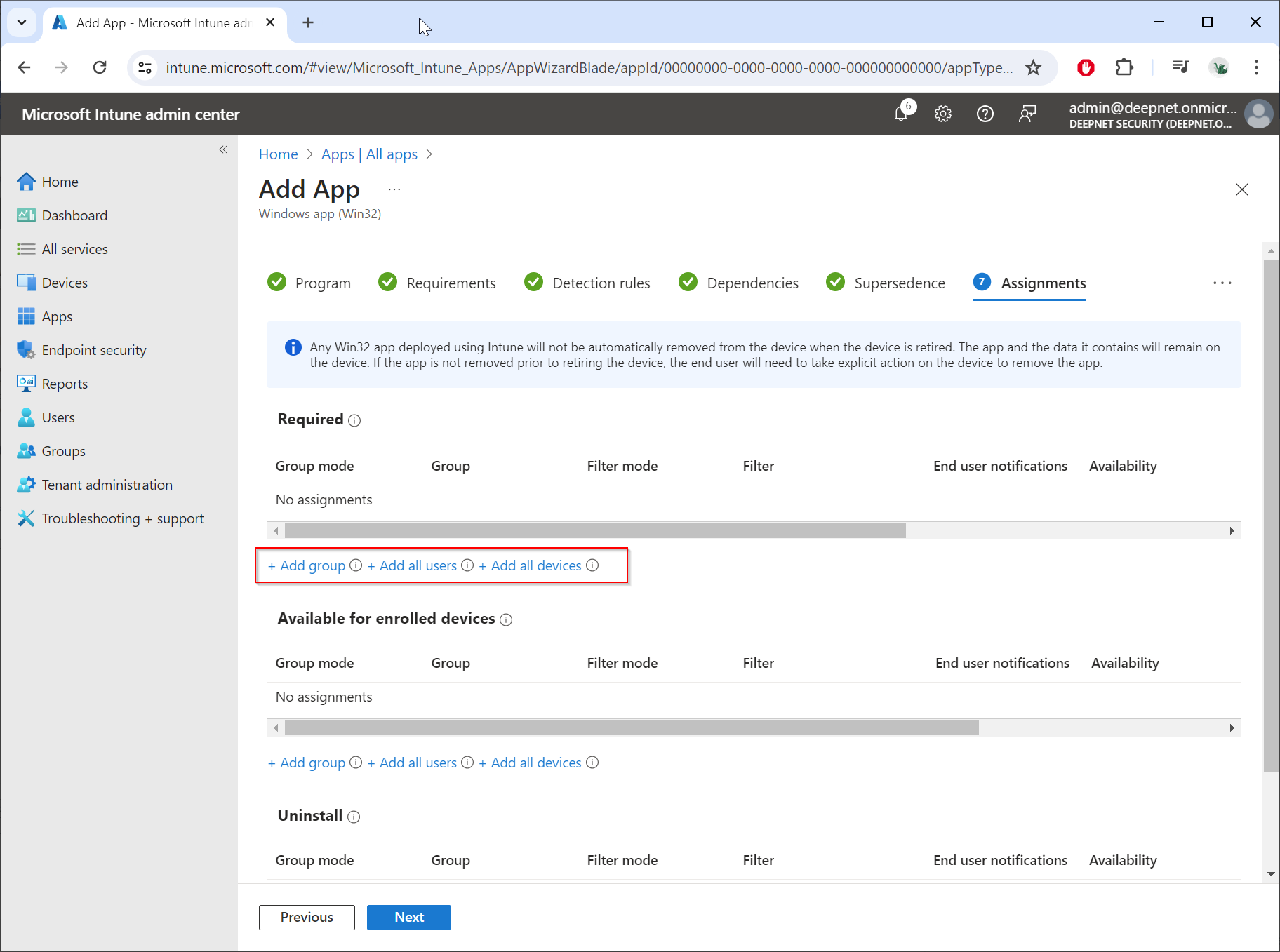
You can assign the app to some specific users or user groups
In this example, we will assign the app to a group called "Computer Logon with MFA"
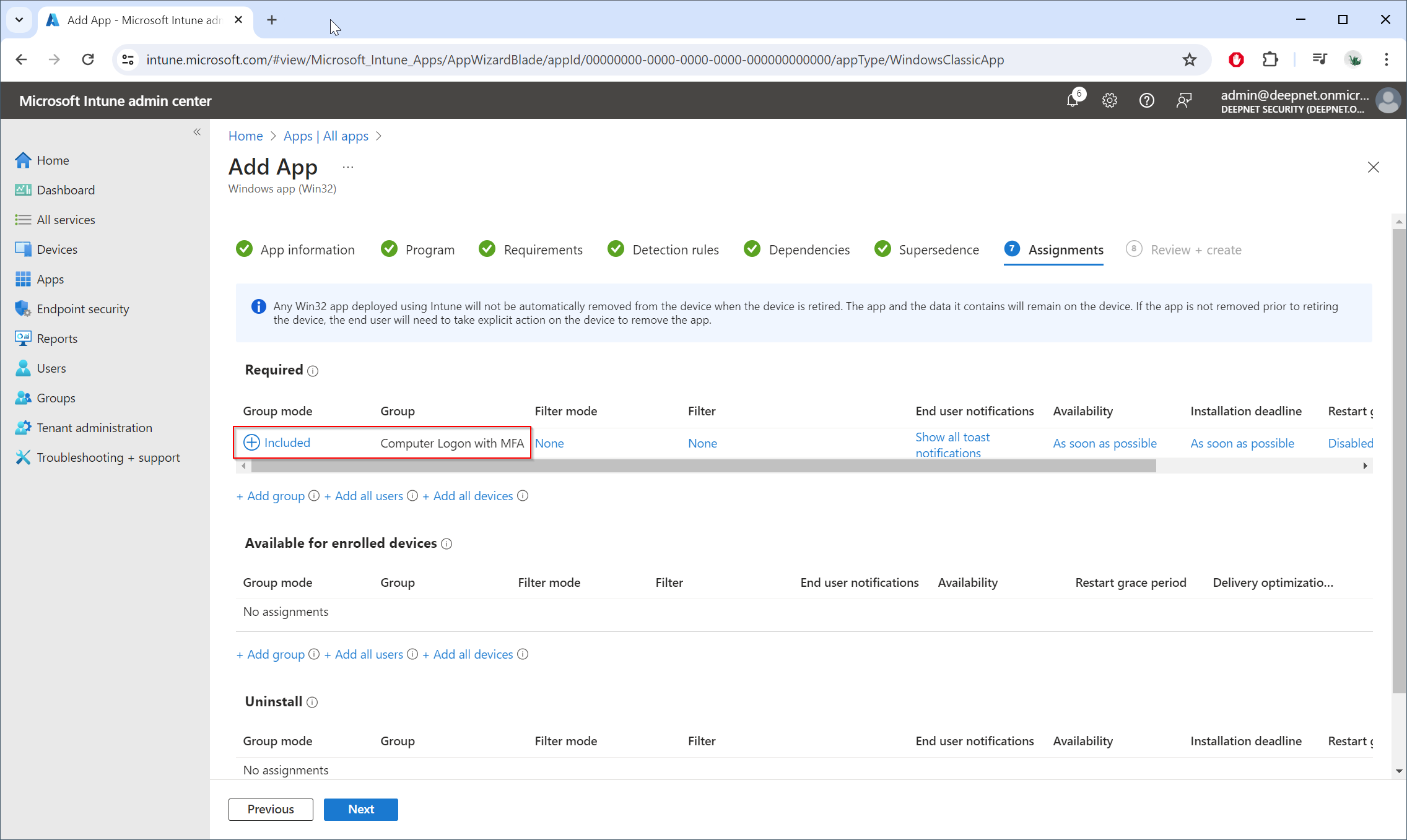
Click "Next"
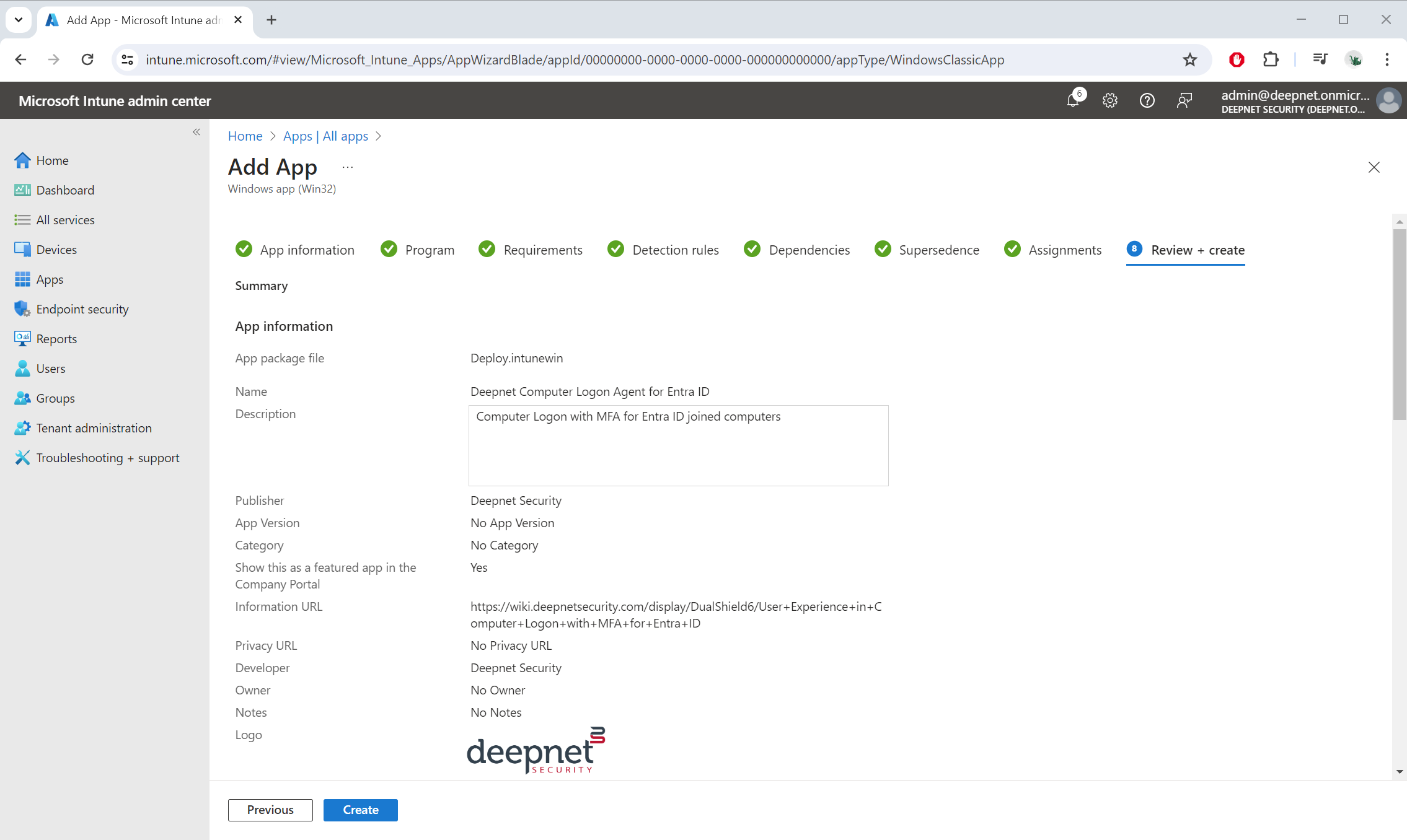
Click "Create"
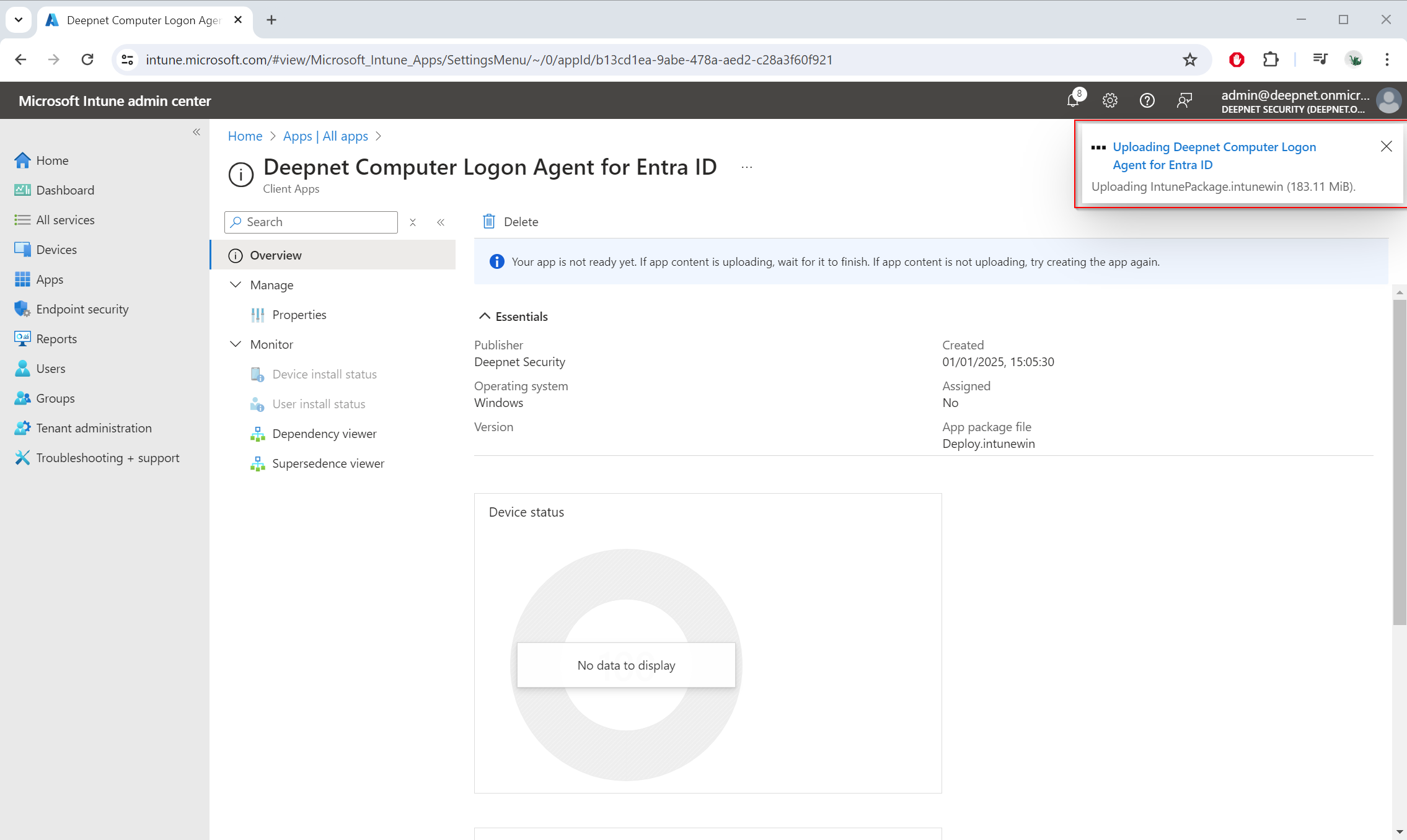
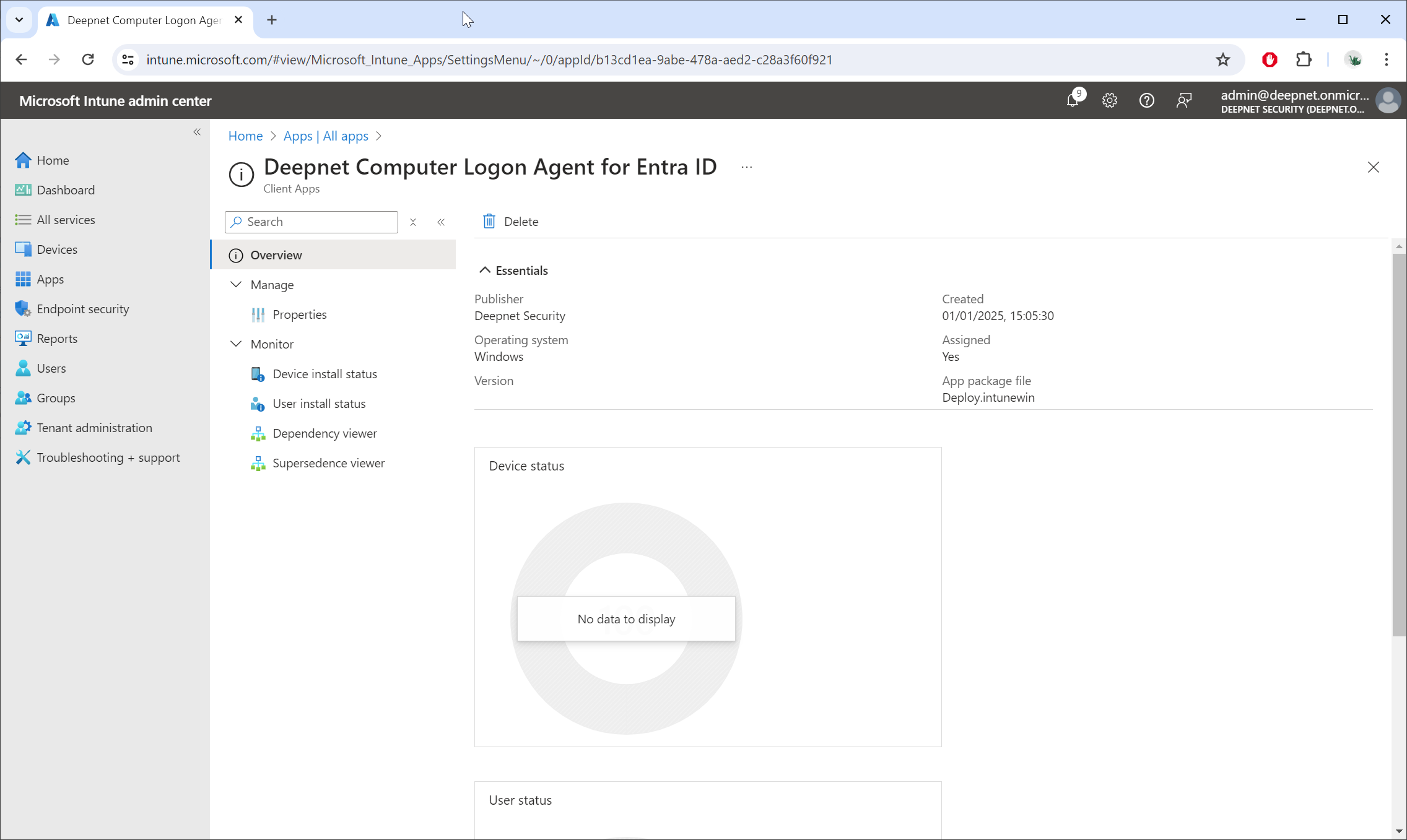
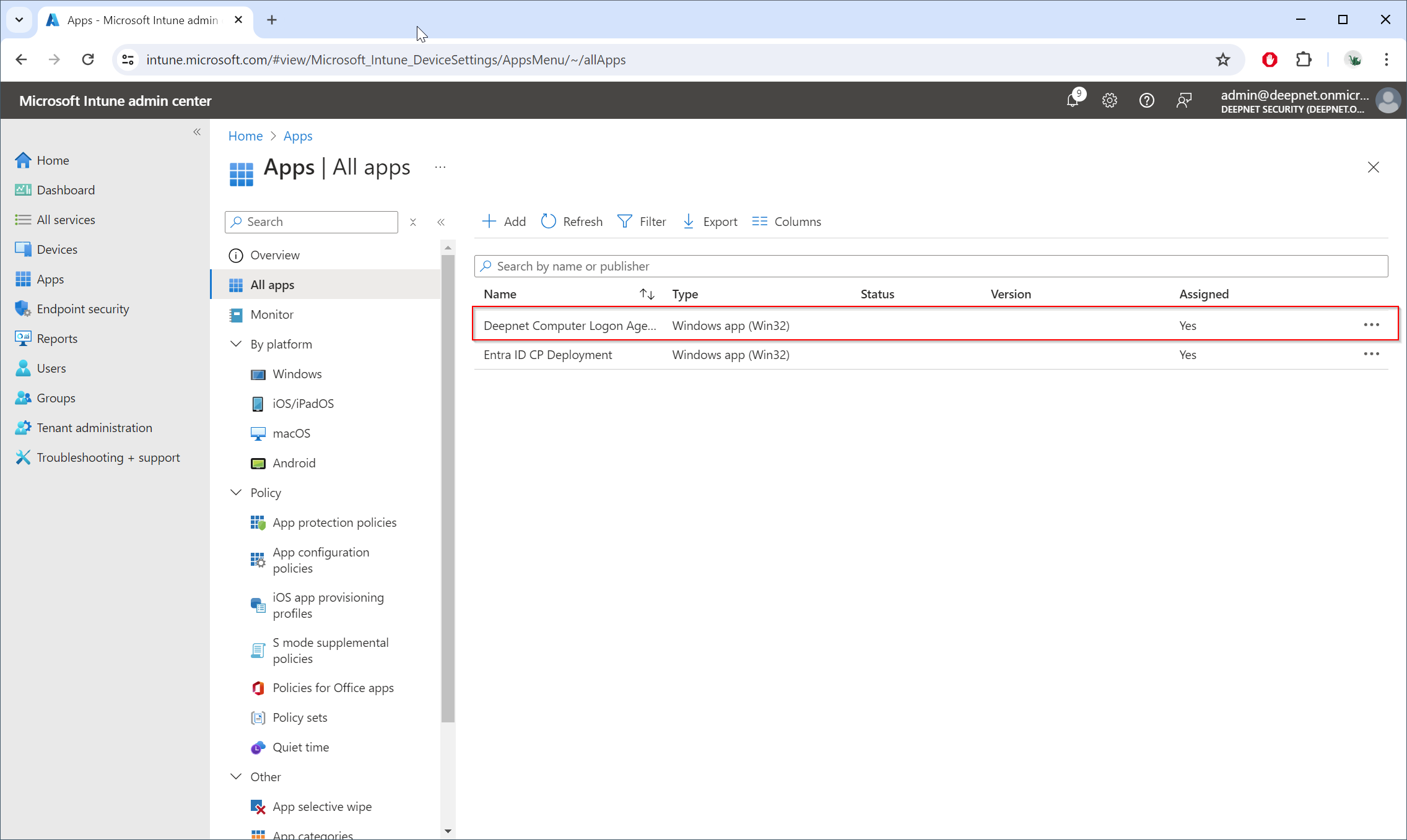
Wait for the app to be completely uploaded to the Intune portal