1. Create a SAML Service Provider
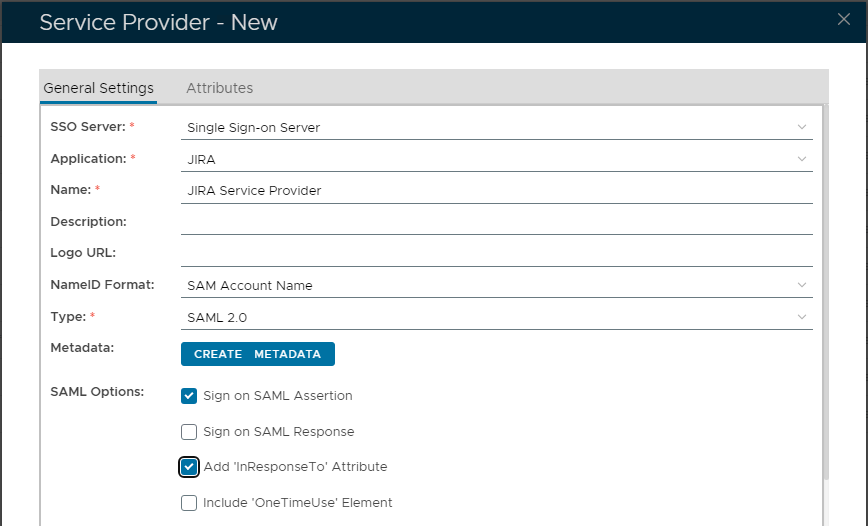
Use the Screenshot above, which shows the configuration.
SSO Server: Select "Single Sign-on Server"
Application: Choose the Jira Application created previously.
Name: Enter an appropriate Name for this Service Provider.
Type: Choose "SAML 2.0"
Click the "CREATE METADATA" button. Then use the following Metadata template. Paste it in to the box. Then "SAVE":
<?xml version="1.0" encoding="UTF-8" standalone="yes"?>
<EntityDescriptor xmlns="urn:oasis:names:tc:SAML:2.0:metadata"
    xmlns:saml="urn:oasis:names:tc:SAML:2.0:assertion"
    xmlns:ds="http://www.w3.org/2000/09/xmldsig#"
    entityID="https://jira.acme.com/jiraSAML">
    <SPSSODescriptor
        AuthnRequestsSigned="false"
        WantAssertionsSigned="true"
        protocolSupportEnumeration="urn:oasis:names:tc:SAML:2.0:protocol">

        <SingleLogoutService
            Binding="urn:oasis:names:tc:SAML:2.0:bindings:HTTP-POST"
            Location="https://jira.acme.com/plugins/servlet/saml/auth" />

        <AssertionConsumerService
            Binding="urn:oasis:names:tc:SAML:2.0:bindings:HTTP-POST"
            Location="https://jira.acme.com/plugins/servlet/saml/auth" />
        <AttributeConsumingService index="0" isDefault="true">
            <RequestedAttribute Name="loginName" NameFormat="urn:string" FriendlyName="Login Name" isRequired="true" />
            <RequestedAttribute Name="fullName" NameFormat="urn:string" FriendlyName="Full Name" isRequired="false" />
        </AttributeConsumingService>

    </SPSSODescriptor>
</EntityDescriptor>
|
Replace "jira.acme.com" with the domain name of your JIRA server.
The "Location" of "AssertionConsumerService" should be the same as the SAML Endpoint in the configuration of SAML add-on.

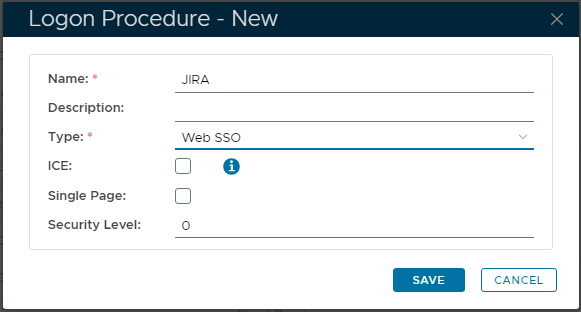
Click the context "..." menu on the new Logon Procedure, then select "Logon Steps".
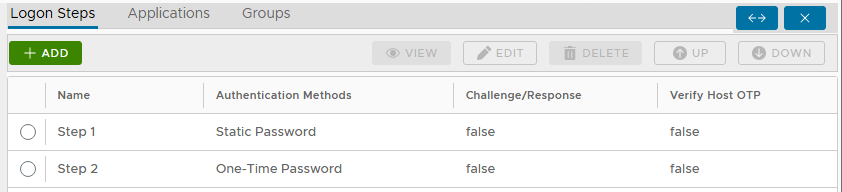
On the right, click the "+ ADD" button to add a new authentication method. Repeat for each Step.
For example, for this Web SSO Application, this could be "Static Password" (AD Password) and "One-Time Password":
Navigate to "Authentication | Applications"
Click the "+ CREATE" button
Enter an appropriate "Name" for this new Application
Select the internal "Realm"
Select the Logon Procedure created previously.
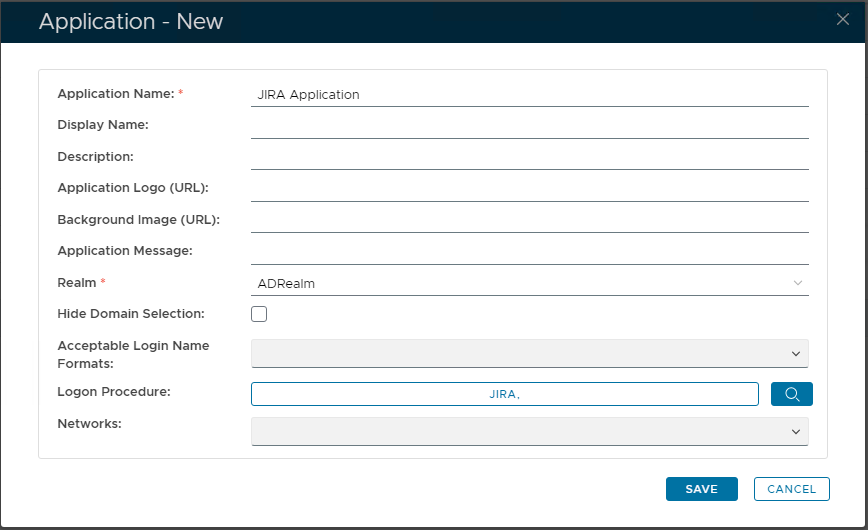
Click the context "..." menu of the new Jira application, then select "Agents"
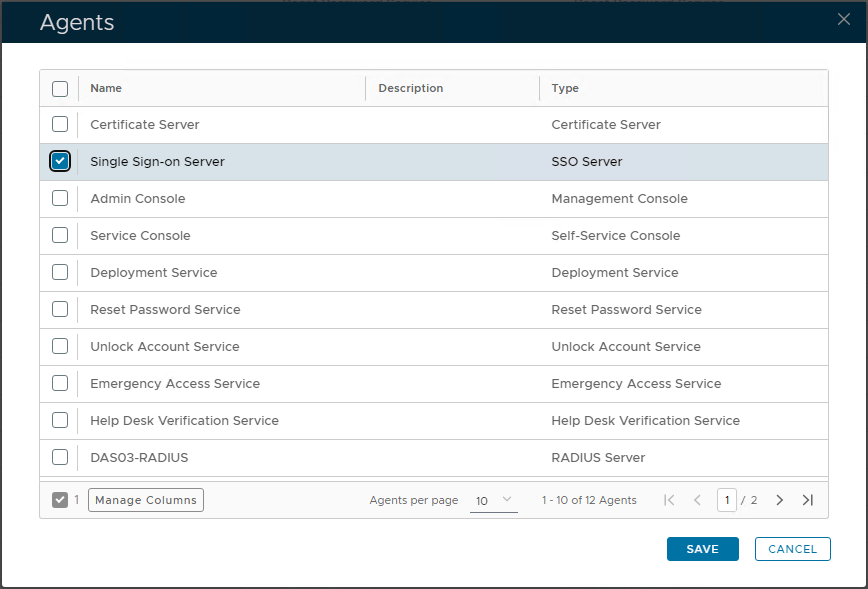
From the Agents List, select "Single Sign-on Server". Then "SAVE" button:
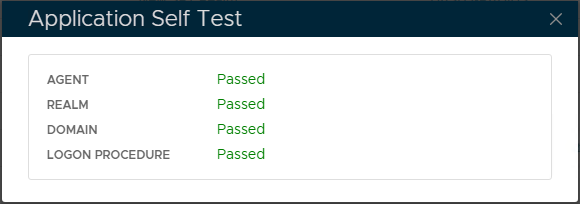
Finally, select the context "..." menu, then "Self Test", to confirm the Application is fully provisioned: