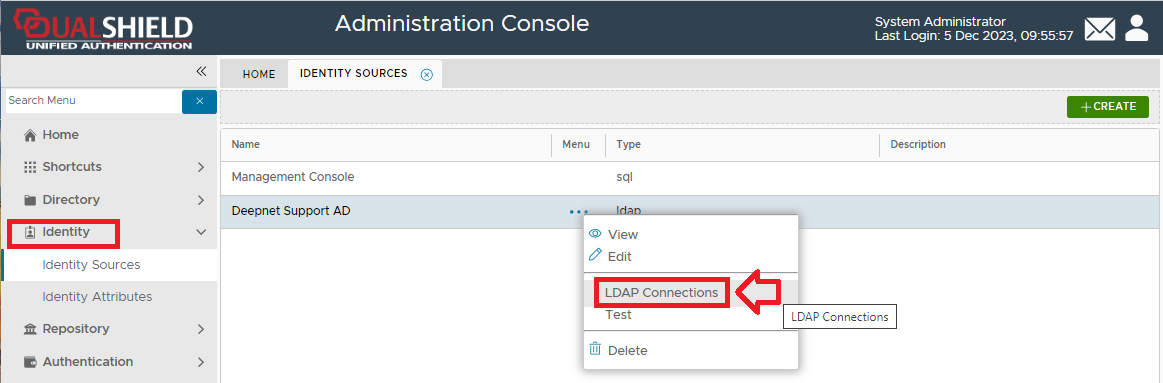
New AD/LDAP server connection can be added to the , log in to the management console, navigate to "Identity | Identity Sources", then left clicking on the context menu of the external directory and selecting "LDAP Connections";
A new window will now open titled "LDAP Connections - Deepnet Support AD";
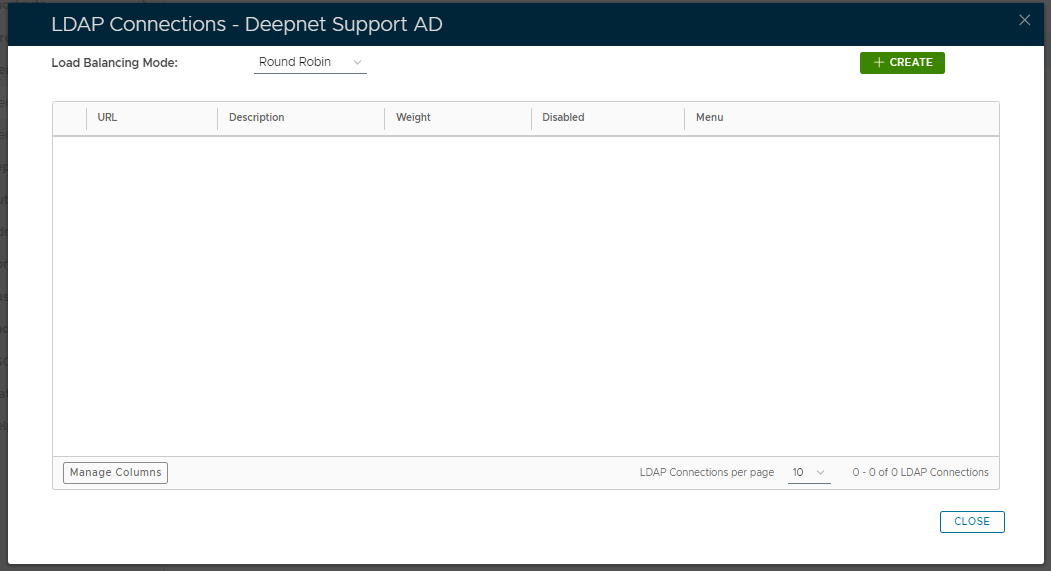
To add a new AD/LDAP server connection to the server cluster, select the required Load Balancing Mode, then click on the  button.
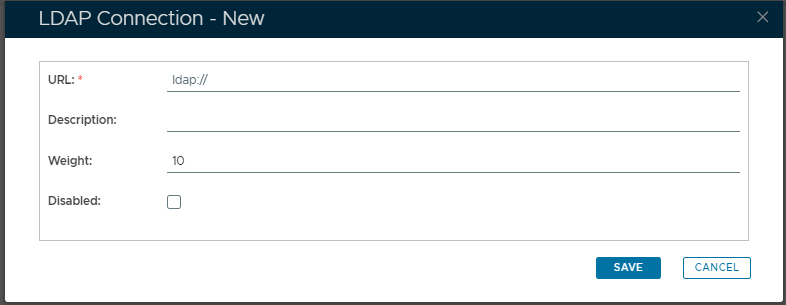
A new window will open titled "LDAP Connection - NEW";
|
Assign a weight to every AD/LDAP server in the load balancing cluster. DualShield distributes traffic to all active servers in the cluster according to their weights (A server with a higher weight will get more traffic than a server with a lower weight).
When you have supplied the LDAP Connection details for the new connection click  to add the new server connection.
Repeat the previous two steps for all LDAP servers that you want to be load balance, then click  .
.