Bitwarden is a highly used password manager that uses published open source code that is used to secure and managing sensitive online data such as passwords, passkeys, and credit cards.
By default access to your Bitwarden vault is protected by you master password, but access to your account can be further protected by using your SafeID programmable hardware token (the token produces OTP codes that can be used as a second factor whilst logging in to your Bitwarden account), and once activated an additional authentication step is added after you supply your password (example below);
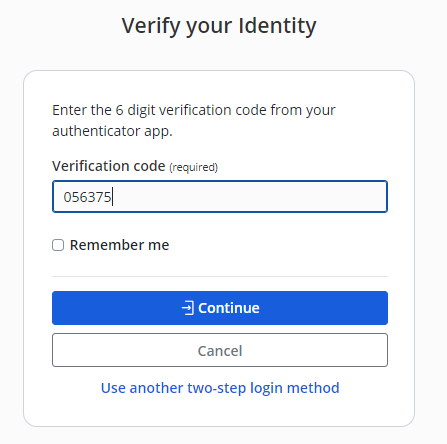
Using a SafeID Programmable Token as a second factor during Bitwarden Logon
Once programmed, your SafeID programmable token will produce OTP that can be used during authentication after you have supplied your username and master password (i.e. as a second factor during logon).
The following procedure guides you through the process of adding 2-step authentication using a programmable hardware token;
Two-step authentication using your Fido key is enabled by logging in to your Bitwarden vault account (with admin access), then use the password manager to navigate to "Settings | Security";
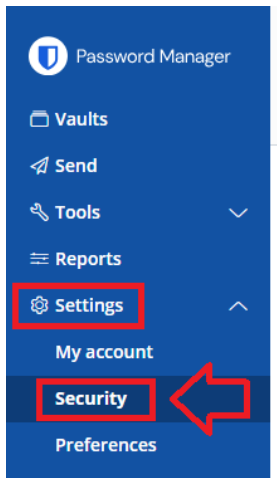
Select the tab "Two-step login", then next to the icon for "Authenticator App", click on the
 button;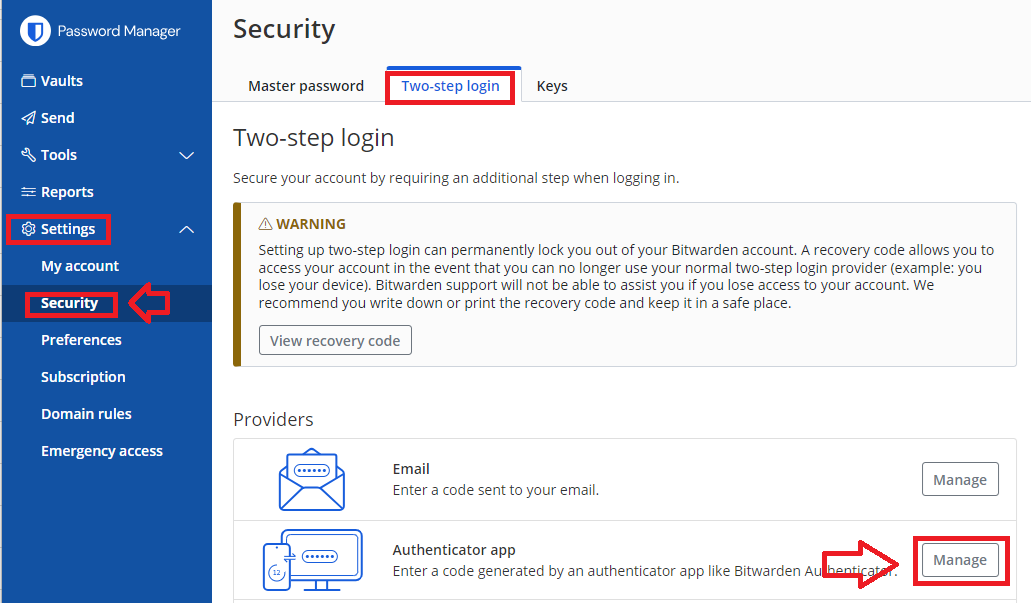
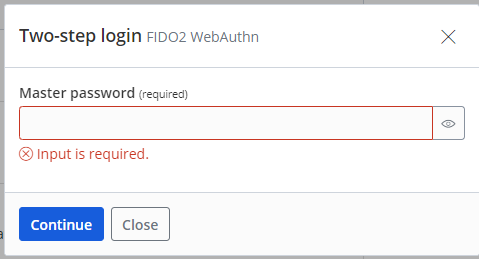
For security reasons you will now be asked to provide your Master Password.
Enter your password then click
 ;
;
A new windows titled "Two-step login Authenticator app" will now open (example below);
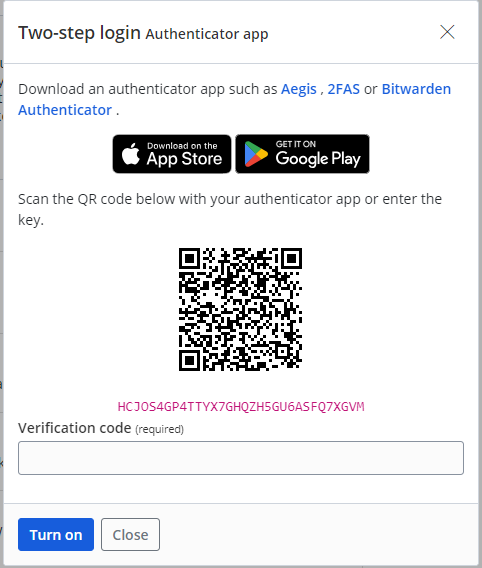
Although the generated QR code is intended to be added to an authentication app, the QR code is suitable for burning onto a programmable token.
The instructions for burning a programmable token using this type of QR code can be found in the following procedure;
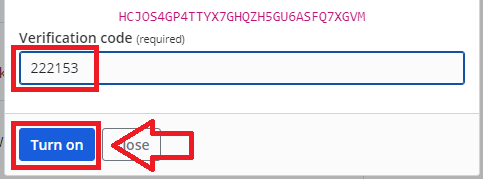
After burning the token with the seed data we now produce an OTP code using the token, enter the code at the prompt "Verification code", then click
 ;
;
Two-step authentication using the programmable token can now be used when logging in to Bitwarden.
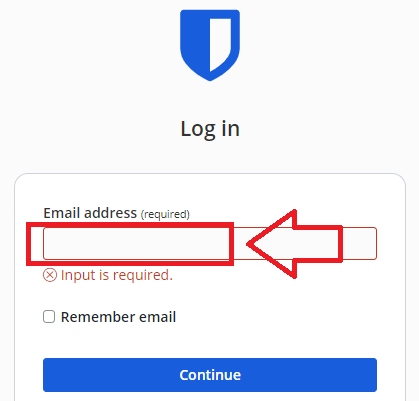
After navigating to "https://bitwarden.com/" and click on the "Log in" option, at the email address prompt enter your email address then click
 ;
;
Enter your master password then click "Log in with master password";
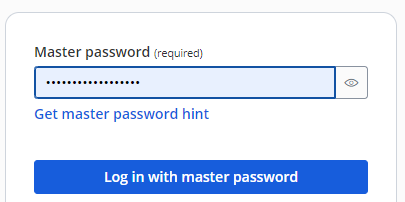
You will now be asked to provide a Verification code;
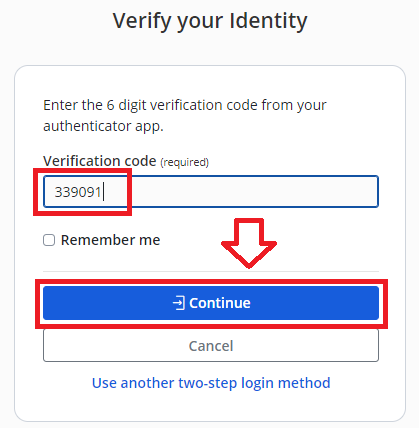
Enter an OTP code from your programmable hardware token then click
 , and you will be logged in to your Bitwarden account.
Related Articles