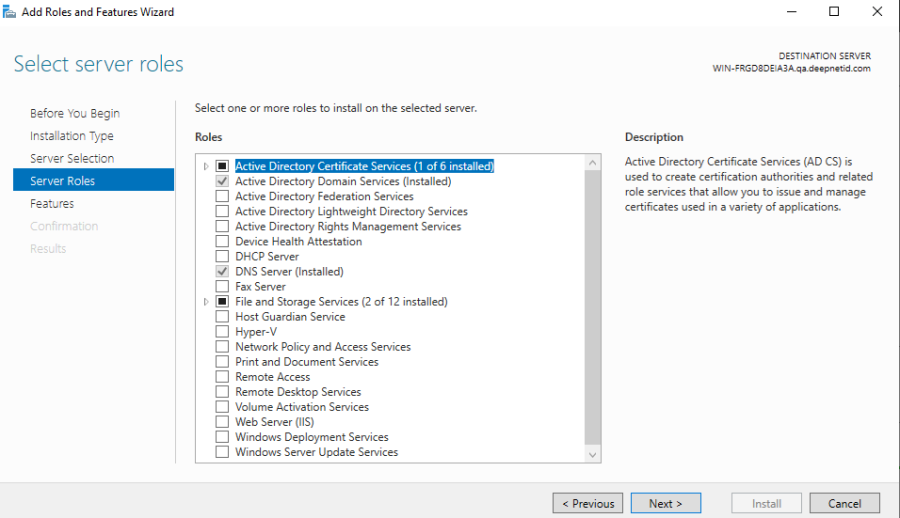
To implement passwordless authentication using certificates, you will need the Active Directory Certificate Service.
Install Active Directory Certificate Service in the Domain Controller.
After installation, configure the Certificate Authority accordingly.
After completing the configuration, open the Microsoft Management Console (MMC) and add the 'Enterprise PKI' snap-in. 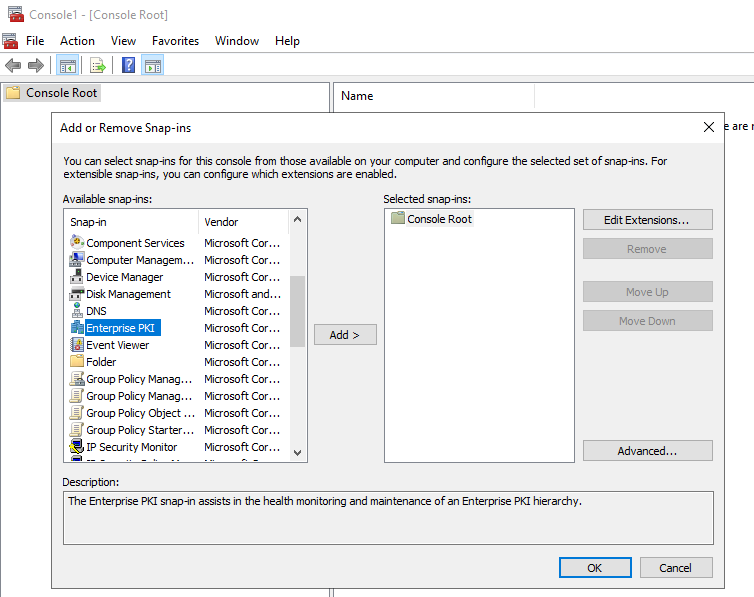
Launch the Enterprise PKI snap-in console

If you see the "CA Certificate" in the list, then your domain is ready for DualShield Computer Logon Passwordless Authentication.
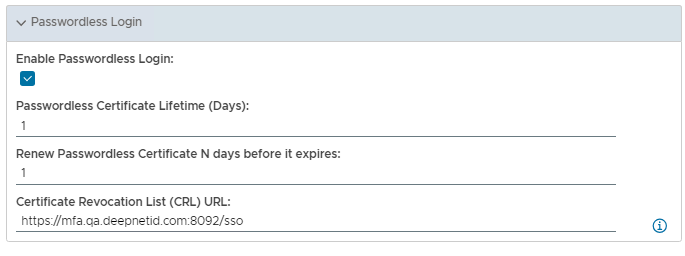
In the admin console, navigate to the Computer Logon Client Policy and make the following changes:
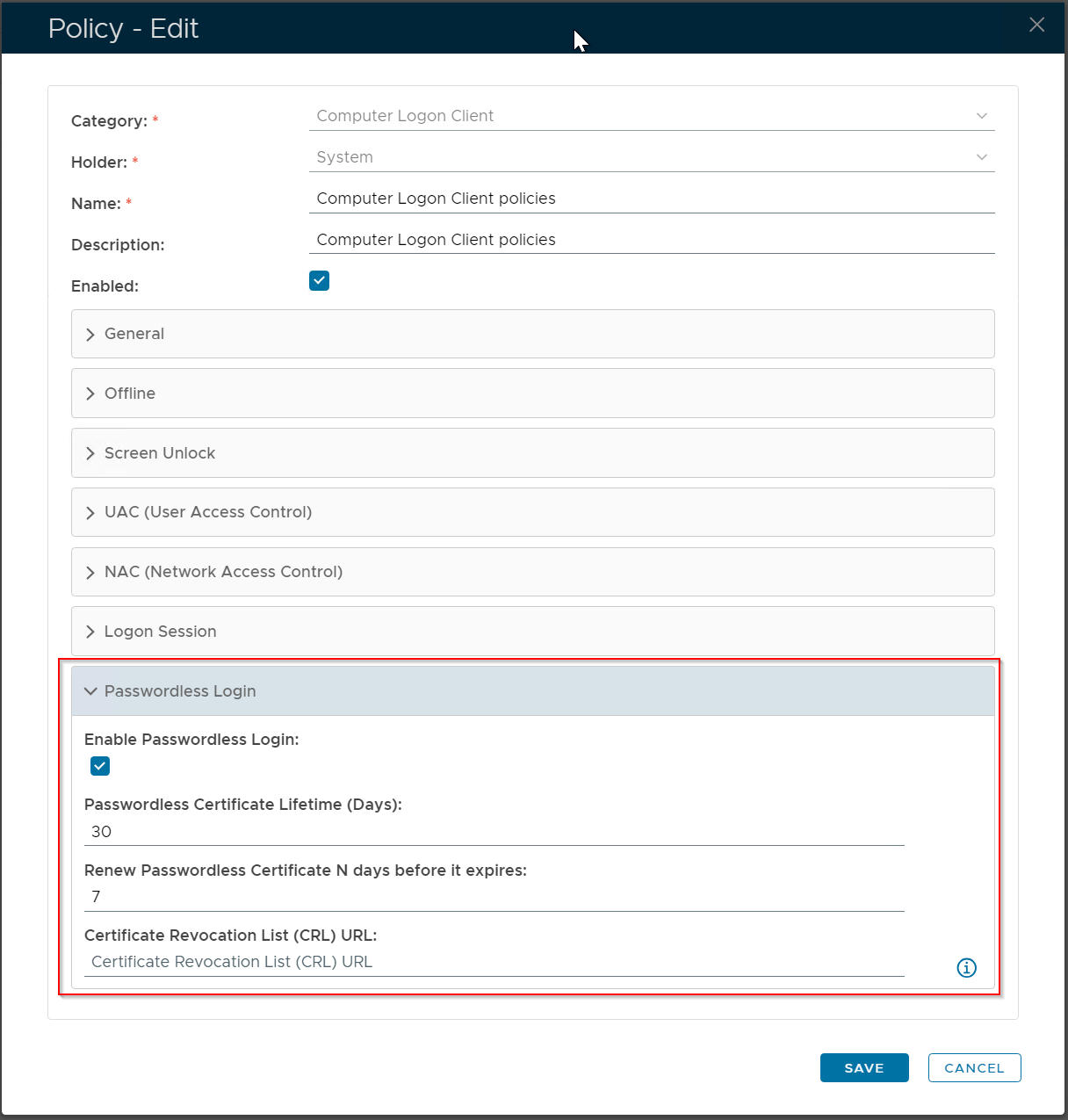
Note: if you have implemented the Device Certificate authentication method, then you must follow the instructions below to set up a new Certificate Revocation List (CRL) URL
Add a new a connector In the Computer Logon Client policy, enter "https://your-dualshield-fqdn:8092/sso" in the box of " Certificate Revocation List (CRL) URL"
In the example above, your DualShield FQDN is: mfa.qa.deepnetid.com |
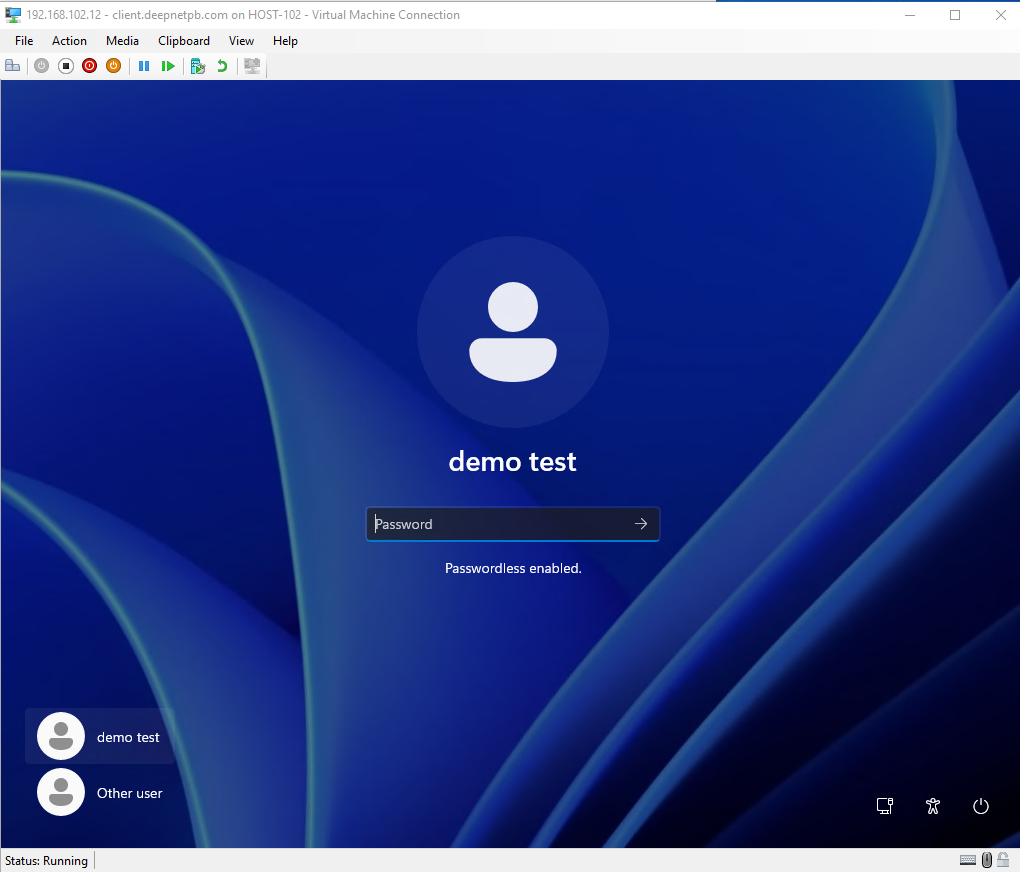
With the password authentication enabled, users will see the hint 'Passwordless enabled" under the password entry box on the login screen.
Do not enter anything in the password box
Click the continue button  to continue
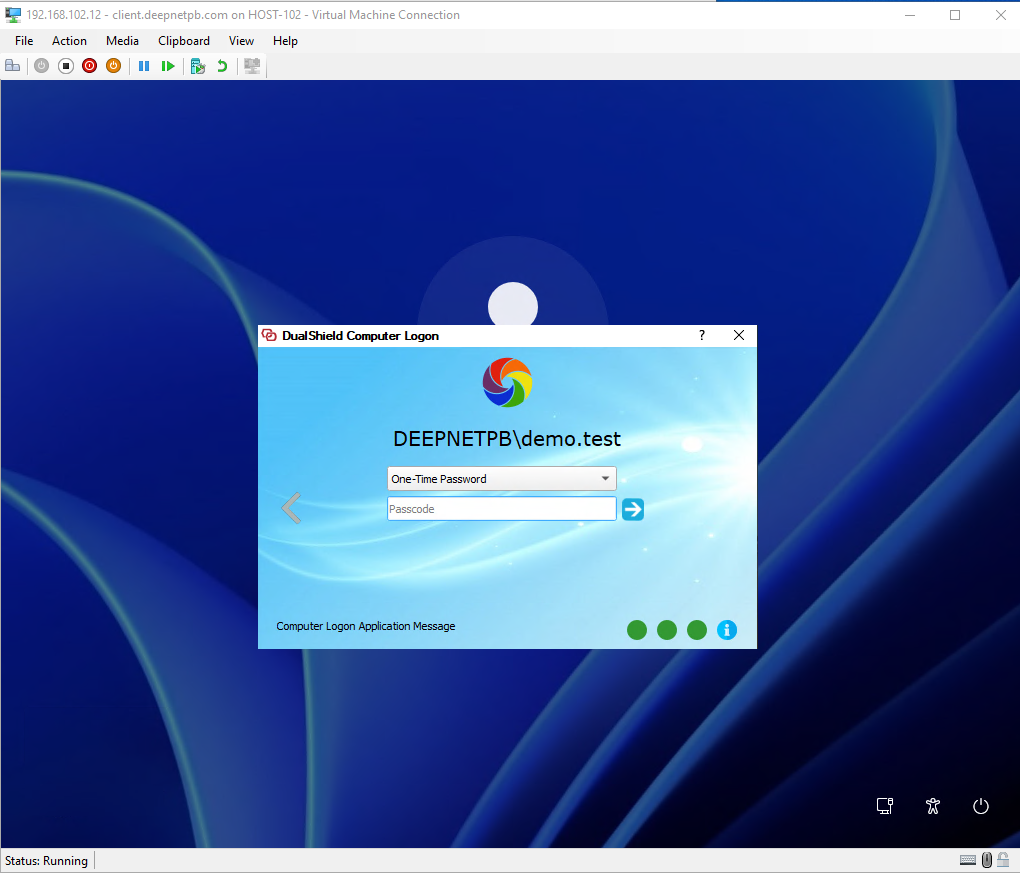
The 2FA/MFA window will be prompted: