
If you want to use SafeID programmable tokens with Duo you can burn the token with a random seed then upload the seed data to Duo.
You first need to download and launch the SafeID/Diamond programming tool.
As we will be using the PC's clock to set the date and time on the programmable token please ensure that these settings are correct on you PC.
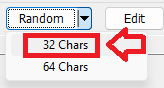
For Duo we will be generating a random seed use the dropdown against the "Random" option, then select "32 Chars";
After selection a random seed will be generated (in base 32 format);
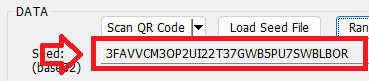
Leave the Time and algorithm settings defaulted (as per the above example), then physically connect your programmer to the USB port.
At the dropdown "Reader:" you should now be able to select the connected reader, when selected click on the  button.

The prompt will now change to "Token or card not detected";

When we burn the token we want to create seed files that include the seed data so select the option "Export Seed Data:"

Turn on your programmable token (so that a 6 digit OTP code is displayed), then place the token on the reader and the app will now be updated with details read off the reader;

You are now ready to burn the token. Ensure the token is still powered on then click the  button.
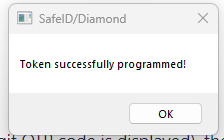
After a small delay you should be presented with confirmation that the token has been programmed.
In the folder where you ran the SafeID programming app from you will find a sub-folder named "Data", and in this folder you will find 3 seed files have been created.
Open the seed file with extension ".hex", and the contents of this file will contain the serial number and seed details (in hex form) that will be needed for uploading to Duo.
Open the ".hex" file in notepad and append the serial number and seed data with ", 30" (this instructs Duo to use 30 second time windows).
The seed details will now be in the form "[Serial No] , [Seed Details], 30" and can be uploaded to Duo using the instructions in the following guide;
The above example programmed the tokens for 30 second windows however if 60 second windows are preferred then just ensure the time window parameters at the top of the app are set to 60 seconds, and append the seed file with ", 60" in place of ", 30" as both the token, and the authentication server need to agree on window size.