In this wiki, we use the following terminologies
To access the DualShield IIS Agent installed on the Server Machine from the Remote Machine, follow the steps below:
0 - Make sure that IIS Remote Management service has been installed & enabled
1 - Download the DualShield IIS Agent v6.8.0.0809 from the link below
https://download.deepnetsecurity.com/update/IIS%20Agent/
2 - Install the DualShield IIS Agent v6.8.0.0809
By default, the DualShield IIS Agent will be installed in the folder: C:\Program Files\Deepnet Security\IIS
3 - Download the files below:
from: https://download.deepnetsecurity.com/update/IIS%20Agent/
4 - Copy the above 3 files to the DualShield IIS Agent folder, i.e. C:\Program Files\Deepnet Security\IIS
5 - Execute the following command:
C:\Program Files\Deepnet Security\IIS>DasIIS7SetupAssistant.exe -x64 -i "C:\Program Files\Deepnet Security\IIS" |
0 - Make sure that the IIS Manager has been installed
1 - Navigate to the folder: C:\Windows\Microsoft.NET\assembly\GAC_MSIL
2 - Create a sub folder called "DasIIS7UICommon"
3 - Navigate to the folder: C:\Windows\Microsoft.NET\assembly\GAC_MSIL\DasIIS7UICommon
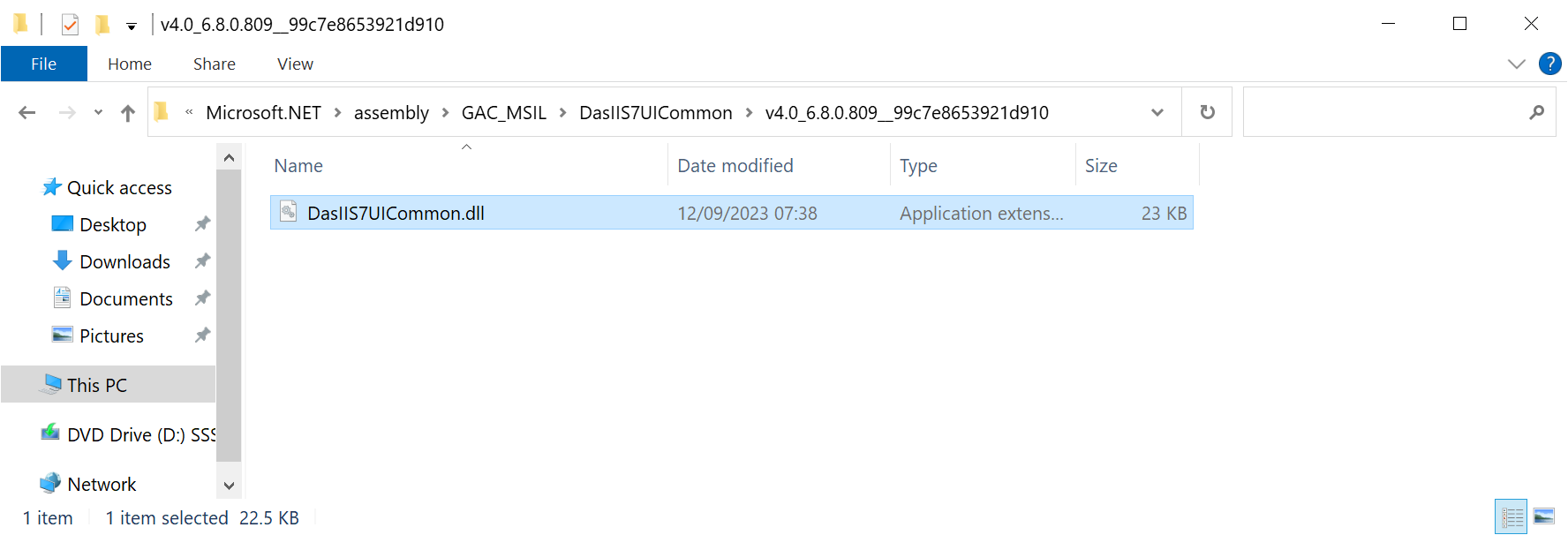
4 - Create a sub folder called "v4.0_6.8.0.809__99c7e8653921d910"

5 - Download the files below:
from: https://download.deepnetsecurity.com/update/IIS%20Agent/
6 - Copy the file "DasIIS7UICommon.dll" to the folder "C:\Windows\Microsoft.NET\assembly\GAC_MSIL\DasIIS7UICommon\v4.0_6.8.0.809__99c7e8653921d910"
7 - Launch the IIS Manager
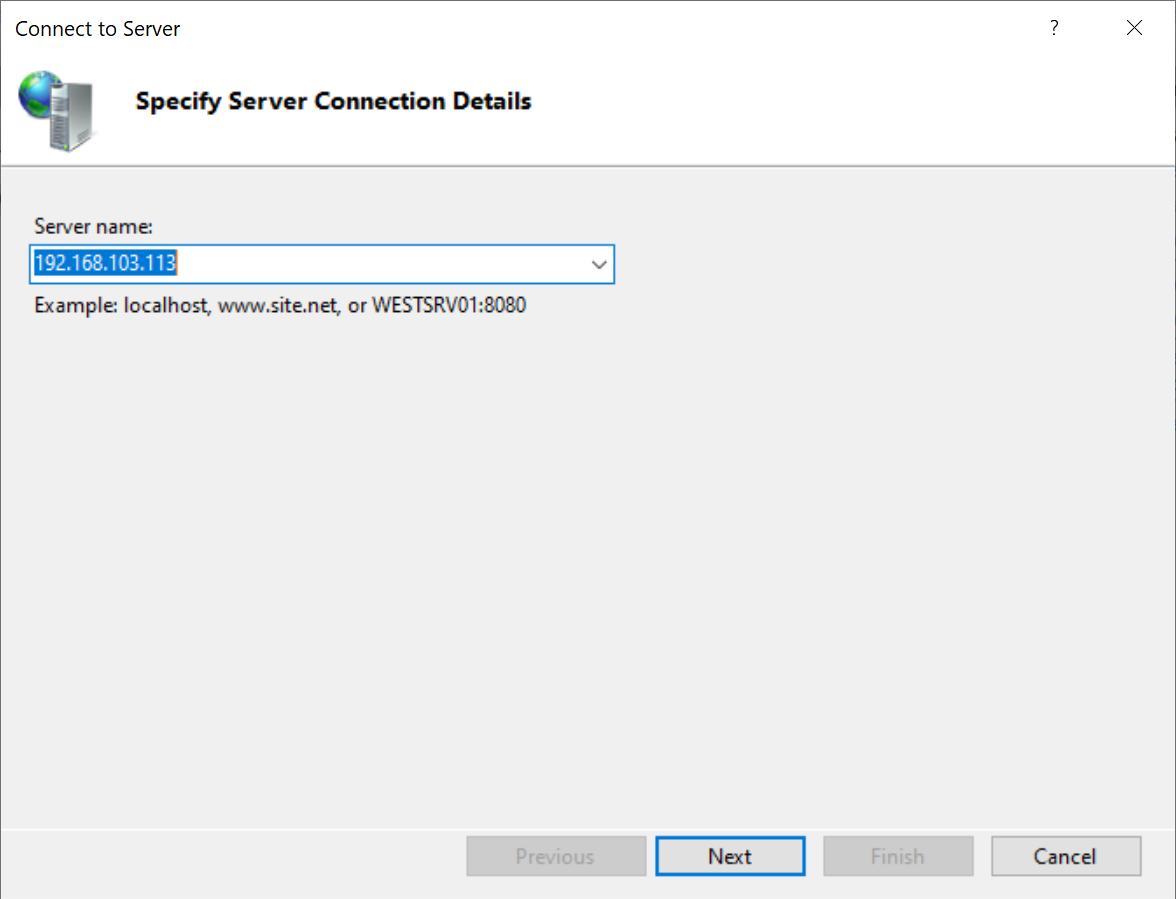
8 - Select "File | Connect to s Server"
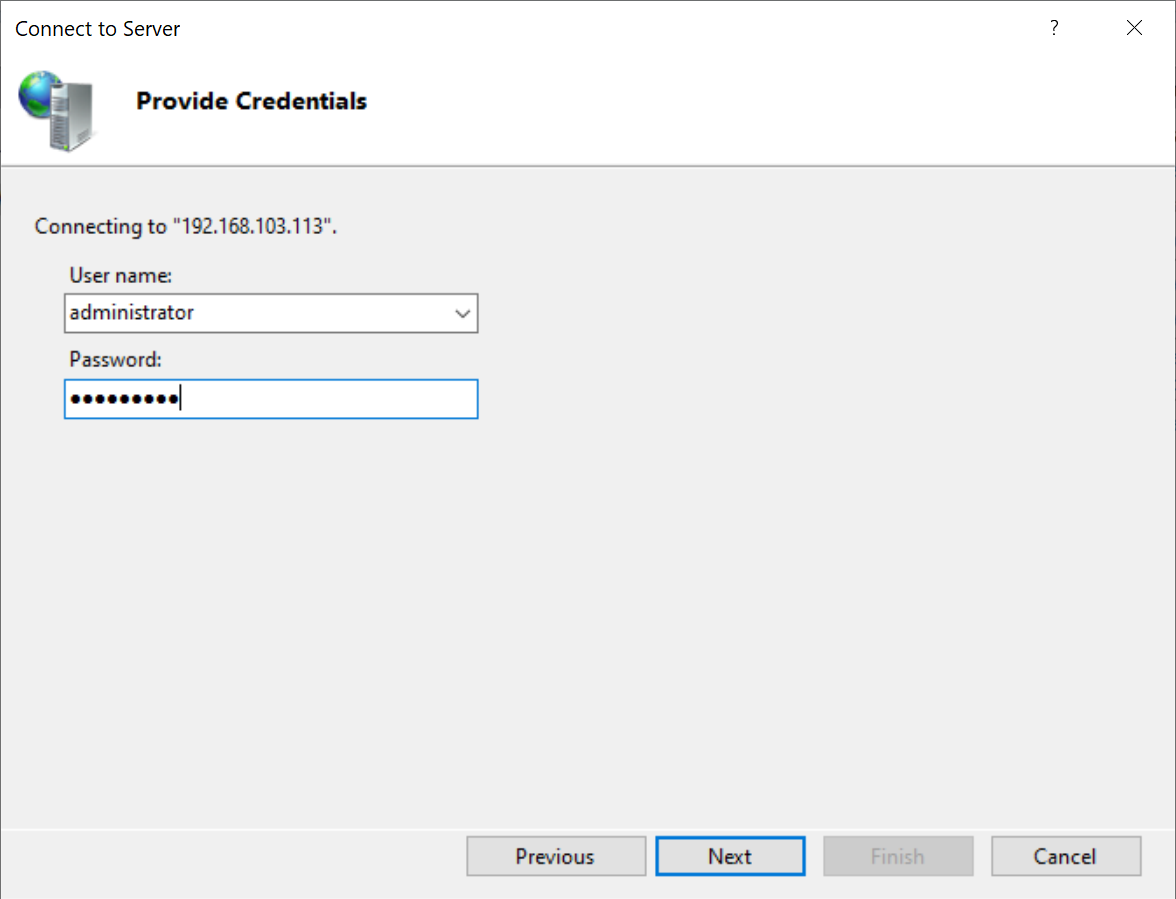
9 - Enter the address of the Server Machine, e.g. 192.168.103.113
You might get a Server Certificate Alert
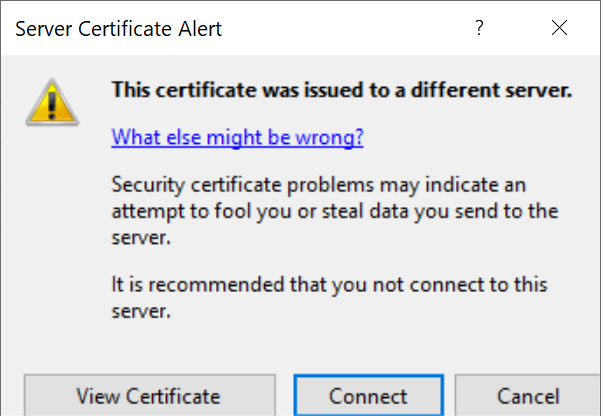
Click "Connect" to continue
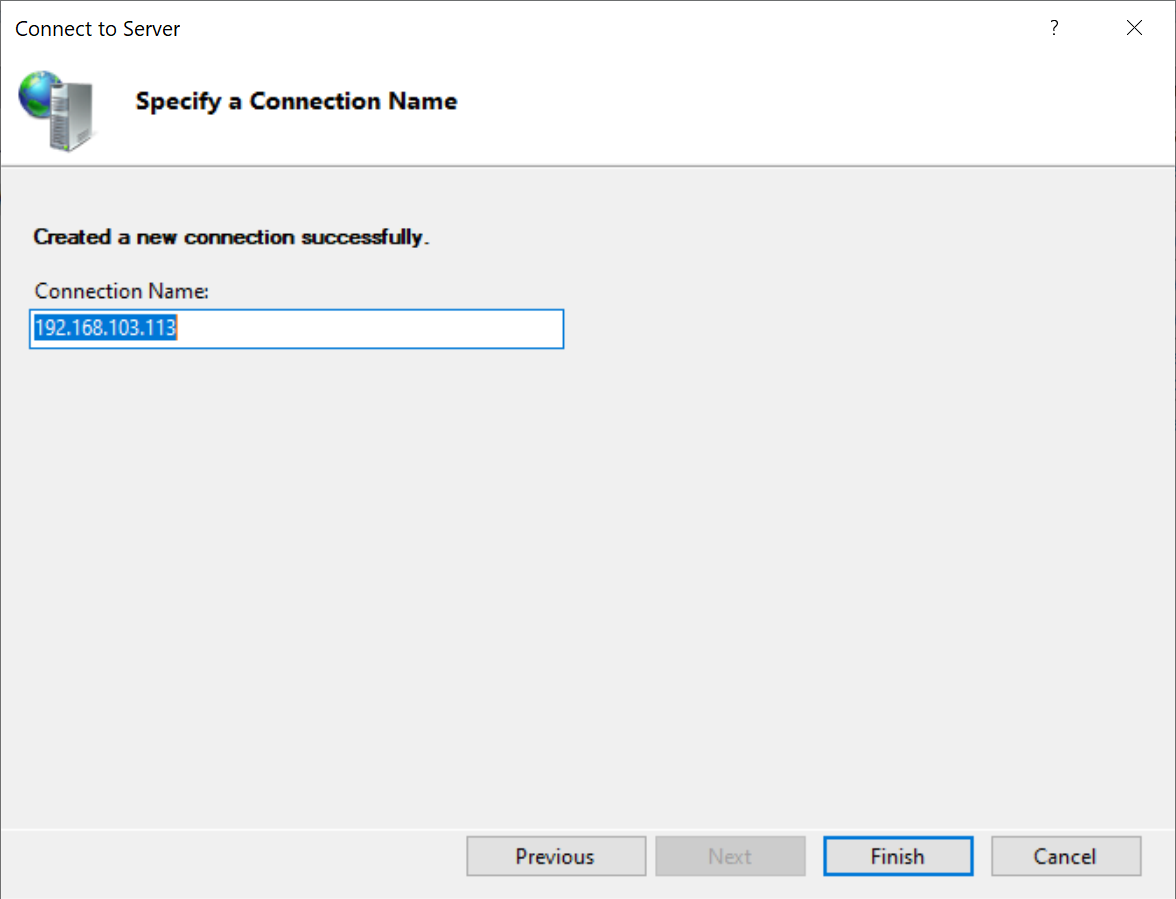
Now, you'll be prompted to install the UI component of the DualShield IIS Agent
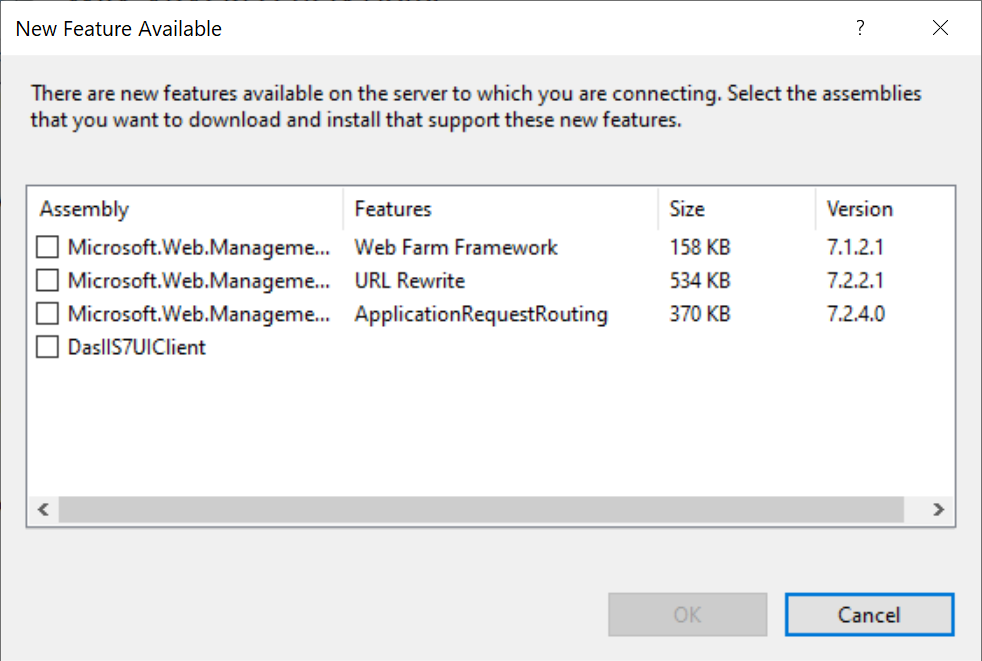
Select "DasIIS7UIClient"
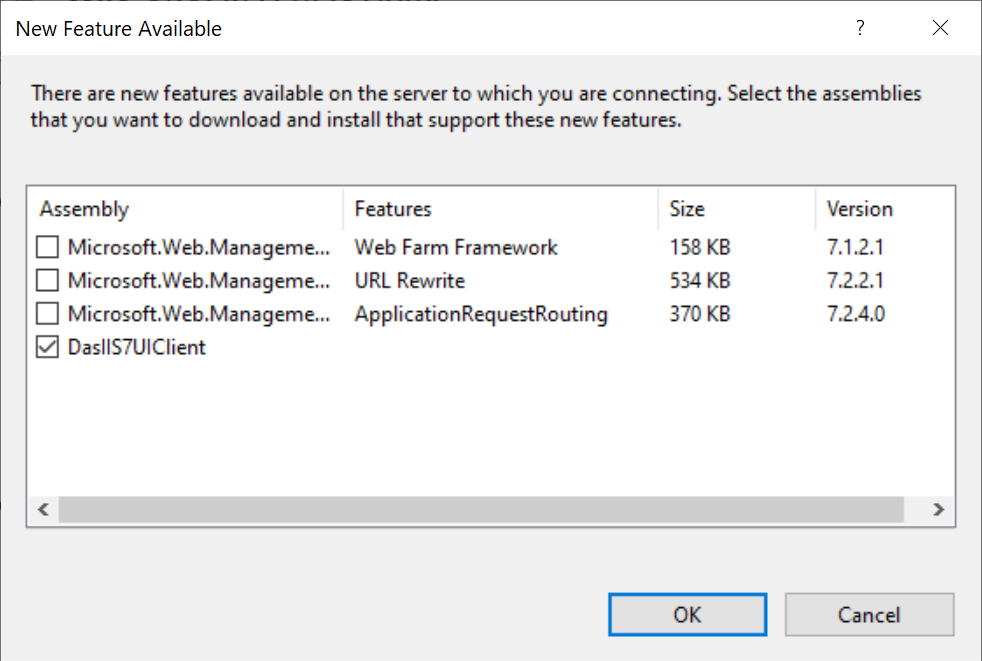
Click "OK" to continue
You might also get the following security warning:
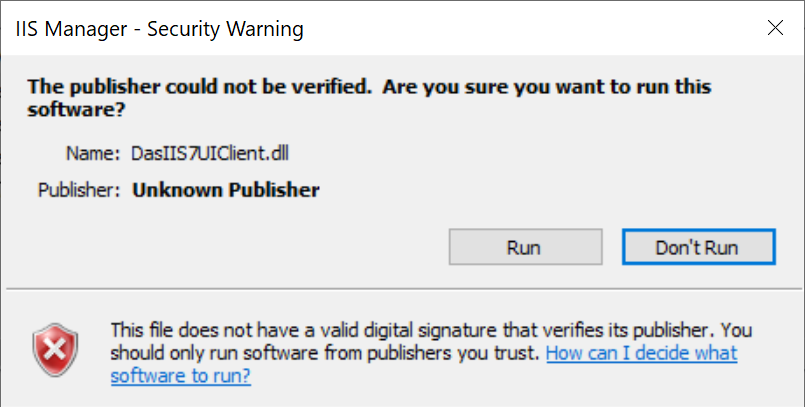
Click "Run"
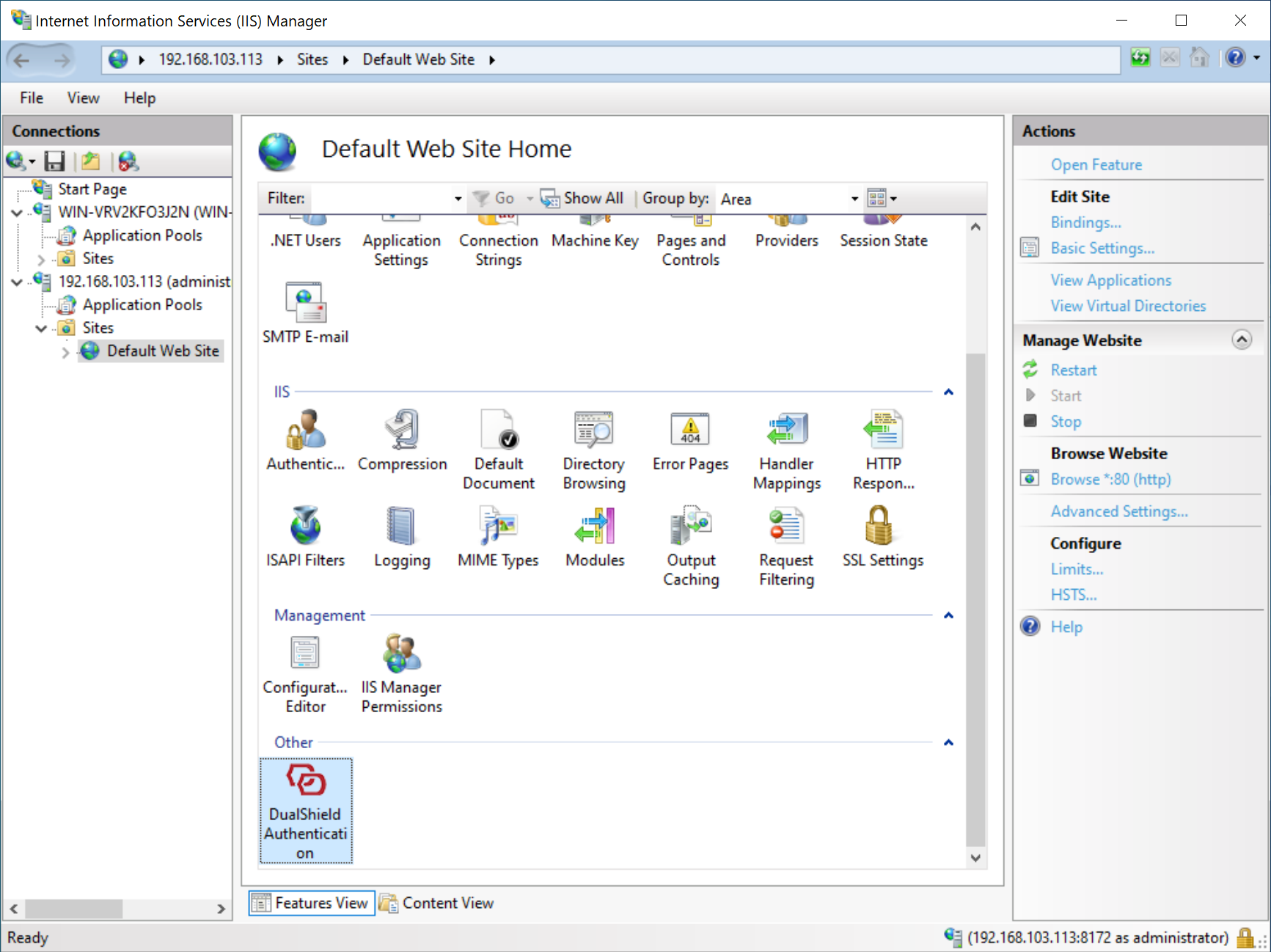
Now, in the IIS Manager, you can access the DualShield IIS Agent on the Server Machine, i.e. 192.168.103.113: