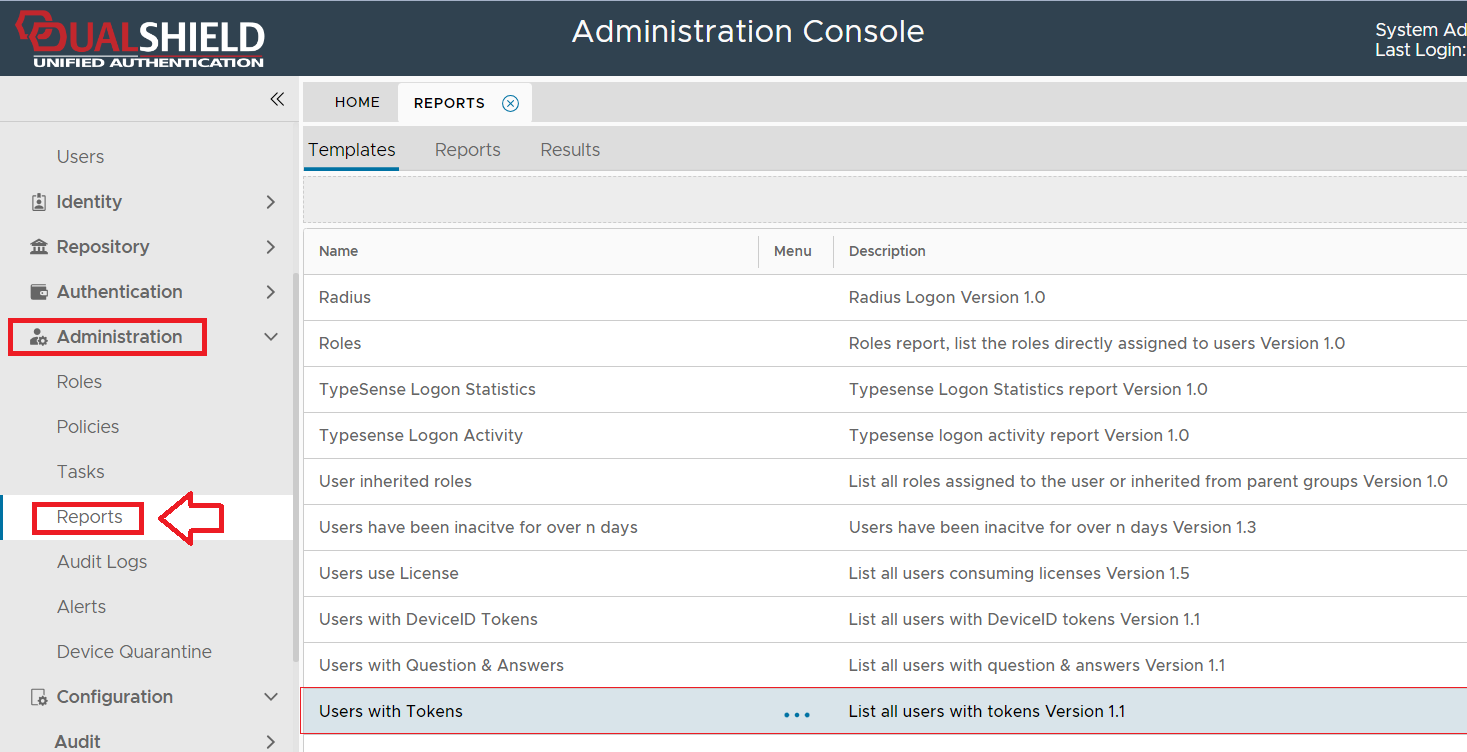
The purpose of the "Users with Tokens" report template is to allow the administrator to create reports that show all users that have tokens.
The report can be found by navigating to "Administration | Reports", then scrolling down to the report "Users with Tokens";
To create a report based on details from the token repository you will need to use the context menu option "Create" for the report template "Users with Tokens" (highlighted template above).
If no conditions are specified, then the report will list details for all tokens in the token repository, but additional conditions can be added that filter which records are included in the report.
Condition filters are added using the "Condition Builder" tool that is used to construct the Query Statement and is employed using the  icon.
icon.
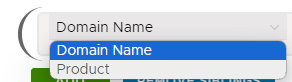
Filters may be applied based on any of the following fields;
Whilst the report can be run manually from the management console, it is possible you might want to schedule the report to run a specific times automatically.
This can be achieved by use the report scheduling option;
The default layout and contents of the report can be customised using the  button.
The purpose of the configuration feature is to specify which of the available field are to be listed in the report columns.
In the following table the items listed as included are listed in the report columns, whilst the optional items are not included in the report;
| Included | Optional |
|---|---|
| Domain | Unit |
| Login Name | Status |
| First Name | Token Status |
| Last Name | Description |
| Tokens | Fail Count |
| Token Serial | Last Change Password |
| Product | |
| Last Login |
The newly created report will now be listed in the "Reports" tab (listed under the name that you gave your report, and should be at the end of the list).
In the following example we will create a report that will search the for all users who have tokens assigned to them with a product type of "MobileID".
|
After the report has been saved and run, we will find that the exported report shows details from the token repository for MobileID time based tokens;

 icon in order to build our query statement;.
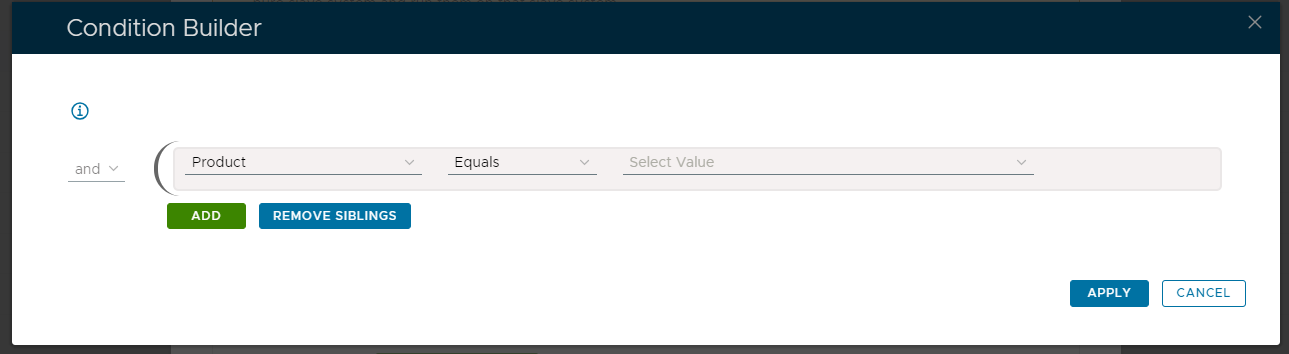

 to build the condition, and the Query Statement parameter is updated;