| Table of Contents |
|---|
Install DualShield Tomcat Valve
Go to our support website Support Website ( http://support.deepnetsecurity.com ) and download the Tomcat 8 Valve zip file.
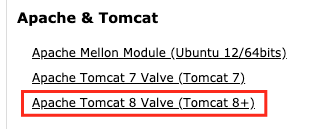

Unzip the file, open it, and copy the jar files to 'lib' folder on you Tomcat server install path.

Create Keystore
Below is the file structure of the sample application. Your Tomcat web application would have a similar file structure.
...
Replace “acme” with your own host or domain name. The alias is used to identify the key pair entry in the keystore, and is used in the next section.
Create Context.xml
In the META-INF folder, if there is no such file called “context.xml”, then use a text editor to create it with the context below:
<Context> <Valve className="org.apache.catalina.authenticator.SamlAuthenticator" keystore="/WEB-INF/keystore.jks" keystorePassword="password" key="acme" keyPassword="password" idp="/WEB-INF/Idp.xml" appId="ApplicationName"> </Valve> </Context> |
Replace the text in red colour accordingly. The value of “key” should be the alias that you provided to the keytool in last section. The value of "appId" should be the application name created in the DualShield management console.

Edit Web.xml
In the WEB-INF folder, open the web.xml file in a text editor and add the following content:
<security-constraint> <web-resource-collection> <web-resource-name>protected</web-resource-name> <url-pattern>/hello.jsp</url-pattern> </web-resource-collection> <auth-constraint> <role-name>*</role-name> </auth-constraint> </security-constraint> <security-role> <role-name>ROLE_USER</role-name> </security-role> |
In which, “/hello.jsp” is the web page that we want to protect with two-factor authentication. “ROLE_USER” is defined in the Service Provider settings in section above.
...