...
For the instruction of how to create realm, domain and identity source, please refer to the DualShield Platform Administration Guide.
Logon Procedure
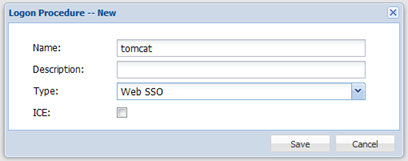
Firstly, create a Web SSO logon procedure, using the "+ CREATE" button in the menu:

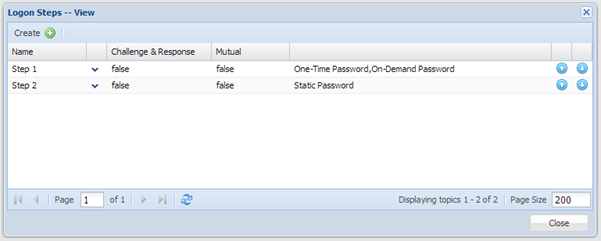
Then, modify its logon steps and add two logon steps, e.g. one-time password and static password:add its Logon Steps. Add Two, for example 'One-Time password' and 'Static Password':

Application
The next step is to create an application Application in DualShield for the Web application in your Tomcat, and publish the application on the DualShield SSO server.


Use the Self-Test function, to verify that the application Application is ready.:

Service Provider
We need to also create a SSO Service Provider for your Tomcat web application.
Select “SSO | Service Providers” and then click “Create” “+ CREATE” button on the toolbar.
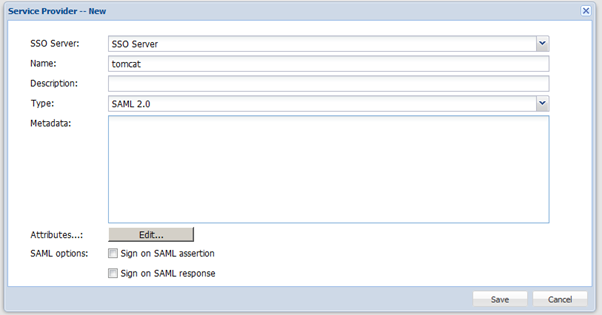

The “Type” of the Service Provider must be set to “SAML 2.0”.
...
For the ACS also replace the text in green, with your own, webapp path name.
<?xml version="1.0" encoding="UTF-8" standalone="yes"?> <EntityDescriptor xmlns="urn:oasis:names:tc:SAML:2.0:metadata" xmlns:saml="urn:oasis:names:tc:SAML:2.0:assertion" xmlns:ds="http://www.w3.org/2000/09/xmldsig#" entityID="http://acme.org:8080/saml/sp"> <SPSSODescriptor AuthnRequestsSigned="false" WantAssertionsSigned="true" protocolSupportEnumeration="urn:oasis:names:tc:SAML:2.0:protocol">
<SingleLogoutService index="0" Binding="urn:oasis:names:tc:SAML:2.0:bindings:HTTP-POST" Location="http://acme.org:8080/logout.jsonp" />
<AssertionConsumerService index="0" Binding="urn:oasis:names:tc:SAML:2.0:bindings:HTTP-POST" Location="http://acme.org:8080/sample/saml_acs" /> <AttributeConsumingService index="0" isDefault="true"> <ServiceName xml:lang="en">Undefined Attribute Service</ServiceName> <RequestedAttribute Name="password" NameFormat="urn:string" FriendlyName="Password" isRequired="false" /> </AttributeConsumingService>
</SPSSODescriptor> </EntityDescriptor> |
Then copy the modified version to the Service Provider creation window in DualShield:


Now, click the “Edit” button next to the “Attributes” label. Then, press “Create” button:
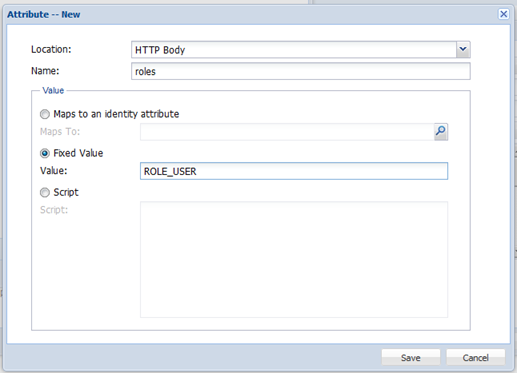

You must add an attribute in the HTTP BODY named “roles” and give it a fixed value. For the purpose of this document, we name the role as “ROLE_USER”, as shown above.
This role will be used in your Tomcat server for the access restriction to the webpages that required two-factor authentication, as explained in section 3.2.3 below.
Finally, enable the option: Sign on SAML assertion.
Download DualShield Idp Metadata
DualShield idp Metadata contains DualShield server's information which need to be import to your Tomcat server under directory /WEB-INF/.
Click on SSO tab, and select Download Idp Metadata.
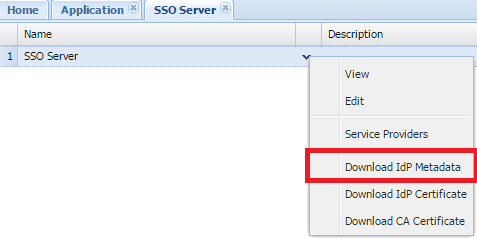
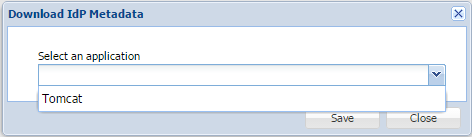
select the application that was created previously.
Select “SSO | SSO Servers. Select the context "..." menu on 'Single Sign-on Server' and select 'Download IdP Metadata':

The Idp metadata is saved as SSO "Single Sign-on Server metadata.xml". This file needs to be transfer to Tomcat to Tomcat server, under directory /WEB-INF/ and rename asrenamed to Idp.xml